EducationSoftwareStrategy.com
StrategyCommunity

Knowledge Base

Product

Community

Knowledge Base

TopicsBrowse ArticlesDeveloper Zone

Product

Download SoftwareProduct DocumentationSecurity Hub

Education

Tutorial VideosSolution GalleryEducation courses

Community

GuidelinesGrandmastersEvents
x_social-icon_white.svglinkedin_social-icon_white.svg
Strategy logoCommunity

© Strategy Inc. All Rights Reserved.

LegalTerms of UsePrivacy Policy
  1. Home
  2. Topics

Update SSL Certificates for a MicroStrategy Cloud Platform in an Azure Environment


Sana Hidayat

Director, Cloud Support Operations • MicroStrategy


This article details how to update SSL certificates for a MicroStrategy Cloud platform in an Azure environment.

Description

When you spin up Azure environments using the Strategy Cloud Console, the template comes with SSL certificates pre-installed. However, in the event the certficates expire, you must have your network team provide new certificates and update them.

Solution

The steps below detail how to update SSL certificates in existing environments.
  • Navigate to the Azure portal at https://portal.azure.com.
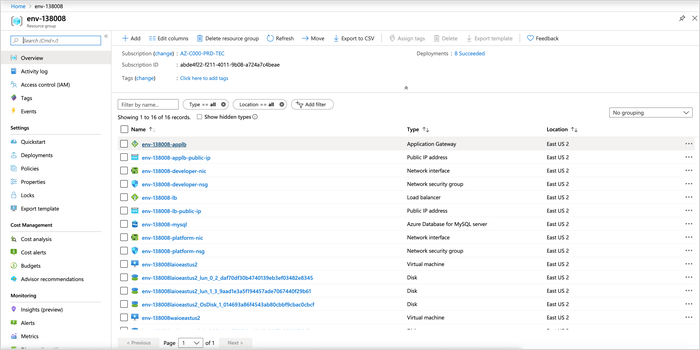
  • Search the resource groups for your cloud environment (env-[environment ID]). 
  • Click Application Gateway.
ka02R000000g4pgQAA_0EM2R000000msU0.jpeg
  • Click Listeners.
ka02R000000g4pgQAA_0EM2R000000mtma.jpeg
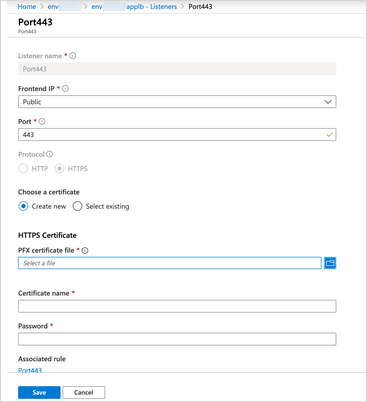
  • Click a port.
ka02R000000g4pgQAA_0EM2R000000mtmB.jpeg
  • Under Choose a certificate, select Create new.
  • Under HTTPS Certificate, select the PFX certificate file.
  • Enter a certificate name
  • Enter your password and click Save.

Comment

0 comments

Details

Knowledge Article

Published:

November 22, 2019

Last Updated:

November 25, 2019