When you spin up an Azure environment using Strategy Cloud Platform, it comes with a SSL pre-installed. It is strongly recommended to change the certificates with your own domain.
Before changing the certificates, ensure that you have following certificates with you:
Please make sure that certificates used in the backend server/machine has Command Name “CN” populated correctly.
1. Go the Application Gateway and ensure that the SKU of the gateway, it should be Standard V2 and WAF 2.

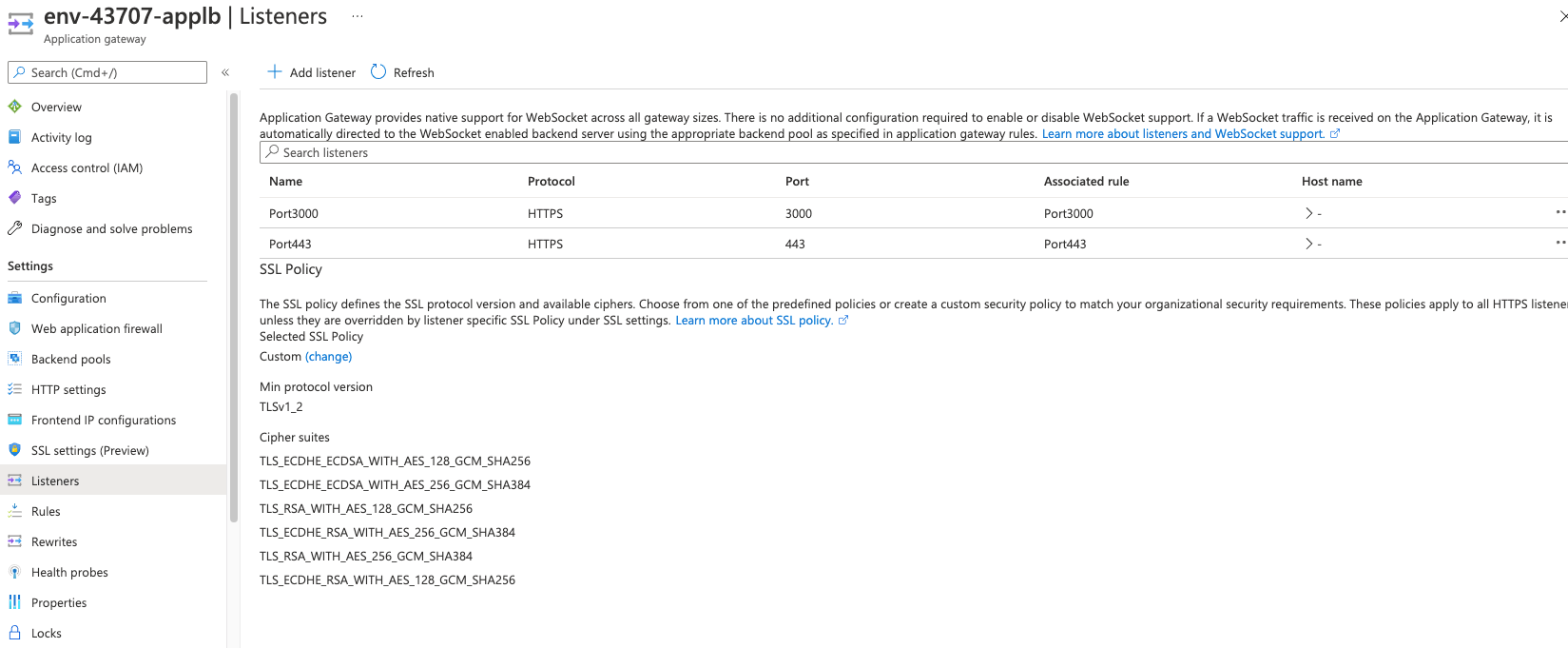
Click on Listeners tab under Settings.
2. On the Listeners, choose the listener, (you need to update certificate for all the listeners).
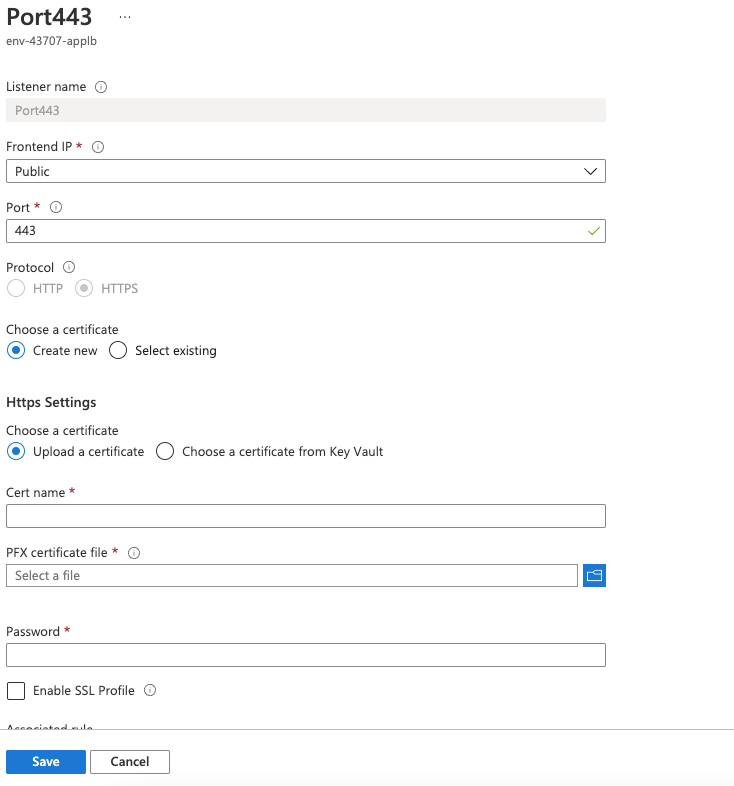
3. On the listener, Port443 for example, click on “Create New” radio button and upload the certificate with appropriate passphrase and hit Save.
Once the certificate is uploaded for one listener, you can select the option “Use existing” on other listeners as certificate is saved on the gateway.
Next step is to update the certificates on machine (backend server). Repeat following steps on all linux machines in case of Enterprise environment. In this step, certificates required to replace are tomcat and collaboration server.
cd /opt/apache/tomcat/latest/
mv /opt/apache/tomcat/latest/keystore /opt/apache/tomcat/latest/keystore.old
keytool -importkeystore -srckeystore <your-cert.pfx> -srcstoretype pkcs12 -srcalias <your-cert-alias> -srcstorepass <your-crt-password> -destkeystore /opt/apache/tomcat/latest/keystore -deststoretype pkcs12 -deststorepass opsworkstomcat -destkeypass opsworkstomcat -destalias tomcatsudo chown mstr:mstr /opt/apache/tomcat/latest/keystore

5. Restart tomcat.
service mstr tomcatrestart
mv -f /opt/mstr/MicroStrategy/install/CollaborationServer/keystore.pfx /opt/mstr/MicroStrategy/install/CollaborationServer/keystore.pfx.old
cp -f <your-crt.pfx> /opt/mstr/MicroStrategy/install/CollaborationServer/keystore.pfx 2sudo chown mstr:mstr /opt/mstr/MicroStrategy/install/CollaborationServer/keystore.pfx
/opt/mstr/MicroStrategy/install/CollaborationServer/confg.jsonand replace
passphrasewith password of
<your-crt.pfx>
sh /opt/mstr/MicroStrategy/install/CollaborationServer/collaborationServer.sh restart
Proceed with this step only if certificates used in Step 2 were self-signed or not signed with popular CA signing authority.
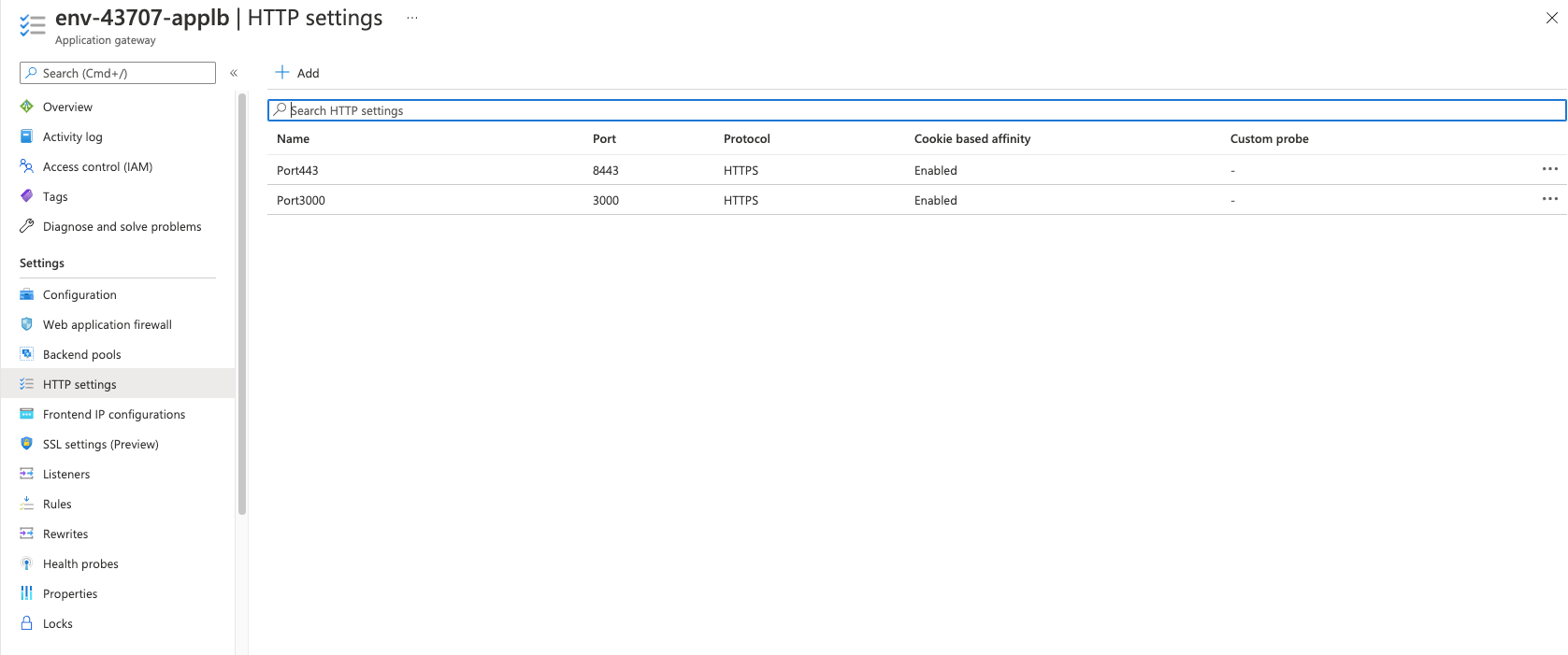
2. Choose HTTP setting to update. Select “No” radio button on “Use Well known CA certificate”. Upload a certificate from local machine and click on “Add Certificate” option.

3. On the same setting, scroll down to update Host settings. Under Host Name, select “Yes” on “Override with new host name” and select option “override with specific domain name”. Enter the specific domain name here.

4. Click Save and update all the Http Settings if required.
If trusted root certificates are uploaded on Http Settings, Azure asks to enter hostname details. Do not choose option “Pick host name from backend target”.
