EducationSoftwareStrategy.com
StrategyCommunity

Knowledge Base

Product

Community

Knowledge Base

TopicsBrowse ArticlesDeveloper Zone

Product

Download SoftwareProduct DocumentationSecurity Hub

Education

Tutorial VideosSolution GalleryEducation courses

Community

GuidelinesGrandmastersEvents
x_social-icon_white.svglinkedin_social-icon_white.svg
Strategy logoCommunity

© Strategy Inc. All Rights Reserved.

LegalTerms of UsePrivacy Policy
  1. Home
  2. Topics

Upgrade Process PPT


Jun Zhu

Product Owner, Principal • MicroStrategy


Outlines the entire upgrade process in a clear concise manner

SYMPTOM:
 
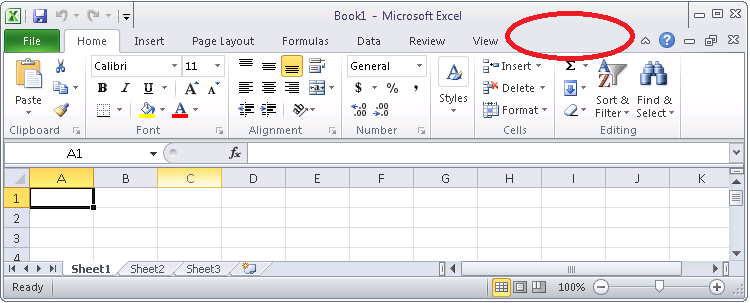
After installing and trying to use Strategy Office 9.4.1, the user does not see the Strategy tab in the ribbon bar of Microsoft Office 2010 applications, as demonstrated in Excel below:
 

ka04W000000Oh5cQAC_0EM4400000026E0.png

 
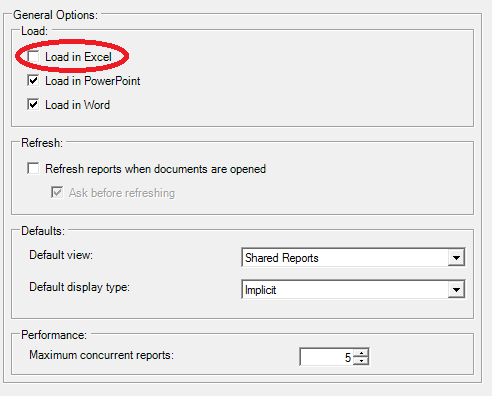
If the user attempts to rectify this issue by going to Strategy Office Configuration, navigating to "General", and checking the "Load in Excel" option, as seen below, the setting is not retained the next time the user opens Strategy Office Configuration.
 

ka04W000000Oh5cQAC_0EM4400000026E2.png

 
This same scenario may also be seen for PowerPoint and Word.
 
CAUSE:
 
One cause of this issue is a faulty installation process that results in the required registry keys not being created. This can be verified by taking the following steps:

  1. Open the Registry Editor.
  2. Navigate to:


    HKEY_LOCAL_MACHINE\SOFTWARE\Wow6432Node\Microsoft\Office\Addins


  3. Notice that there is no "MozartAddIn.MozartAddIn" key, which is required to retain the Strategy plug-in's load behavior settings.

ACTION:
 
This issue can be resolved by manually creating the registry keys and values. To do so, perform the following steps:

  • Open the Registry Editor.
  • Navigate to:


    HKEY_LOCAL_MACHINE\SOFTWARE\Wow6432Node\Microsoft\Office\Excel\Addins
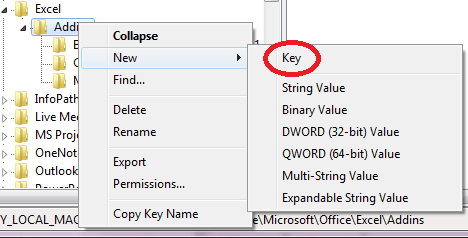


  • Right-click on the Addins folder and choose New > Key, as shown below.
     
ka04W000000Oh5cQAC_0EM4400000026Dz.png
  • Name this new key "MozartAddIn.MozartAddIn".
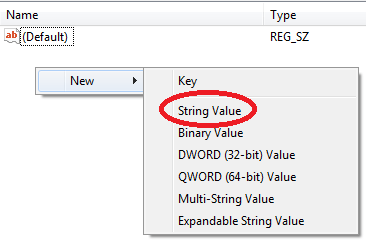
  • Right-click in the right side pane and choose New > String Value, as shown below.
     
ka04W000000Oh5cQAC_0EM4400000026E4.png
  • Name this string value "Description".
  • Right-click on "Description", choose "Modify", and change the value data to:
    
    Strategy Office Excel

     
    Note: change "Excel" to "Word" or "Powerpoint", depending on the product failing to load.
     
  • Click OK.
  • Create another String Value named "FriendlyName" and modify the value of "Data" to read "Strategy Office".
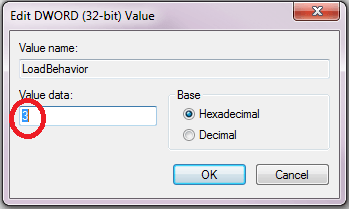
  • Create a new DWORD (32-bit) Value named "LoadBehavior" and modify the value data to "3", as seen below.
ka04W000000Oh5cQAC_0EM4400000026Du.png
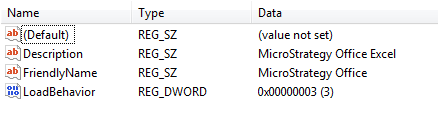
  • The final and newly created keys should look like the image below:
ka04W000000Oh5cQAC_0EM4400000026E8.png
  • Now, after changing the "Load in " settings, the desired setting will be retained, and the Strategy tab will consistently appear in the Microsoft Office ribbon bar.

Registry Modification WARNING:
 
Modifying registry values incorrectly may cause serious, system-wide problems that may require the re-installation of Microsoft Windows NT. Any edit of the registry is done at the user's own risk. Since these are user-initiated changes, they are not covered by any Strategy warranty. If using Microsoft Windows NT, the user should backup the registry and/or update an Emergency Repair Disk (ERD) prior to alterations.


Comment

0 comments

Details

Example

Published:

June 7, 2017

Last Updated:

June 7, 2017