Starting with the release of Strategy ONE (March 2024), dossiers are also known as dashboards.
The script I am presenting below is using two popular Python libraries: pandasai and mstrio
You need to provide credentials of your Strategy user and OpenAI API key.
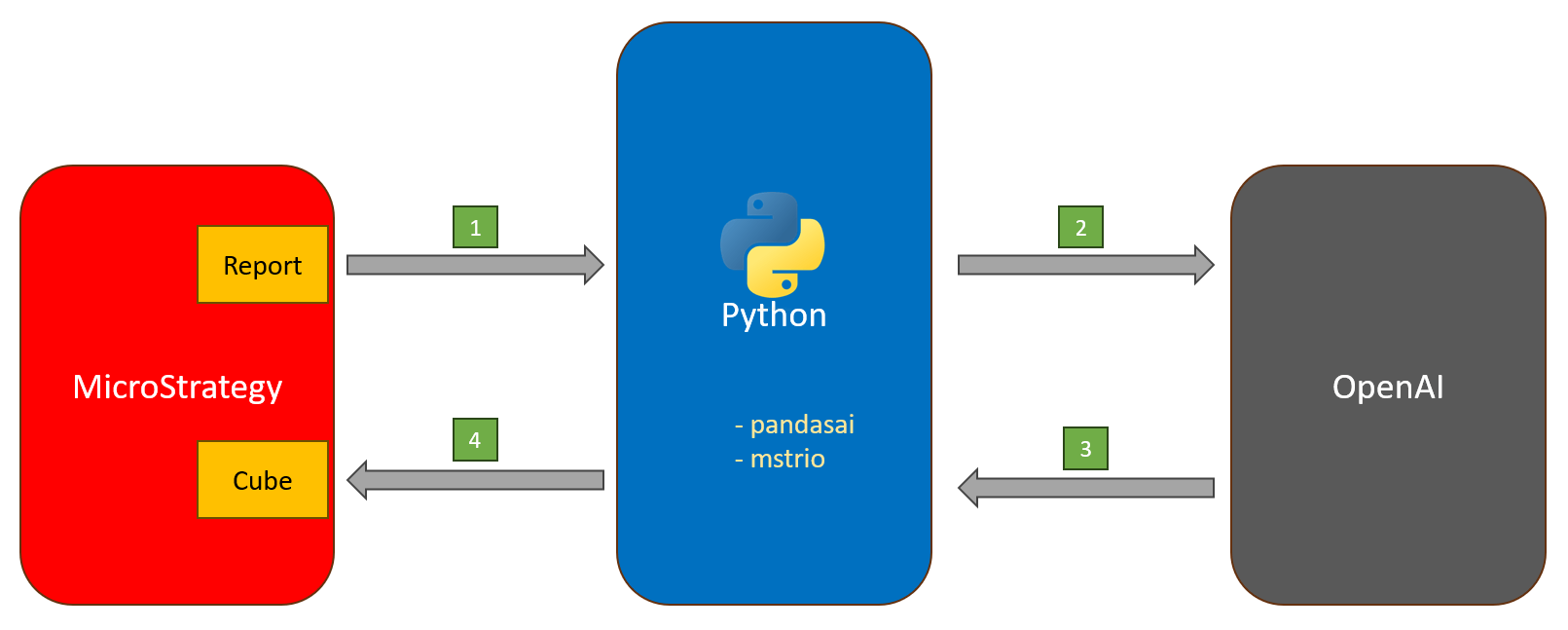
This is the workflow of the script:
1. Python connects to Strategy and downloads data from a Report. It can also be a Cube or a visualization from dossier.
2. Python sends the data to OpenAI. Included is also the prompt. You may experiment a bit with the text until you get a prompt that works OK
3. OpenAI executes the prompt, transforms the data and sends the dataframe back to Python
4. Python pushes the data to Strategy cube.
Please note - I've added color formatting in the code below (http://hilite.me/ ). Code copied from here might not work due to indentation issues. In that case, use attached file with sample code. Also this CRM is adding ';' after URLs.
from pandasai import SmartDataframe
from pandasai.llm import OpenAI
from mstrio.project_objects import SuperCube, Report
from mstrio import connection
import getpass


# ## Connect to MSTR
conn = connection.Connection(
    base_url="https://env-XXXXX.customer.cloud.Strategy.com/StrategyLibrary/",
    username="XYZ",
    password=getpass.getpass(prompt='MSTR Password '),
    login_mode=1,
    project_name="Strategy Project"
)
# You can download data from a Report, Cube or even from a particular visualization within Dossier
rpt = Report(conn, 'XYZXYZXYZXYZXYZXYZXYZXYZXYZXYZ')
df = rpt.to_dataframe()
print(df.head())

# ## Instantiate a LLM
OPENAI_API_KEY    = getpass.getpass(prompt='OPENAI_API_KEY ')

llm = OpenAI(api_token=OPENAI_API_KEY)
#llm = OpenAI(api_token=OPENAI_API_KEY, model="gpt-4")
dfsm = SmartDataframe(df, config={"llm": llm})


# Prompt defines what we want to achieve. It can be writen in "human language", but sometimes we need to add more details about the steps needed to fulfill the task
prompt = """
I want to generate new data for year 2017. Copy data from year 2016 to a new table Table2. In Table2 change values in both Month columns to year 2017.
In Table2 apply the following changes to column Revenue: decrase the numbers for category Books by 10% and increase the other numbers by 4%
Merge the two tables.
"""

# This prompt is even more precisely listing all the steps in the right order. Use it when OpenAI is not delivering the right results
# It happened to me often that the steps were performed in the wrong order
prompt = """
I have a dataframe with historical data with entries for 2016 and other years. I would like to use this data to generate new records for the year 2017.
Please follow these steps in the given order:
1. Create a new table called 'Table2' by copying only the data from the year 2016.
2. In 'Table2', change data in both 'Month' columns to dates from 2017.
3. Apply the following changes to the 'Revenue' column in 'Table2':
   - For the category 'Books', decrease the values by 10%.
   - For all other categories, increase the values by 4%.
4. Once these transformations are complete, merge 'Table2' back into the original dataframe to include the newly generated data for the year 2017.
5. Add the 'Year' column to the merged table based on Month.
Please execute these steps exactly as described and maintain the integrity of all other data and columns.
"""

response=dfsm.chat(prompt)
response.dataframe.tail()

# ## Upload data to MSTRm
ds = SuperCube(connection=conn, name="Forecast_RP")
ds.add_table(name="Budget", data_frame=response.dataframe, update_policy="replace")
ds.create(force=True)

# disconnect
#conn.close()
