EducationSoftwareStrategy.com
StrategyCommunity

Knowledge Base

Product

Community

Knowledge Base

TopicsBrowse ArticlesDeveloper Zone

Product

Download SoftwareProduct DocumentationSecurity Hub

Education

Tutorial VideosSolution GalleryEducation courses

Community

GuidelinesGrandmastersEvents
x_social-icon_white.svglinkedin_social-icon_white.svg
Strategy logoCommunity

© Strategy Inc. All Rights Reserved.

LegalTerms of UsePrivacy Policy
  1. Home
  2. Topics

KB483768: Using the Google Drive connector results in the error: “No external session was found for the given external source ID.”


Community Admin

• Strategy


This article explains how to resolve the error "No external session was found for the given external source ID” when importing data from Google Drive.

Description


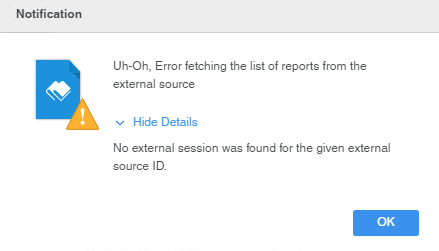
Using the Google Drive connector to import data results in the following error after logging in to an account.
Uh-Oh, Error fetching the list of reports from the external source. No external session was found for the given external source ID.
ka04W000001IwvqQAC_0EM2R000000mdRJ.jpeg

Why is this happening?


It's possible the firewall on the Intelligence Server machine is blocking the communication between the Intelligence Server and Google Drive. Alternatively, your default system web browser may not be able to support the connection.

Solution


There are two ways to resolve this error: by modifying the domains allowed through the firewall, or by enabling the proxy in the proxy.json file of the Intelligence Server.

Modifying the Firewall


To use Google Drive, allow communication between the Intelligence Server and the following domains:

  • accounts.google.com
  • www.googleapis.com
  • clientservices.googleapis.com
  • safebrowsing.googleapis.com

Modifying the proxy.json File


Another solution is to modify the proxy.json file to enable the proxy. By default, the values in this file are set to FALSE. So you will need to navigate to your proxy.json file to change them.
To locate your proxy.json file, navigate to:
Windows: 
C:\Program Files (x86)\Common Files\Strategy
Linux: 

$MSTR_INSTALL_DIR/, by default  in /opt/MicroStrategy/

Workstation: 
C:\Program Files (x86)\Common Files\MicroStrategy\Workstation
For steps on how to modify these settings, see How to Configure a Proxy.
If you still experience the error after performing either of these solutions, change your system's default web browser to Chrome or Internet Explorer.


Comment

0 comments

Details

Knowledge Article

Published:

November 1, 2019

Last Updated:

November 1, 2019