EducationSoftwareStrategy.com
StrategyCommunity

Knowledge Base

Product

Community

Knowledge Base

TopicsBrowse ArticlesDeveloper Zone

Product

Download SoftwareProduct DocumentationSecurity Hub

Education

Tutorial VideosSolution GalleryEducation courses

Community

GuidelinesGrandmastersEvents
x_social-icon_white.svglinkedin_social-icon_white.svg
Strategy logoCommunity

© Strategy Inc. All Rights Reserved.

LegalTerms of UsePrivacy Policy
  1. Home
  2. Topics

KB483819: Using the Jira Cloud connector on IBM WebSphere results in a certificate chaining error


Jianglong Ma

Software Engineer, Principal • MicroStrategy


This article explains why using the Jira Cloud connector on IBM WebSphere may result in a certificate chaining error. This article provides a solution to this error, however, if the solution does not resolve the error, please contact IBM WebSphere support.

Description 


While using the Jira Cloud connector on IBM WebSphere, an error appears when loading data and the data fails to load.
Using Dev Tools on Google Chrome, the following error appears in the network panel:

com.ibm.jsse2.util.h: PKIX path building failed: java.security.cert.CertPathBuilderException: PKIXCertPathBuilderImpl could not build a valid CertPath.; internal cause is: \n\tjava.security.cert.CertPathValidatorException: The certificate issued by CN=DigiCert High Assurance EV Root CA, OU=www.digicert.com, O=DigiCert Inc, C=US is not trusted; internal cause is: \n\tjava.security.cert.CertPathValidatorException: Certificate chaining error

Why is this happening?


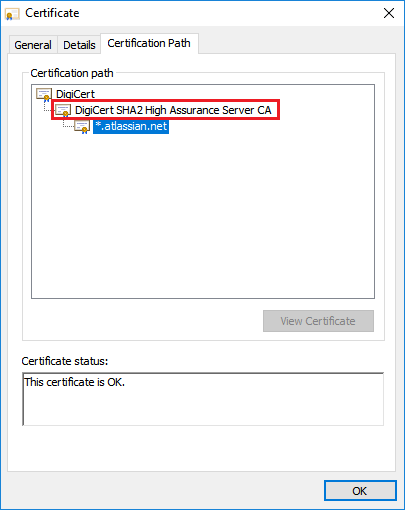
An intermediate certificate for Jira Cloud is not in IBM WebSphere's JVM trust store. IBM WebSphere requires all the chaining certificates, including intermediate certificates, be in the trust store. Not having these certificates in the trust store causes the certificate validation to fail.
Below is the certificate chain of Jira Cloud. The certificate used by Jira Cloud is not issued directly by a root CA. Instead, there is an intermediate certificate.
ka02R000000g4rcQAA_0EM2R000000mvQH.jpeg

Solution


This is an IBM specific problem. As such, the following solution may not apply to all customer environments using IBM WebSphere.
It's recommended to consult with IBM WebSphere support if the following steps do not resolve the error.
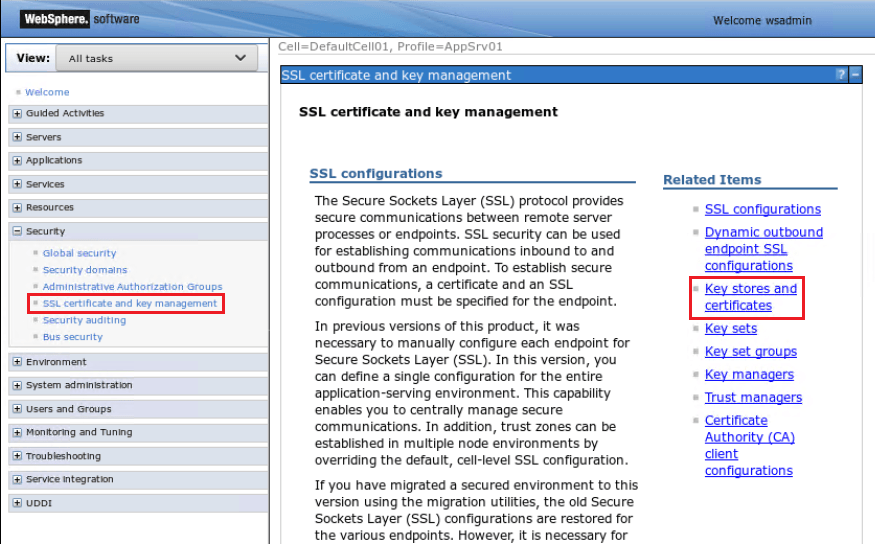
 

  • Log in to your IBM WebSphere account.
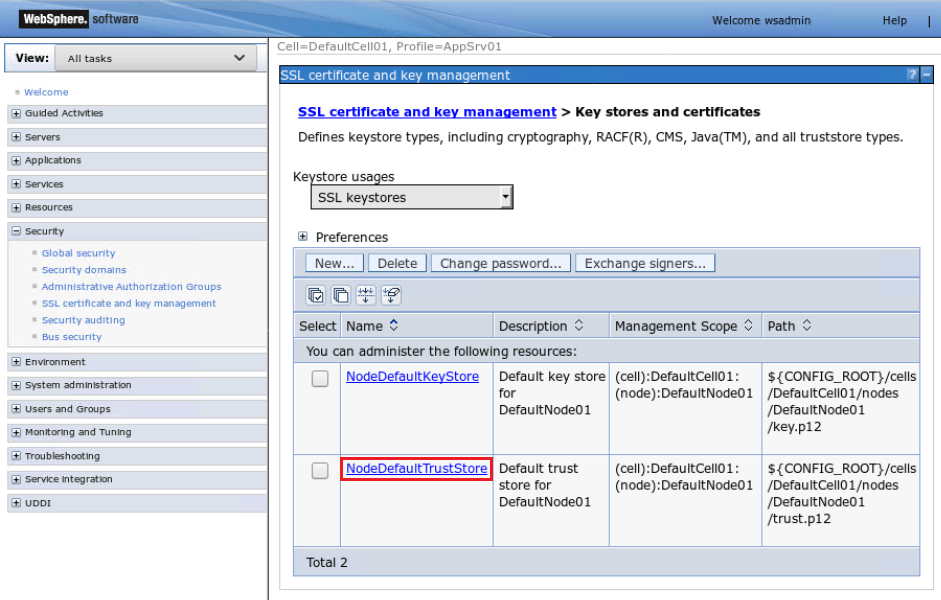
  • Under Security, select SSL certificate and key management.
  • Click Key stores and certificates. 
ka02R000000g4rcQAA_0EM2R000000mvLv.jpeg
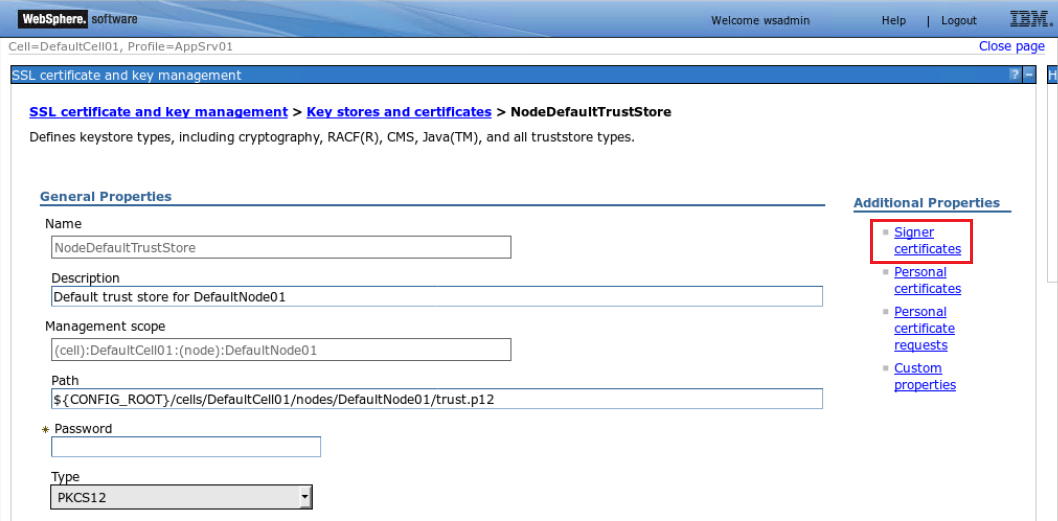
  • Click NodeDefaultTrustStore.
ka02R000000g4rcQAA_0EM2R000000mvMA.jpeg
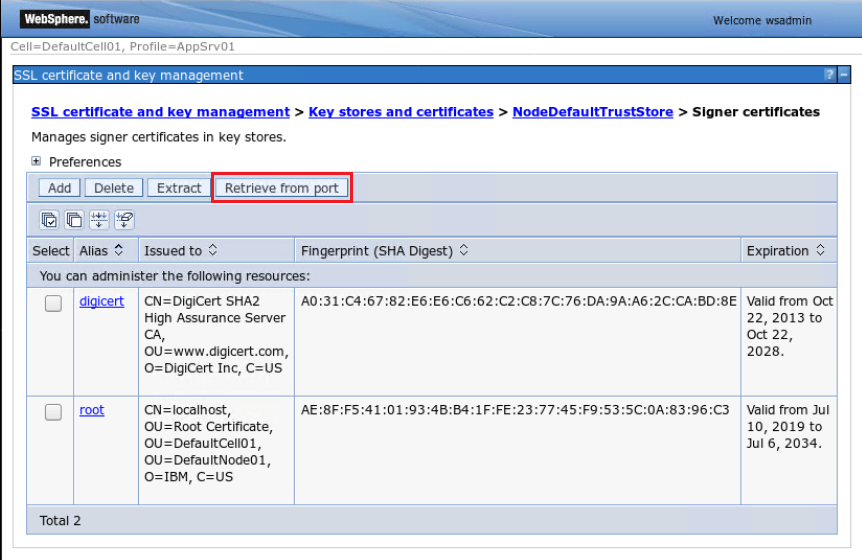
  • Under Additional Properties, click Signer certificates.
ka02R000000g4rcQAA_0EM2R000000mvMF.jpeg
  • Click Retrieve from port to add a certificate. 
ka02R000000g4rcQAA_0EM2R000000mvMK.jpeg
  • Enter the necessary information under General Properties.
    • Host: Enter the Jira project path.
    • Port: 443
    • Alias: Enter an alias of your choice. 
ka02R000000g4rcQAA_0EM2R000000mvMZ.jpeg
  • Click Retrieve signer information to test.
  • Click Save.
  • Restart the server.

Comment

0 comments

Details

Knowledge Article

Published:

November 26, 2019

Last Updated:

November 26, 2019