EducationSoftwareStrategy.com
StrategyCommunity

Knowledge Base

Product

Community

Knowledge Base

TopicsBrowse ArticlesDeveloper Zone

Product

Download SoftwareProduct DocumentationSecurity Hub

Education

Tutorial VideosSolution GalleryEducation courses

Community

GuidelinesGrandmastersEvents
x_social-icon_white.svglinkedin_social-icon_white.svg
Strategy logoCommunity

© Strategy Inc. All Rights Reserved.

LegalTerms of UsePrivacy Policy
  1. Home
  2. Topics

KB441783: When creating large derived element custom group in developer the error returns "Execute Parameterized Query failed"


Alexander Nelson

Support Engineer • Strategy


This Knowledge base article describes how large custom groups with attributes without any parental relation may stall when being used in developer

SYMPTOM
When creating groups for a specific attribute and then having a report that run off a cube. The cube publishes okay with about 500,000 rows returned. However, when executing the report, it does errors out in Developer since it looks like Developer is unable to display this amount of result. In Web the report runs fine. 
The report in recreations returns almost 500,000 rows. When we select an attribute from the results, and create two separate groups for derived elements and executing this the process stalls due to how slow it is. 
STEPS TO REPRODUCE
1. Create a custom group to return over 500,000 rows
2. Add the custom group to a report.
3. Attempt opening the report in developer 
CAUSE
This is related to the attribute parental relationship in the custom group created.
ACTION
This issue was reviewed by our Technology team for feasibility and will not be scoped for a code fix in any upcoming Strategy release.
WORKAROUND
Steps to create the Custom group using Datamart
  1. Create a parent attribute P_A09d by defining it through datamart report. The datamart report should be constructed as follows:
    • Create a Custom group (instead of Derived Element), that return over 500,000 rows
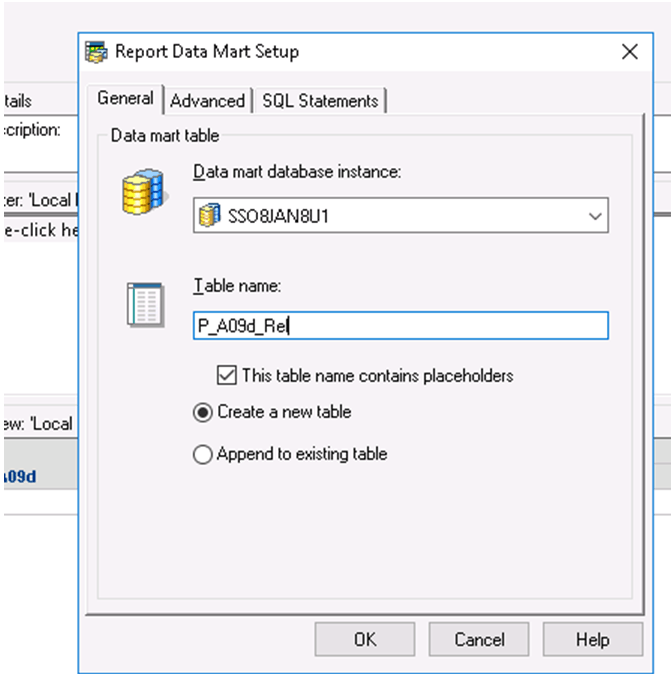
  • Create a Datamart Report with the custom group P_A09d and A_09d, let’s call the table as: P_A09d_Rel
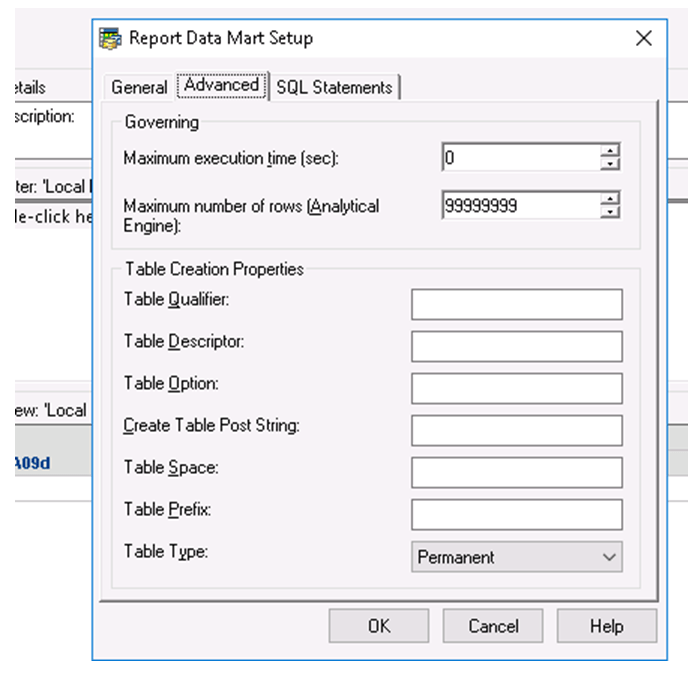
  • Before you run the datamart report, go to configure datamart and change the setting for maximum result rows from 65536 to 99999999
ka044000000kOwfAAE_0EM44000000QqG9.png
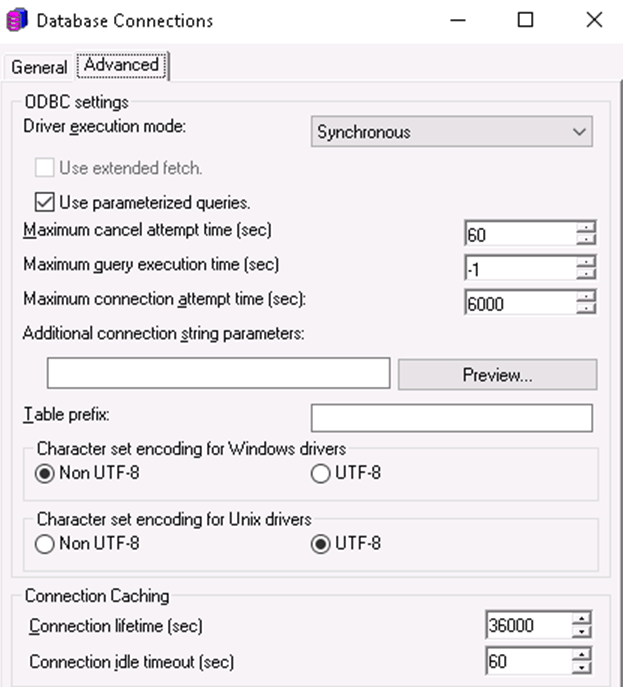
  • Also enable the parameterized inserts at the WH DB instance level
ka044000000kOwfAAE_0EM44000000QqGE.png
  • Run the Datamart report to populate the table and choose the WH DB instance
ka044000000kOwfAAE_0EM44000000QqGJ.png
  • Import table into the WH Catalog.
  • Using DB query tool run the query select top 10 * from P_A09d_Rel table.
  • Using MSTR developer, define attribute Parent_A09d from P_A09d_Rel table, and define it as the parent of A_09d.

3. Modify the Cube to include attribute P_A09d. Since attribute P_A09d is a parent of A_09d, additional parent attribute should keep the Cube to have the same number of rows.
 

  • Create a view report using the new P_A09d attribute on the grid.
  • Once the Cube is republished, the performance of the Dashboard should be very fast.


KB441783


Comment

0 comments

Details

Knowledge Article

Published:

September 18, 2018

Last Updated:

January 3, 2019