EducationSoftwareStrategy.com
StrategyCommunity

Knowledge Base

Product

Community

Knowledge Base

TopicsBrowse ArticlesDeveloper Zone

Product

Download SoftwareProduct DocumentationSecurity Hub

Education

Tutorial VideosSolution GalleryEducation courses

Community

GuidelinesGrandmastersEvents
x_social-icon_white.svglinkedin_social-icon_white.svg
Strategy logoCommunity

© Strategy Inc. All Rights Reserved.

LegalTerms of UsePrivacy Policy
  1. Home
  2. Topics

KB483899: Working with Compound Grids in MicroStrategy 2020


Cheng Guo

Product Owner, Principal • Strategy


This article highlights the features and limitations of the Compound Grid visualization introduced in MicroStrategy 2020.

Starting with the release of Strategy ONE (March 2024), dossiers are also known as dashboards.
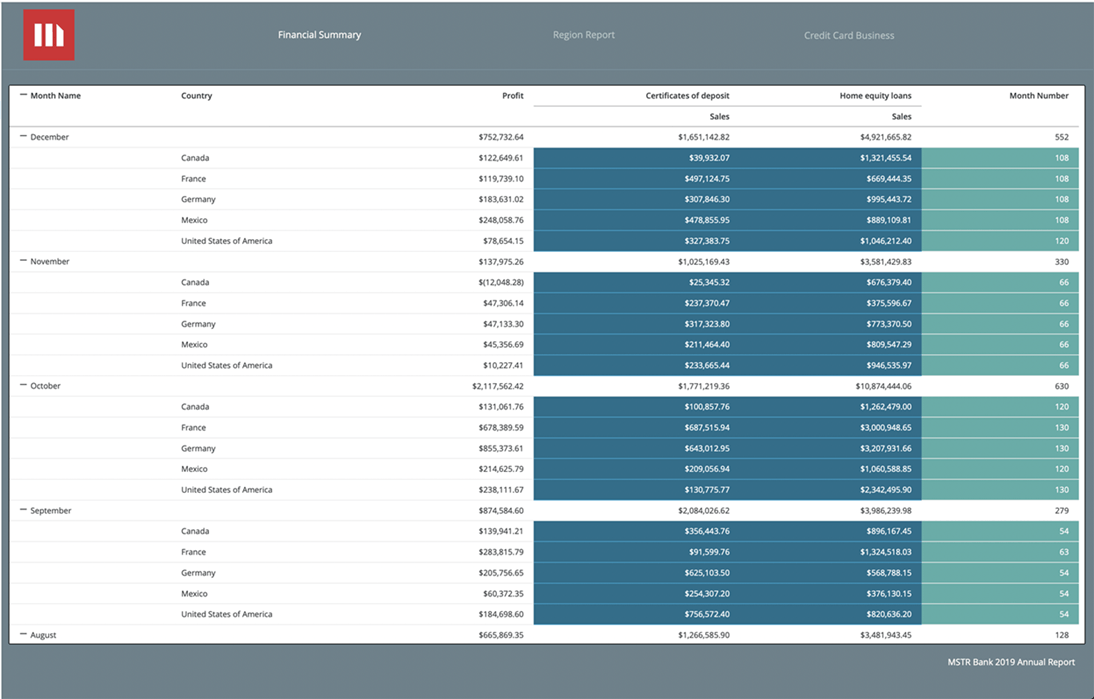
The Compound Grid is a new visualization introduced in the Strategy 2020 release. This visualization allows you to create a grid that analyzes different aspects of data across a common dimensions or attributes in rows. This means you can have multiple unrelated attributes and metrics in different sets of columns that are then stitched together in one grid and displayed seamlessly. Furthermore, each column set can display various data levels for a common dimension or attribute with the application of thresholds, advanced filters, and formatting to individual column sets. 
ka0PW0000001JaxYAE_0EM2R000000nDI7.jpeg

Due to the complexities of the grid, there are some limitations that exist with the first release of the Compound Grid visualization. Below are known limitations experienced when working with Compound Grids in Strategy 2020:
 

  • You cannot double click on objects in the Datasets panel to add them to the Compound Grid.

    To add objects, you must drag the objects into the row or column sets in the Editor Panel drop zones. Objects cannot be placed directly into the visualization. 
     
  • Recursive and hierarchical attributes are not supported in Compound Grids.
     
  • Metrics cannot be added to the Rows drop zone because metrics are not supported in rows. 
     
  • The ability to pivot a grid is disabled in both the Editor Panel and the visualization context menu. 
     
  • You can only clear the grid by removing objects individually and/or deleting column sets.
     
  • When converting a Grid to a Compound Grid, only the attributes in rows, and metrics and attributes in columns will be kept. Metrics in rows will be discarded upon converting to a Compound Grid because metrics are not supported in the rows of Compound Grids.
     
  • When converting a Compound Grid to another visualization, only attributes in rows, and attributes and metrics in the first column set will be kept. Metrics in rows will be discarded upon converting to a Compound Grids because metrics are not supported in the rows of Compound Grids. 
     
  • You may see column sets with duplicate names if columns sets were previously deleted. In this case, you can rename the column sets.
     
  • Ability to perform advanced sorting is disabled.
     
  • When sorting in presentation mode or viewing the grid in Strategy Library, sorting attributes in column sets is not exposed. 
     
  • When filtering, you cannot use the Compound Grid as the source for targeting other visualizations. 
     
  • When using the advanced filter, you cannot delete the tab for the first column set.
     
  • You cannot apply thresholds to the attributes in the rows. Thresholds can only be applied to objects in column sets.
     
  • You can apply formatting by column sets for column headers and values. When formatting column headers, the attributes in the rows' column headers always reflect the formatting of the first column set.

    Additionally, new column sets will not reflect the formatting settings applied in General Settings, as well as all column sets for column headers and values. These newly added columns sets will display the default setting of the dossier's theme.
     
  • You cannot manually resize columns or apply Grid Size formatting options from the General Settings menu in the Format Panel because these options are disabled. 
     
  • When performing Show Data operations, you can show data from within the Compound Grid by selecting cells, right-clicking the selection, and selecting Show Data.

    Only data for the specific column set, plus the shared attributes, is displayed. The option to view data for the entire Compound Grid is disabled. 
     
  • You cannot duplicate, copy, or move Compound Grids.
     
  • Query details are unavailable. 
     
  • When converting a dossier with Compound Grids to a document, only the first column set will be kept. All other column sets will be discarded. 

Comment

0 comments

Details

Knowledge Article

Published:

December 18, 2019

Last Updated:

March 21, 2024