Strategy Platform Administrators can use Workstation to view and edit the out-of-the-box Intelligence Server governing properties and settings as desired to ensure that their systems are performing optimally to meet the demands of end users. Through Workstation, you can now easily manage Server level settings, such as job limit, memory consumption, and more. Unlike Developer, Workstation will provide an interface that is much more intelligent and surface only those settings that are relevant with visual cues to explain impacts of the various settings and properties.
This functionality in Workstation is controlled via user privileges, similar to other administrative features. The specific logic of privilege check follows a simple workflow that ensures users who do not have the required privileges will not have access to this functionality, thus preventing the possibility of misconfiguring the environment or altering any server level settings.
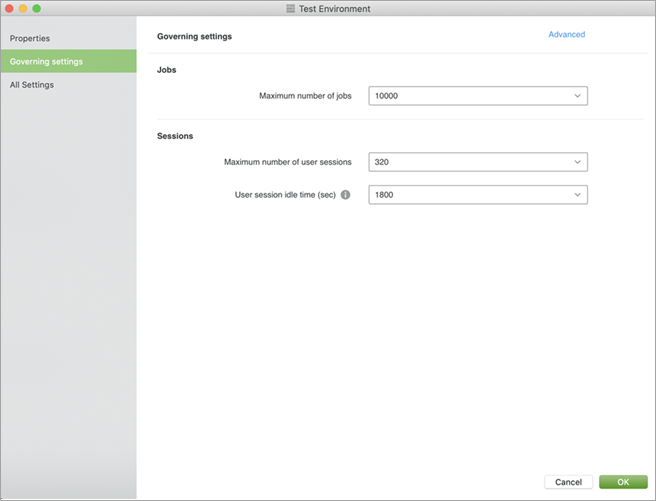
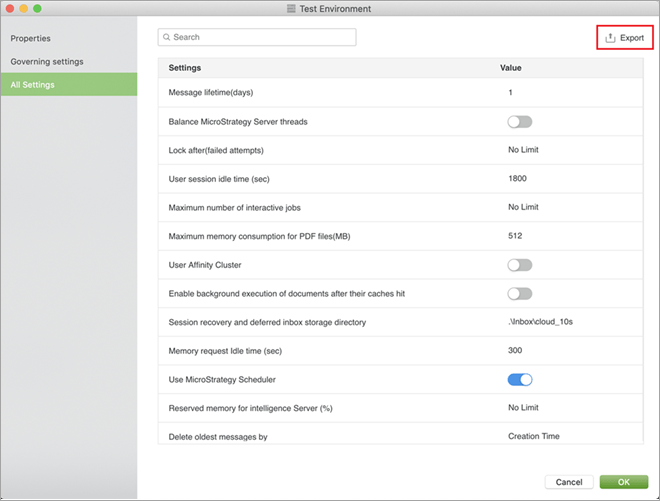
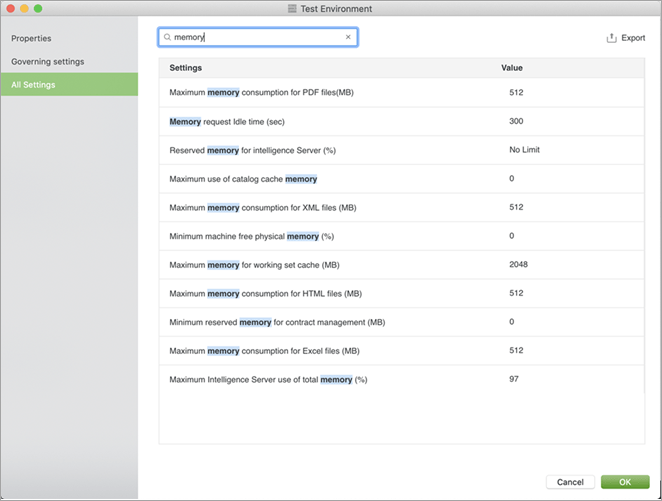
In order to access server level configurations, user must first connect to an environment with administrative credentials.
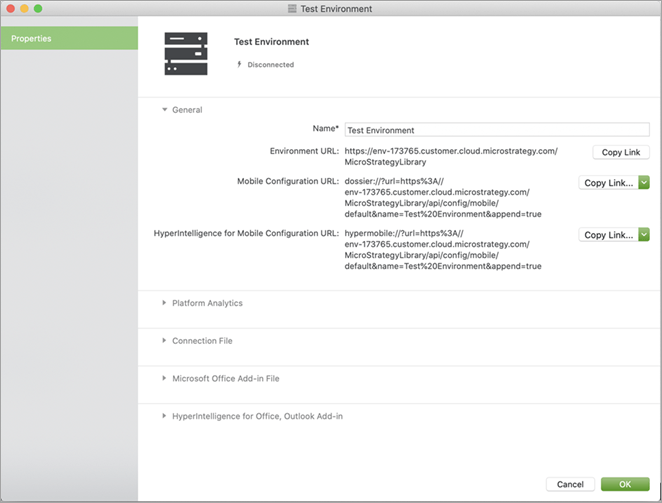
Without connecting to an environment or if you don't have the proper privilege, the Setting options will not display when viewing the Get Info on a Mac or Properties on Windows, as shown below:
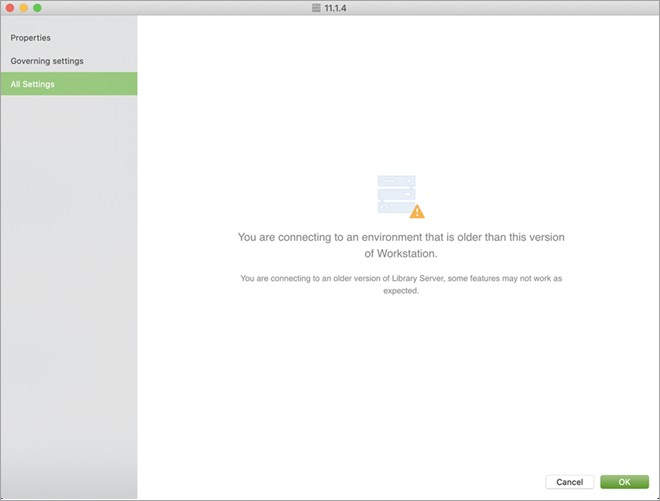
Since this is a 2020 feature, users will not be able to view the server level configurations in Workstation when connected to any environments with an older version, such as 2019, of the Intelligence Server and/or Library Server. If you try to connect with an older version, a warning message will appear to let users know that the server version is outdated and is thus not compatible with this feature in Workstation.
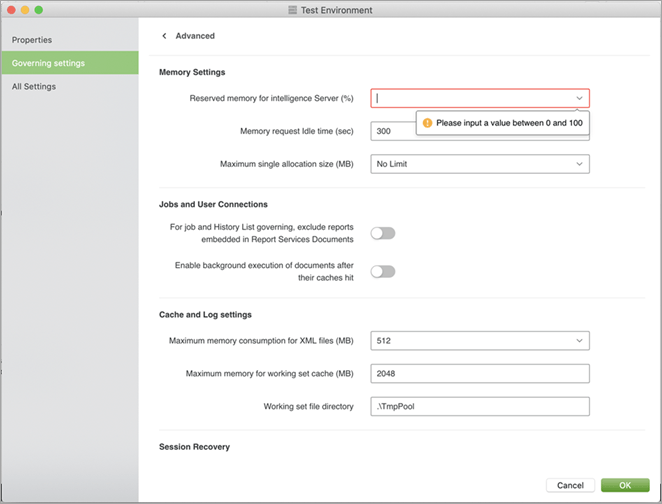
For any fields that require a value or specify a unique type of value, such as integers between 0 and 99, Workstation will show a tooltip if the user leaves the field empty or if the user has put in the wrong value type.
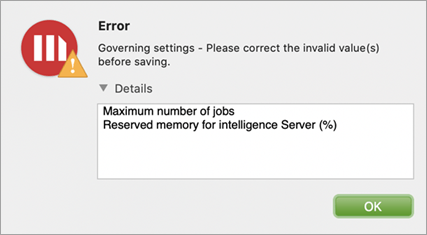
There will also be an error message if the user tries to save the settings with one or more invalid entries.
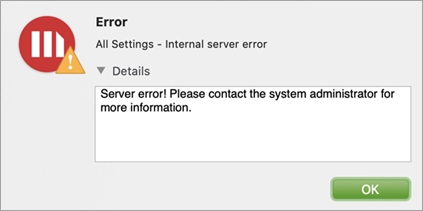
If there is any connectivity issue after the All Settings window is opened and the user tries to save their changes, an error will appear to let users know that there is an issue communicating with the server and changes will not be saved successfully.