EducationSoftwareStrategy.com
StrategyCommunity

Knowledge Base

Product

Community

Knowledge Base

TopicsBrowse ArticlesDeveloper Zone

Product

Download SoftwareProduct DocumentationSecurity Hub

Education

Tutorial VideosSolution GalleryEducation courses

Community

GuidelinesGrandmastersEvents
x_social-icon_white.svglinkedin_social-icon_white.svg
Strategy logoCommunity

© Strategy Inc. All Rights Reserved.

LegalTerms of UsePrivacy Policy
  1. Home
  2. Topics
  3. Strategy One (February 2026) Wildcards in SQL Hint

Strategy One (February 2026) Wildcards in SQL Hint

Strategy One (February 2026) adds additional SQL Hint functionality with the addition of two new wildcards that provide greater context and flexibility for query generation.

The following wildcards were added in Strategy One (February 2026):

  • !m: Inserts a unique Message ID
  • !b: Inserts a unique Dashboard ID

Usage & Compatibility

The new wildcards can be utilized within SQL Hints for all supported database types (for example, PostgreSQL, Vertica, and etc.). Consistent with existing conventions for letter-based SQL generation wildcards, both lowercase (!m, !b) and uppercase (!M, !B) forms are accepted.

Primary Application

This enhancement is primarily designed for:

  • Dashboards based on:
    • Live Intelligent Cubes
    • Connect-Live Data Import Cubes
  • Reports that utilize schema objects and metrics with cache disabled

By incorporating wildcards directly into generated SQL, administrators can more effectively monitor, trace, and optimize dashboard-related database queries.

See the following example on how wildcards can be used:

  1. Connect to an environment from Workstation.
  2. In the left Navigation pane, click Data Sources.
  3. Select the data source you want to customize with SQL Hint.
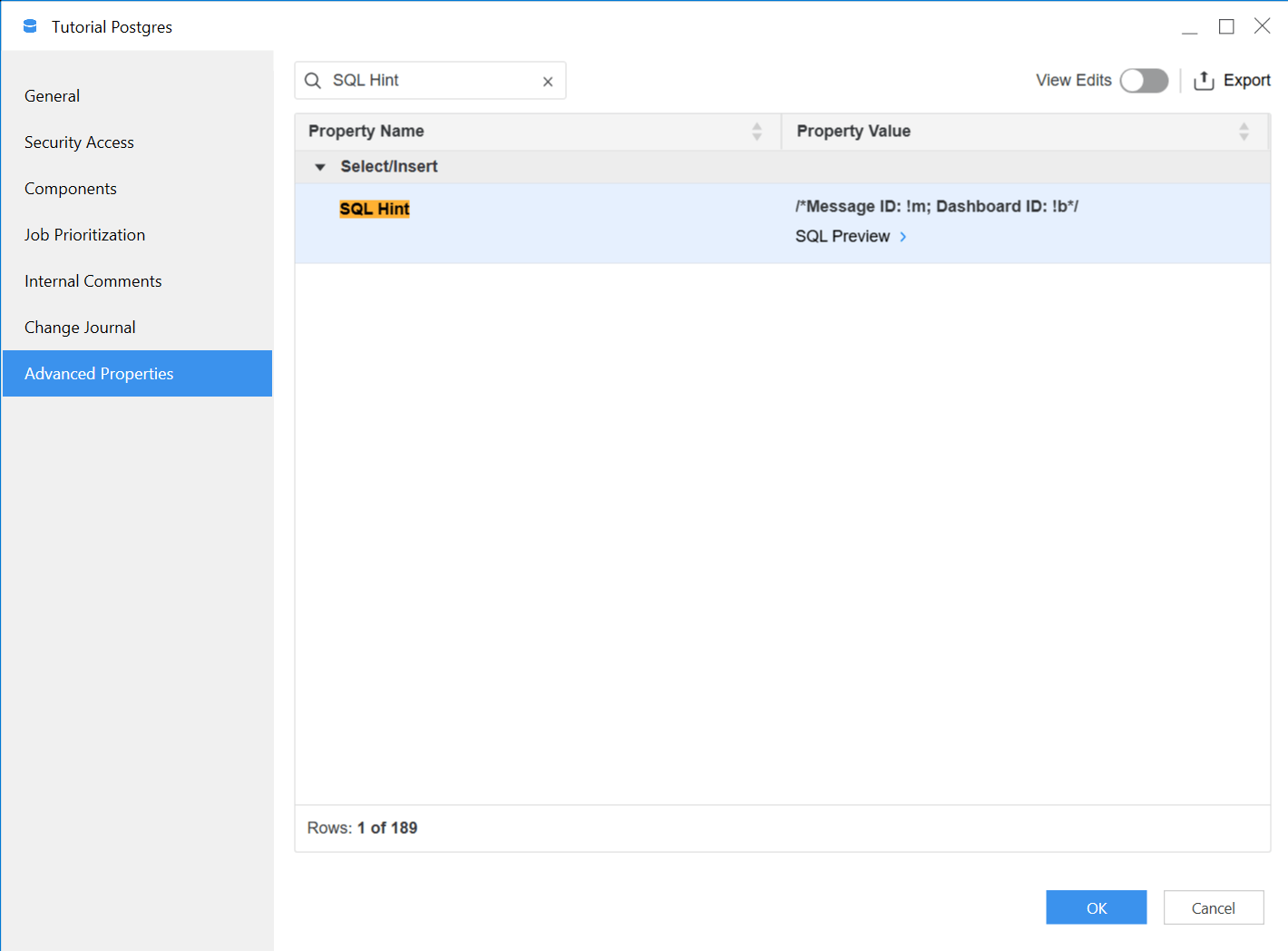
  4. Right-click the data source and choose Properties.
  5. In the Properties dialog left pane, click Advanced Properties.
  6. Find SQL Hint and in Property Value, enter a comment that includes the wildcards.
  7. Click OK.
  8. Go to Schemas and find the project that uses the data source.
  9. Click Reload Schema next to the project.
  10. Go to Library and edit a dashboard that includes data from the data source.
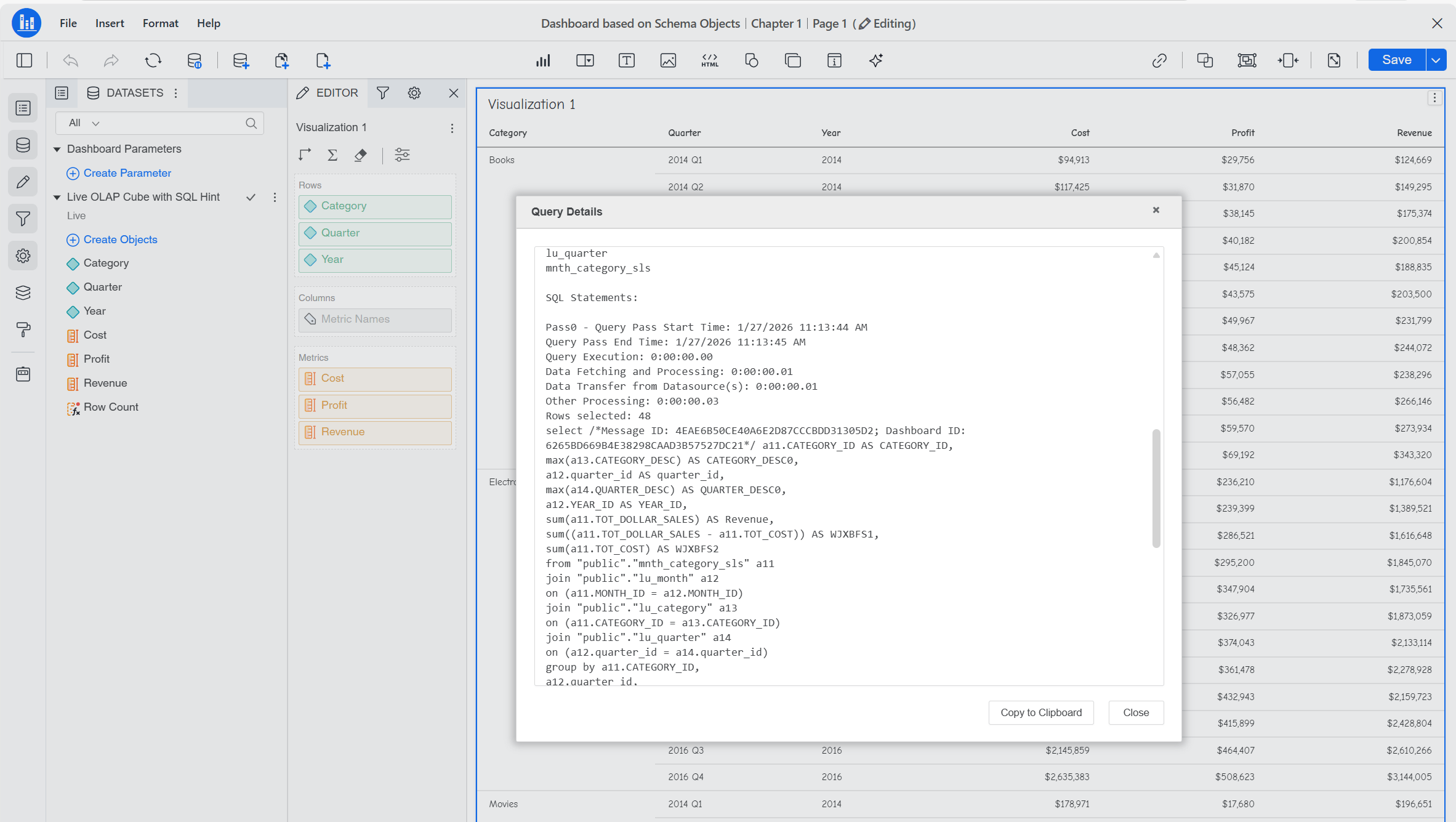
  11. Click More Options in the top-right of the visualization and click Query Details....
  12. View the Query Details and see the SQL Hint is inserted in the select statement, where !m is replaced with the real message ID and !b is replaced with the real dashboard ID.
  13. Click Close.
advanced_props.png
query_details.png

To view the changes in a report:

  1. Go to Library and edit a report that fetches data from the data source you edited above.
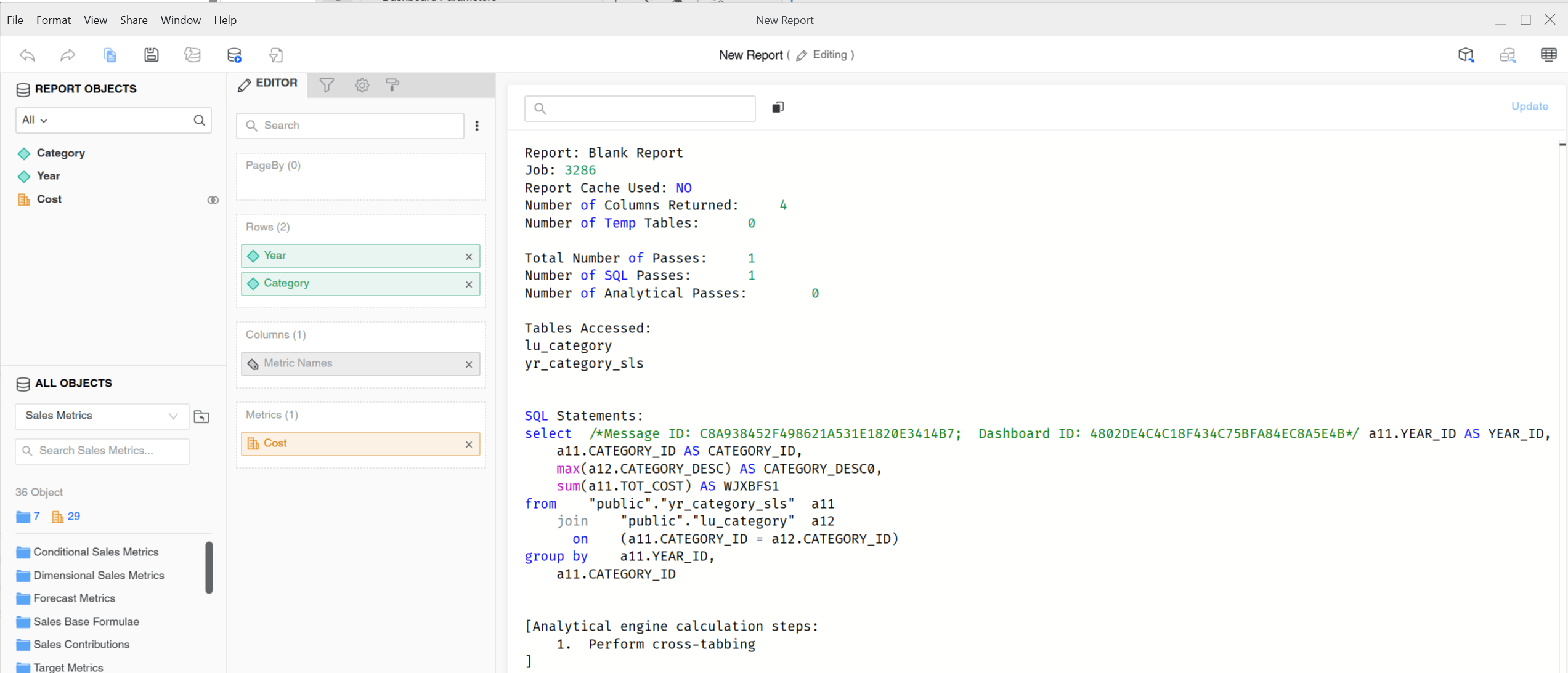
  2. Switch to the SQL view.
  3. View the SQL and see the SQL Hint with message ID and dashboard ID displays in green, as shown in the image below.
report_sql.png

You can also view SQL Hint in the SQL trace log:
  1. Connect to an environment from Workstation.
  2. Right-click the data source and choose Properties.
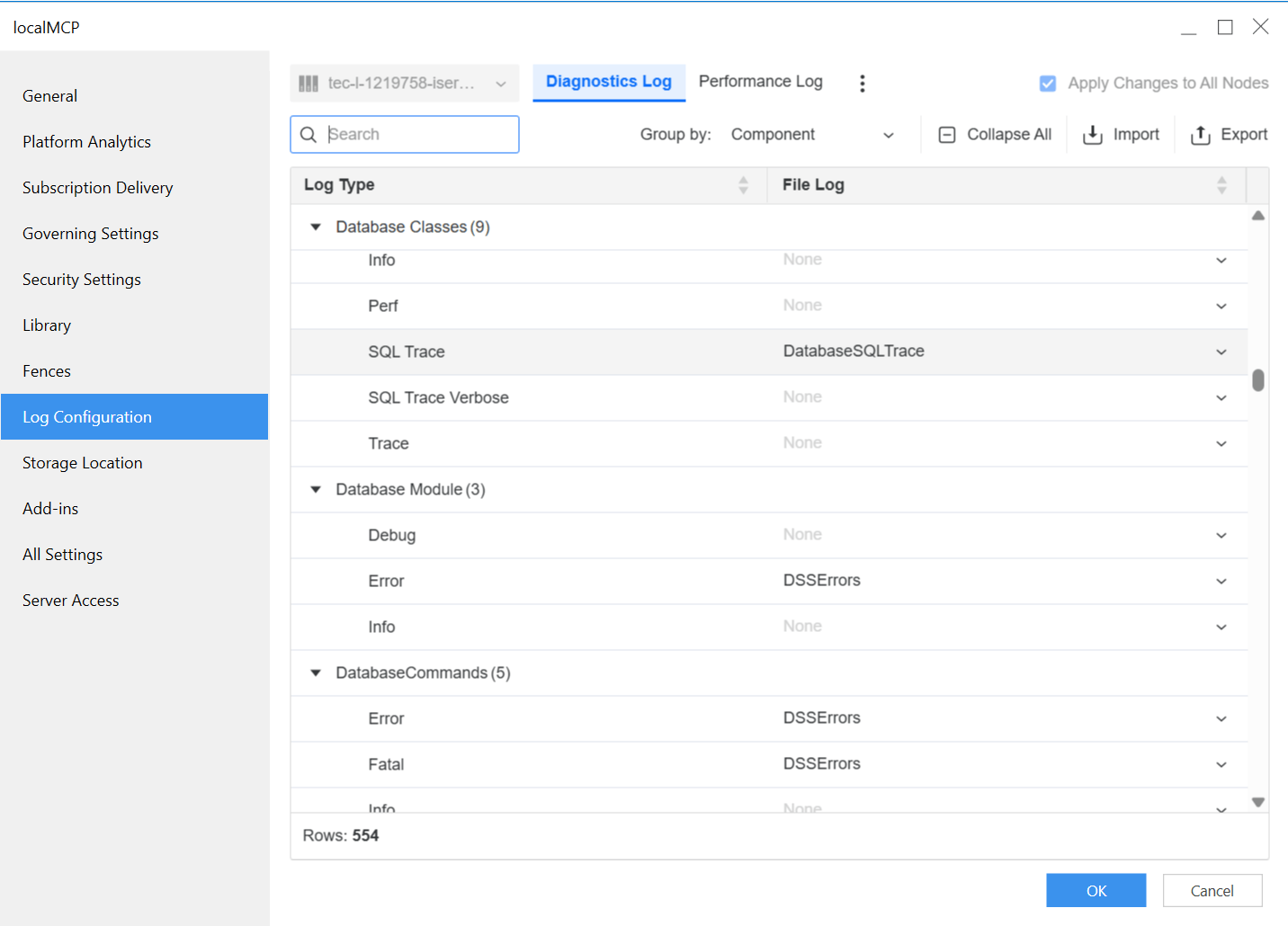
  3. In the Properties dialog left pane, click Log Configuration.
  4. Assign a name for Database Classes > SQL Trace.
  5. Click OK.
image-20260128-033925.png

See the following sample of the SQL trace log:

2025-12-16 16:12:22.678+08:00 [HOST:HANW10319][SERVER:CastorServer][PID:41088][THR:42248][Database Classes][SQL Trace][UID:54F3D26011D2896560009A8E67019608][SID:C272FA0A3127FB70219E5509D3F75DA8][OID:D83A053B407268A32C1D5BBB670CCE0A][StatementWrapper.cpp:LogSQL at line:541] Executing SQL. Connection ID: 6. SQL: select /*Message ID: 38CD94D64D7AB58D8CD5099A03666673; Dashboard ID: 39A538FA4EEB7E50FE5C7B8F3CDEC50E*/ a11.MONTH_ID AS MONTH_ID,
a11.BOH_QTY AS WJXBFS1
from TPCH.INVENTORY_Q1_2005 a11

Related Topics

KB10940: What SQL generation wildcards are implemented in MicroStrategy Engine?

KB442295: New SQL Generation Wildcard (!i) for Job Priority


Comment

0 comments

Details

Knowledge Article

Published:

February 12, 2026

Last Updated:

February 13, 2026