EducationSoftwareStrategy.com
StrategyCommunity

Knowledge Base

Product

Community

Knowledge Base

TopicsBrowse ArticlesDeveloper Zone

Product

Download SoftwareProduct DocumentationSecurity Hub

Education

Tutorial VideosSolution GalleryEducation courses

Community

GuidelinesGrandmastersEvents
x_social-icon_white.svglinkedin_social-icon_white.svg
Strategy logoCommunity

© Strategy Inc. All Rights Reserved.

LegalTerms of UsePrivacy Policy
  1. Home
  2. Topics

KB11455: Metrics with two facts and two functions cannot be saved as a Base Formula in MicroStrategy Developer 10.x


Stefan Zepeda

Salesforce Solutions Architect • Strategy


This Technical Note describes a behavior where metric with two facts and two functions cannot be saved as a Base Formula in MicroStrategy Developer 10.x. This issue has been classified by MicroStrategy to be working as designed, and two workarounds is provided in the Action section.

SYMPTOM:
Users find that metrics with two facts and two functions cannot be saved as a Base Formula in Strategy Developer 10.x
To reproduce this issue, perform the following steps using the Strategy Tutorial project:
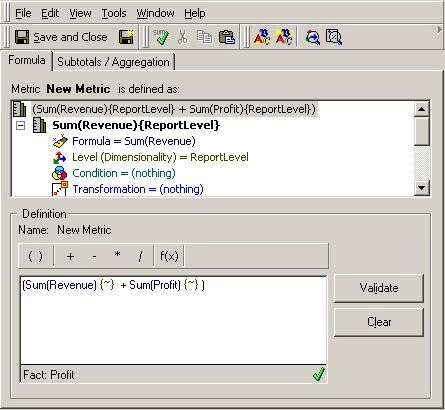
  • Create a new metric by opening the Metric Editor.
  • Drag the Revenue and Profit facts into the metric definition, as seen below:
ka02R000000kcV8QAI_0EM440000002Flb.jpeg

When saving this metric, notice that the option of saving it as a Base Formula is not present. As illustrated below, it can only be saved as a metric:
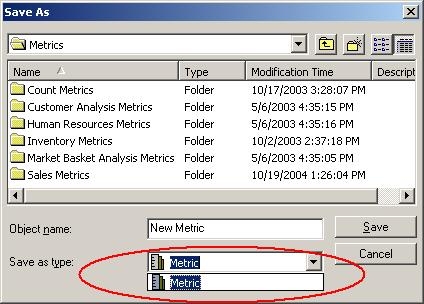
ka02R000000kcV8QAI_0EM440000002FlX.jpeg

 
CAUSE:
This is a known limitation with Strategy Developer and it is working as designed. What the end user is trying to do is create a Formula out of other formula objects.
 
ACTION:
To save the metric created above as a Base Formula, perform the following:

  1. Open the Metric Editor and drag the first fact into the metric definition.
  2. Save the metric as a Base Formula.
  3. Edit the Base Formula and drag the second fact into the definition.
  4. Now, when saving this definition, it will be saved as a Base Formula.

Another solution can also be to:

  1. Open the Metric Editor and drag the first fact into the metric definition.
  2. Click on Formula
  3. Drag the second fact into the definition pane
  4. Now, when saving this definition, it will be saved as a Base Formula.

Comment

0 comments

Details

Knowledge Article

Published:

April 16, 2017

Last Updated:

April 16, 2017