EducationSoftwareStrategy.com
StrategyCommunity

Knowledge Base

Product

Community

Knowledge Base

TopicsBrowse ArticlesDeveloper Zone

Product

Download SoftwareProduct DocumentationSecurity Hub

Education

Tutorial VideosSolution GalleryEducation courses

Community

GuidelinesGrandmastersEvents
x_social-icon_white.svglinkedin_social-icon_white.svg
Strategy logoCommunity

© Strategy Inc. All Rights Reserved.

LegalTerms of UsePrivacy Policy
  1. Home
  2. Topics

KB32017: How to create a text watermark in a Report Services Document.


Stefan Zepeda

Salesforce Solutions Architect • Strategy


A watermark is a faint design appearing in the background of every page of the document. Watermarks in documents can be either text or an image, and can be created in MicroStrategy 9.4.1 and 10.x.

SYMPTOM:
A watermark is a faint design appearing in the background of every page of the document. Watermarks in documents can be either text or an image, and can be created in Strategy 9.4.1 and 10.x. Text watermarks typically identify or decorate pages as following.



ka02R000000kXHOQA2_0EM440000002EFB.jpeg

 
ACTION:
Follow the steps below to create an text watermark:
  1. Open a document in Design view in Strategy Developer.
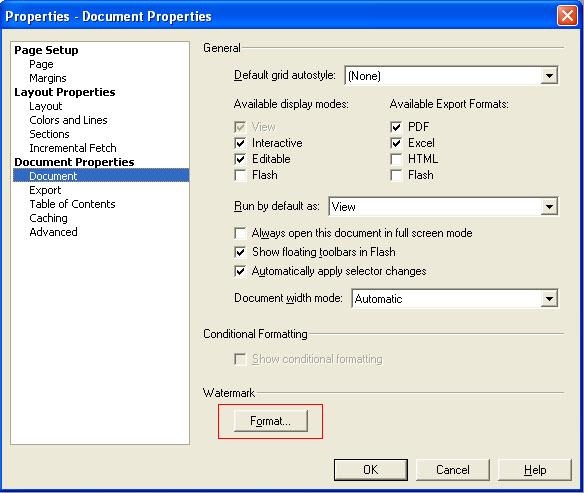
  2. Select Document Properties from the Format menu. Then the Document Properties dialog box opens as shown below: 
ka02R000000kXHOQA2_0EM440000002EFE.jpeg


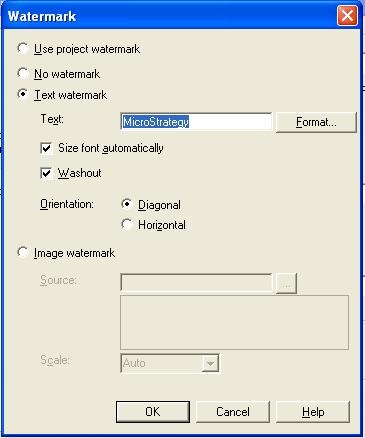
  • Click Format button and the Watermark format dialog box displays. Then select Text watermark and type the text to display as the watermark. 
     
ka02R000000kXHOQA2_0EM440000002EFG.jpeg
  • By default, the text is printed diagonally across the page. To print it horizontally instead, select "Horizontal" in the Orientation area.
  • To fade the watermark to ensure that the document information is legible through the watermark, select the "Washout" check box.
  • By default, the watermark uses the font size defined in the Format Cells dialog box. To allow the font size to automatically adjust to fill the layout, select the "Size font automatically" check box. 
  • Click OK to save it.
  • Run the document to test the watermark text display. Go back to the properties window to adjust the settings.

Comment

0 comments

Details

Knowledge Article

Published:

June 19, 2017

Last Updated:

June 19, 2017