EducationSoftwareStrategy.com
StrategyCommunity

Knowledge Base

Product

Community

Knowledge Base

TopicsBrowse ArticlesDeveloper Zone

Product

Download SoftwareProduct DocumentationSecurity Hub

Education

Tutorial VideosSolution GalleryEducation courses

Community

GuidelinesGrandmastersEvents
x_social-icon_white.svglinkedin_social-icon_white.svg
Strategy logoCommunity

© Strategy Inc. All Rights Reserved.

LegalTerms of UsePrivacy Policy
  1. Home
  2. Topics

KB42775: How to set different Intelligence Server Elapsed Time for Scheduled reports for different users in MicroStrategy Developer


Stefan Zepeda

Salesforce Solutions Architect • Strategy


In the Project Configuration Editor in Desktop, under Governing Rules -> Default -> Result Sets, administrators can specify values of Intelligence Server Elapsed Time for Scheduled reports, which is a project level governing setting.

In the Project Configuration Editor in Desktop, under Governing Rules -> Default -> Result Sets, administrators can specify values of Intelligence Server Elapsed Time for Scheduled reports, which is a project level governing setting, not based on users, as showed below.
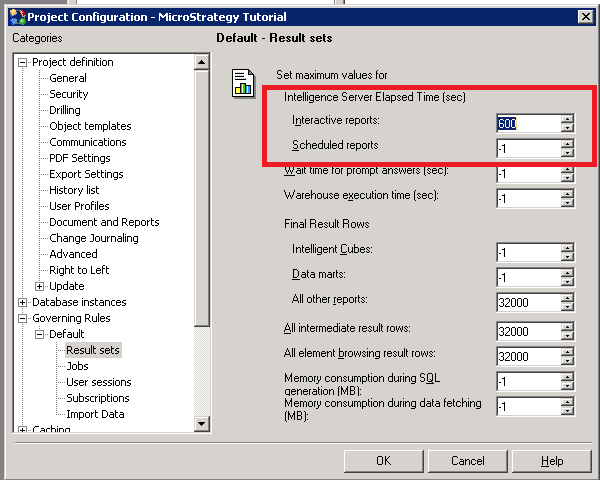
 

ka02R000000kVZcQAM_0EM4400000029dh.png

However, in some situations, users may need to differentiate powerful users from normal users with different timeout values.
 
The following procedure describes how to set different Intelligence Server Elapsed Time for Scheduled reports for different users in Strategy Developer.
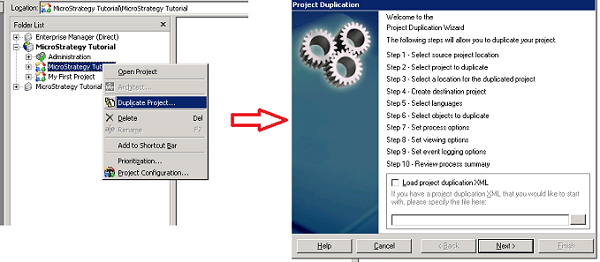
  1. Divide users into different groups based on the expected intelligence server elapsed time for them, such as, one group of powerful users with longer timeout than the other normal group of users.
  2. Duplicate projects expected to allow different elapsed time for different users. This can be achieved by right click the project and launch Project Duplication Wizard, as showed below.
ka02R000000kVZcQAM_0EM4400000029de.png


  • Change settings of Intelligence Server Elapsed Time for Scheduled reports, in Project Configuration Editor -> Governing Rules -> Default -> Result Sets. Different values can be set for different projects, although they are duplicated.
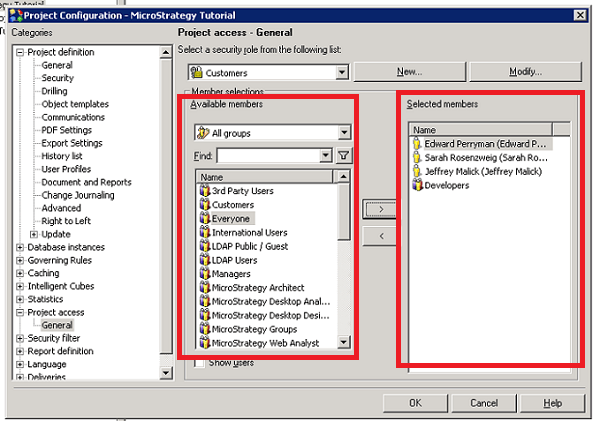
  • Grant project access to different group of users, by changing the setting in Project Configuration Editor -> Project access -> General. Groups and users in the list of Available members could be added to Selected members so that they could access the project with corresponding elapsed time, as showed below.
     
ka02R000000kVZcQAM_0EM4400000029da.png


Note: The workload of duplicating projects and changing corresponding governing rules may be heavy, which is a factor to consider.


Comment

0 comments

Details

Knowledge Article

Published:

May 31, 2017

Last Updated:

May 31, 2017