EducationSoftwareStrategy.com
StrategyCommunity

Knowledge Base

Product

Community

Knowledge Base

TopicsBrowse ArticlesDeveloper Zone

Product

Download SoftwareProduct DocumentationSecurity Hub

Education

Tutorial VideosSolution GalleryEducation courses

Community

GuidelinesGrandmastersEvents
x_social-icon_white.svglinkedin_social-icon_white.svg
Strategy logoCommunity

© Strategy Inc. All Rights Reserved.

LegalTerms of UsePrivacy Policy
  1. Home
  2. Topics

No data is returned when applying metric set qualification to a derived metric in dossier (MicroStrategy 10.9)


Caitlin Corrigan

Senior Education Developer • Strategy


This article describes a defect in MicroStrategy 10.9 where no results are returned in a dossier’s visualization with a metric set qualification. Data should be returned.

Starting with the release of Strategy ONE (March 2024), dossiers are also known as dashboards.
Troubleshooting
No data is returned when applying metric set qualification to a derived metric in dossier (Strategy 10.9)
With Strategy 10.9, some of our users have been experiencing no returned results when using a metric set qualification with dossier visualizations. When using a metric, data should be returned with the dossier. 
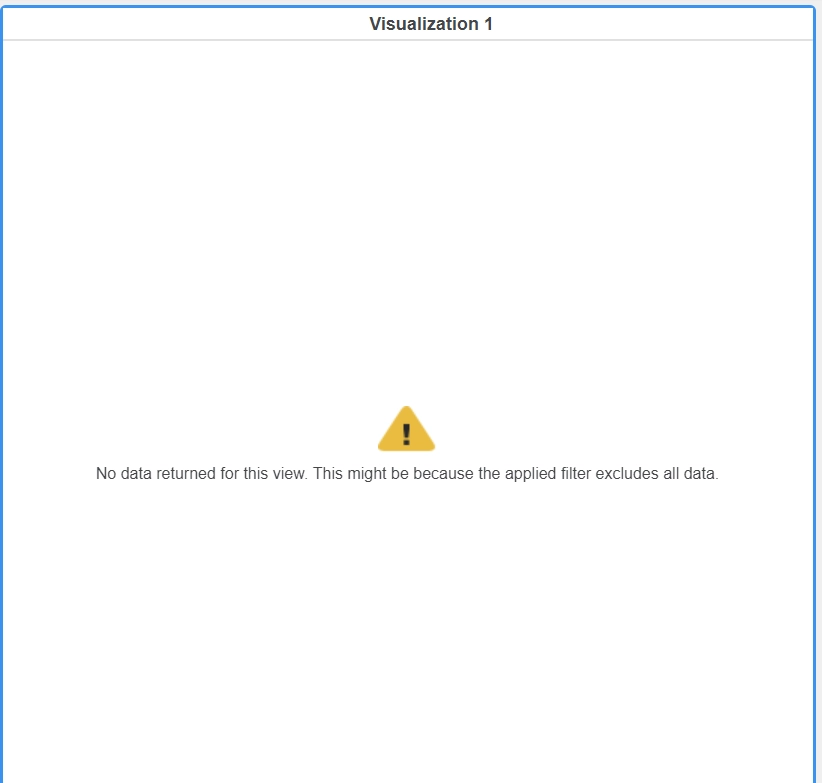
When a metric set qualification is applied to a visualization containing a derived metric in a Strategy 10.9 dossier, users see the following error and no data is returned.
 

ka0PW0000001JPoYAM_0EM44000000WLGm.png

 
The error: "No data returned for this view.  This might be cause the applied filter excludes all data."
 
Steps to reproduce
In Strategy Web or Workstation using Tutorial:
 

  1. Create a new dossier with the following: 
  • Attributes: Category, Subcategory, and Month 
  • Metrics: Revenue and Profit
  1. Add the attributes to the rows.
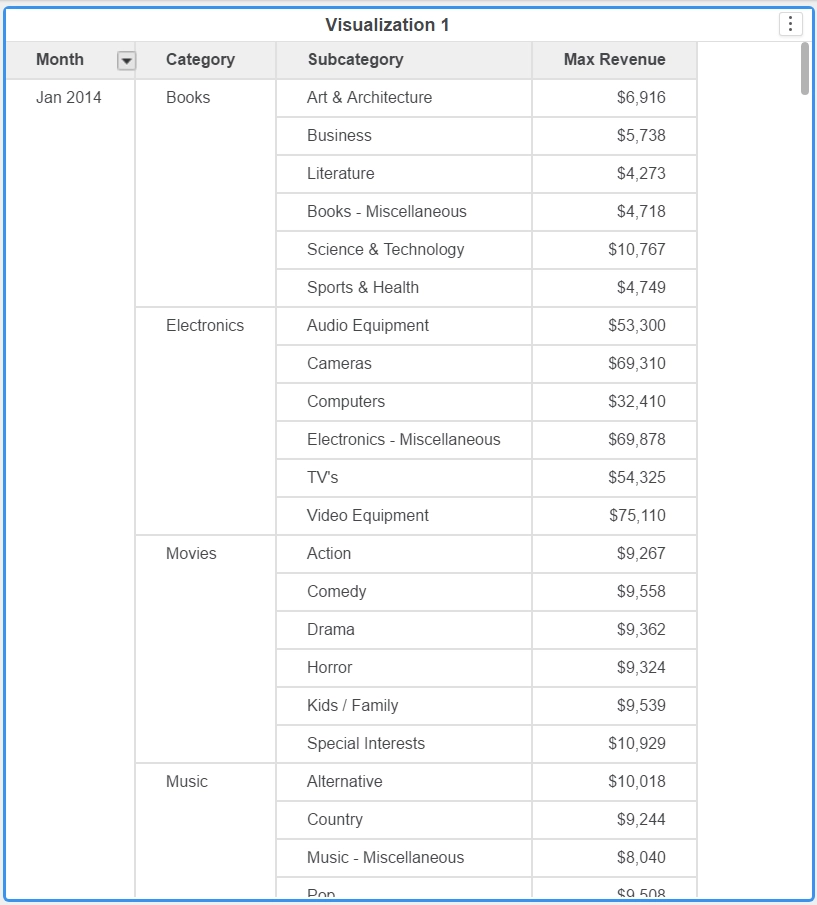
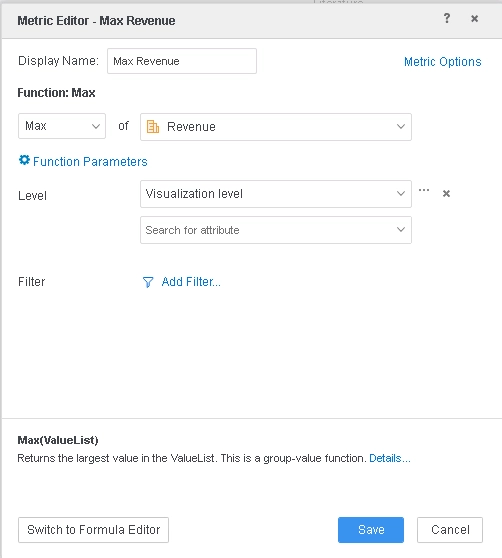
  2. Create a derived metric with the definition “Max(Revenue)” and add to the columns.


ka0PW0000001JPoYAM_0EM44000000RLli.png


ka0PW0000001JPoYAM_0EM44000000WLGh.png


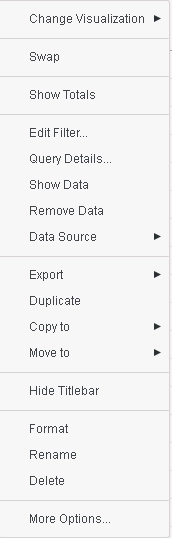
  1. Click the three vertical dots at the top right of the visualization.
  2. Select Edit Filter…


ka0PW0000001JPoYAM_0EM44000000RLln.png


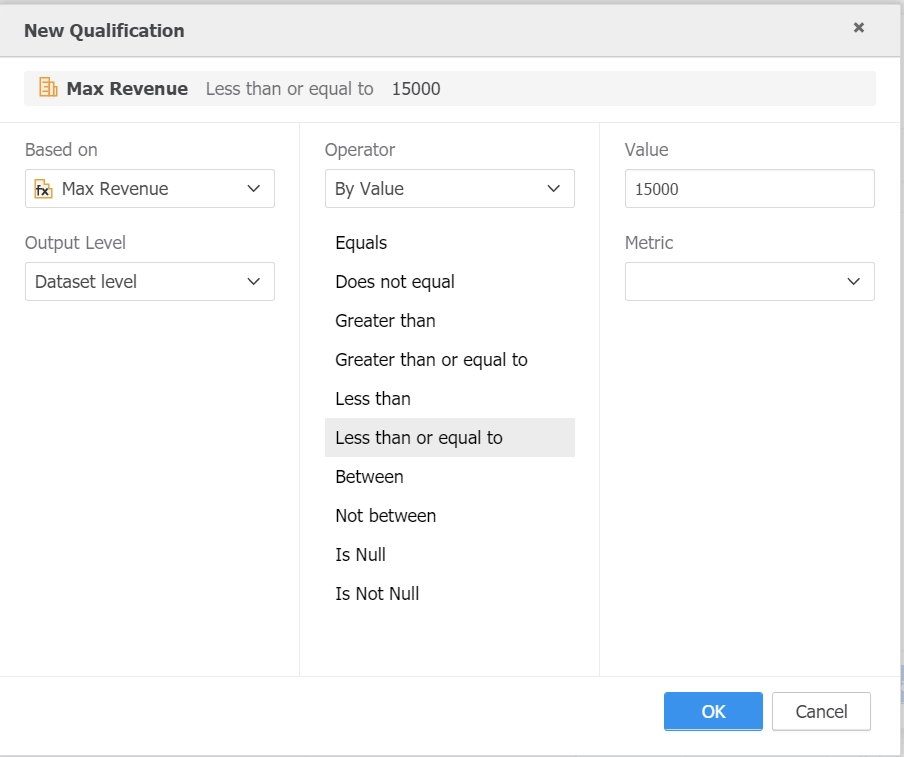
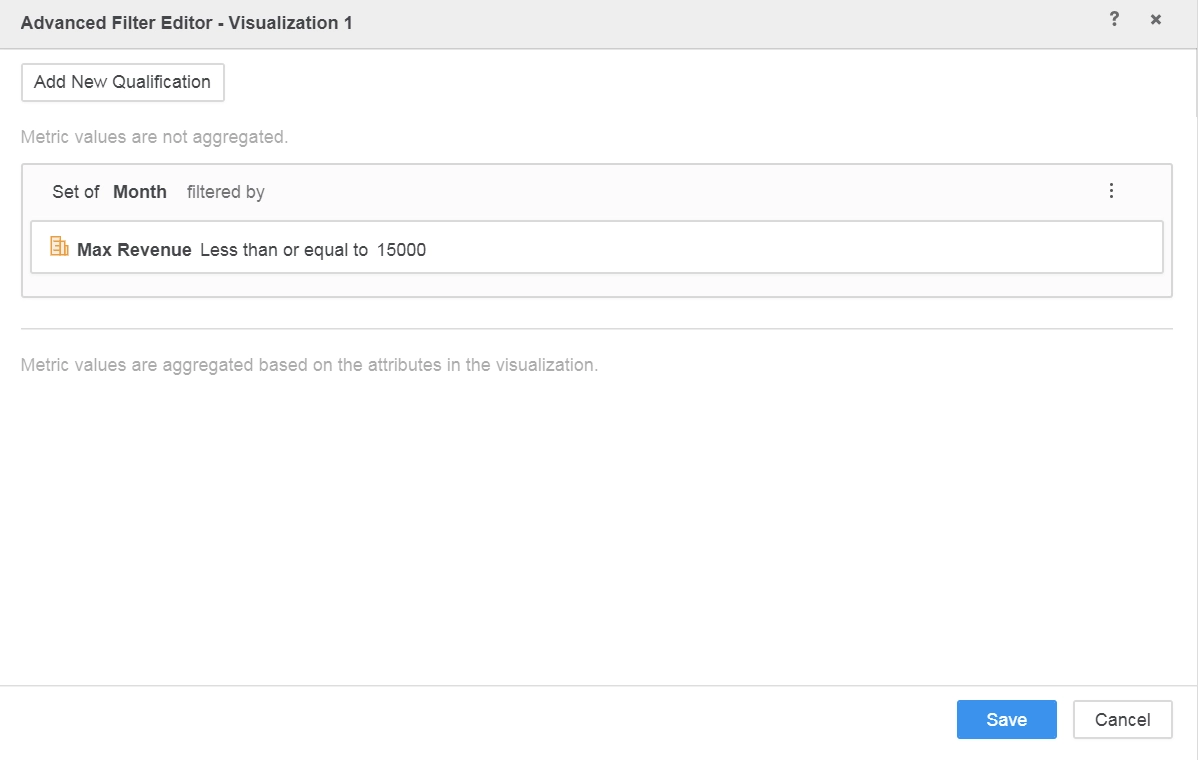
  1. In the Advanced Filter window that opens, create a set metric qualification with the following definition: 
  • Max Revenue (derived metric) Less than or equal to 15000. 
  1. Select the Output Level to Dataset level.


​

ka0PW0000001JPoYAM_0EM44000000WLH6.png


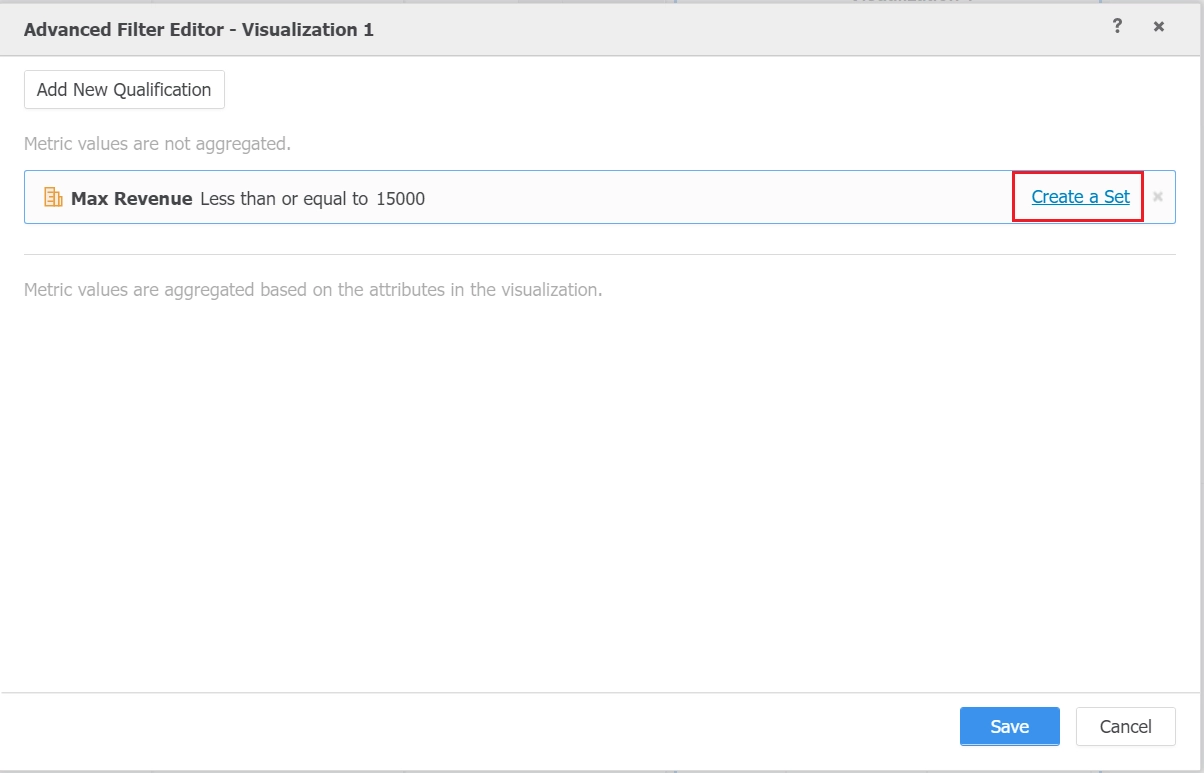
  1. Hover over the metric qualification to display Create a Set. 
  2. Click to Create a Set.


​

ka0PW0000001JPoYAM_0EM44000000WLHB.png


  1. Select “Month” as the set.


​

ka0PW0000001JPoYAM_0EM44000000WLGX.png
  1. Click Save in the Filter Editor to apply the filter.
  2. Note that no data is returned.  

​​​​​Why is this happening?
This was an issue resolved by the Strategy development team. 
 
Status
ACKNOWLEDGED   IN-PROGRESS   SOLVED   (Version: Strategy 10.11+)
Next Steps
This defect has been fixed in Strategy 10.11 as the metric set qualification is applied correctly. 
Please upgrade to this version to take advantage of the fix.
 
Have other questions? Feel free to start a discussion or reach out to your Support liaison to open a case!
Want to upgrade to Strategy 2019? Visit the Strategy website!
*Strategy reference numbers for this technical note are KB440700 and DE85025.


Comment

0 comments

Details

Knowledge Article

Published:

April 27, 2018

Last Updated:

March 21, 2024