EducationSoftwareStrategy.com
StrategyCommunity

Knowledge Base

Product

Community

Knowledge Base

TopicsBrowse ArticlesDeveloper Zone

Product

Download SoftwareProduct DocumentationSecurity Hub

Education

Tutorial VideosSolution GalleryEducation courses

Community

GuidelinesGrandmastersEvents
x_social-icon_white.svglinkedin_social-icon_white.svg
Strategy logoCommunity

© Strategy Inc. All Rights Reserved.

LegalTerms of UsePrivacy Policy
  1. Home
  2. Topics

KB483546: How to Force A New Session When using Azure SSO in HyperIntelligence Outlook and MicroStrategy Office


Scott Rowley

Director, Application Security Engineering • MicroStrategy


This article details how to force a new session when using Azure SSO for HyperIntelligence Outlook and MicroStrategy Office

When using an Identity provider such as Azure SSO with Strategy platform components which contain integrations with Microsoft products such as HyperIntelligence Outlook and Strategy Office, it may be necessary to forcibly remove any user session in order to start fresh.
This workflow, published as a Strategy internal only knowledge base article, covers the steps specific to Strategy's Identity Provider (IdP), Azure SSO.

  • Close any open Microsoft Office 365 products such as Outlook, Excel, Word, OneNote, Powerpoint.
  • Open the Azure Profile page by clicking on this link and choosing 'Profile' from your user picture in the top right: https://account.activedirectory.windowsazure.com/
  • Alternatively, on Windows, open Windows Settings and select Access work or school.
ka02R000000g2vNQAQ_0EM2R000000m8G4.jpeg
  • Select your corporate account and click Manage your account.
ka02R000000g2vNQAQ_0EM2R000000m8G9.jpeg
  • Click Sign out everywhere.  Note that this will end any session you have to your identity provider across any device.  After performing this step, you will need to login again.
ka02R000000g2vNQAQ_0EM2R000000m8GJ.jpeg
  • After signing out, you can sign in again using the normal workflows and you will be prompted to login.  Using HyperIntelligence Outlook as an example, open Outlook, select an email, and click on the Hyper AQ.DEP add-in.
ka02R000000g2vNQAQ_0EM2R000000m8GO.jpeg
  • Select Log in with Identity and complete the sign-in process.

If after opening an Office 365 application on your windows desktop you are not prompted to login, you may need to relink your corporate account to your local user profile. 
To do this:

  • On the Windows machine with the problem, open Windows Settings and select Access work or school
ka02R000000g2vNQAQ_0EM2R000000m8Gd.jpeg
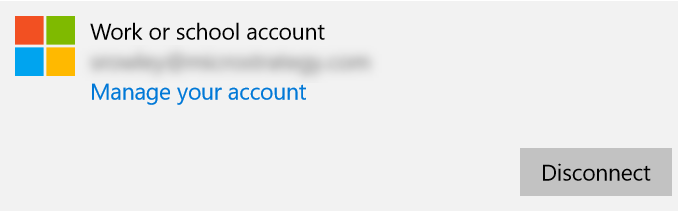
  • Select your corporate account and click Disconnect.
ka02R000000g2vNQAQ_0EM2R000000m8GY.jpeg
  • Click Connect and provide your email.
  • Follow the prompts to provide your password and click Sign in

Comment

0 comments

Details

Knowledge Article

Published:

August 14, 2019

Last Updated:

September 24, 2019