Starting with the release of Strategy ONE (March 2024), dossiers are also known as dashboards.
This case is built with the Strategy Tutorial project and using the latest version of the Strategy Web.
1. Create a New Dossier. Add External Data. Choose Databases. Import “ORDER_FACT”, “LU_EMPLOYEE”, and “LU_CUSTOMER” Table from the Tutorial warehouse.
2. Define relationships in “LU_EMPLOYEE”, and “LU_CUSTOMER”
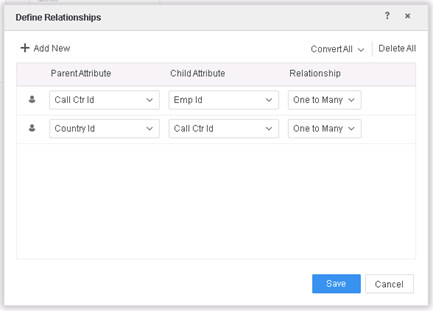
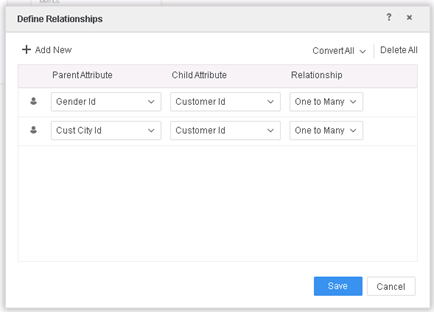
3. Create the first Derived attribute DA1 = Concat([Order Id]@ID, " ", [Gender Id]@ID)
4. Create the second Derived attribute DA2 = Concat([DA1]@ID, " ", [Gender Id]@ID)
5. Create the last Derived attribute DA = Concat([Country Id]@ID, " ", [DA2@ID])
6. Add filter to the chapter: Order Id in (10000, 10001, 10002, 10003).
7. Put DA2, Country Id and Qty Sold metric to the grid, it shows:
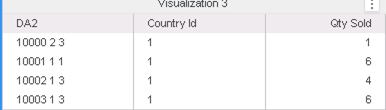
Depending on the warehouse data, the numbers can be different.
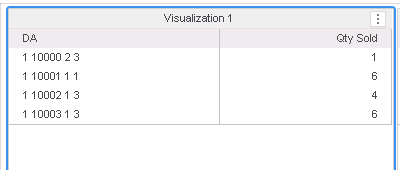
8. Put DA and Qty Sold metric to the grid, it shows:
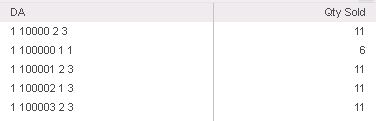
Looking at the first row of each screenshot, since DA2 = “10000 2 3” and Country Id = “1” should map to DA = “1 10000 2 3”, they should have the same Qty Sold metric, therefore the metric calculation is incorrect.
Besides, the filter is not applied to this grid successfully.
This is a known defect in Strategy 2019.
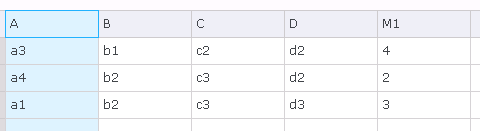
To simplify the case, assume we use one table T0 with 4 attributes and 1 metric:
Create derived attributes based on the following diagram:
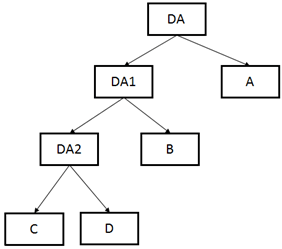
If only DA and M1 are put on the grid, the Engine will:
1. Create a Relationship table T1 with DA, DA1, and A
2. Join T1 and T0 on attribute A, and aggregate to the level of attribute A. In the previous case, its attributes “Country ID”. However, such a calculation is incorrect.
Correct behavior:
1. Create a Relationship table T2 with DA2, C, D
2. Create a Relationship table T3 with DA1, DA2, B; join T2 with T3 on DA2
3. Join T1 with T2 on DA1
4. Finally, join T0 on all the attributes A, B, C, and D; in this way the Engine can make sure all the relationships are preserved correctly.
Upgrade to Strategy 2020 or later. We recommend the latest version. Change Data Engine Version to be 12 to pick up the fix.
After the fix, the metric will be calculated correctly, and the filter will be applied properly.
Strategy Internal Reference number for this technical note is KB483572 and DE133375.
