EducationSoftwareStrategy.com
StrategyCommunity

Knowledge Base

Product

Community

Knowledge Base

TopicsBrowse ArticlesDeveloper Zone

Product

Download SoftwareProduct DocumentationSecurity Hub

Education

Tutorial VideosSolution GalleryEducation courses

Community

GuidelinesGrandmastersEvents
x_social-icon_white.svglinkedin_social-icon_white.svg
Strategy logoCommunity

© Strategy Inc. All Rights Reserved.

LegalTerms of UsePrivacy Policy
  1. Home
  2. Topics

KB484285: Limitations when using Distribution Services to deliver documents with HTML format


Ni Shen

Product Owner, Principal • MicroStrategy


This article addresses the limitations when using Distribution Services to deliver documents with HTML format. This article also provides the root causes and solutions for various cases you may encounter.

Description 


When using Distribution Services to deliver a document with HTML format, the Export Engine is used to generate an HTML file. The generated HTML format may have some formatting issues when opened via Outlook. The following are issues you may encounter: 
 

  • In HTML subscription, the link in Edit Link does not work
  • Lines do not appear after running an HTML email subscription and opening the email via Outlook
  • Grid is cut off in the HTML subscription
  • Image is not scaled via HTML subscription

Case 1: In HTML subscription, the link in Edit Link does not work. 

Steps to reproduce 

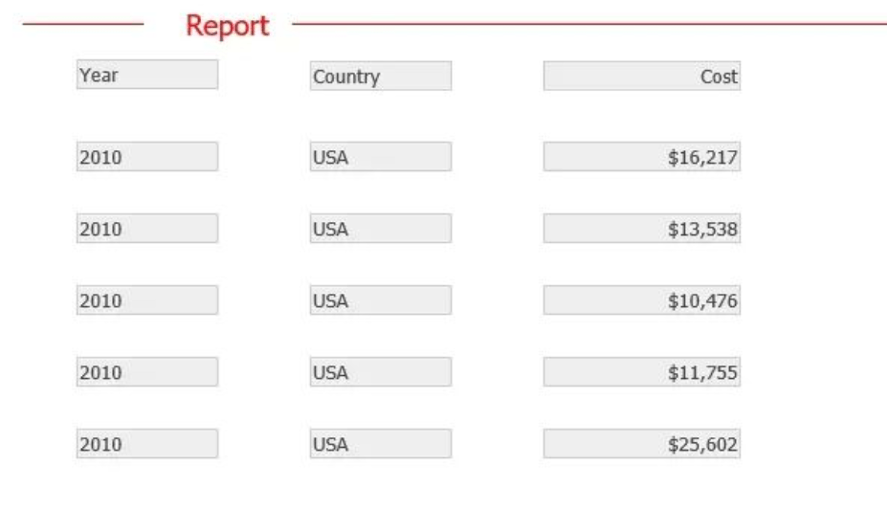
  • Create a document and insert a text box. 
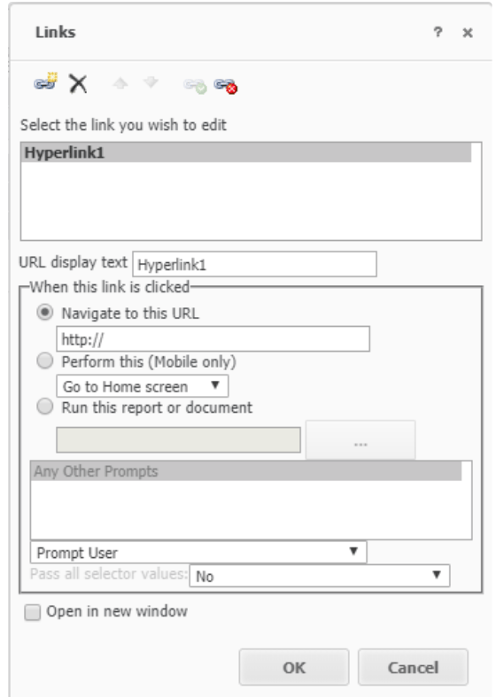
  • Right-click the text box > Edit Link. 
  • Define a hyperlink and save the document. 
ka02R000000bsTBQAY_0EM2R000000flgi.jpeg
  • Create an email subscription in HTML format.
    Note that the link doesn't take effect.

Why is this happening?


The Export Engine does not support links in the Edit Link functionality for email subscriptions in HTML format.
Solution

  • Edit the document.
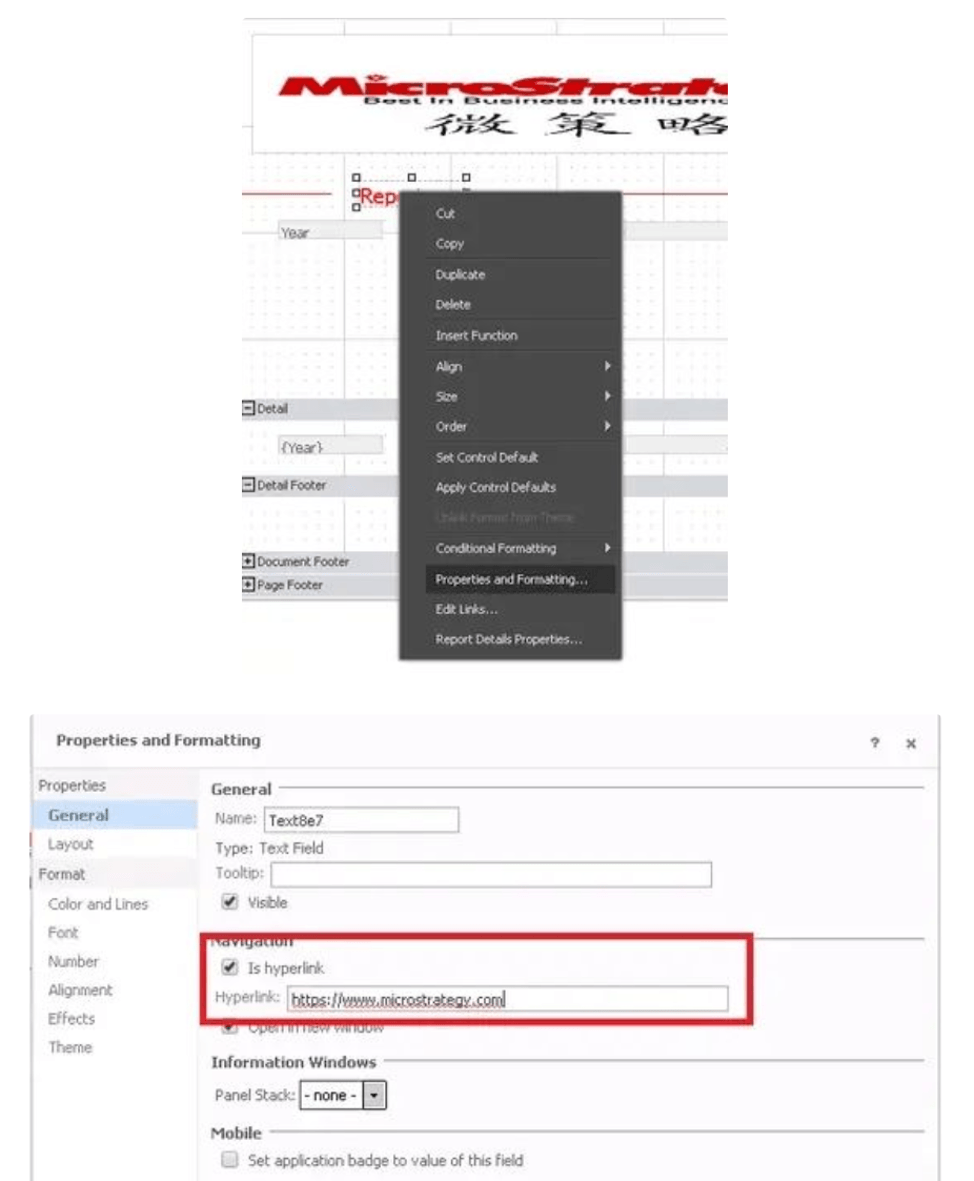
  • Right-click the text box > Properties and Formatting > General > Navigation > Hyperlink.
ka02R000000bsTBQAY_0EM2R000000flgx.jpeg
  • Edit the hyperlink.
    The link will work in HTML subscriptions.

Case 2: Lines do not appear after running an HTML email subscription and opening the email via Outlook

Steps to reproduce

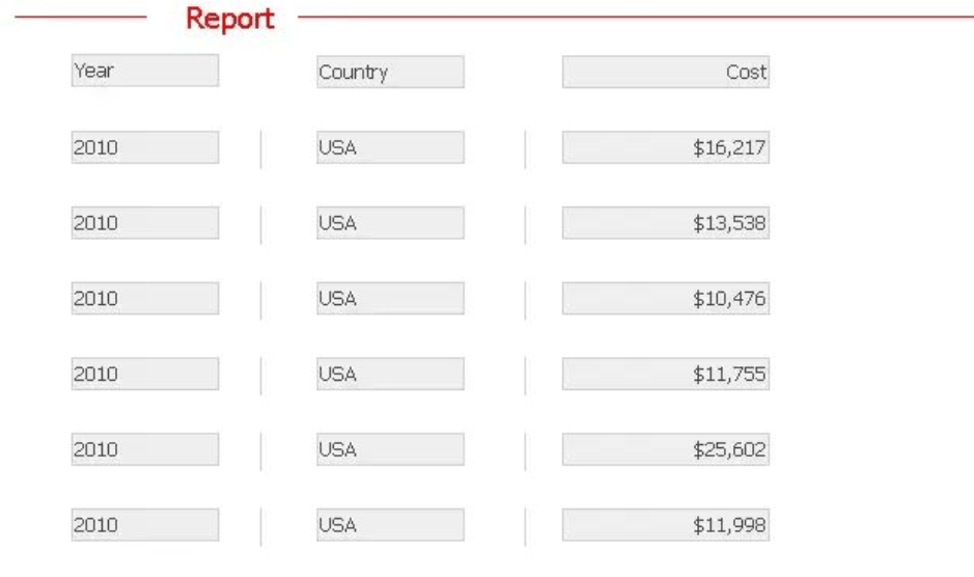
  • Create a document and insert vertical lines. The short vertical lines display in Web.
ka02R000000bsTBQAY_0EM2R000000flh2.jpeg
  • Export the document to HTML. The short vertical lines display properly.
  • Create an email subscription in HTML format for the document.
  • After running the subscription, open the email in Outlook. The short vertical lines are not displayed.
ka02R000000bsTBQAY_0EM2R000000flhC.jpeg

Why is this happening?


The email provider, for example Outlook 2007, does not render the lines. Thus, the vertical lines disappear from the HTML subscription.

Case 3: Grid is cut off in the HTML subscription


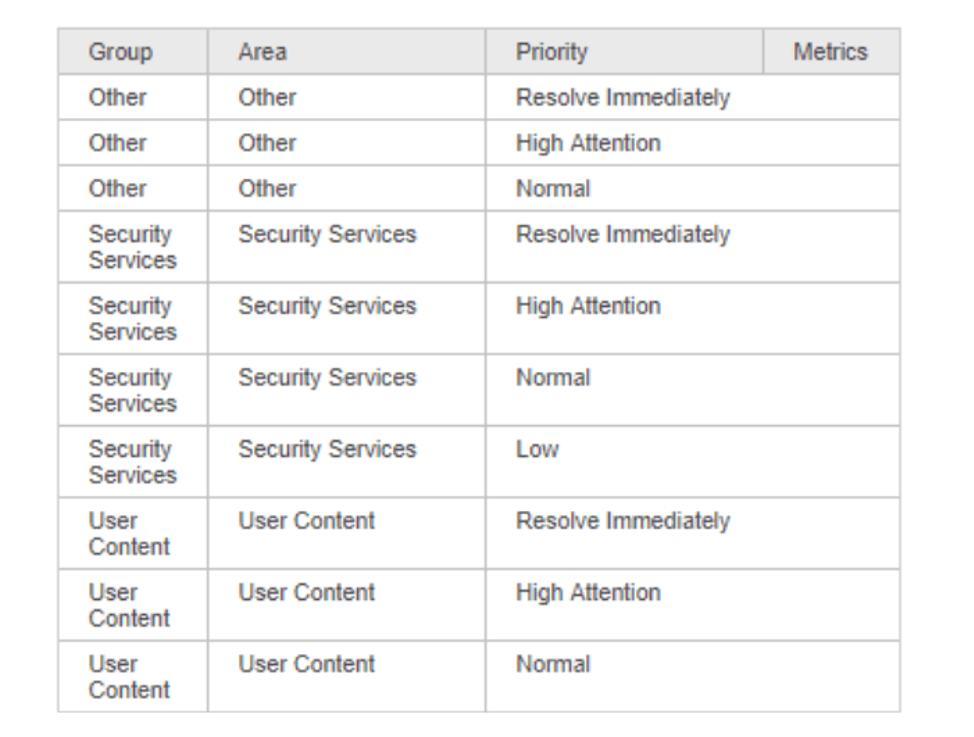
A document containing a grid with many rows of data will display a scroll bar in Web for you to view all data. However, in an HTML subscription for this document, the grid is cut off and only a part of the data is displayed in the HTML output.
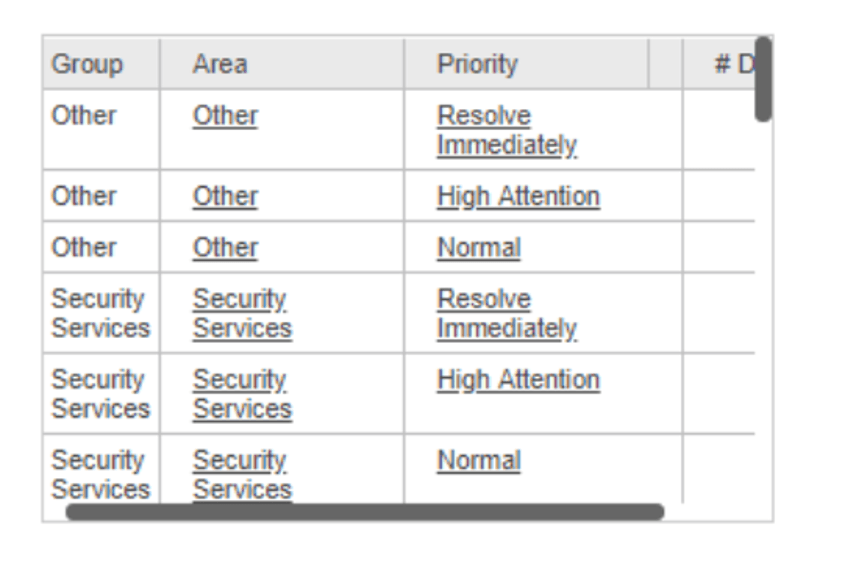
Document in Web: All data is shown via a scroll bar

ka02R000000bsTBQAY_0EM2R000000flhM.jpeg

After the document is exported to HTML, no scroll bar is available and only parts of the data are displayed.

ka02R000000bsTBQAY_0EM2R000000flhR.jpeg

Why is this happening


The scrollbar in a grid is not supported by HTML subscriptions.

Case 4: Image is not scaled via HTML subscription

Steps to reproduce

  1. Create a document.
  2. Insert an image and make the image smaller than its original size.
  3. Make an HTML subscription.
    Note that instead of keeping the customized size in Step 2, the image in the HTML is in full size. Create a document with an image. As shown in the following screenshot, the image is vertically shrunk when the document is in presentation mode in Web.
  4. Create an email subscription in HTML format and open the email from Outlook. The image is no longer vertically shrunken.

Why is this happening?


As shown in the following screenshot, there is a setting "Use only tables to position elements in HTML (Enable for Microsoft Outlook 2007)" in Strategy Developer.
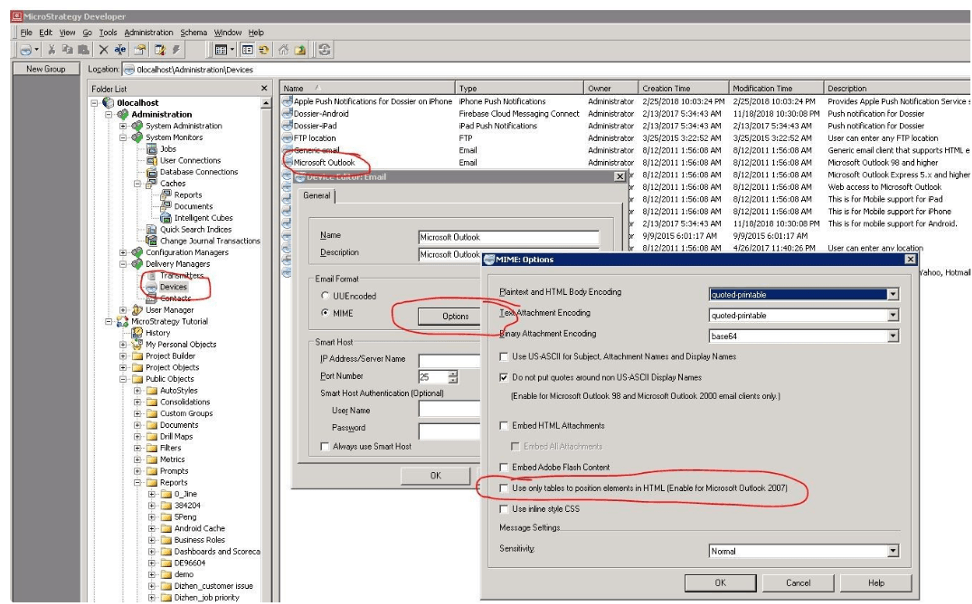
ka02R000000bsTBQAY_0EM2R000000flhb.jpeg


When the setting is enabled, the tables (<td>) is used to display elements in the HTML. In this case, the width and height for the image (<img>) node are not defined. This is because defining the width and height in will not scale the image.
When the setting is disabled, the width and height for an image () node are saved. When am email is opened directly from Outlook 2007, the image is not scaled. However, when viewing the email from web browser, the image is scaled.

Workaround


View the HTML from a web browser.


Comment

0 comments

Details

Knowledge Article

Published:

May 29, 2020

Last Updated:

May 29, 2020