Starting with the release of Strategy ONE (March 2024), dossiers are also known as dashboards.
Strategy Best Practices
Market Basket Analysis Using Non-Governed Data
Strategy has always been great for doing Market Basket Analysis. The Semantic Layer and governed objects are key in supporting this feature. Strategy 10.9 and 10.10 now makes it possible to do this without Semantic Layer nor governance.
Prerequisites
If you are new to Strategy, then welcome! And go get Strategy Desktop for Free before starting this Tutorial: https://www.microstrategy.com/us/get-started/desktop
Use case 1: Correlations within orders
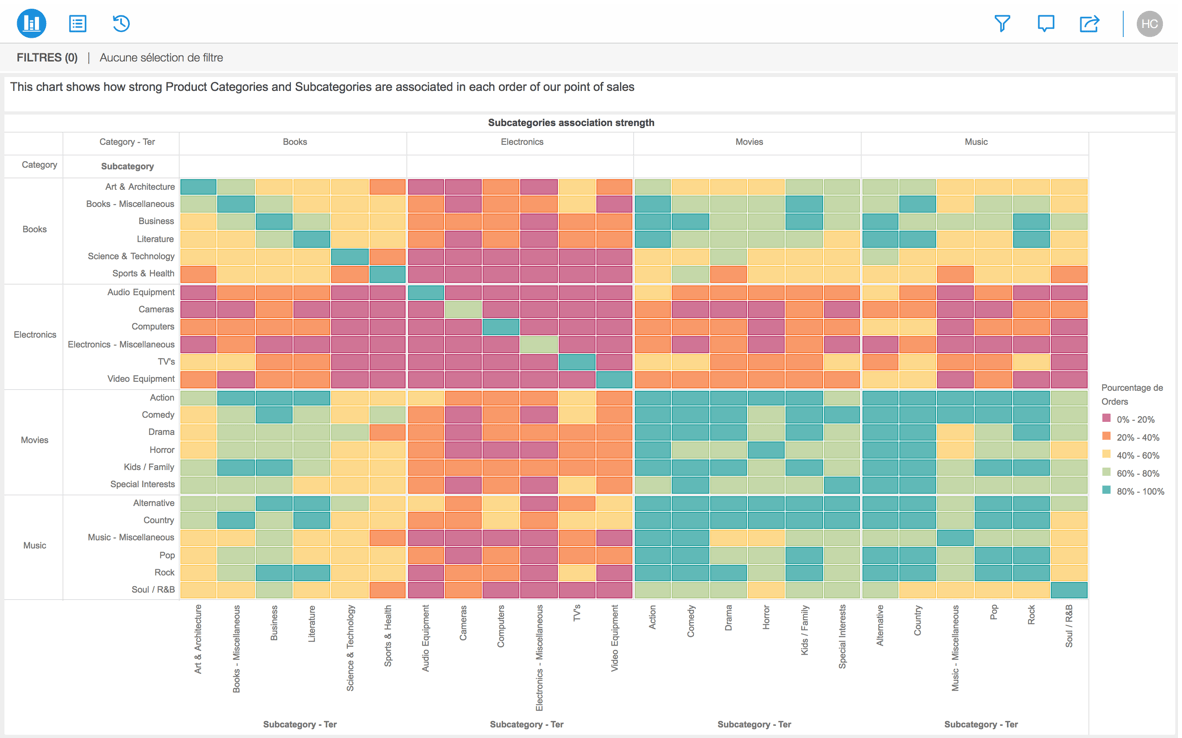
Questions: How many orders contain product families / category A and B ? A and C ? Which are the highest correlations we can get ?
The following Dossier shows a matrix of subcategories of products crossed with other subcategories. The color reflects the amount of orders containing subcategories from both the X and the Y axis.
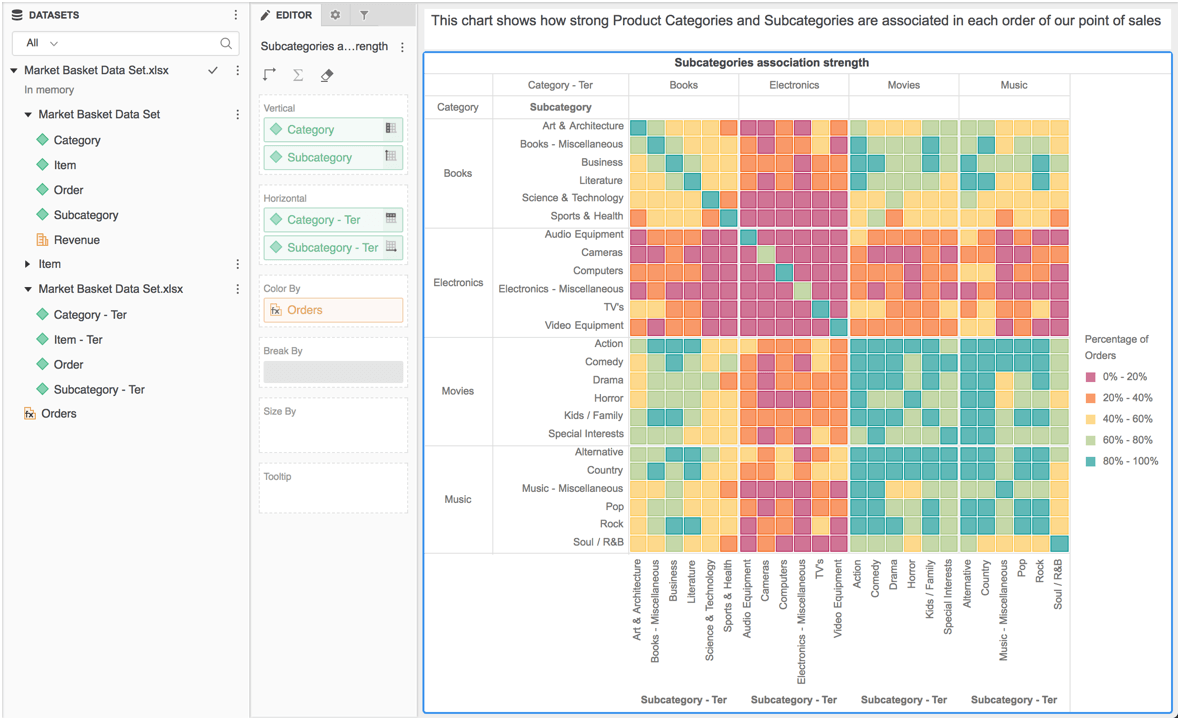
Category and Subcategory attributes need to be defined twice, related to the orders. This can easily be done by
Orders Metric is simply defined as :
Count<Distinct=True, UseLookupForAttributes=False>(Order@ID){~+}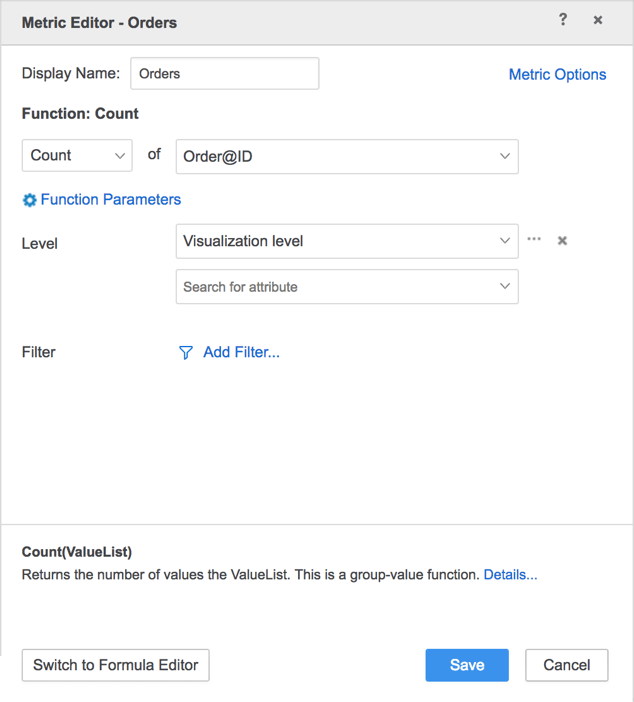
Questions: If I select 2 families : A and B. What is the revenue associated for the orders / baskets that contains both ? Which other families are often sold alongside A and B ?
The following Dossier shows Revenue, Orders count, Orders list and related subcategories to the active selection : Action (movies) and Book – Miscellaneous (books)
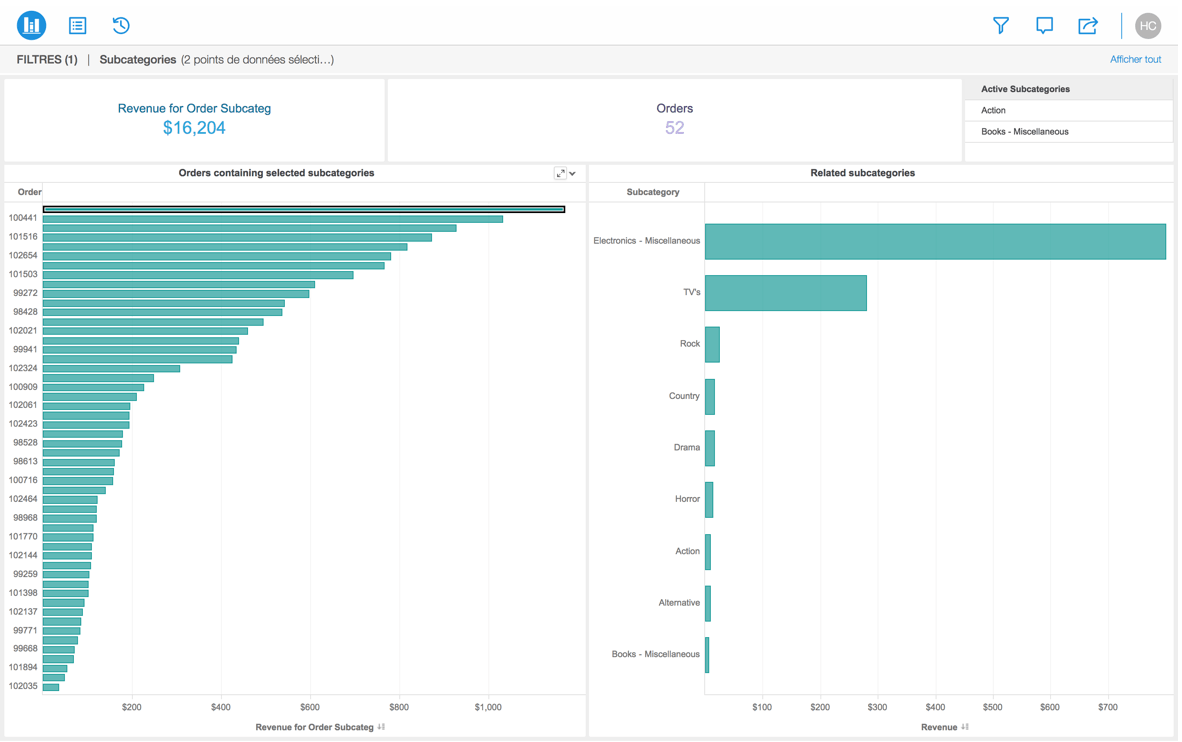
The active selection is done through the Filter Panel, using a Visualization Filter:
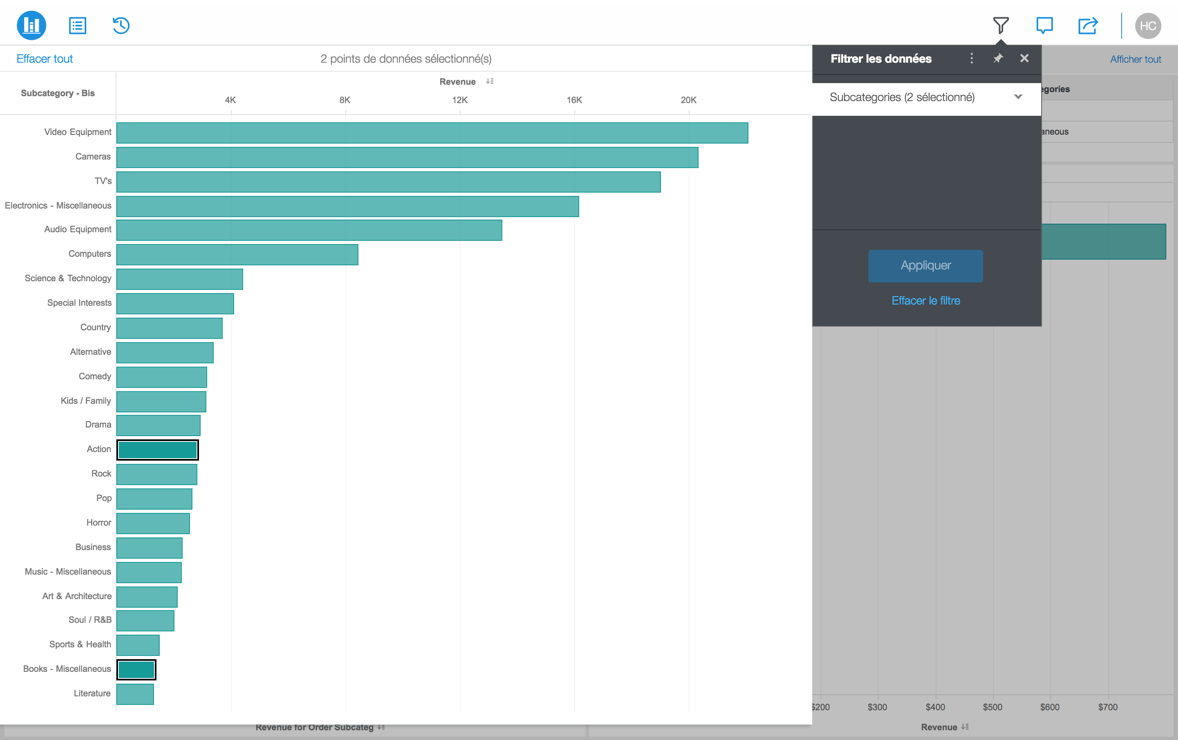
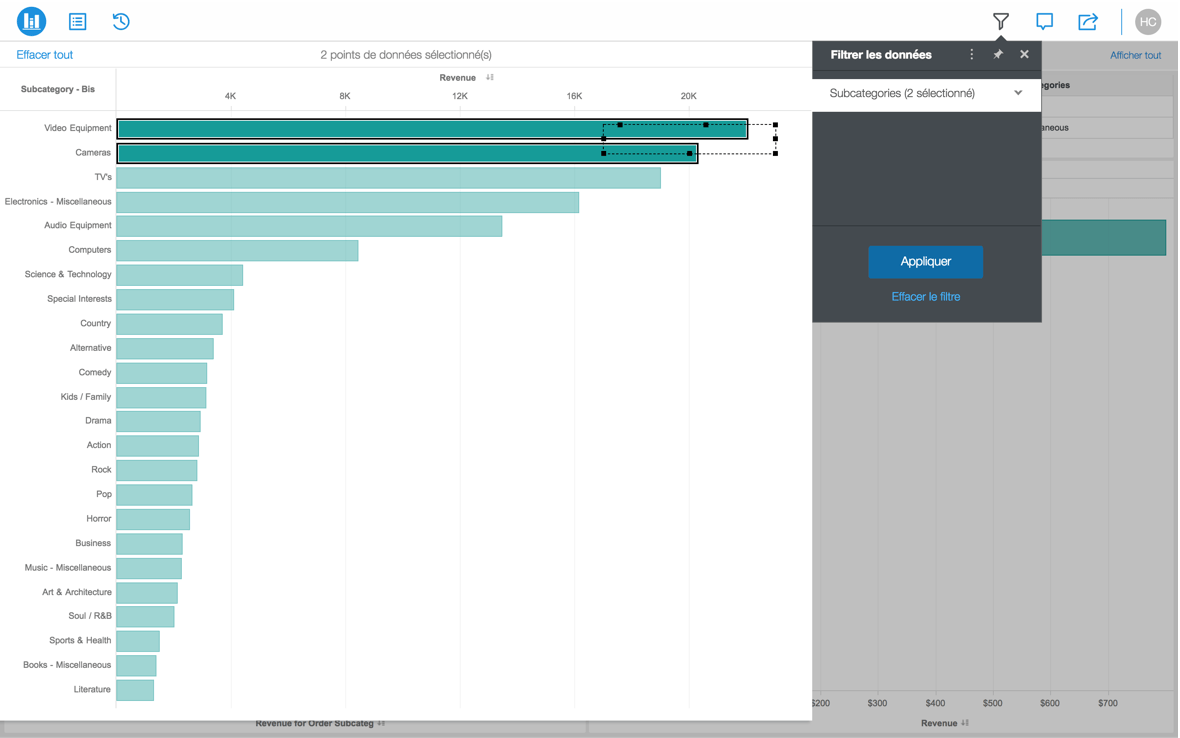
Active selection is displayed, and can be changed to a new one: Video Equipments and Cameras:
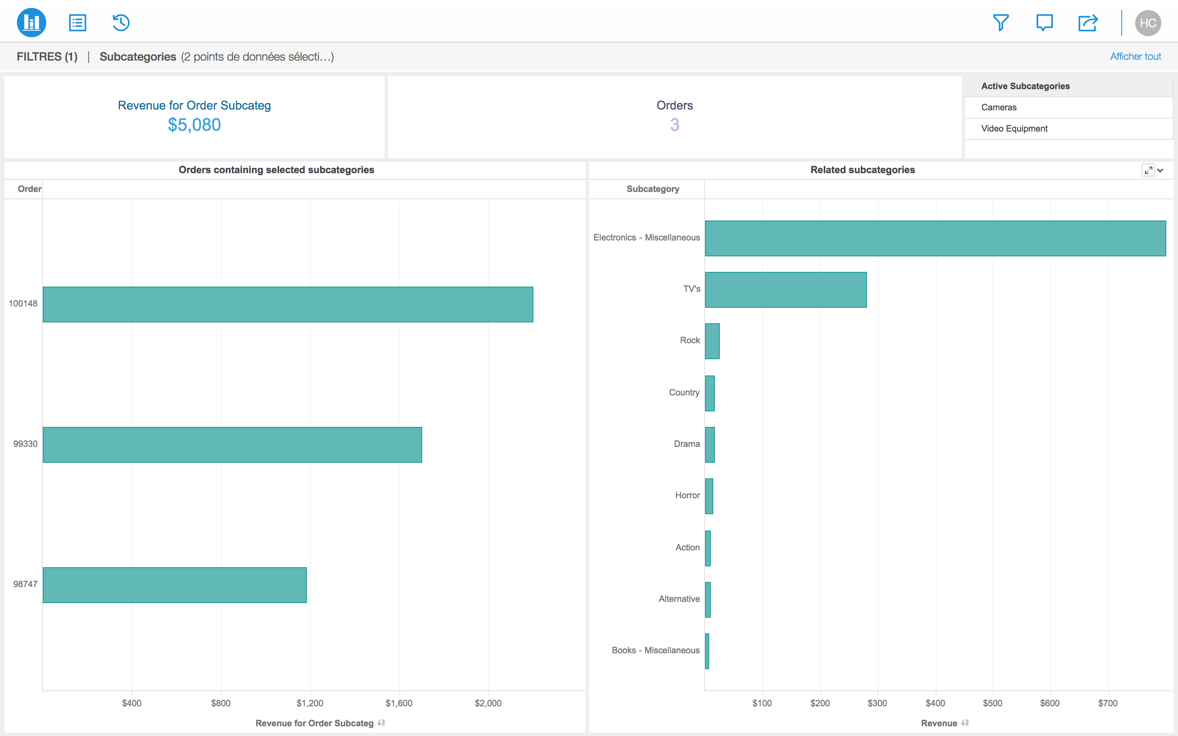
The dossier gets updated with my key figures in one click, showing these 2 subcategories are not so much associated, although they individually generate high revenue. However, it also shows these 2 items are highly associated with Electronics – Miscellaneous and TVs. This process works regardless of the number of selected subcategories.
Creating this kind of analytics requires
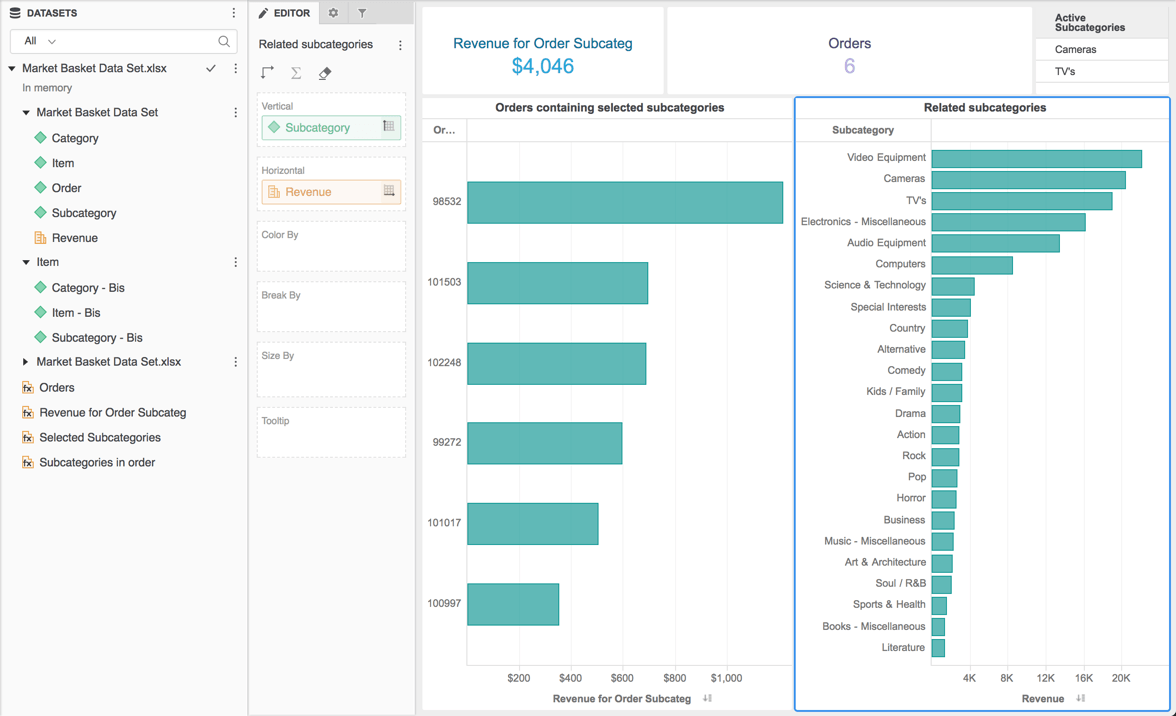
This is represented in the above screenshot by the “Item” tables of our dataset. It only requires to contain the Product hierarchy : Item, Subcategory, Category. To achieve this, import the excel file again and select "do not import" on the fields that are not required.
Revenue for Order by Subcategories: calculates the amount of revenue for the orders related by the subcategories selected:
Sum<UseLookupForAttributes=False>(Revenue){Order+, !Subcategory%}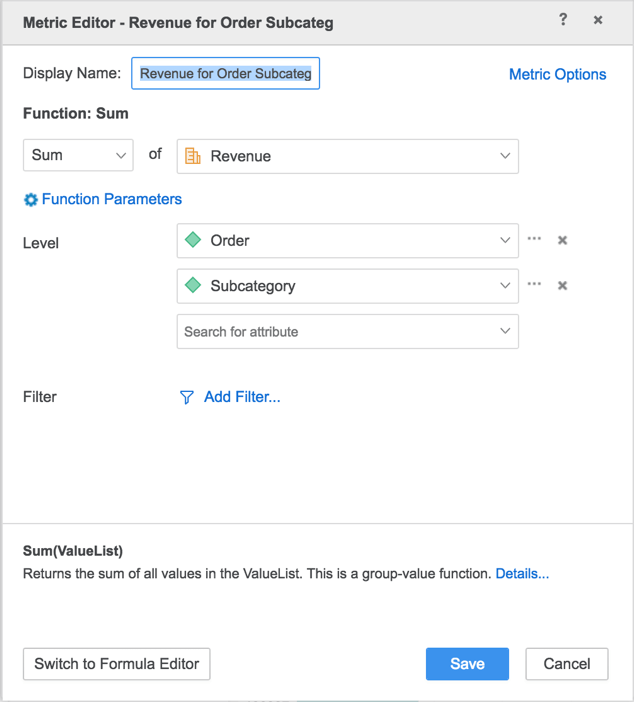
Selected Subcategories: simple metric with no level counting the exact count of subcategories-“bis” selected from the Filter panel:
Count<Distinct=True, UseLookupForAttributes=False>([Subcategory - Bis]@ID){}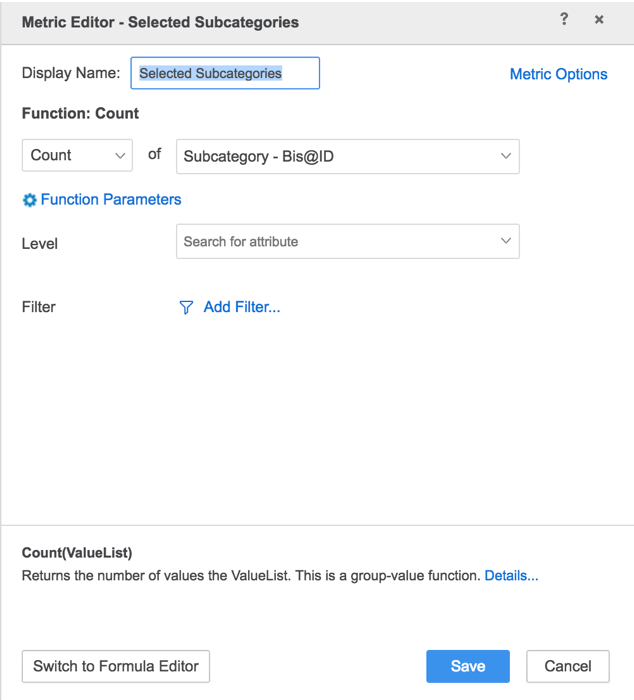
Subcategories found in order: count of subcategories matched between what is in the order and what has been selected from the filter panel:
Count<Distinct=True, UseLookupForAttributes=False>(Subcategory@ID){Order+}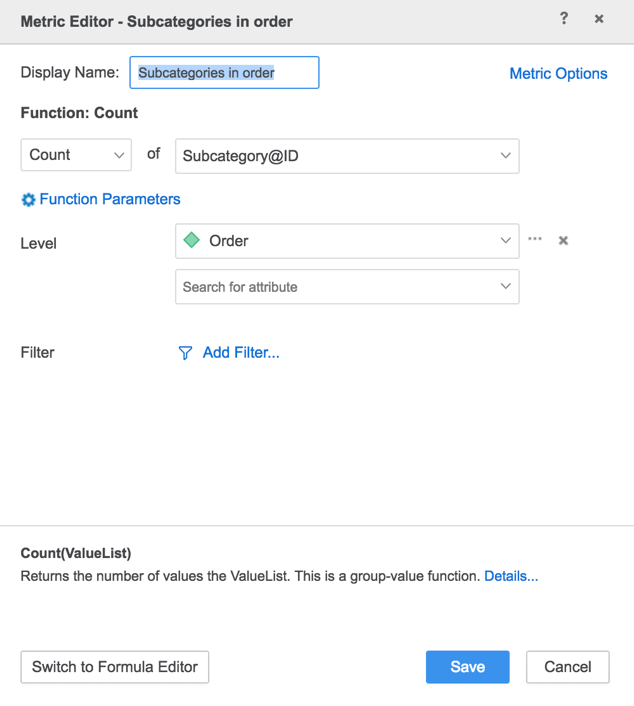
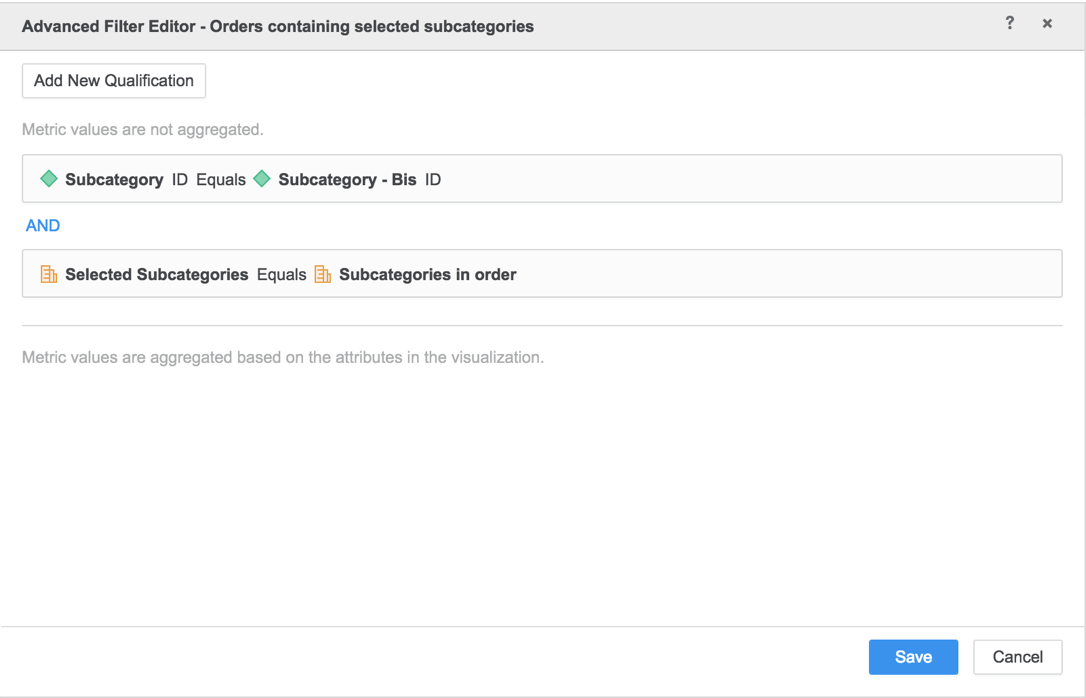
Defined as
Subcategory ID Equals Subcategory – Bis ID
AND
Selected Subcategories Equals Subcategories found in order