EducationSoftwareStrategy.com
StrategyCommunity

Knowledge Base

Product

Community

Knowledge Base

TopicsBrowse ArticlesDeveloper Zone

Product

Download SoftwareProduct DocumentationSecurity Hub

Education

Tutorial VideosSolution GalleryEducation courses

Community

GuidelinesGrandmastersEvents
x_social-icon_white.svglinkedin_social-icon_white.svg
Strategy logoCommunity

© Strategy Inc. All Rights Reserved.

LegalTerms of UsePrivacy Policy
  1. Home
  2. Topics

KB483542: Metric Guide does not work for Count metric when used in a Compound metric


Community Admin

• Strategy


The Metric Guide does not work for a Count metric when it is used in a Compound Metric, which results in incorrect data.

Starting with the release of Strategy ONE (March 2024), dossiers are also known as dashboards.
Symptoms

  • Using Strategy 2019 with Data Engine Version is set to 11.
    • The project level setting Data Engine Version can only be enabled through Workstation. For more details on enabling the setting, see Change Data Engine Version.
  • Two attributes from different datasets are linked and have different values
  • Compound metric returns incorrect data.
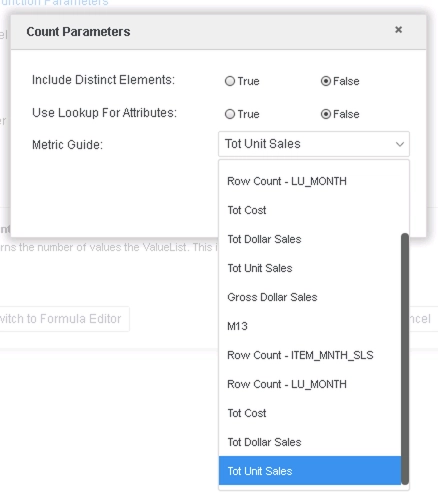
    • One of the component metrics that makes up the Compound metric is made with the Count() function and has the Metric Guide changed from "Automatic" to an attribute.

Glossary

  • Metric Guide
  • Compound Metric

Steps to Reproduce

  • Open Strategy Web. 
  • Create 2 datasets. We use Strategy Tutorial tables that have the Month Id attribute and alter them. The purpose of filtering these tables is to obtain datasets that have a common attribute, but different values for it to ensure no overlap.
    • Create a new dataset DS1:
      • Add External Data > Databases > Build a Query.
      • Select the "CITY_MNTH_SLS" table, and add all columns.
      • Click "Filter" and add the condition CITY_MNTH_SLS.MONTH_ID<=201403.
      • Click "Prepare Data".
      • Add a new table > Databases > Build a Query.
      • Select the "LU_MONTH" table and add 3 columns: Year Id, Quarter Id, Month Id.
      • Click "Filter" and add the condition LU_MONTH.MONTH_ID<=201404.
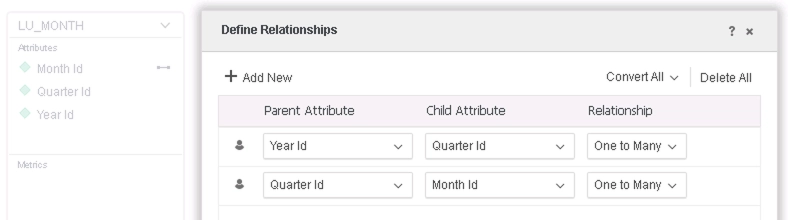
      • Define relationships for this table as follows: 
ka0PW0000001JYEYA2_0EM2R000000leGT.jpeg
      • Rename the first table to "CITY_MNTH_SLS" and the second table to "LU_MONTH" to avoid confusion.
      • Save the dataset "In-Memory" mode.
    • Create a new dataset DS2:
      • Add External Data > Databases > Build a Query.
      • Select the "ITEM_MNTH_SLS" table, and add all columns.
      • Click "Filter" and add these conditions: 
        • ITEM_MNTH_SLS.MONTH_ID<=201505
        • ITEM_MNTH_SLS.MONTH_ID>=201501
      • Click "Prepare Data".
      • Add a new table > Databases > Build a Query.
      • Select the "LU_MONTH" table, and add 3 columns: Year Id, Quarter Id, Month Id.
      • Click "Filter" and add these conditions: 
        • LU_MONTH.MONTH_ID<=201506
        • LU_MONTH.MONTH_ID>=201501
      • Define relationships for this table as follows: 
ka0PW0000001JYEYA2_0EM2R000000leGT.jpeg
      • Rename the first table to "ITEM_MNTH_SLS" and the second table to "LU_MONTH" to avoid confusion.
      • Save the dataset "In-Memory" mode.
  • Create a new dossier, and add the two datasets created in step 2.
  • Link Month_Id in both datasets to each other:
    • Right-click Month Id in one of the datasets > Link to Other Dataset... > Select Month Id.
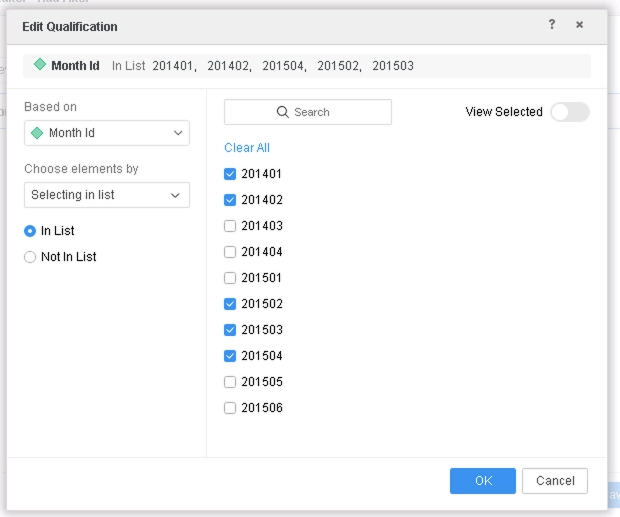
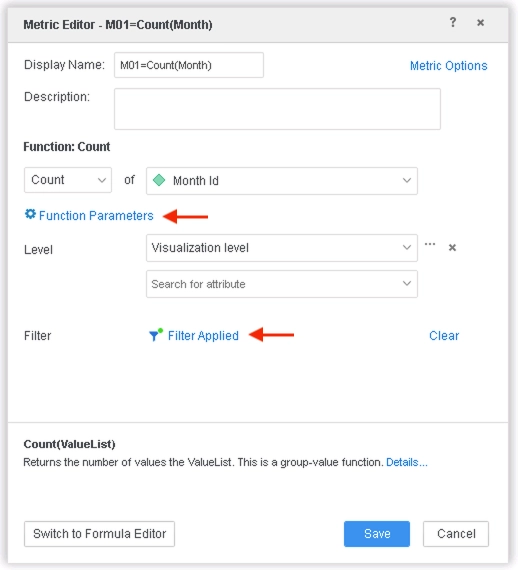
  • Create a new metric M01=Count(Month) in DS2 with the following definition: 
ka0PW0000001JYEYA2_0EM2R000000ldVw.jpeg
ka0PW0000001JYEYA2_0EM2R000000leHH.jpeg
ka0PW0000001JYEYA2_0EM2R000000leHM.jpeg
    • Since the Month Id attribute in both datasets are linked, either can be chosen. They both provide the same list of elements.
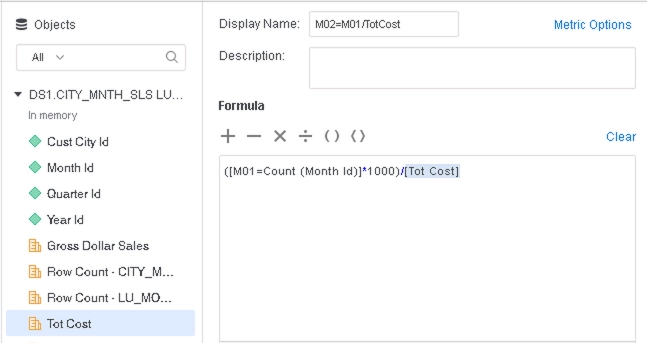
  • Create a new Compound metric M02=M01/TotCost in DS2 with the following definition: 
ka0PW0000001JYEYA2_0EM2R000000leHR.jpeg
  • Change the number format of M02=M01/TotCost to Percentage with 2 decimal places.
  • Drag M02=M01/TotCost to a Grid visualization.


The result, 0.2166%, is incorrect.
 

Cause

  • In Strategy 2019, a feature that is enabled when Data Engine Version is set to 11 changes how Compound metrics are calculated.
    • Data Engine fails to use the Metric Guide defined in a component metric.

Solution

  • Upgrade to Strategy 2019 Update 1 or later. We recommend the latest version.


In the new fix, Data Engine fixes the problem of not using the Metric Guide in the component metrics of Compound Metrics. The example above will now return 77.97%, and this is true whether Data Engine Version is set to 10 or 11.
Note: This fix changes CSI and data.
Strategy Internal Reference number for this technical note is KB483542 and DE123943.


Comment

0 comments

Details

Knowledge Article

Published:

August 13, 2019

Last Updated:

March 21, 2024