EducationSoftwareStrategy.com
StrategyCommunity

Knowledge Base

Product

Community

Knowledge Base

TopicsBrowse ArticlesDeveloper Zone

Product

Download SoftwareProduct DocumentationSecurity Hub

Education

Tutorial VideosSolution GalleryEducation courses

Community

GuidelinesGrandmastersEvents
x_social-icon_white.svglinkedin_social-icon_white.svg
Strategy logoCommunity

© Strategy Inc. All Rights Reserved.

LegalTerms of UsePrivacy Policy
  1. Home
  2. Topics

MicroStrategy On AWS Encryption


Shreyas Shah

Product Manager, Director •


MicroStrategy on AWS environments are encrypted by default for all deployments, including EFS, RDS, and the EBS data volume. The Root EBS volume can be encrypted by following the instructions in this article.

Capabilities

With MSTR Stack version nine and above, every deployment of an MSTR environment will now encrypt EFS, RDS, and non-root EBS volume(s) by default.
Root EBS volume(s) can be encrypted using the MSTRCloud-EncryptRootVolume-vX lambda provided by MSTR. Please refer to “Encrypting EBS root volume” on how.
The default KMS key that is utilized to encrypt the devices can be seen under CloudFormation → Exports → MSTRStorageEncryptionKeyARN
Users can modify the KMS key that is used to encrypt the devices at any time. Please refer to “Changing the encryption KMS key” on how. 

Encrypting the EBS Root Volume

The root EBS volume(s) has to be encrypted with a separate lambda because the root cannot be encrypted before instance launch nor be encrypted after instance launch without first creating a snapshot. There will be future development consideration in re-architecting the deployment structure to accommodate root encryption as part of the deployment process.
Please also be advised that there is AWS limitation on how many copies of snapshots that can occur simultaneously in an account. Please refer to:
https://docs.aws.amazon.com/general/latest/gr/aws_service_limits.html under “Amazon Elastic Block Store (Amazon EBS) Limits“

The best practice in using the root encryptor is as follows:

  • Make sure no environments are provisioning/getting triggered to ensure AWS limitation exception will not be raised
  • Make sure to trigger the root encryptor lambda once at a time to ensure AWS limitation exception will not be raised
  • If the environment has more than four nodes, encrypt platform root(s) and developer root separately to ensure the encryption process will finish under 15 minutes
  • Make sure no one is using the environment and all your work is saved. The encryption of root volume will turn off all your instances.

Once the criteria above are fulfilled, follow the steps below to encrypt the root volume:

  • Locate the environment you wish to encrypt the root volume(s) for. Make sure the stack has been completed and you have received the welcome email for the environment.
  • Take note of the environment ID
ka044000000kU0uAAE_0EM44000000geIS.jpeg
  • Locate MSTRCloud-EncryptRootVolume-vX in your AWS account ® Lambda
ka044000000kU0uAAE_0EM44000000geIX.jpeg
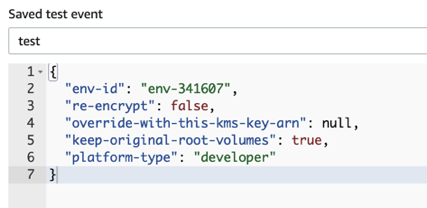
  • The payload required is as follows:
    • “env-id”: String
      • This is the environment ID (also, the Stack Name) of the environment you wish to encrypt the root volume(s) for.
    • “re-encrypt”: true | false
      • If set to true: if the root is already encrypted, encrypt it again anyways.
      • If set to false: skip the encrypted root(s) and encrypt only the root(s) that are not already encrypted.
    • "override-with-this-kms-key-arn": null | String of AWS KMS Key ARN
      • null: find and use the KMS key used to encrypt the other storage devices of this environment. If the KMS key no longer exists, use the custom KMS available in Parameter Store. If there is no custom KMS key specified in Parameter Store, use the default KMS key in CloudFormation ® Exports.
      • String of AWS KMS Key ARN: use the specified KMS key to encrypt the root volume(s). If the KMS key given by the user is invalid, use the custom KMS available in Parameter Store. If there is no custom KMS key specified in Parameter Store, use the default KMS key in CloudFormation ® Exports.
    • "keep-original-root-volumes": true | false
      • If set to true: keep the old volume(s) that was previously attached.
      • If set to false: delete the old volume(s) that was previously attached.
    • "platform-type": "platform" | "developer" | "all”
      • platform: encrypt only the PlatformInstance root(s)
      • developer: encrypt only the DeveloperInstance root(s)
      • all: encrypt both Platform and Developer instances.
  • Click Configure test events in the lambda and insert your payload.
ka044000000kU0uAAE_0EM44000000geIc.jpeg
  • Click Save.
  • Click Test.
  • The process will take around 5 ~ 15 minutes, depending on the number of and the size of the root volume(s).


Changing the encryption KMS key

The default KMS key that is utilized to encrypt the devices can be seen under CloudFormation → Exports → MSTRStorageEncryptionKeyARN
Users can change the KMS key used to encrypt the storage devices at any time. Please be advised that the new key specified will be used instead of the default key provided from the moment it is saved.
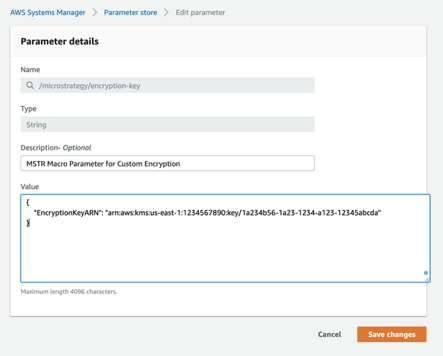
  • Create your new KMS key (or, locate your KMS key that you wish to use)
  • Copy the KMS Key ARN
  • Navigate to Services → Systems Manager → Shared Resources → Parameter Store
  • Edit the parameter, /MicroStrategy/encryption-key
  • Paste the KMS Key ARN as the value for “EncryptionKeyARN”
ka044000000kU0uAAE_0EM44000000geIh.jpeg
  • Click Save changes


KB482981


Comment

0 comments

Details

Knowledge Article

Published:

March 20, 2019

Last Updated:

March 22, 2019