EducationSoftwareStrategy.com
StrategyCommunity

Knowledge Base

Product

Community

Knowledge Base

TopicsBrowse ArticlesDeveloper Zone

Product

Download SoftwareProduct DocumentationSecurity Hub

Education

Tutorial VideosSolution GalleryEducation courses

Community

GuidelinesGrandmastersEvents
x_social-icon_white.svglinkedin_social-icon_white.svg
Strategy logoCommunity

© Strategy Inc. All Rights Reserved.

LegalTerms of UsePrivacy Policy
  1. Home
  2. Topics

KB483895: MicroStrategy 2020 Workstation allows for LDAP configuration and the ability to import users


Yifan Liu

Product Owner • Strategy


This is an overview of the new 2020 feature in Workstation that allows administrators to configure LDAP connectivity and import LDAP users into the MicroStrategy Platform.

Value

The Lightweight Directory Access Protocol (LDAP) is a vendor-neutral application protocol used to maintain distributed directory info in an organized, easy-to-query manner. As it stands, it is one of the most essential forms of authentication that is used around the world. Now, Strategy Workstation has the ability for administrators to configure LDAP authentication for their Strategy Platform in an all new user friendly and modern interface.

Architecture

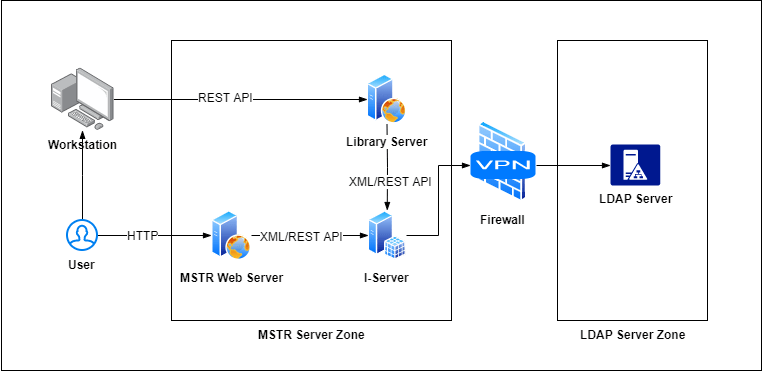
As with all Workstation requests, the REST server will process the API calls sent from Workstation for LDAP configurations. Below is a diagram that represents the workflow of this feature which is integrated into Workstation using the plugin architecture. The functionality is similar to Developer but implemented in a more modern and user-friendly interface taking advantage of easy access from environment administration within Workstation. As with other administrative functions in Workstation, LDAP configuration access is controlled via user privilege.
   

ka04W000000UL19QAG_0EM2R000000nCVj.jpeg


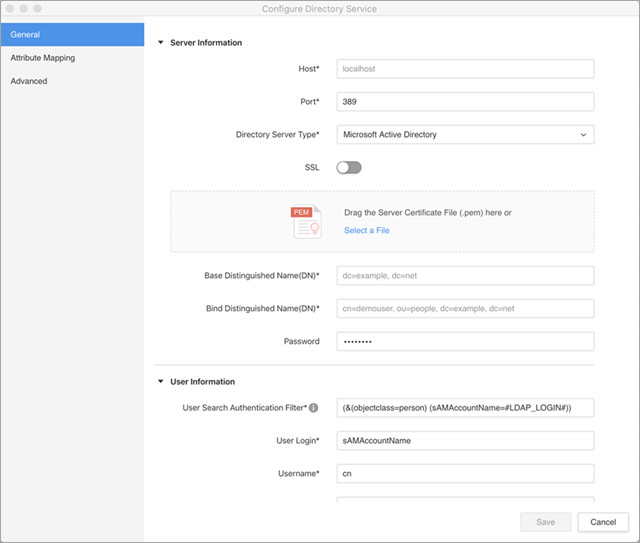
How to Access LDAP Configuration Settings in Workstation

  • Connect to an environment in Workstation.
  • Right-click the environment and select Directory Service > Configure Directory Service.
  • Navigate through the different tabs in the pop-up settings window.
    For more information on the configuration requirements, see Configure Directory Service.
ka04W000000UL19QAG_0EM2R000000nPrd.jpeg

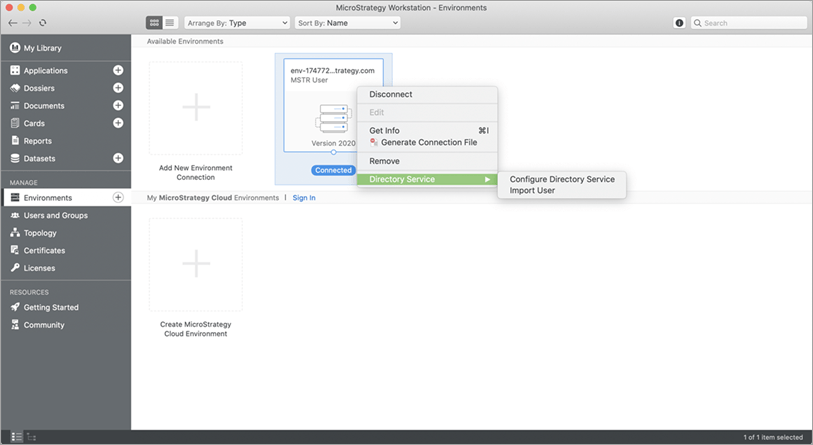
How to Import Users from the Directory Server

  • Connect to an environment in Workstation.
  • Right-click the environment and select Directory Service > Import User.
  • User will be presented with import user options.
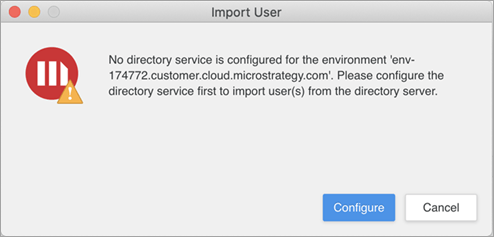
    Note: The behavior of Import User from Directory Server will depend on the status of LDAP configuration. If there is no directory service configured, an error will be displayed asking the user to configure LDAP before importing users.
ka04W000000UL19QAG_0EM2R000000nPrn.jpeg

Boundary Conditions and Error Handling

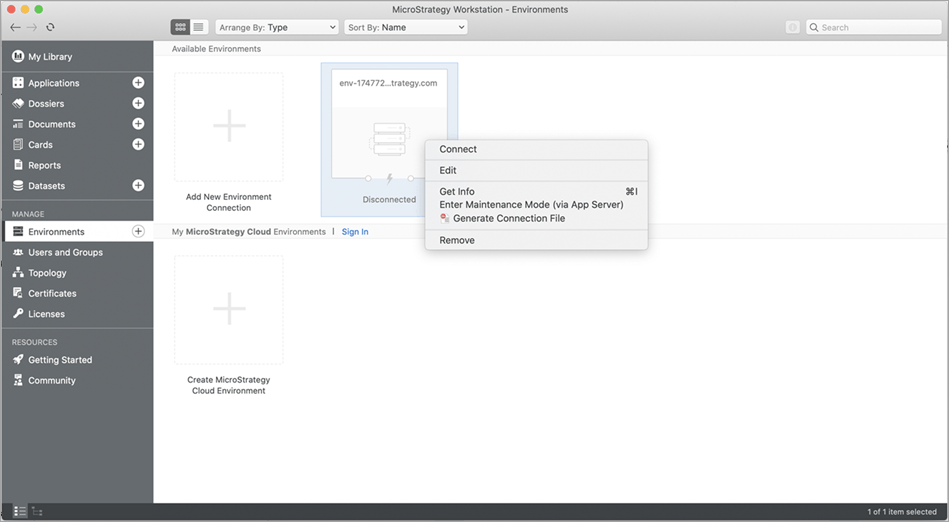
To configure LDAP, user must first connect to an environment with valid credentials. Without connecting to the environment, the Configure LDAP option will not appear if you right-click on the environment in Workstation.
ka04W000000UL19QAG_0EM2R000000nPrs.jpeg

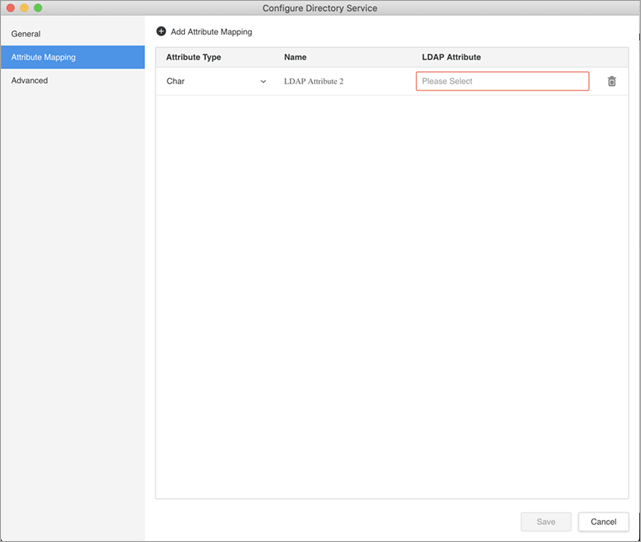
When adding a new row to Attribute Mapping, the user must enter a name before being able to add more rows to Attribute Mapping.
ka04W000000UL19QAG_0EM2R000000nPrx.jpeg

When LDAP is not configured, selecting the Import User function will cause an error to appear directing the user to the LDAP configuration screen.
ka04W000000UL19QAG_0EM2R000000nPs2.jpeg

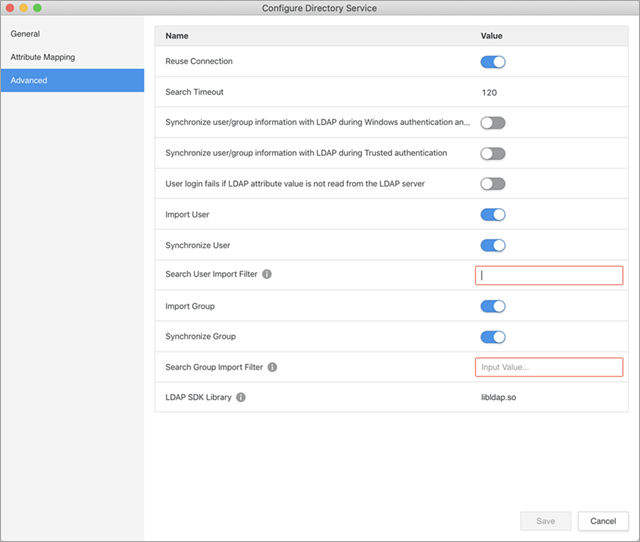
If any of the required fields are missing or invalid, the Save button will be disabled. The user needs to navigate through all three tabs to resolve these missing fields before saving the configuration information.
ka04W000000UL19QAG_0EM2R000000nPsC.jpeg

Related Topics

In MicroStrategy 2020, the Save button is disabled on the Configure Directory Service windows after loading LDAP configurations from Developer.


Comment

0 comments

Details

Knowledge Article

Published:

December 17, 2019

Last Updated:

January 9, 2020