EducationSoftwareStrategy.com
StrategyCommunity

Knowledge Base

Product

Community

Knowledge Base

TopicsBrowse ArticlesDeveloper Zone

Product

Download SoftwareProduct DocumentationSecurity Hub

Education

Tutorial VideosSolution GalleryEducation courses

Community

GuidelinesGrandmastersEvents
x_social-icon_white.svglinkedin_social-icon_white.svg
Strategy logoCommunity

© Strategy Inc. All Rights Reserved.

LegalTerms of UsePrivacy Policy
  1. Home
  2. Topics

KB484328: Google BigQuery Billing Project


Community Admin

• Strategy


This article describes how to set up the Google BigQuery billing project.

Description 


Billing projects help with distributing the cost of the queries among certain departments. To learn more about this feature, please see the BigQuery Cloud Billing documentation.
 

Billing Project Example


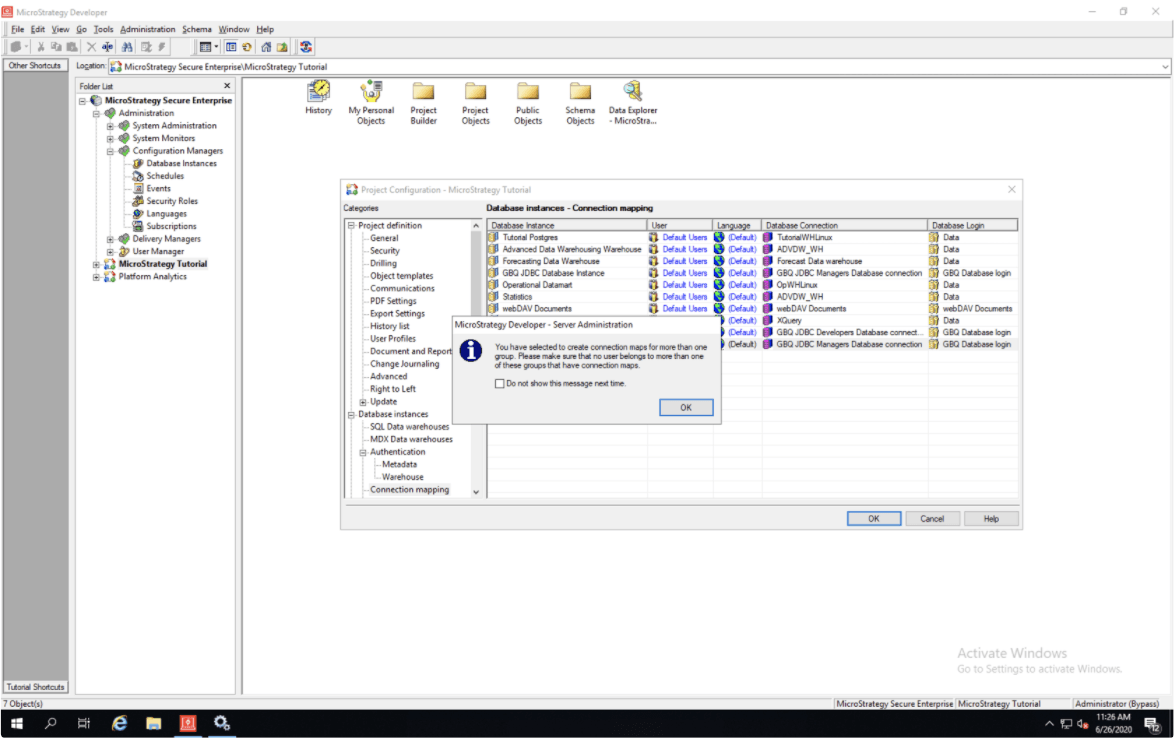
This article assumes that you have two Strategy groups created and each of these groups has at least one user with data import privilege. In this example, I have two groups, Developers and Managers, where the Developers group has a Developer user, while the Managers group has a Manager user associated with it. We are going to create one database instance “GBQ JDBC Database Instance;" two database connections “GBQ JDBC Developers Database connection” and “GBQ JDBC Managers Database connection;” and each of these database connections will use connection string with a different billing project. Lastly, we are going to use Strategy connection mapping to map the Developers group to “GBQ JDBC Developers Database connection” and the Managers group to “GBQ JDBC Managers Database connection." When the Developer user logs in, query the “GBQ JDBC Database Instance," and the billing project set up in “GBQ JDBC Developers Database connection” connection string will be used for billing. On the other hand, when the Manager user logs in, query the “GBQ JDBC Database Instance," and the billing project set up in “GBQ JDBC Managers Database connection” connection string will be used for billing.
 

  • If you do not have an OAuth Refresh Token yet, please refer to Generate Refresh Token to Access Google BigQuery.
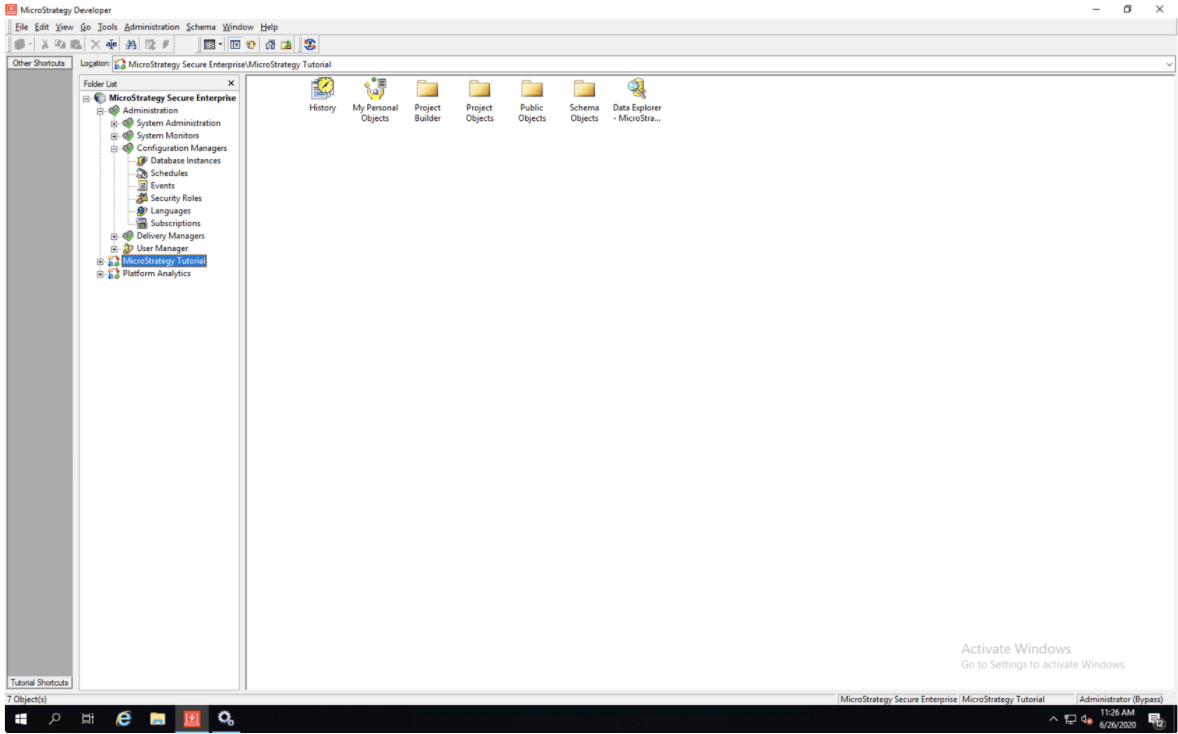
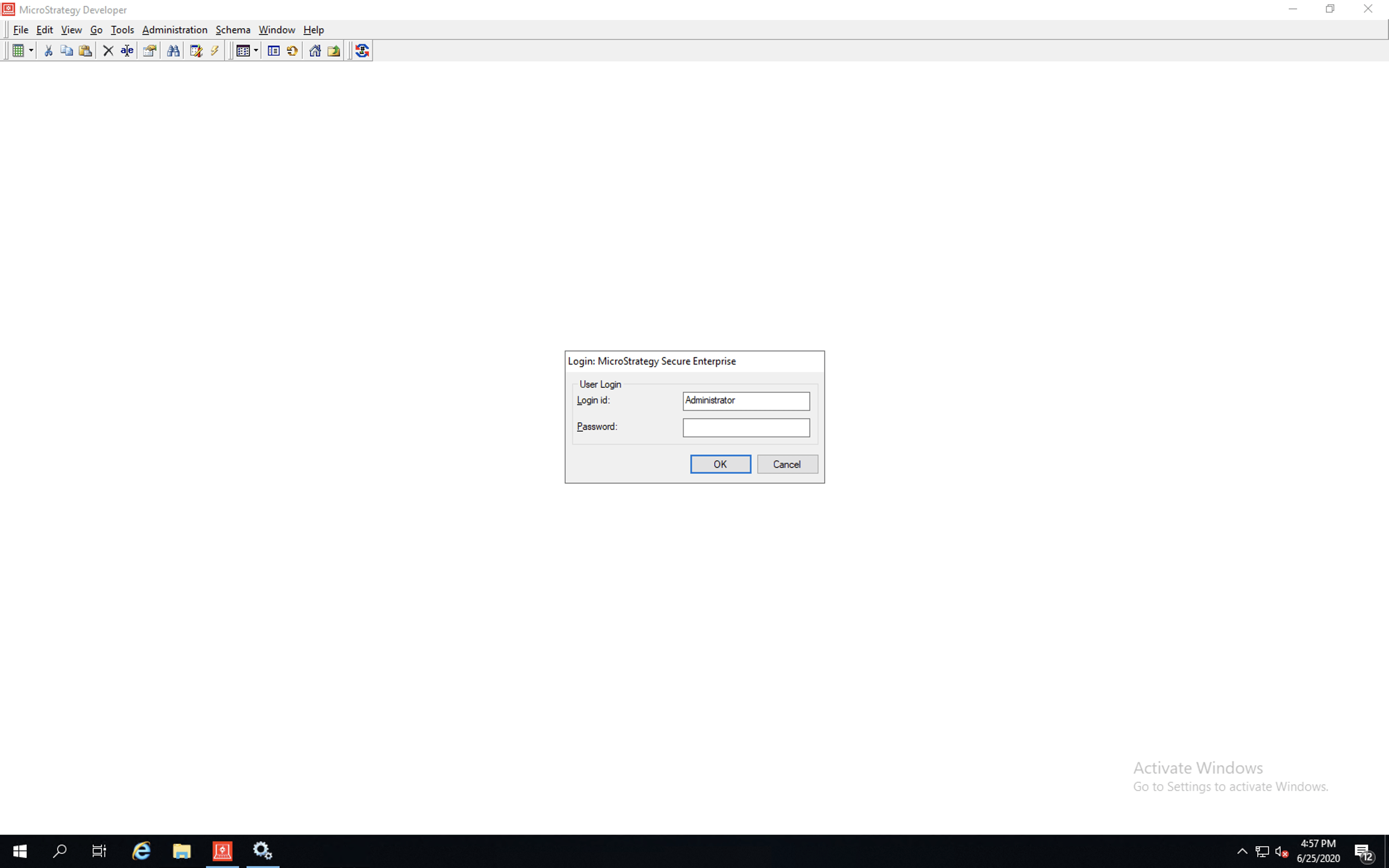
  • Launch Strategy Developer and log in.
ka04W000001IwoFQAS_0EM4W000001JTLo.jpeg
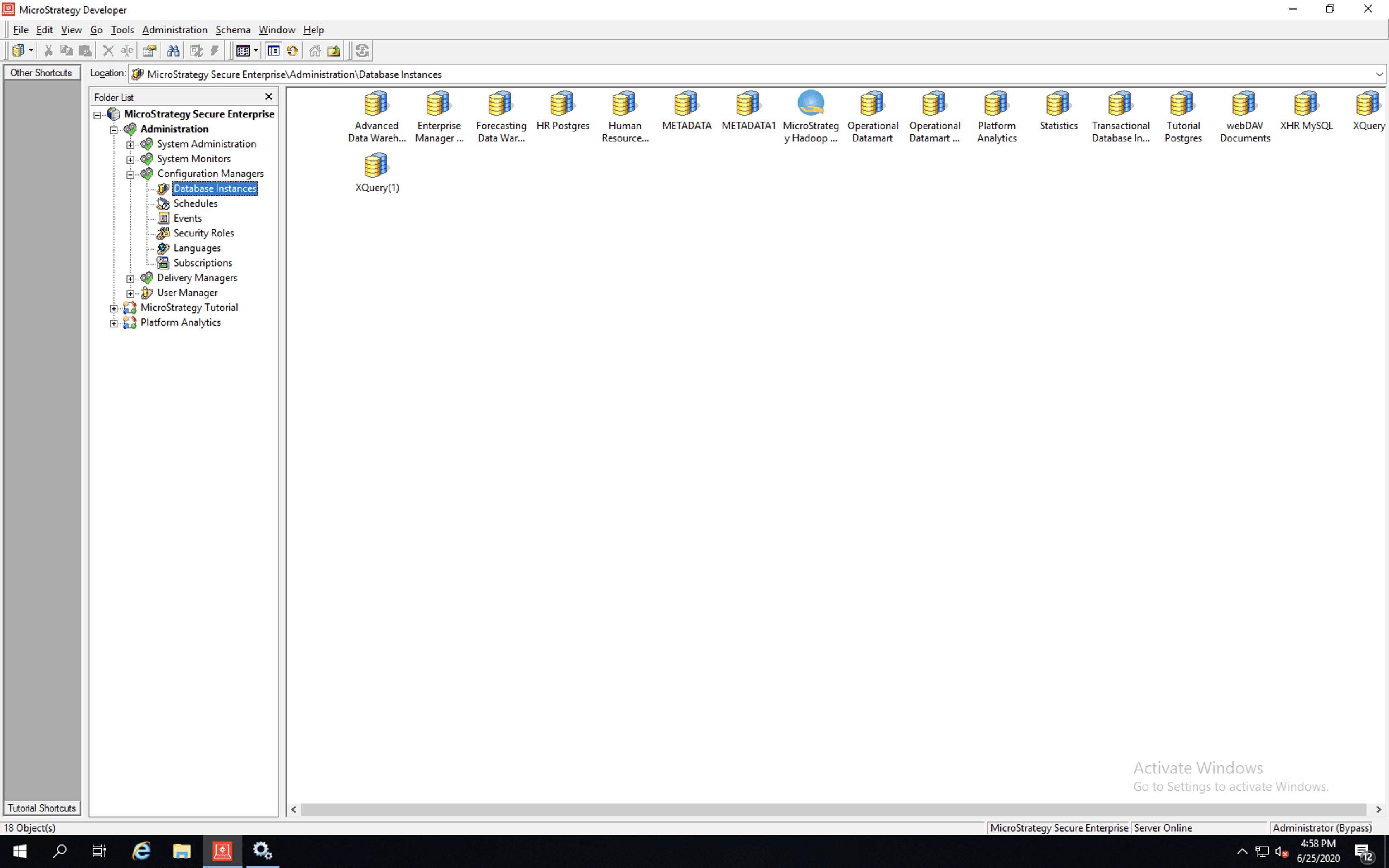
  • Expand the appropriate project source, then the Administration node, and click on the Database Instances node. All your database instances should show in the main window.
ka04W000001IwoFQAS_0EM4W000001JTMS.jpeg
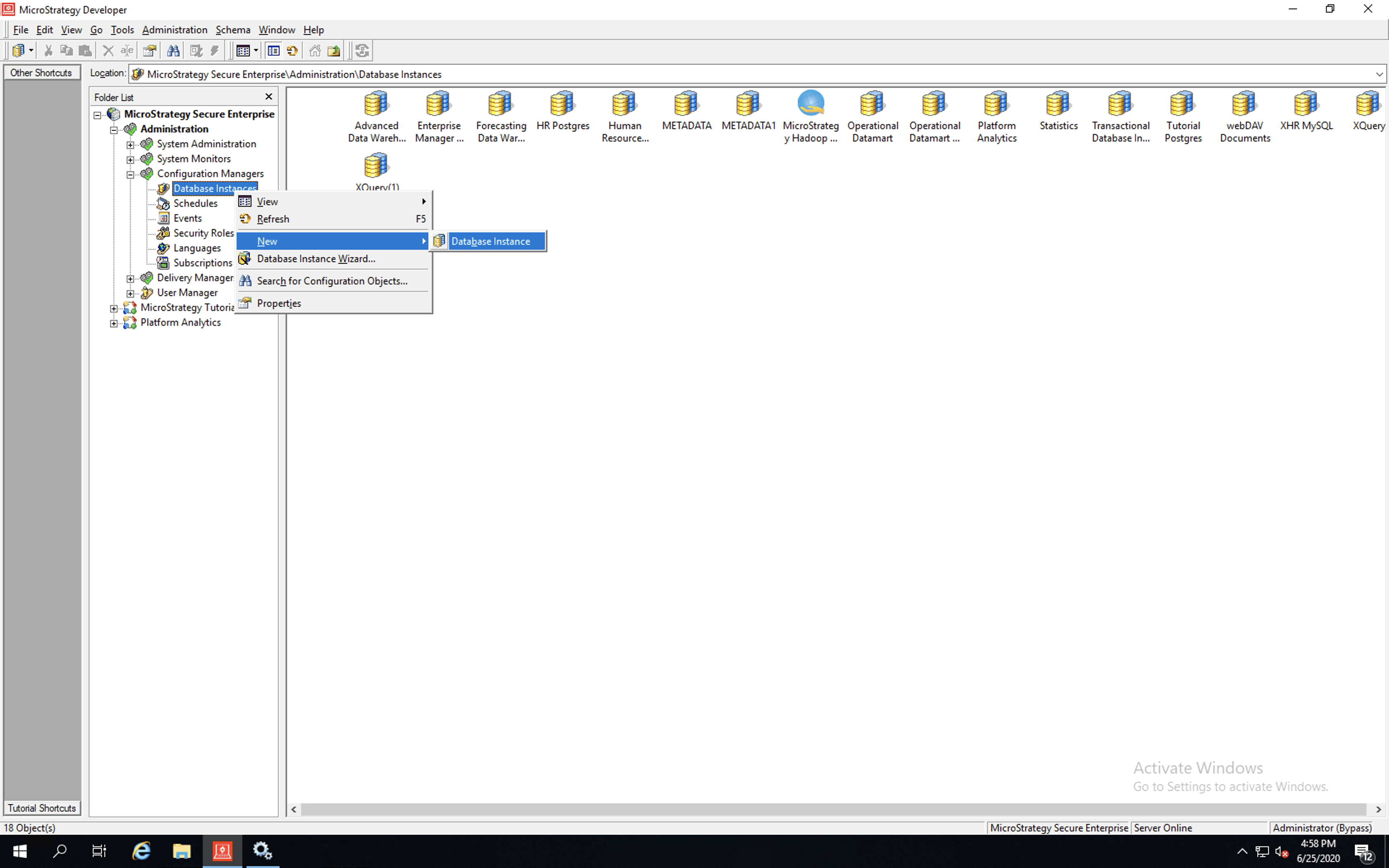
  • Right-click on the Database Instances node > New > Database Instance.
ka04W000001IwoFQAS_0EM4W000001JTMX.jpeg
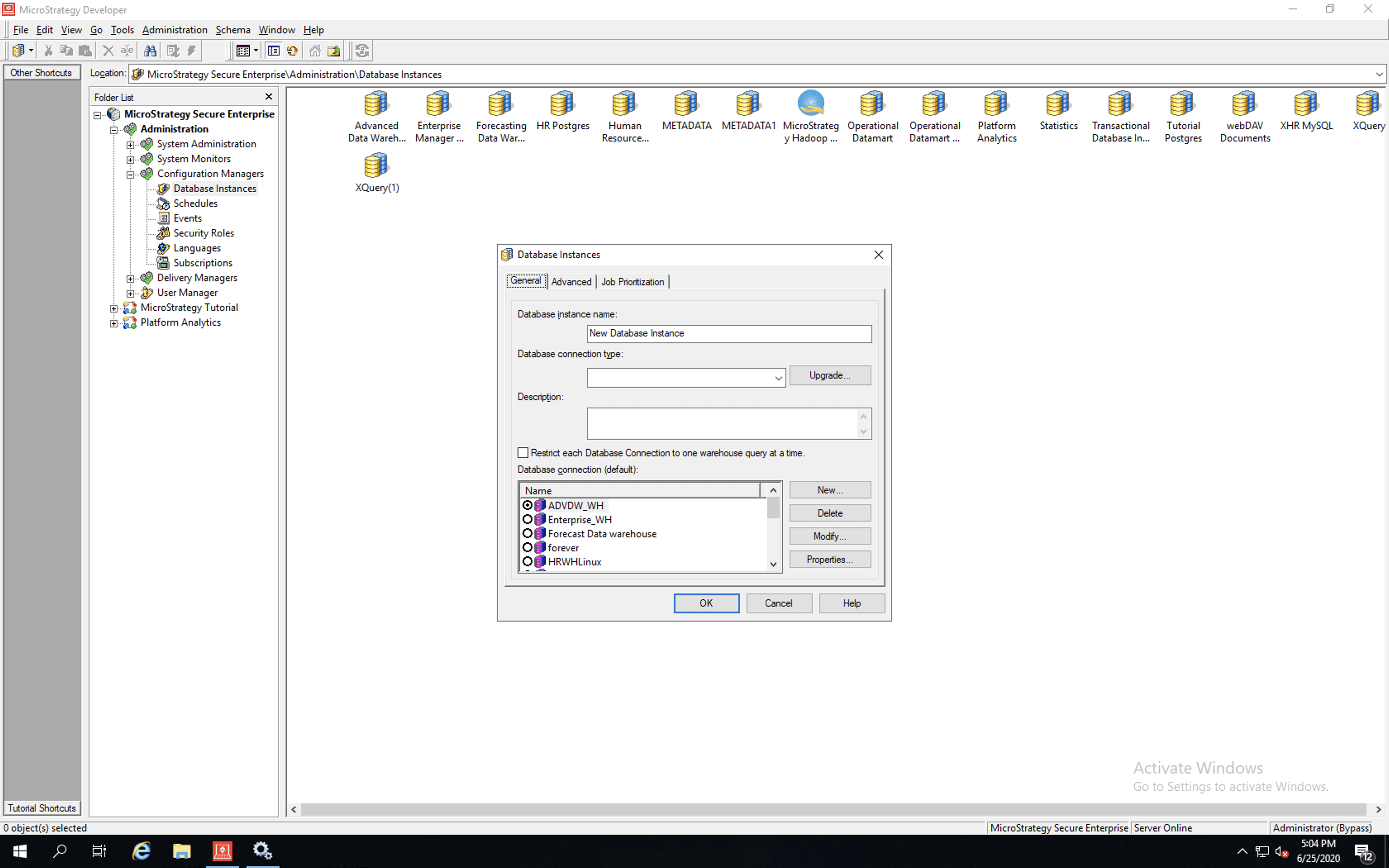
  • The Database Instances creation wizard displays.
ka04W000001IwoFQAS_0EM4W000001JTMc.jpeg
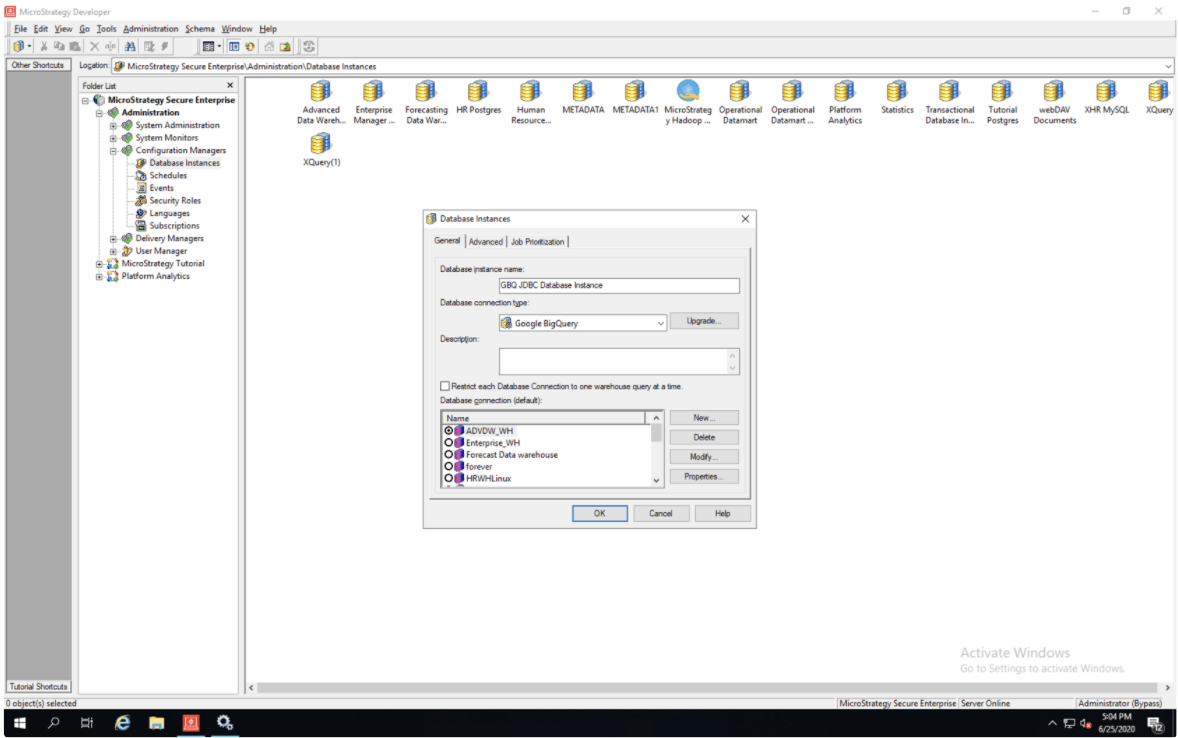
  • Fill out the Database instance name and Database connection type fields, and click New.
ka04W000001IwoFQAS_0EM4W000001JTMh.jpeg
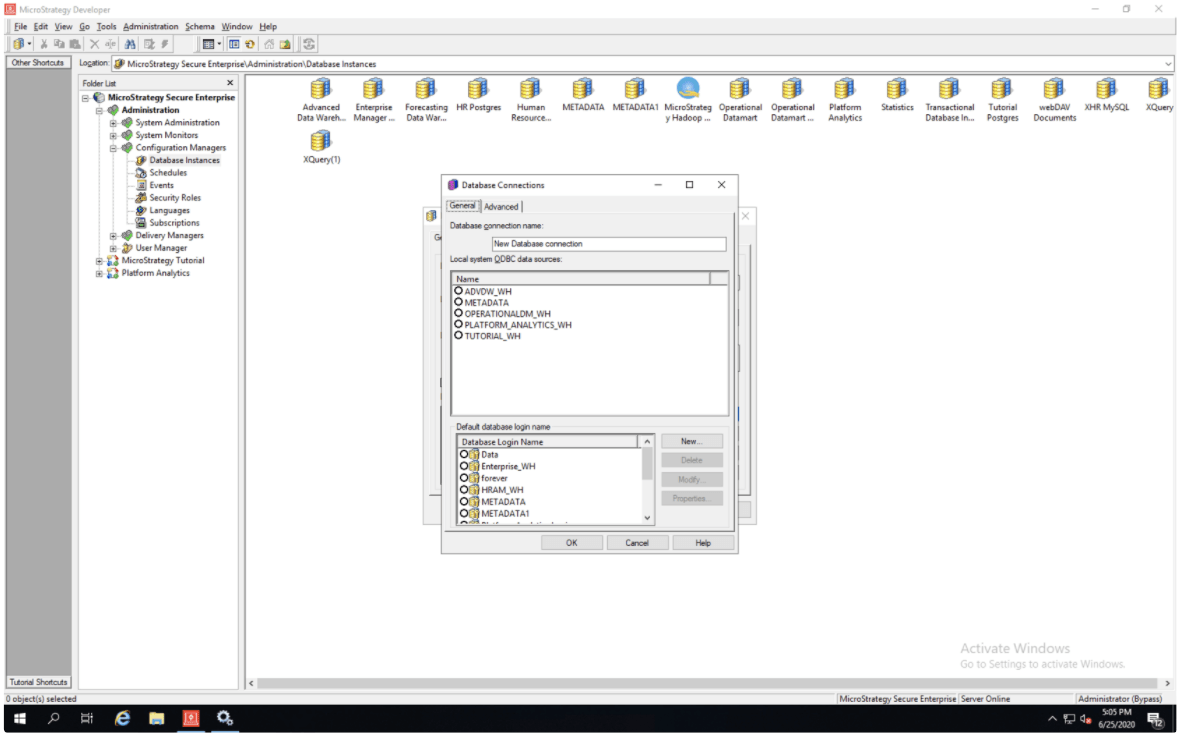
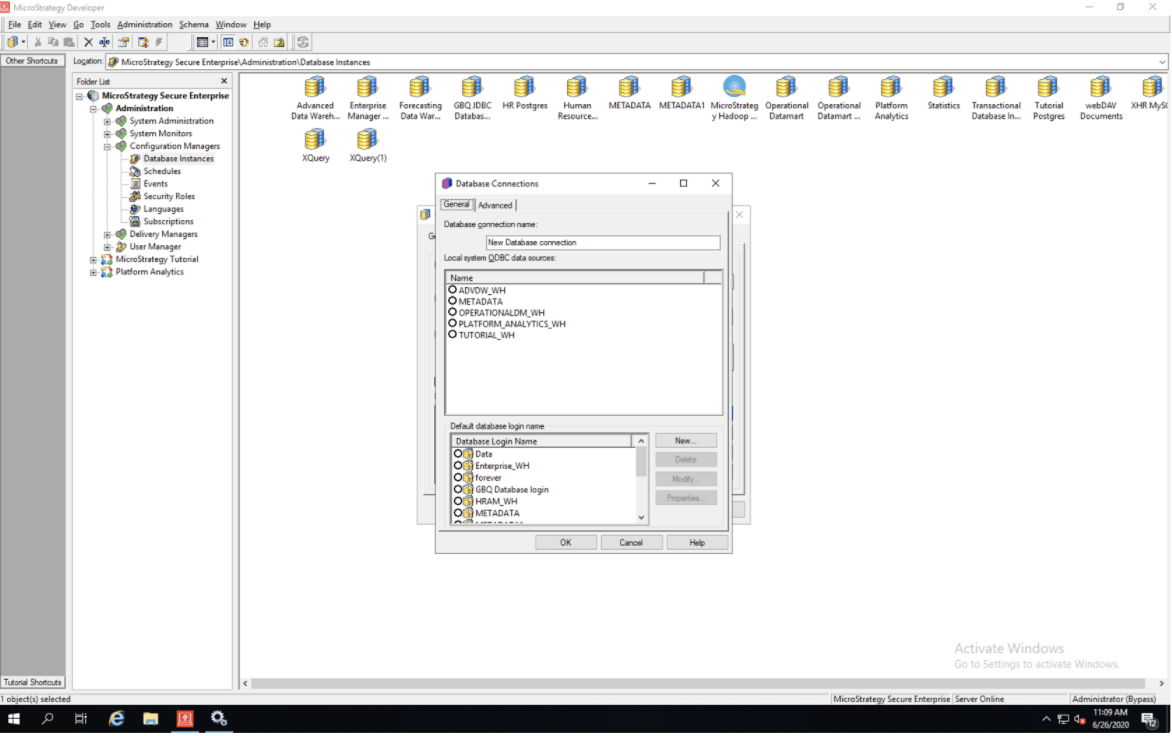
  • The Database Connections creation wizard displays. Fill out the Database connection name field. This connection will be mapped to one of your groups. Then, click on the New to create a Database login.
ka04W000001IwoFQAS_0EM4W000001JTMr.jpeg
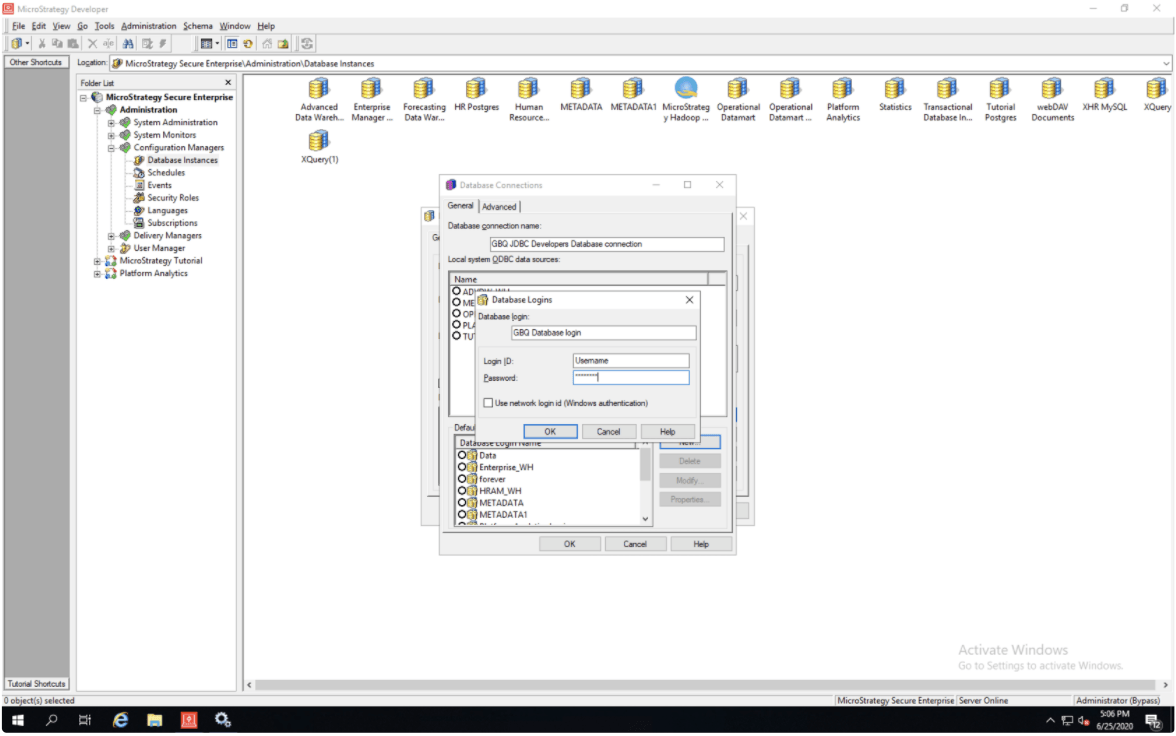
  • The Database Logins creation wizard displays. Fill out the Login ID and Password fields, and click OK. Please note that the Login ID and Password can be any value because the driver will use the OAuth Refresh Token, and not the credentials to access Google BigQuery.
ka04W000001IwoFQAS_0EM4W000001JTMw.jpeg
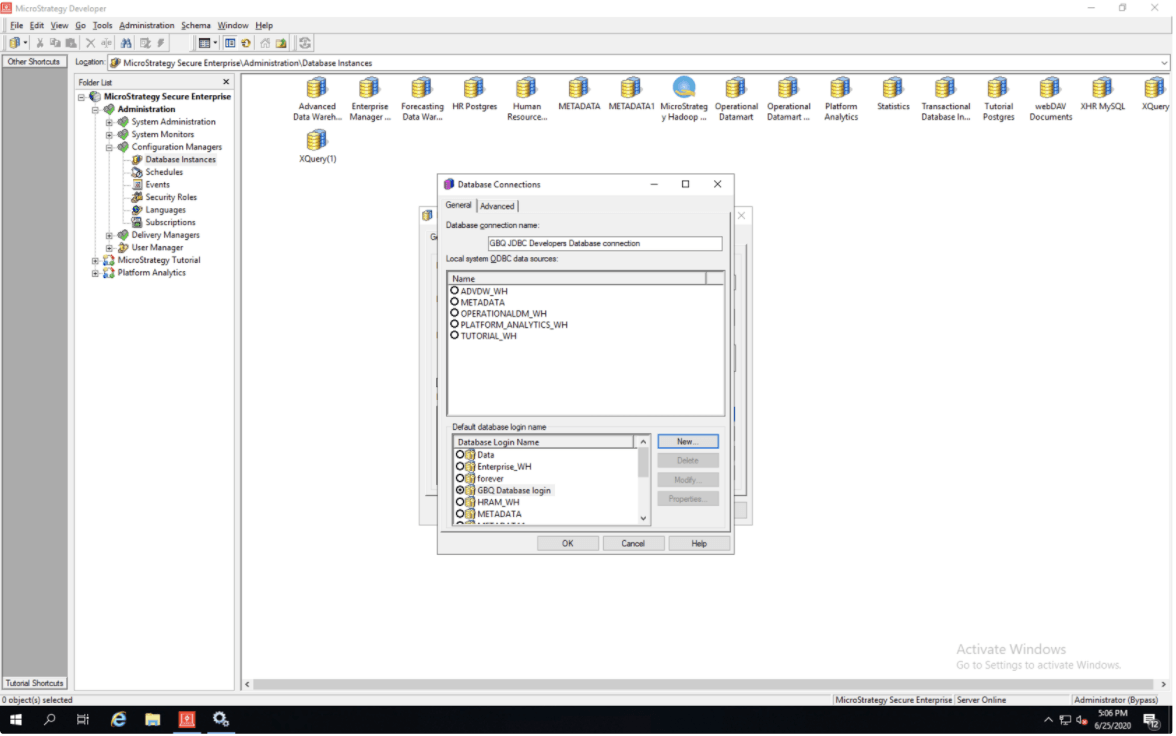
  • You are returned to the Database Connections wizard screen.
ka04W000001IwoFQAS_0EM4W000001JTN1.jpeg
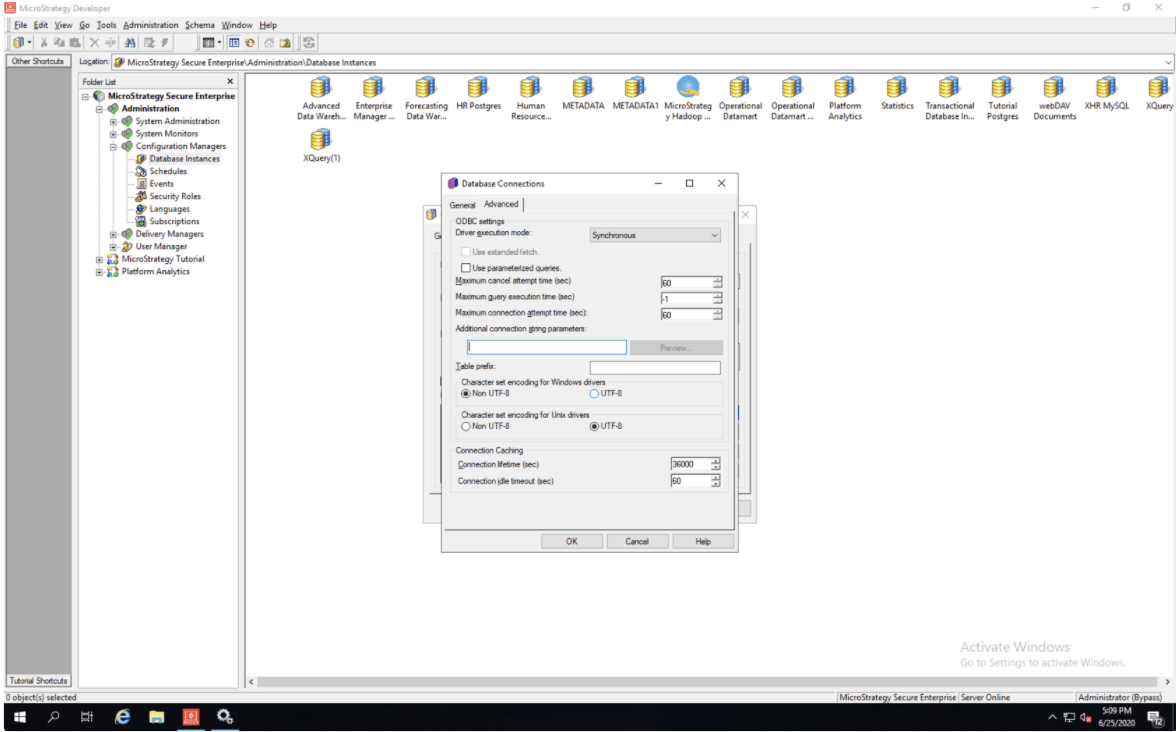
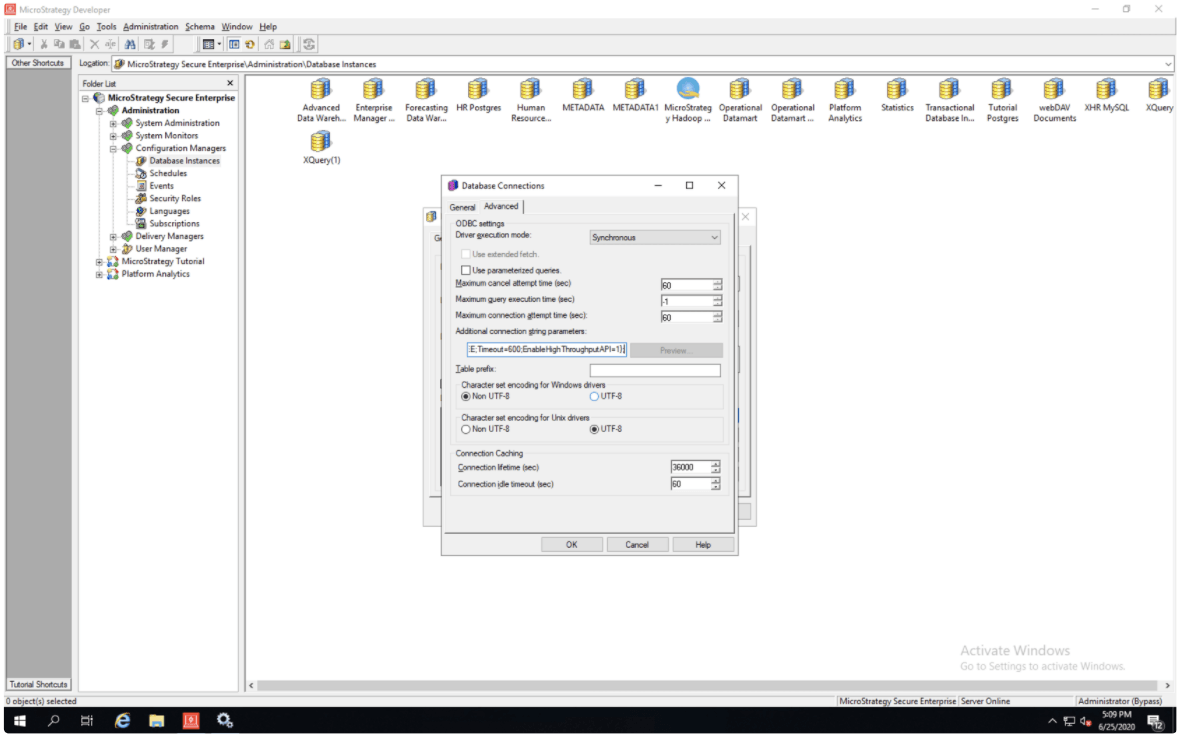
  • Go to the Advanced tab.
ka04W000001IwoFQAS_0EM4W000001JTN6.jpeg
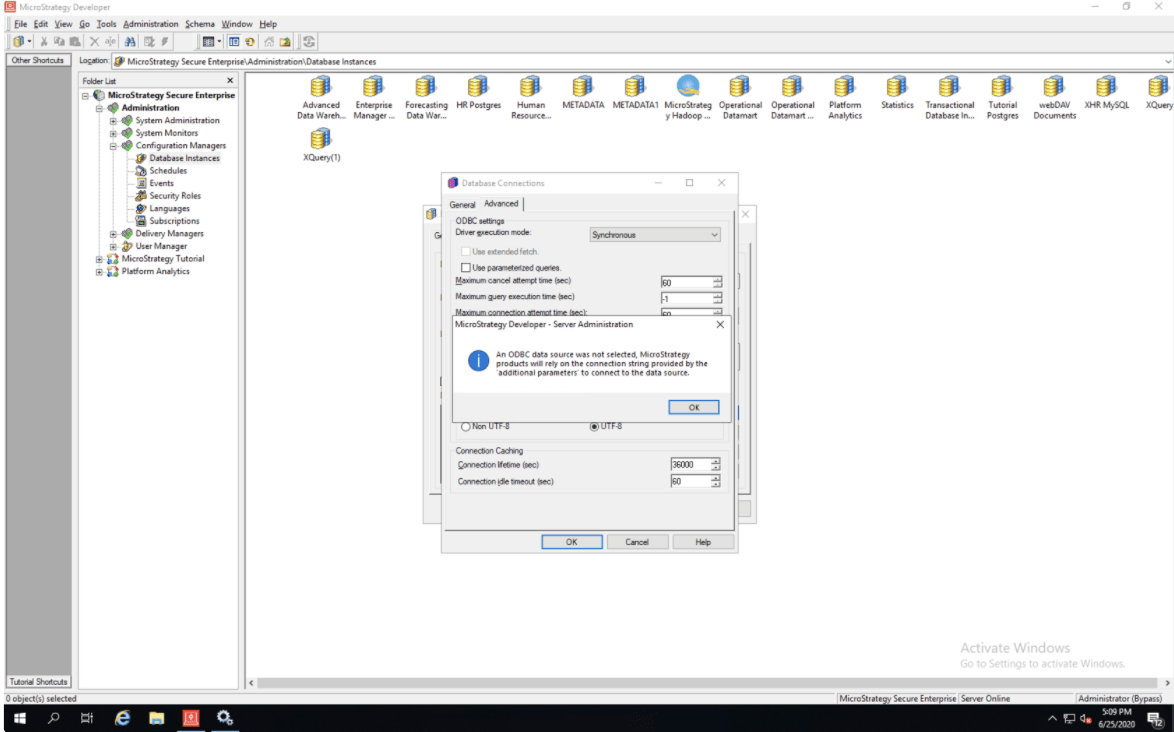
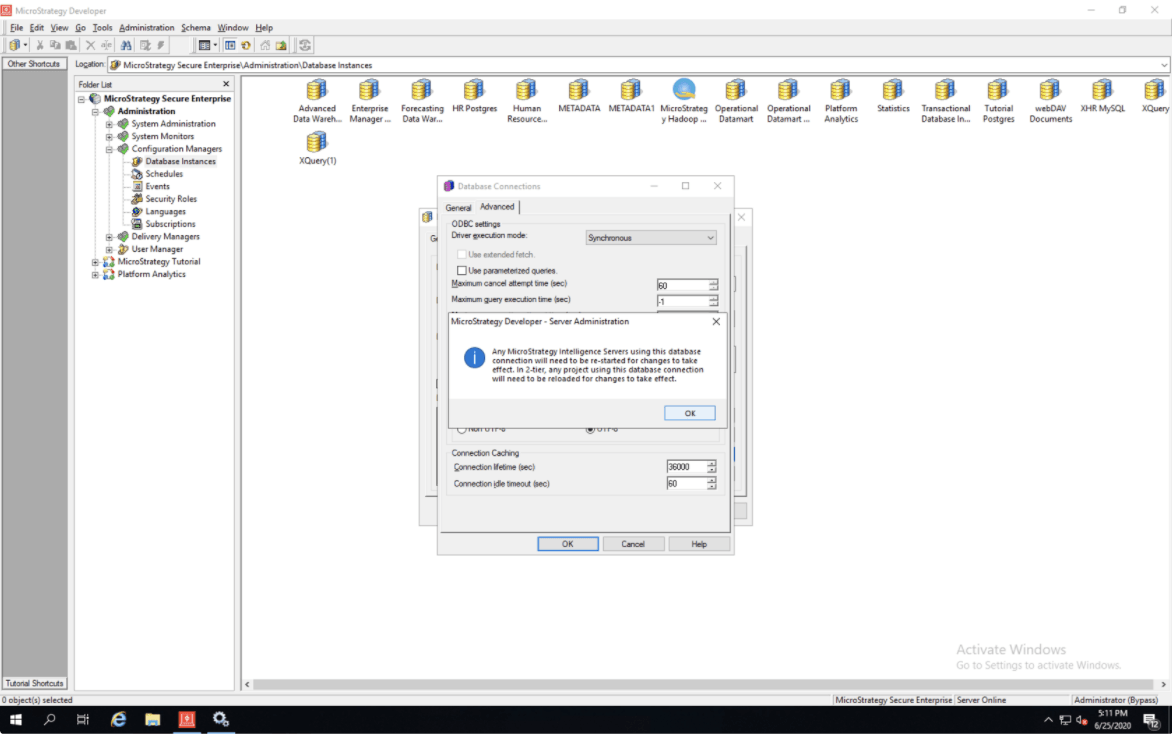
  • Please note that for this step, you need to have your project ID, which will also be your billing project and OAuth Refresh Token. If you do not have the refresh toke, please refer to the steps in Generate Refresh Token to access Google BigQuery (Linux or Windows) first. Only then, modify the following connection string template with your Project ID (the first billing Project ID), as well as OAuth Refresh Token, and copy the following string into the Additional connection string parameters field. Click OK.
    For example,
    “JDBC;DRIVER={com.Strategy.googlebigquery.jdbc42.Driver};URL={jdbc:bigquery://https://www.googleapis.com/bigquery/v2;ProjectId=PROJECT_ID;OAuthType=2;OAuthRefreshToken=OAUTH_REFRESH_TOKEN;OAuthClientId=977385342095.apps.googleusercontent.com;OAuthClientSecret=wbER7576mc_1YOII0dGk7jEE;Timeout=600;EnableHighThroughputAPI=1};”
ka04W000001IwoFQAS_0EM4W000001JTNc.jpeg
  • Click OK.
ka04W000001IwoFQAS_0EM4W000001JTOT.jpeg
  • Click OK.
ka04W000001IwoFQAS_0EM4W000001JTOY.jpeg
  • The database Instances wizard window displays.
ka04W000001IwoFQAS_0EM4W000001JTOi.jpeg
  • Click New and the Database Connections wizard window displays.
ka04W000001IwoFQAS_0EM4W000001JTPv.jpeg
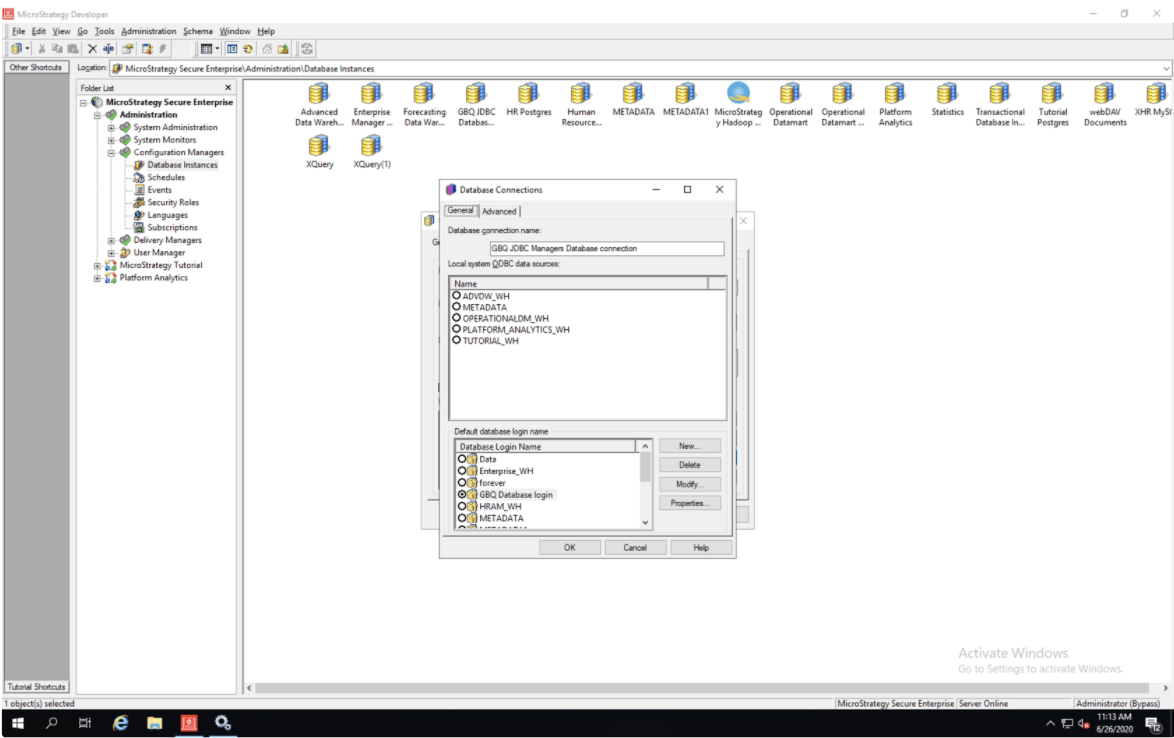
  • Fill out the Database connection name field. This connection will be mapped to the second group. Select the Database Login you created in Step 8.
ka04W000001IwoFQAS_0EM4W000001JTQ0.jpeg
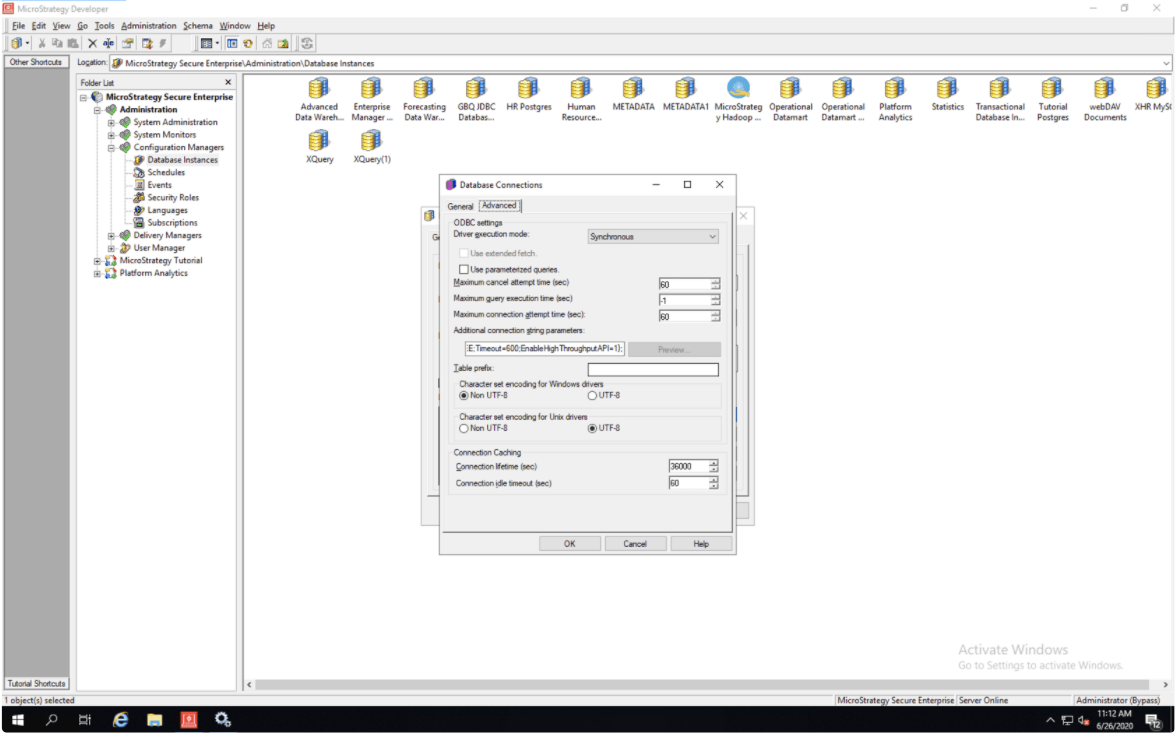
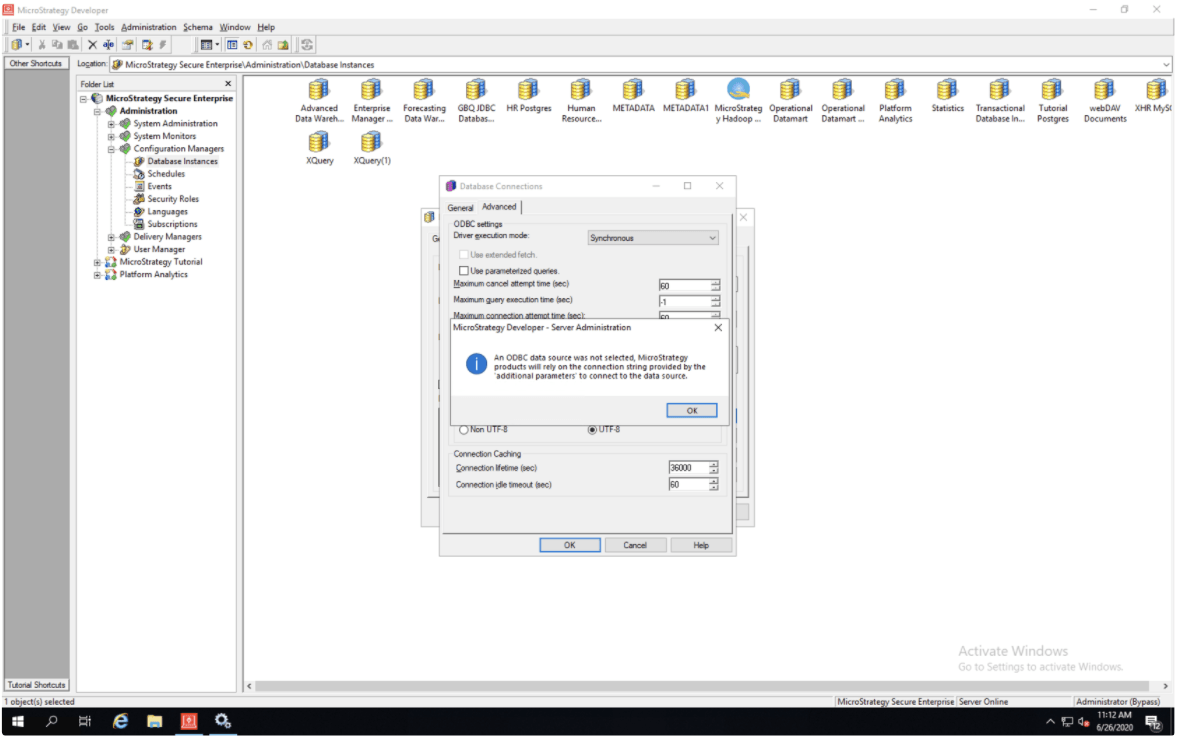
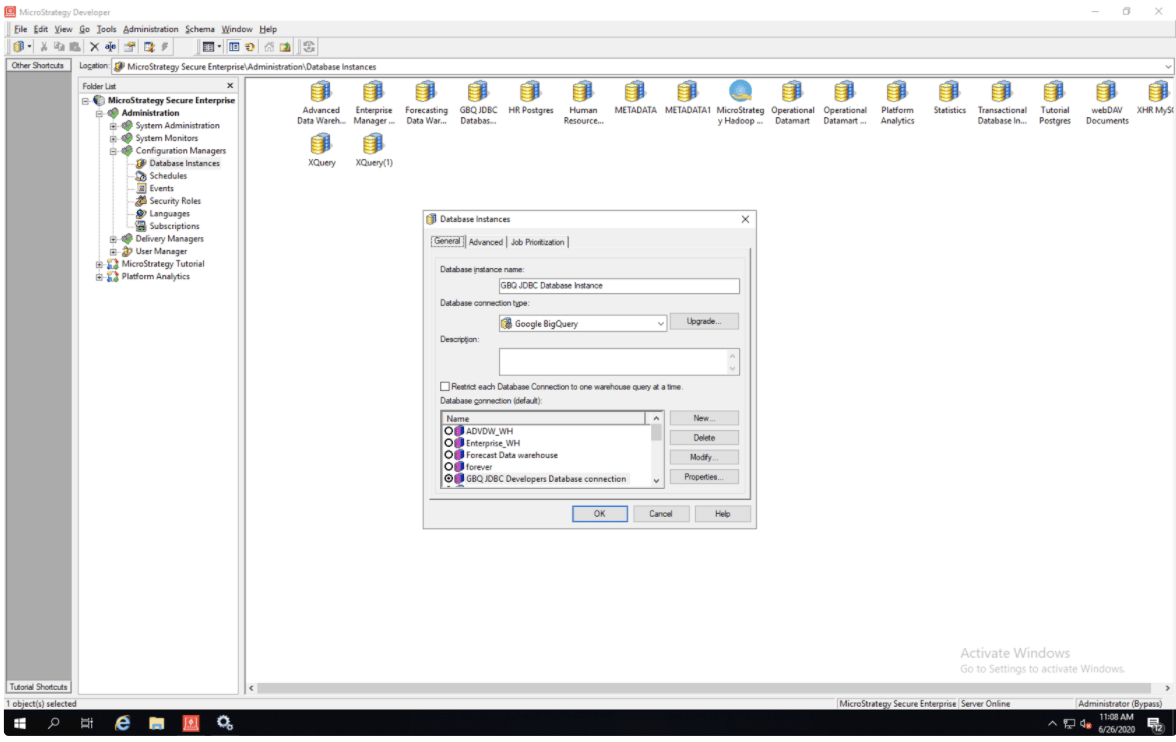
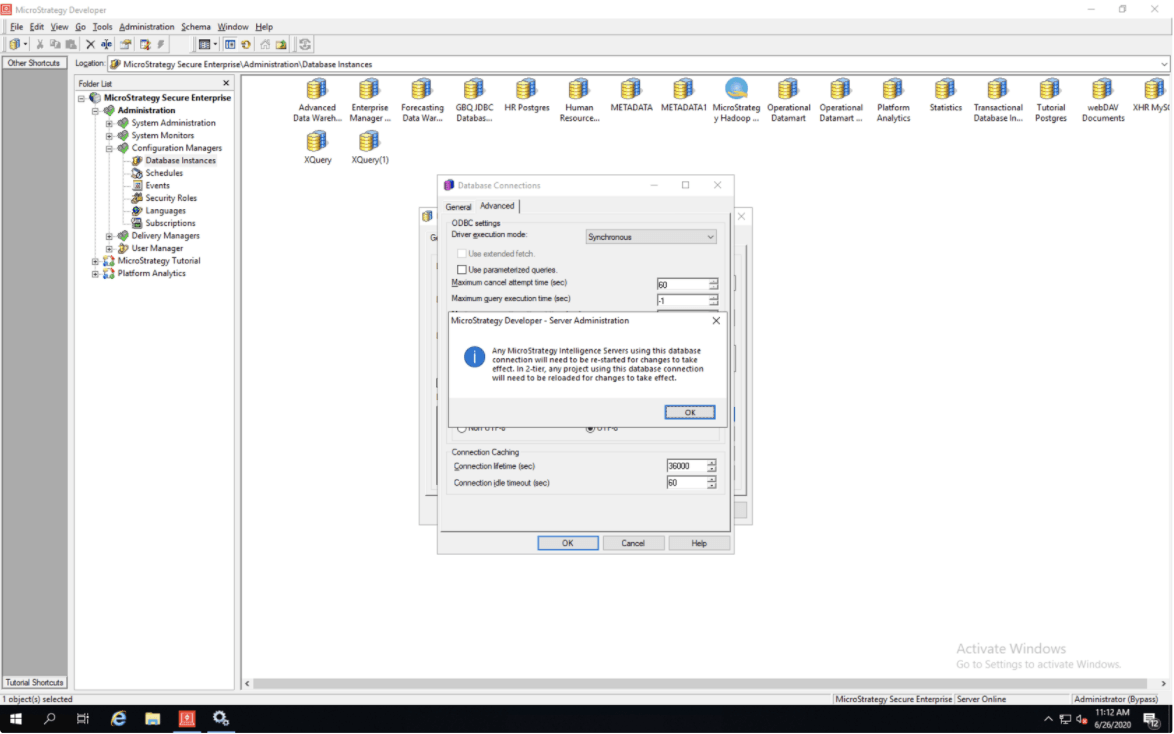
  • Switch to the Advanced tab. Modify the following connection string template with your Project ID (the second billing Project ID), as well as OAuth Refresh Token, and copy the following string into the Additional connection string parameters field. Click OK.
    For example,
    “JDBC;DRIVER={com.Strategy.googlebigquery.jdbc42.Driver};URL={jdbc:bigquery://https://www.googleapis.com/bigquery/v2;ProjectId=PROJECT_ID;OAuthType=2;OAuthRefreshToken=OAUTH_REFRESH_TOKEN;OAuthClientId=977385342095.apps.googleusercontent.com;OAuthClientSecret=wbER7576mc_1YOII0dGk7jEE;Timeout=600;EnableHighThroughputAPI=1};”
ka04W000001IwoFQAS_0EM4W000001JTQ5.jpeg
  • Click OK.
ka04W000001IwoFQAS_0EM4W000001JTQK.jpeg
  • Click OK.
ka04W000001IwoFQAS_0EM4W000001JTQU.jpeg
  • Click OK.
ka04W000001IwoFQAS_0EM4W000001JTQZ.jpeg
  • Click OK.
ka04W000001IwoFQAS_0EM4W000001JTQe.jpeg
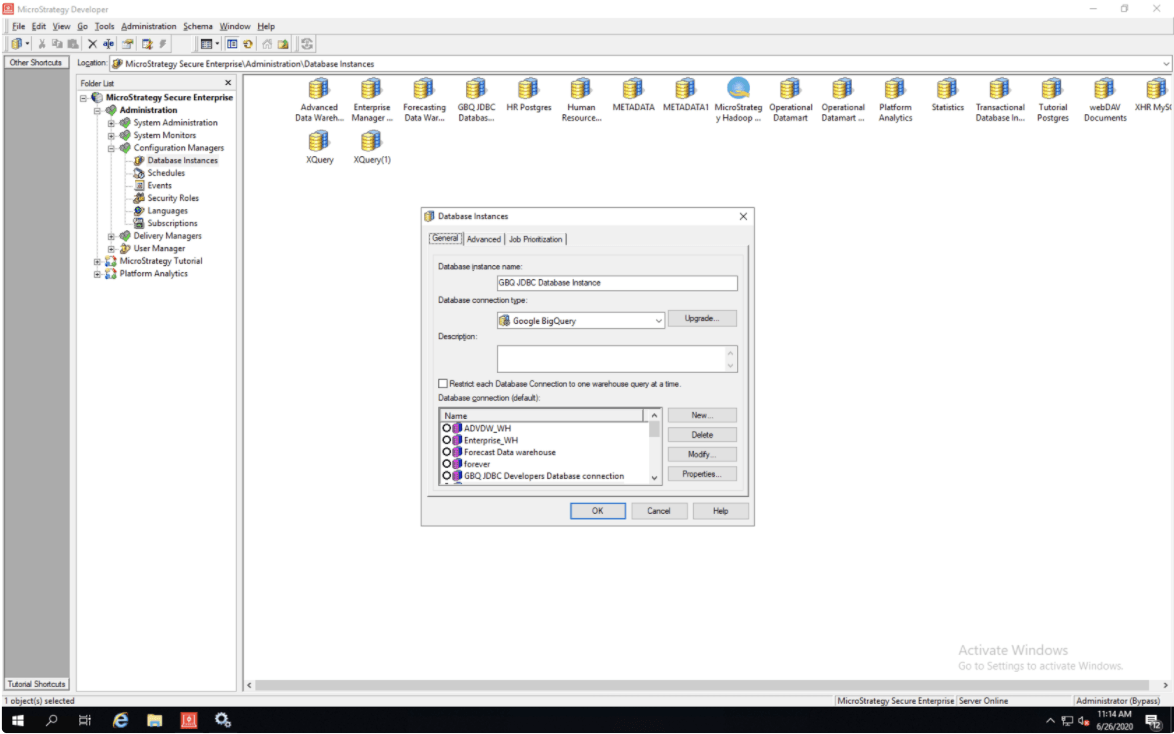
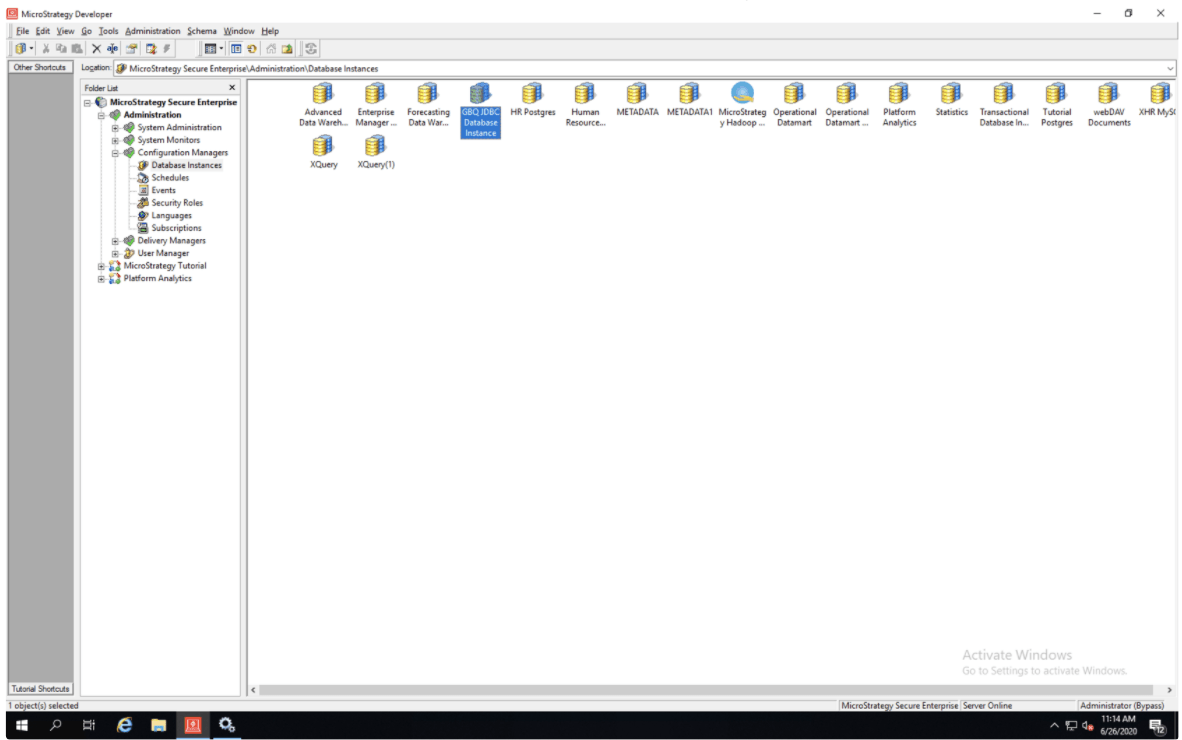
  • The main window with all your Database Instances, including the new one, display.
ka04W000001IwoFQAS_0EM4W000001JTRr.jpeg
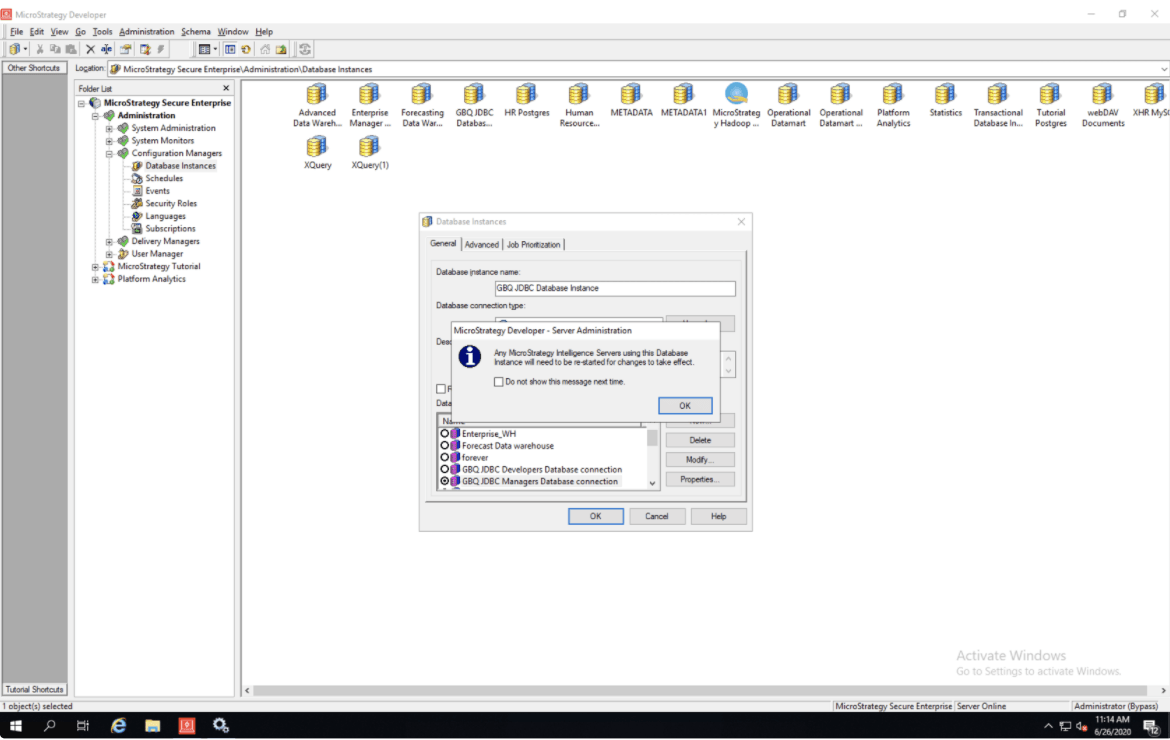
  • Now, we are going to create the connection mapping, so that queries of each group is billed to the appropriate project.
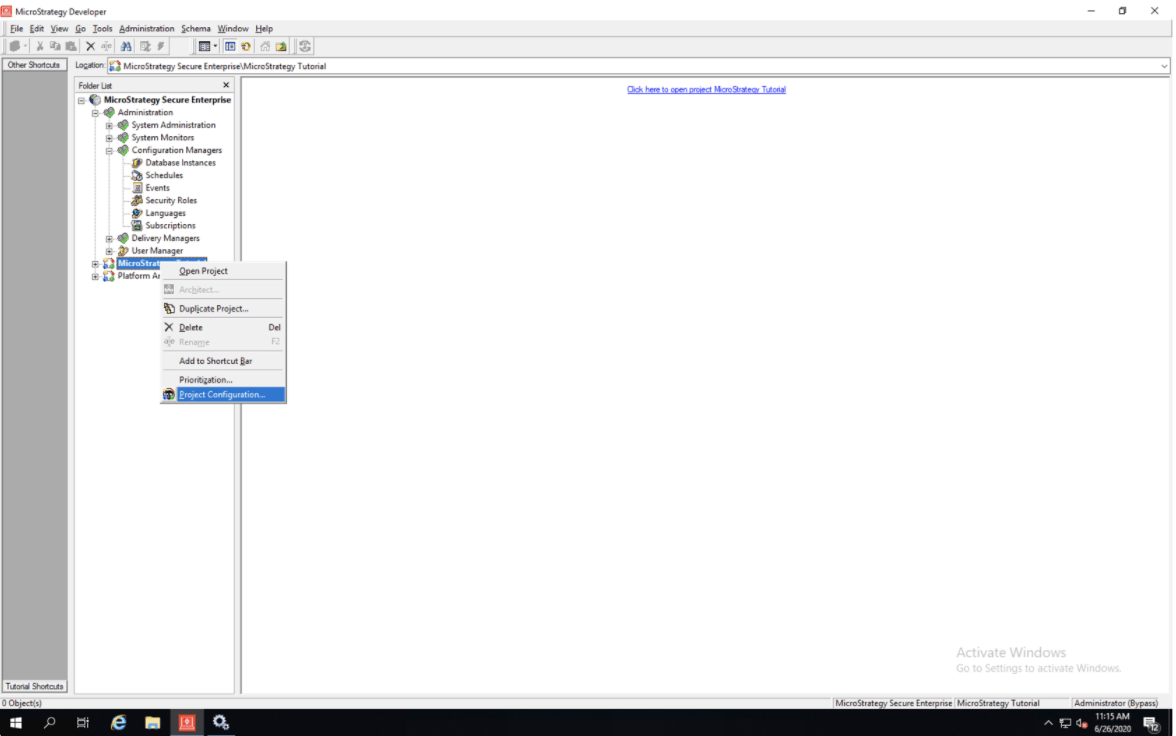
  • Right-click on the project, which should have the connection mapping and select Project Configuration.
ka04W000001IwoFQAS_0EM4W000001JTRw.jpeg
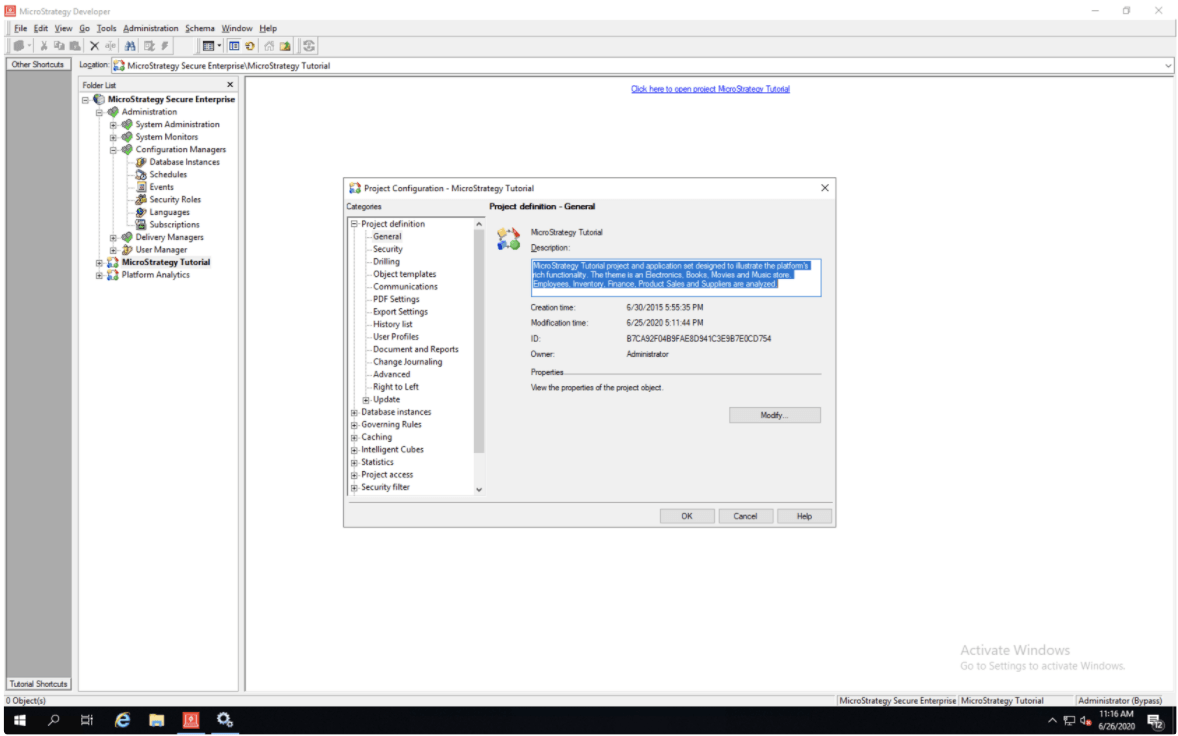
  • The Project Configuration window displays.
ka04W000001IwoFQAS_0EM4W000001JTS1.jpeg
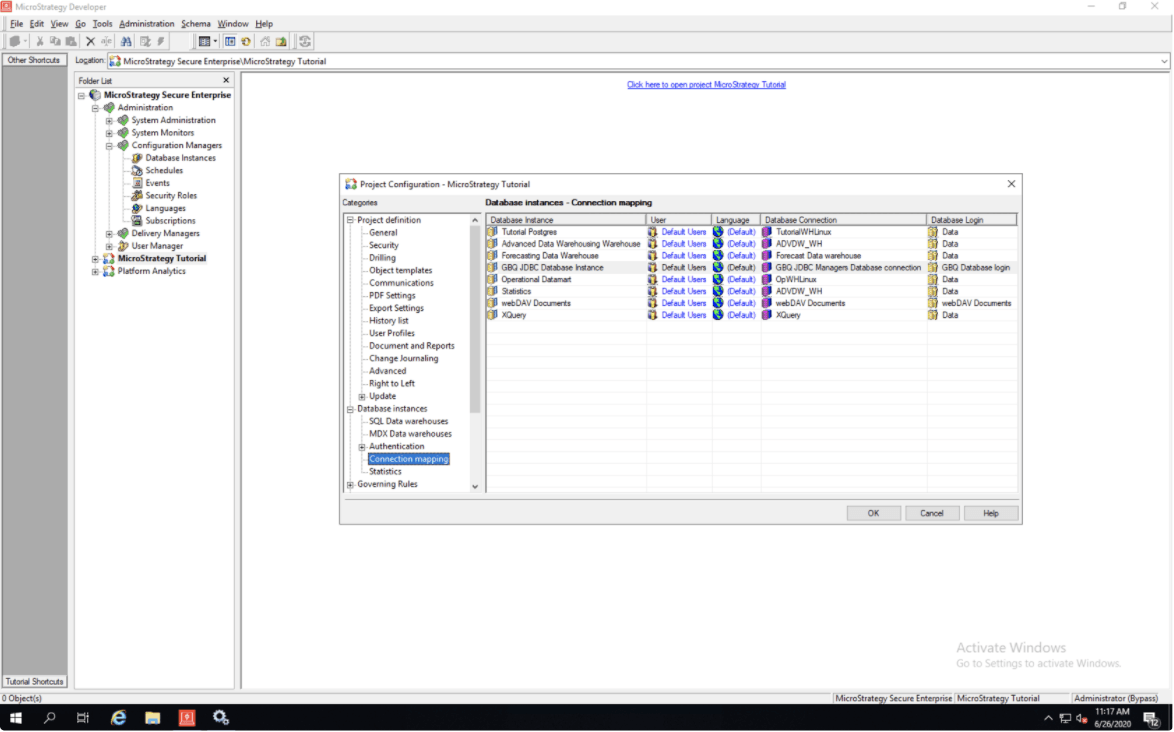
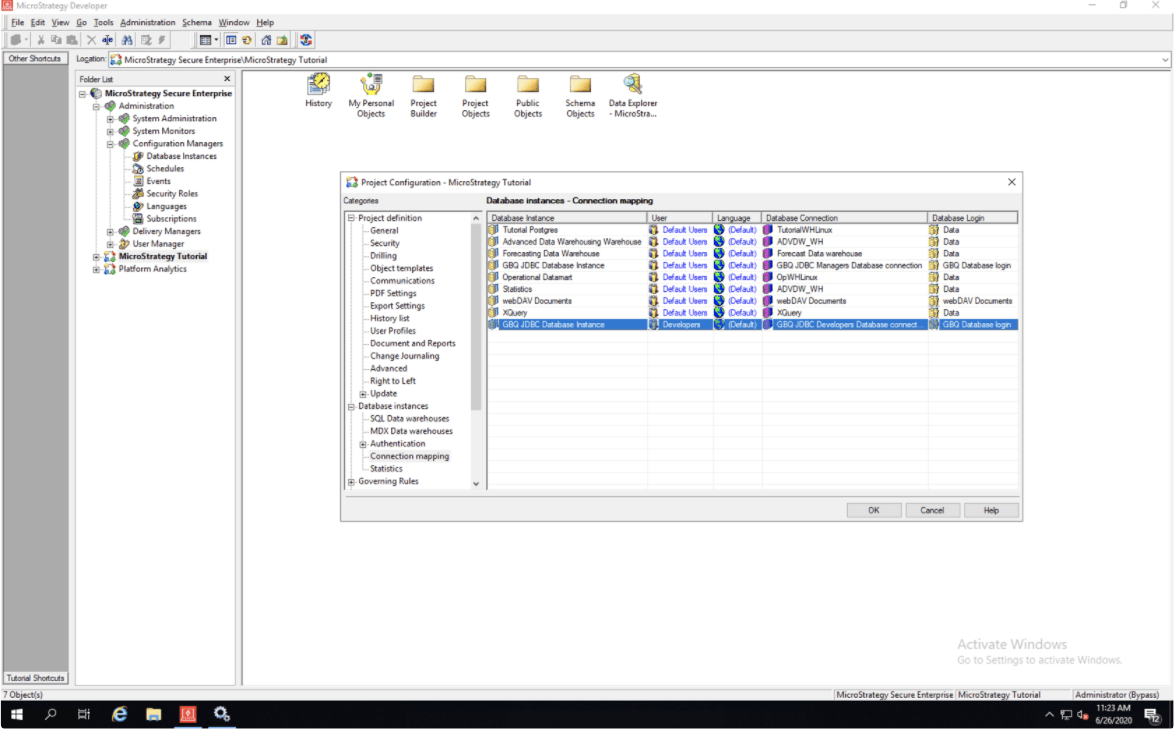
  • Expand the Database Instances > Connection mapping.
ka04W000001IwoFQAS_0EM4W000001JTS6.jpeg
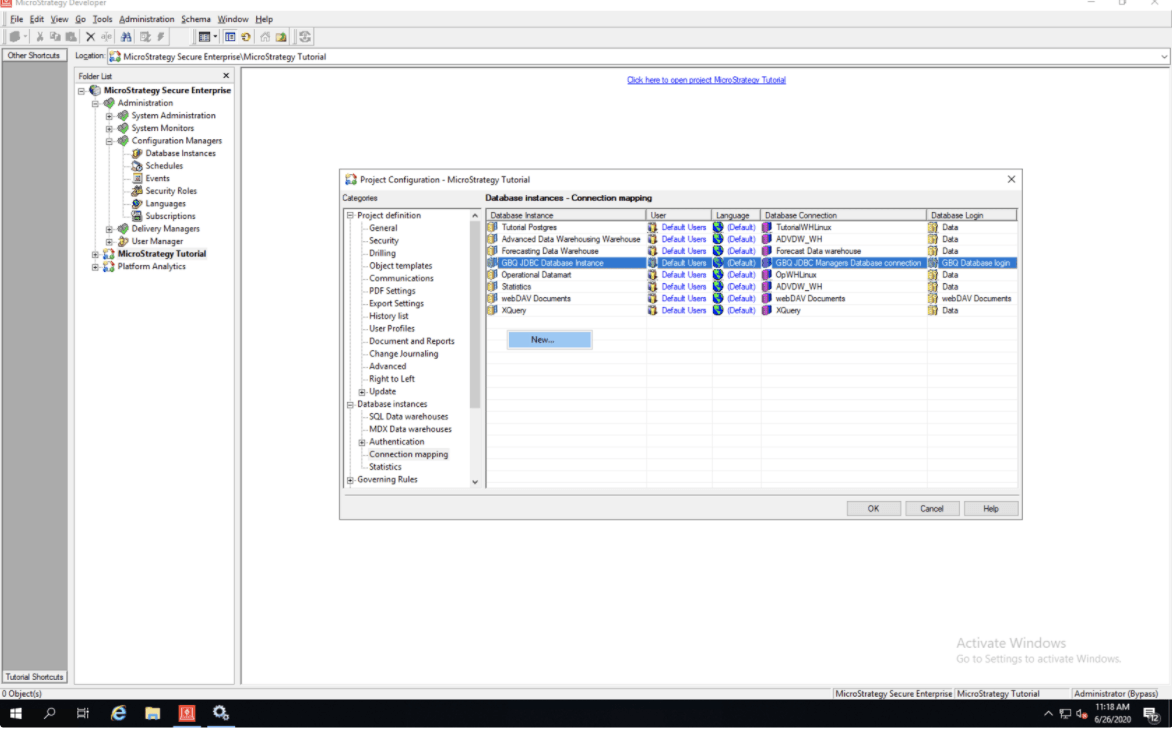
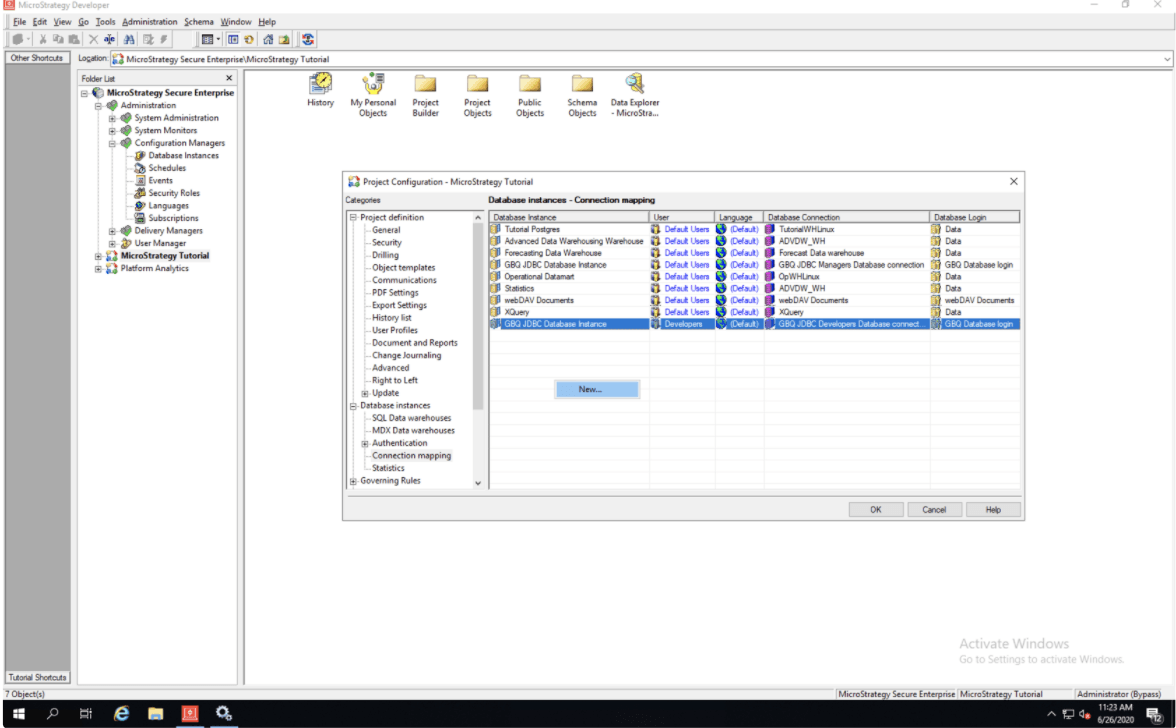
  • Right-click inside of the connection mapping window and select the New.
ka04W000001IwoFQAS_0EM4W000001JTSV.jpeg
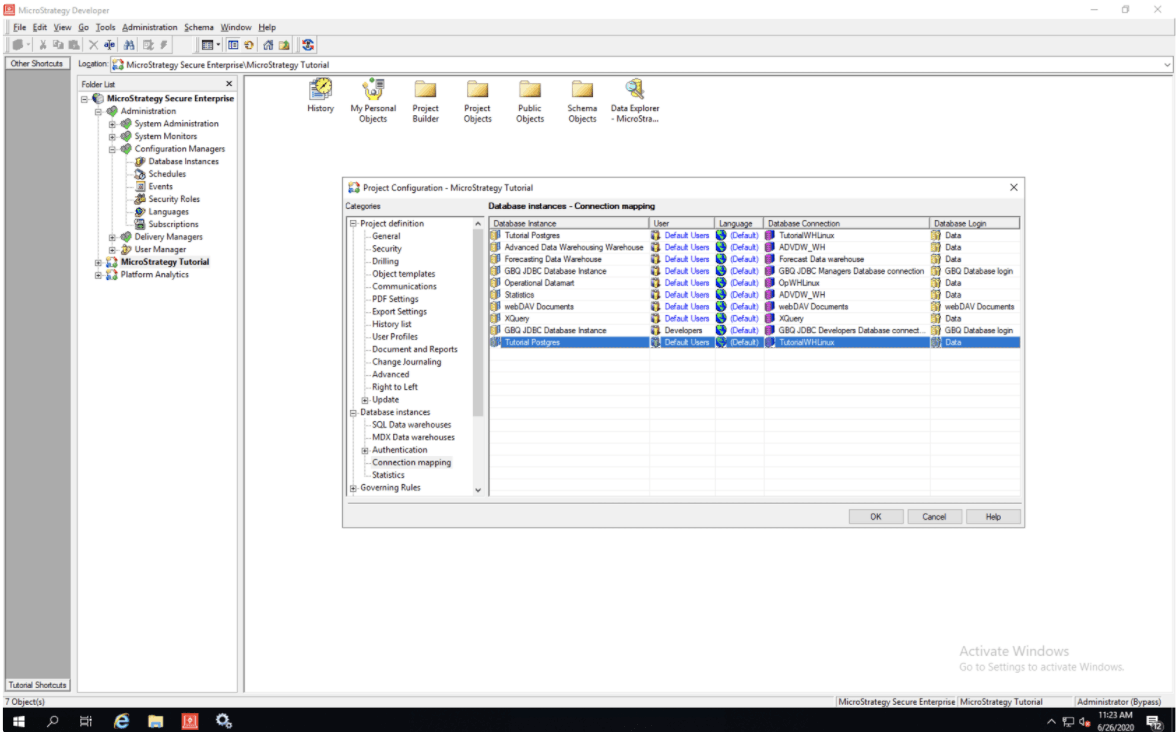
  • A new connection mapping displays in the list.
ka04W000001IwoFQAS_0EM4W000001JTSa.jpeg
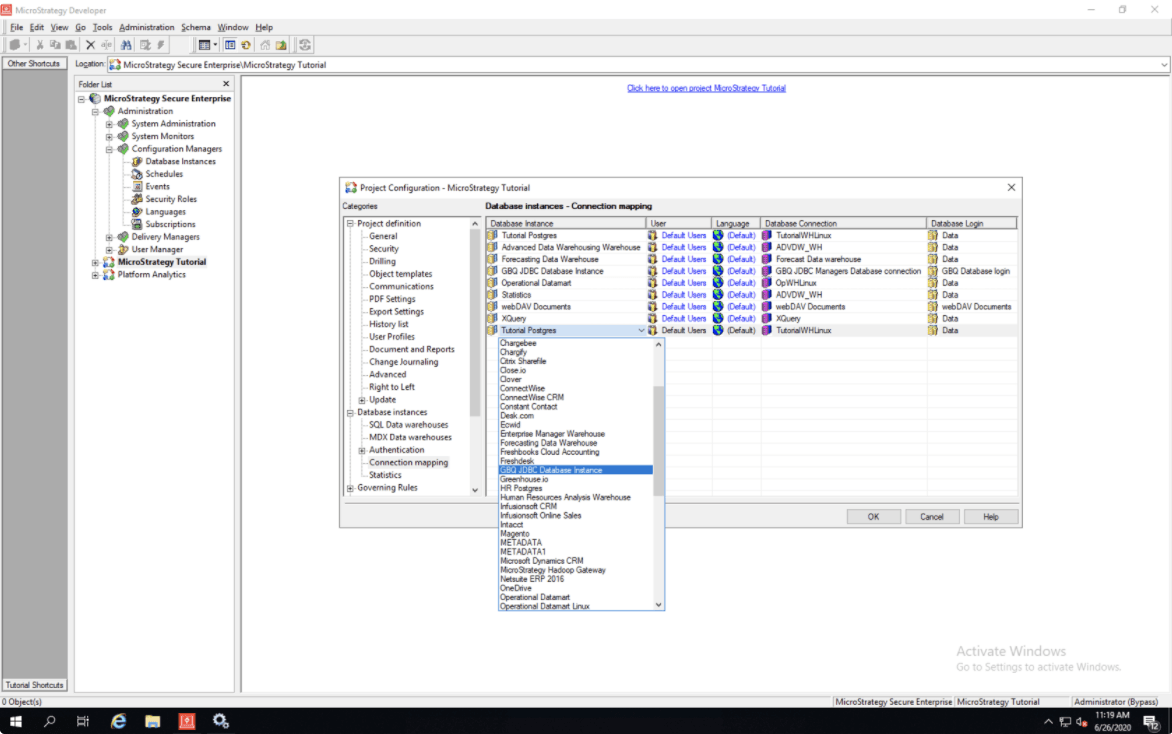
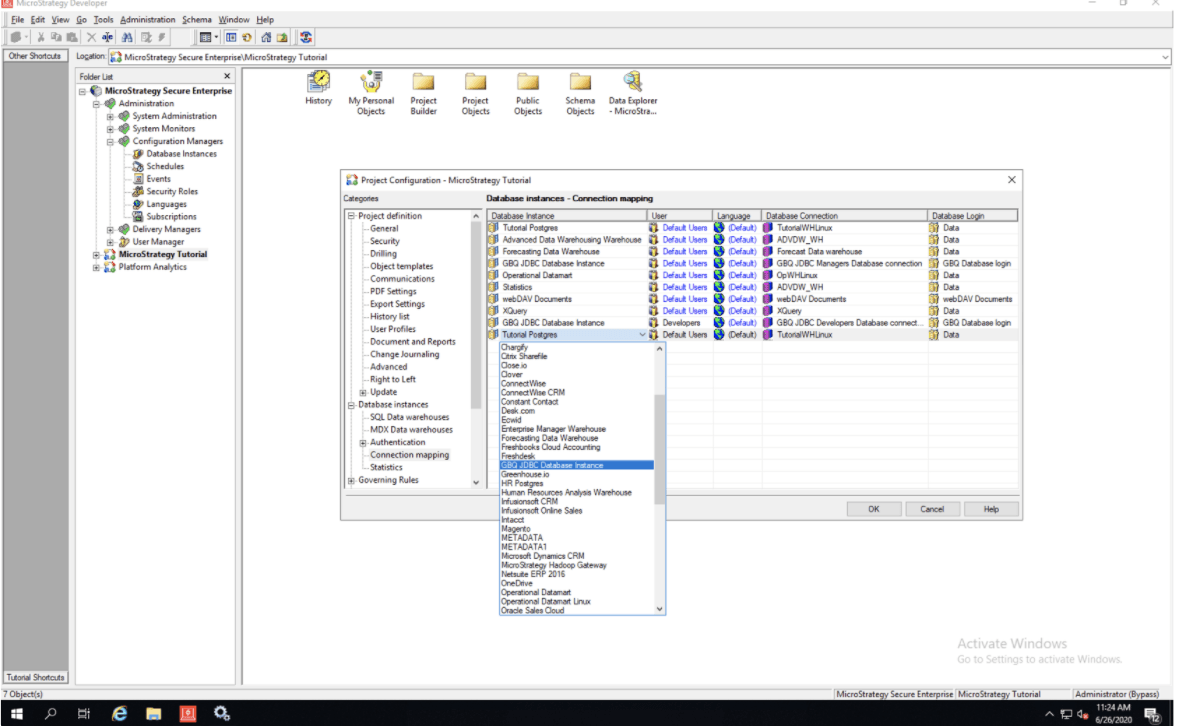
  • Click on the Database Instance selector of the new connection mapping and select the Database Instance you created in Step 6.
ka04W000001IwoFQAS_0EM4W000001JTSf.jpeg
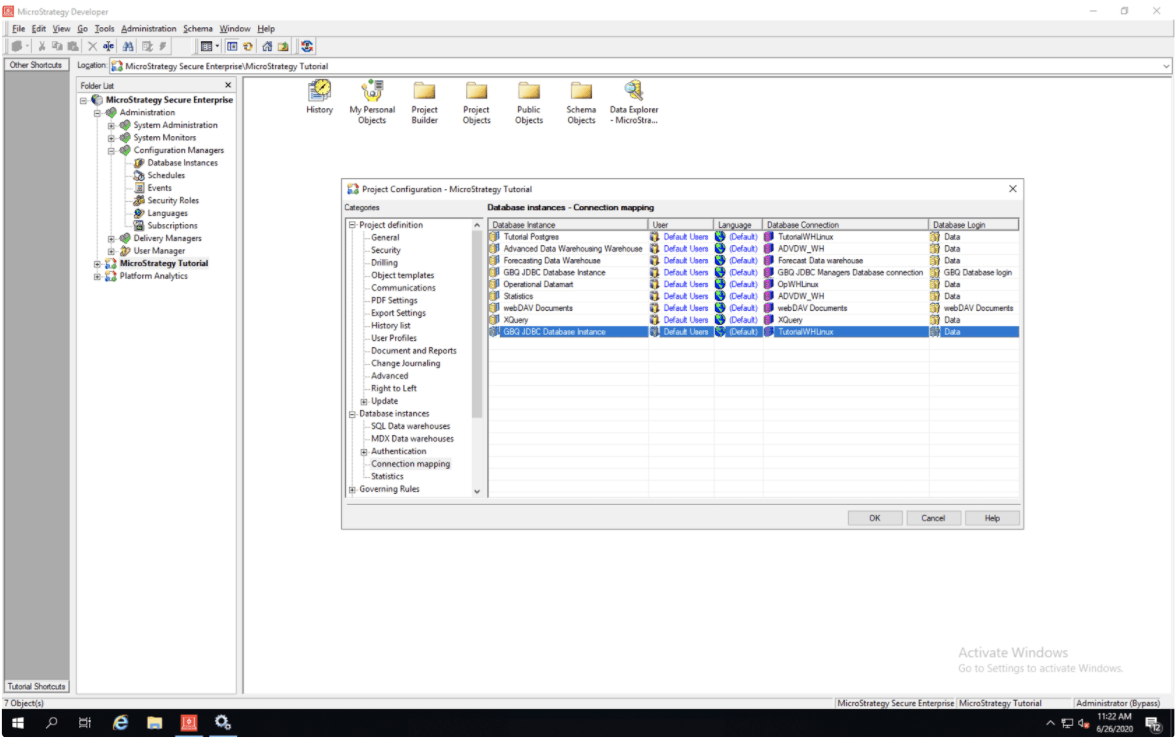
  • The Database Instance field changes.
ka04W000001IwoFQAS_0EM4W000001JTSk.jpeg
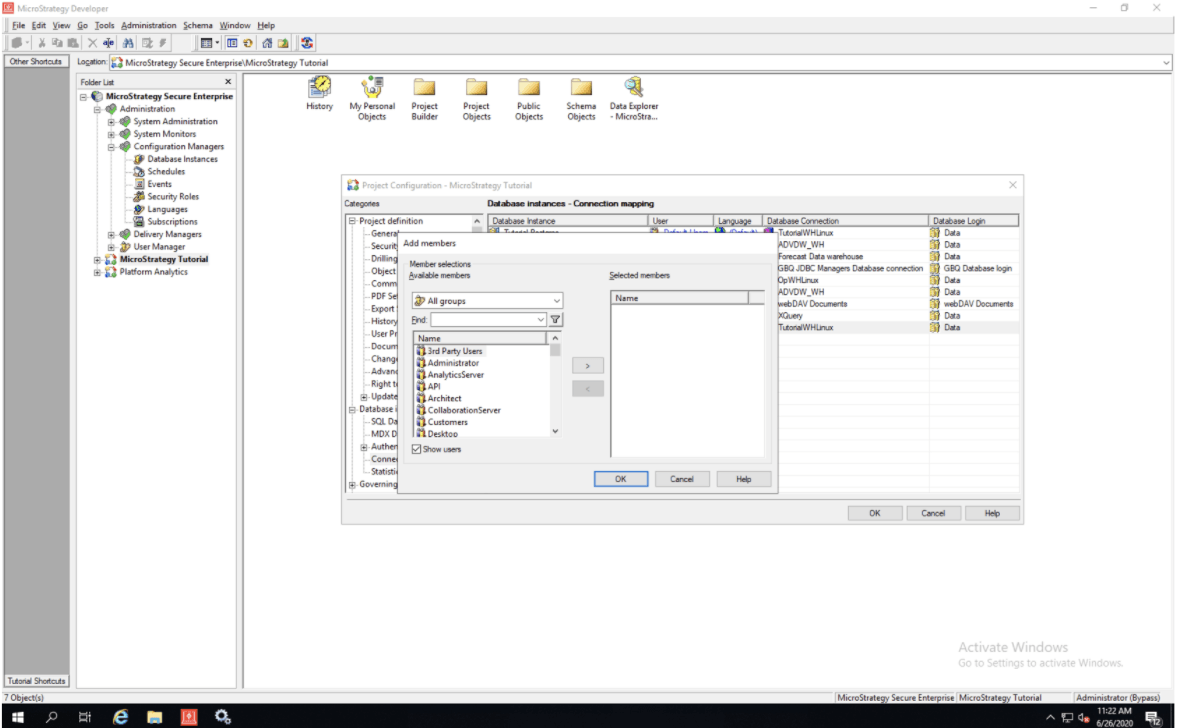
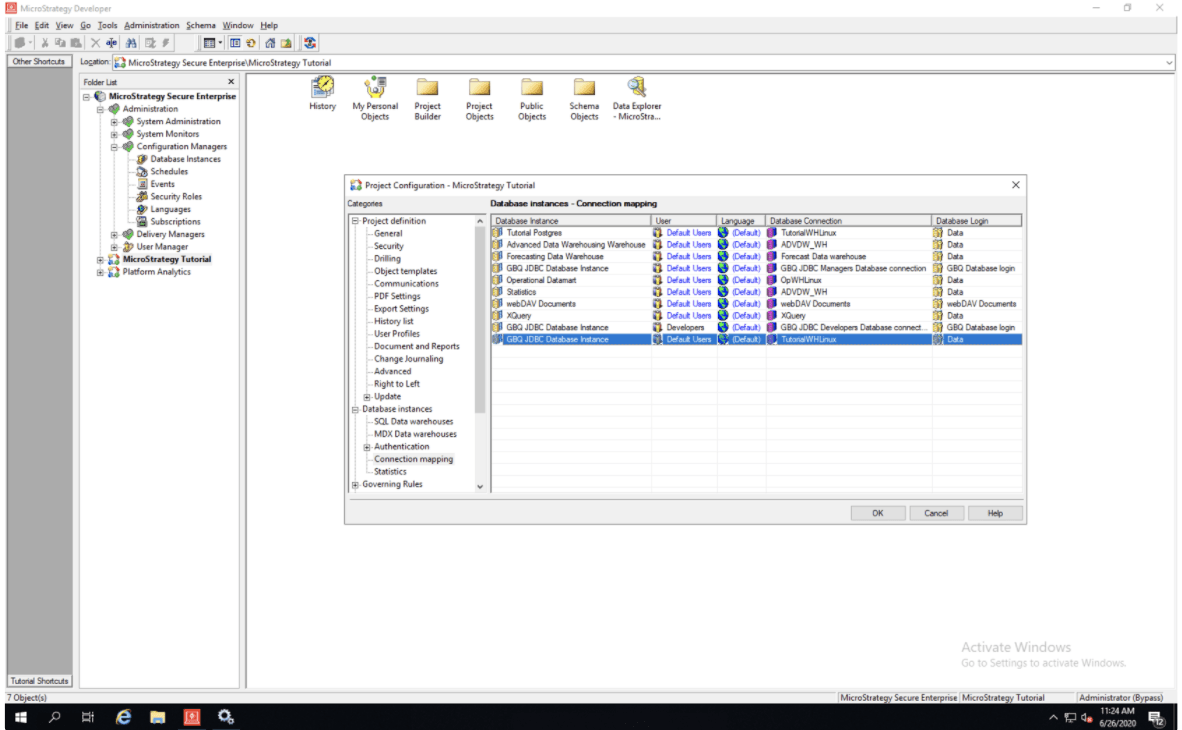
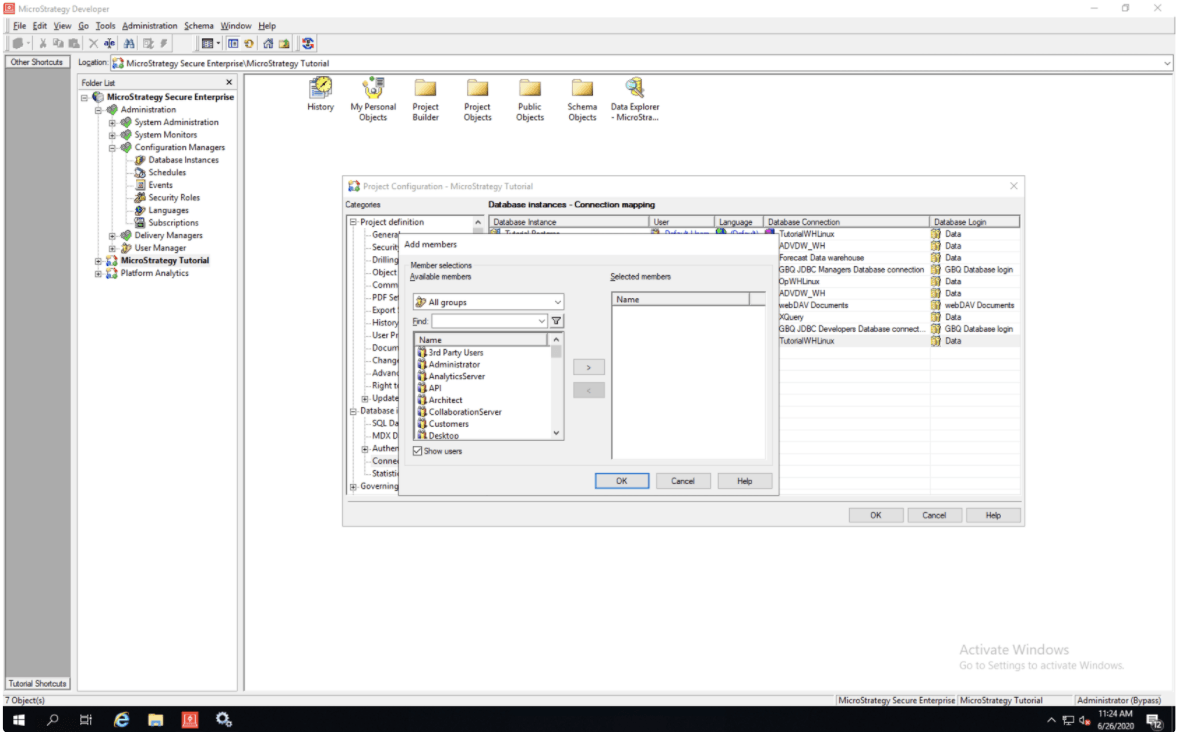
  • Click on the User selector of the new connection mapping and the Add members window displays.
ka04W000001IwoFQAS_0EM4W000001JTSp.jpeg
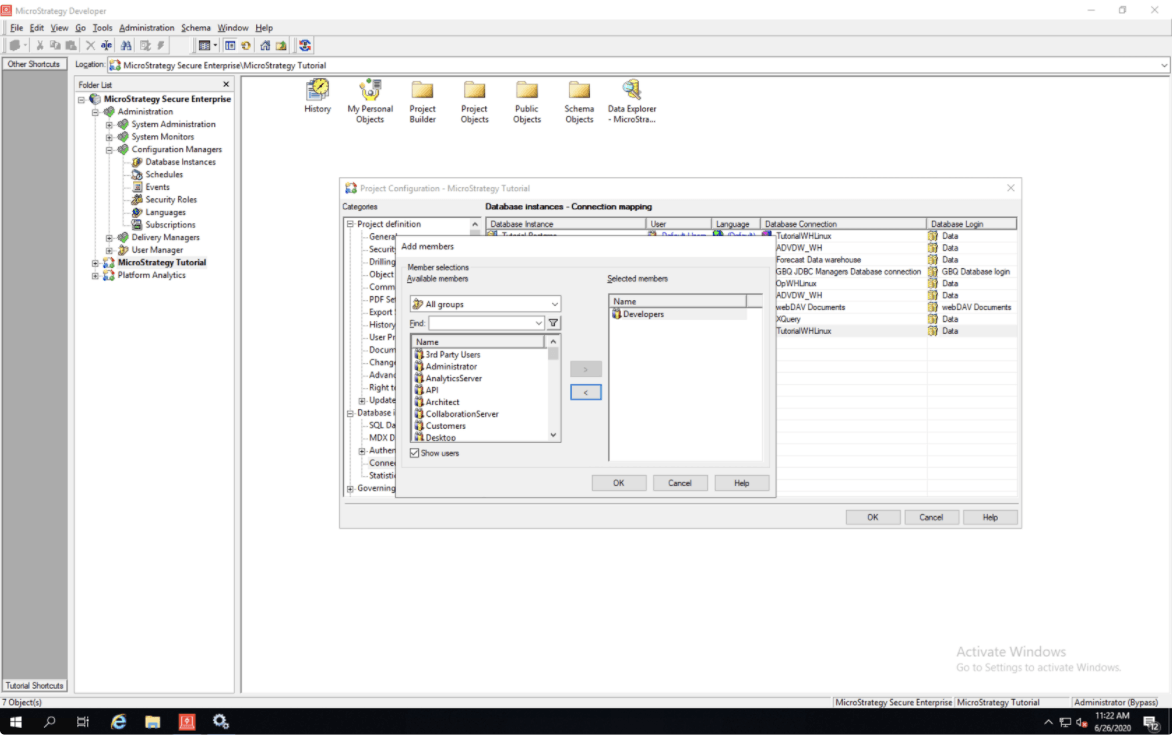
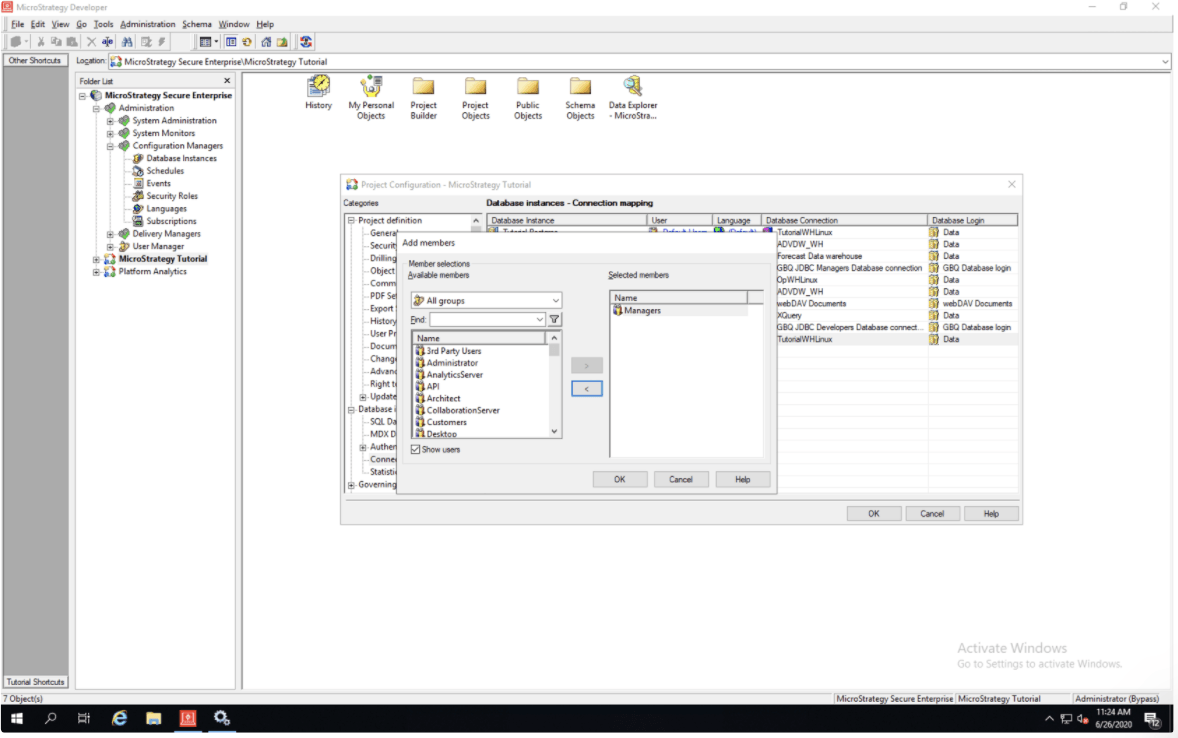
  • Select the first Strategy group you would like to be mapped to the first Database connection created in Step 7, and click OK.
ka04W000001IwoFQAS_0EM4W000001JTSu.jpeg
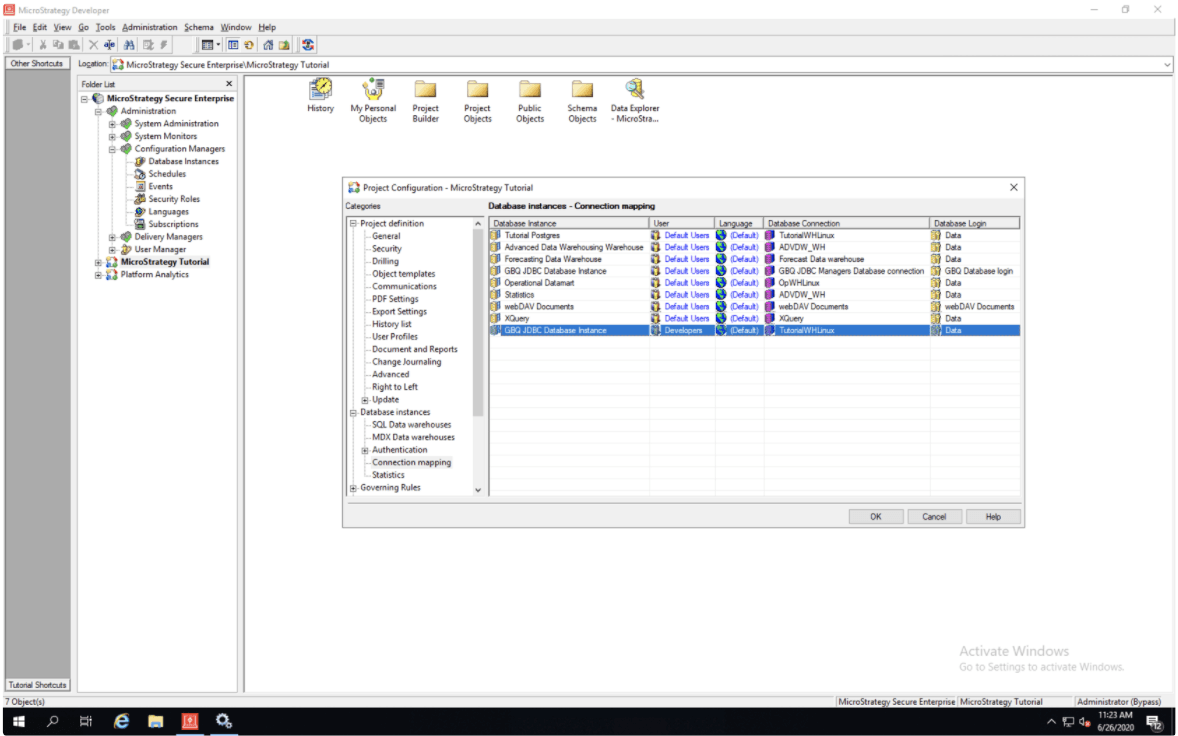
  • The User field is changed.
ka04W000001IwoFQAS_0EM4W000001JTTx.jpeg
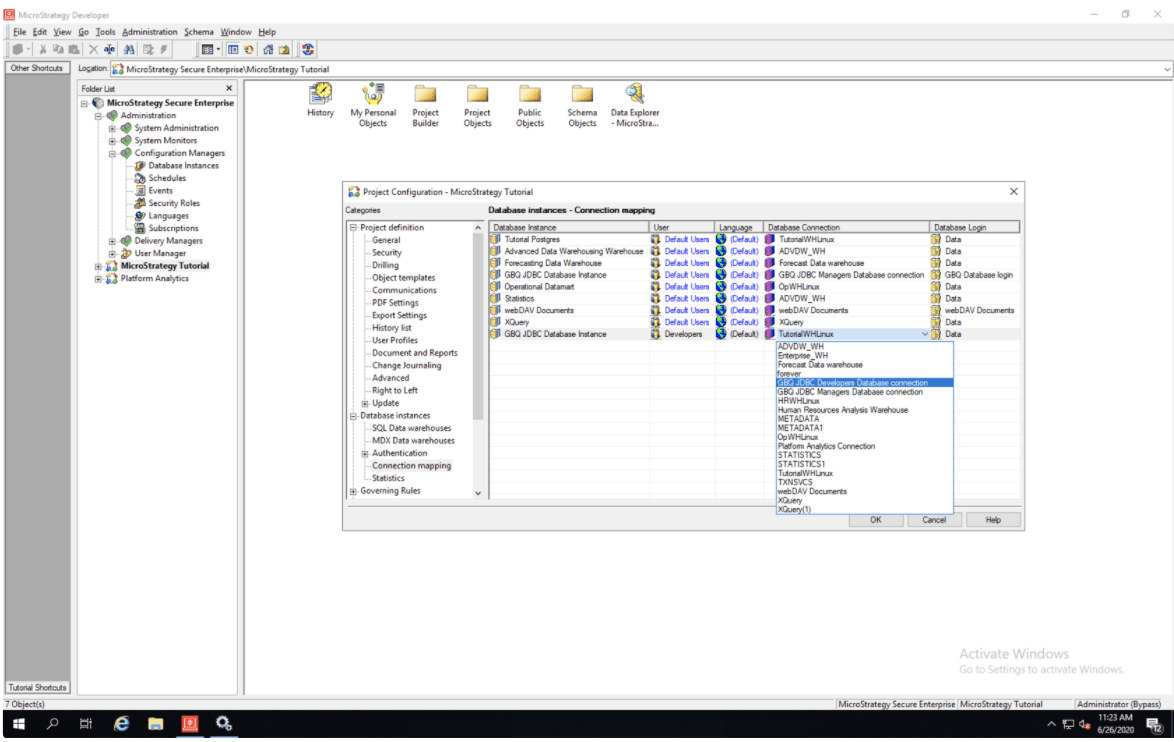
  • Click on the Database Connection selector and choose the first database connection you created in Step 7.
ka04W000001IwoFQAS_0EM4W000001JTU7.jpeg
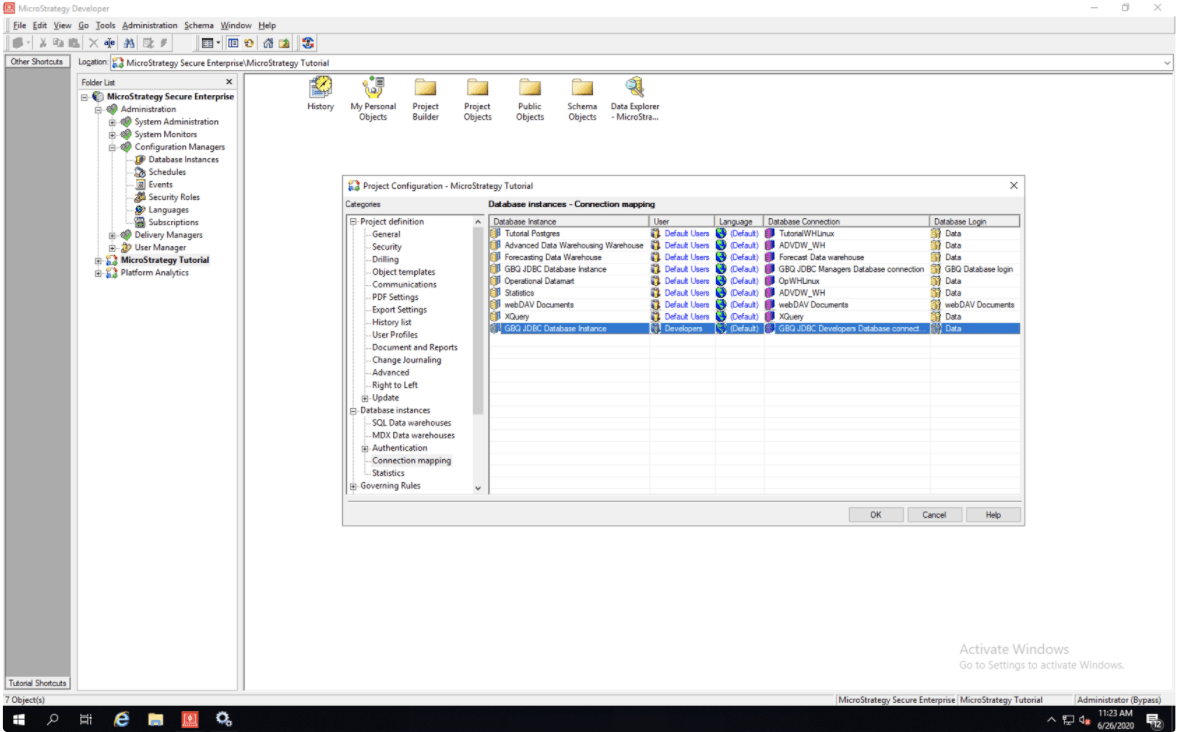
  • The Database Connection field is changed.
ka04W000001IwoFQAS_0EM4W000001JTUb.jpeg
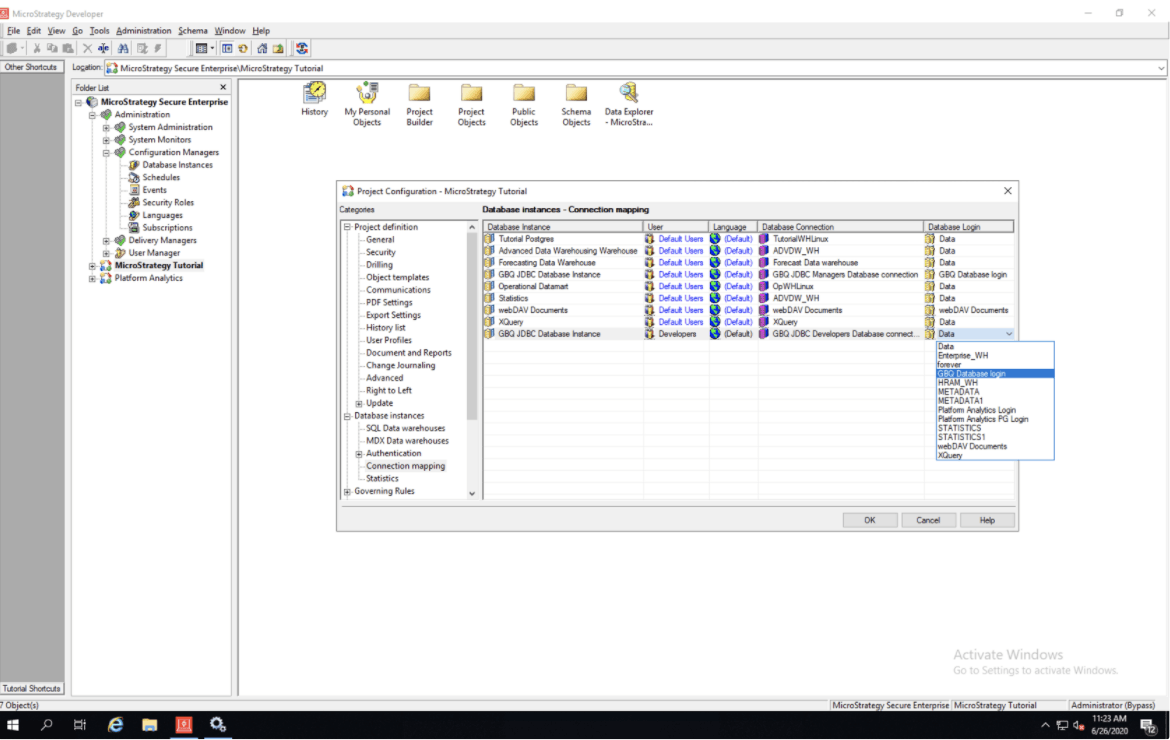
  • Click on the Database Login selector and choose the database login you created in Step 8.
ka04W000001IwoFQAS_0EM4W000001JTUg.jpeg
  • The Database Login field is changed. You are done creating the first connection mapping.
ka04W000001IwoFQAS_0EM4W000001JTUl.jpeg
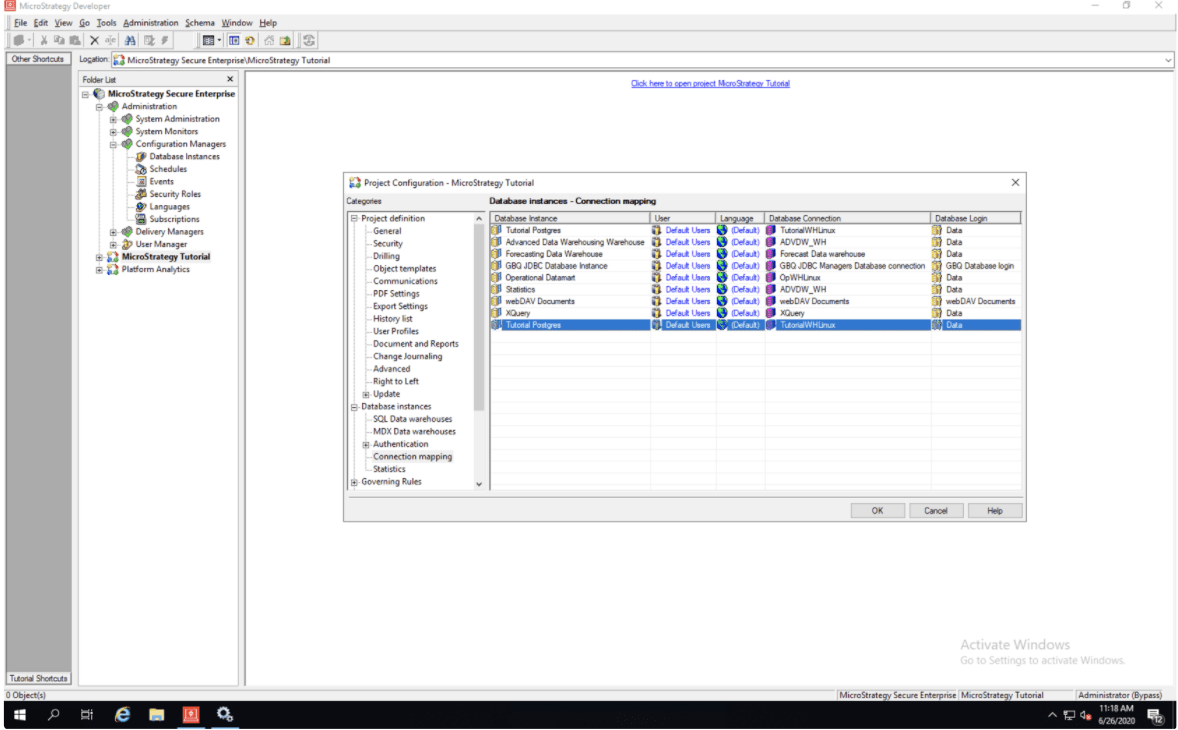
  • Right-click inside of the connection mapping window and select the New option again.
ka04W000001IwoFQAS_0EM4W000001JTUq.jpeg
  • New connection mapping displays in the list.
ka04W000001IwoFQAS_0EM4W000001JTVA.jpeg
  • Click on the Database Instance selector of the new connection mapping and select the Database Instance you created in Step 6.
ka04W000001IwoFQAS_0EM4W000001JTVF.jpeg
  • The Database Connection field is changed.
ka04W000001IwoFQAS_0EM4W000001JTVK.jpeg
  • Click on the User selector of the new connection mapping and the Add members window displays.
ka04W000001IwoFQAS_0EM4W000001JTVP.jpeg
  • Select the second Strategy group you would like to be mapped to the second Database connection created in Step 16, then click OK.
ka04W000001IwoFQAS_0EM4W000001JTVU.jpeg
  • The User field is changed.
ka04W000001IwoFQAS_0EM4W000001JTVZ.jpeg
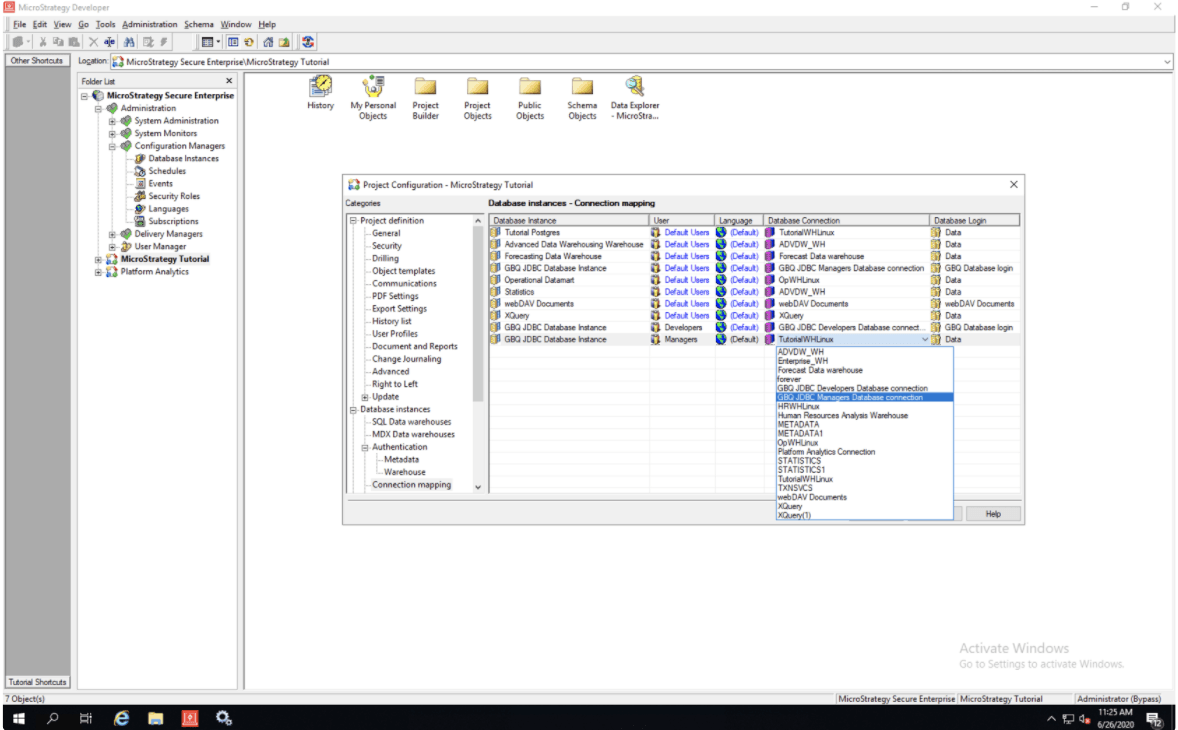
  • Click on the Database Connection selector and choose the first database connection you created in Step 16.
ka04W000001IwoFQAS_0EM4W000001JTVe.jpeg
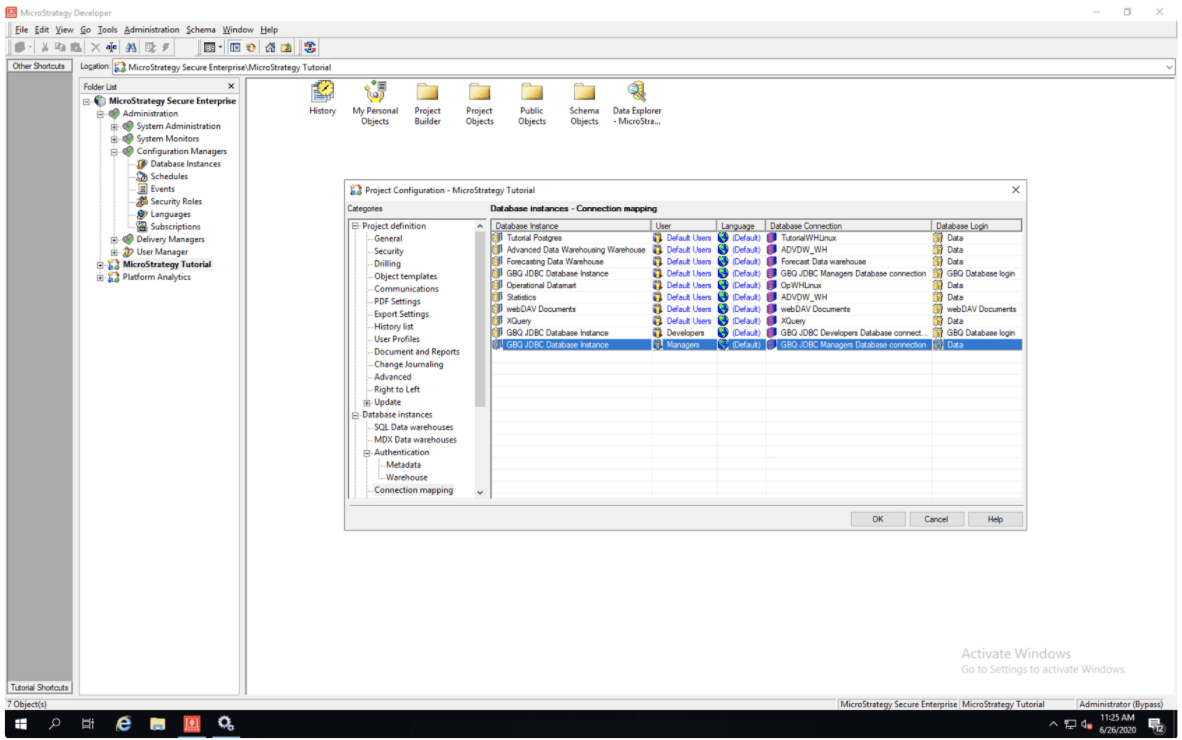
  • The Database Connection field is changed.
ka04W000001IwoFQAS_0EM4W000001JTVj.jpeg
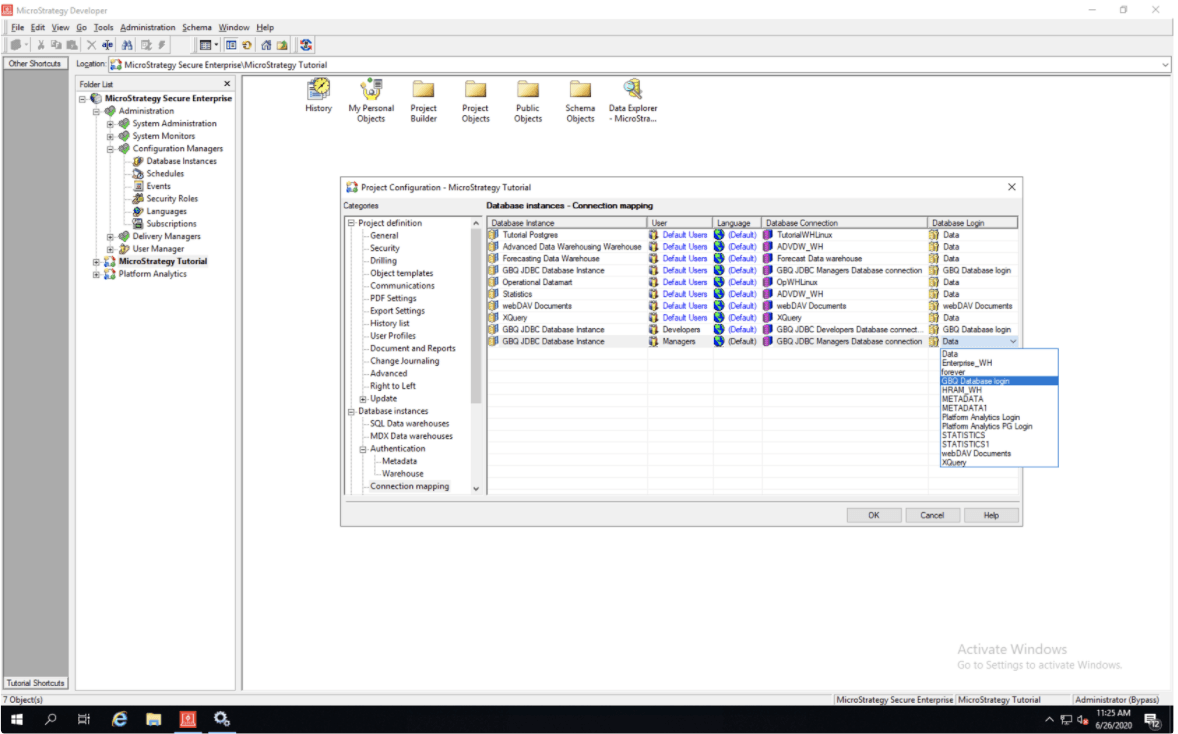
  • Click on the Database Login selector and choose the database login you created in Step 8. 
ka04W000001IwoFQAS_0EM4W000001JTW8.jpeg
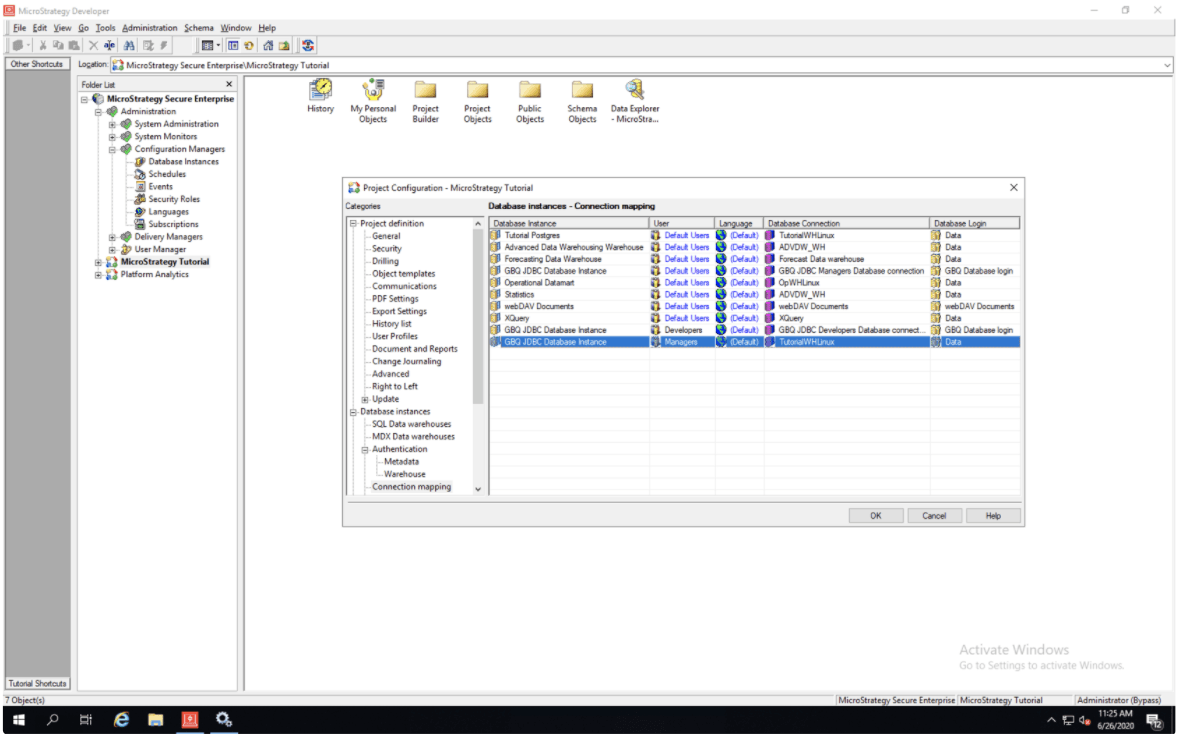
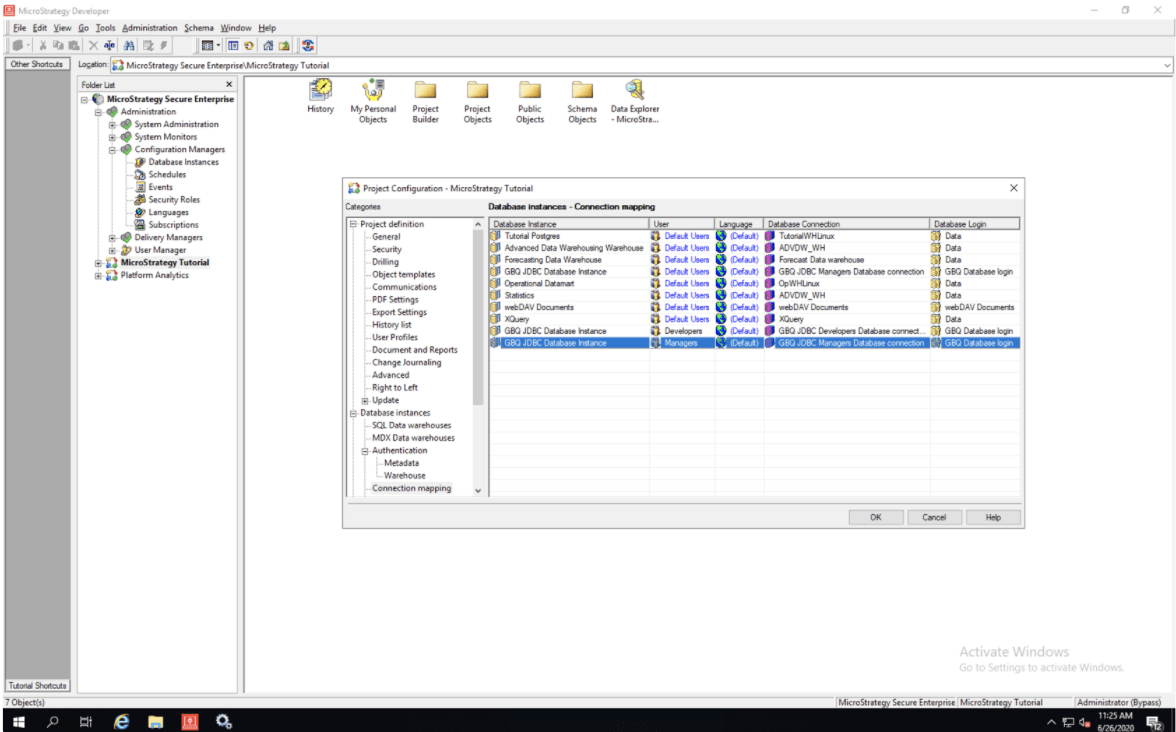
  • The Database Login field is changed. You are done creating the second connection mapping. Click OK.
ka04W000001IwoFQAS_0EM4W000001JTWD.jpeg
  • Click OK.
ka04W000001IwoFQAS_0EM4W000001JTWI.jpeg
  • You are back in the main window of the Database Instances.
ka04W000001IwoFQAS_0EM4W000001JTWN.jpeg

Comment

0 comments

Details

Knowledge Article

Published:

June 9, 2020

Last Updated:

November 2, 2020