SYMPTOM:
Intelligent Cubes Monitor shows all of the cubes published in the environment including the ones published by another nodes. "Delete" is one of option in listed in the context menu.
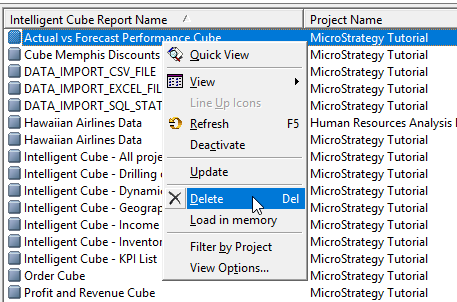
However, this option does not allow you to delete some cubes under some circumstances. The cube disappear from the monitor after "Delete" option is selected. But the cube comes right back upon refresh of the monitor.
CAUSE:
One of the common reasons for this issue is that the cubes are read from a node, which is not running. While maintenance mode is enabled, cubes created by other nodes remains available. But such cubes that were read from the other node that is not running are "read-only." For more information about maintenance mode, refer to:
KB45399: New Feature in MicroStrategy 9.3.1: Maintenance Mode: Ability to retain Intelligent Cubes, Caches and History on 'Normal Shutdown' of a server node in an Intelligence Server cluster.
ACTION:
Make sure that you have "Cluster Synch Check" enabled. See:
KB221178: How does the registry setting 'Cluster Synch Check Duplicate Cubes' work in a clustered environment in MicroStrategy
KB442431
