In prior versions of the Strategy Intelligence Server, when an Intelligence Server node in a cluster was shut down (Normal Shutdown), the node would also remove from the shared cluster resources any Intelligent Cubes, caches or history messages that had been created by that node (even if it was part of the cluster at the time of the resource creation). On the other hand, an abnormal termination/killing of the Intelligence Server process on a clustered node would keep the resources in the cluster for access from other nodes.
With the release of Strategy 9.3.1, the Intelligence Server can now be configured to keep the clustered resources in the surviving Intelligence Server cluster even if the node is shutdown normally. By default, this feature "Maintenance Mode" is not enabled and must be manually enabled on each node of the Intelligence Server to be functional. The setting is applied in the registry (or MSIReg.reg on Unix/Linux installations) as noted below. After enabling maintenance mode, when one node of the cluster is shut down, it is seen in maintenance mode when viewed from the cluster monitor of the other node(s) in the cluster:
Refer to the following Strategy Knowledge Base documents for information on the additional registry settings discussed in the steps below:
Windows
Implement the steps below to enable maintenance mode. These changes should be implemented on all the nodes of the cluster:
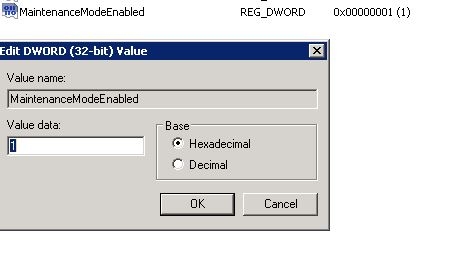
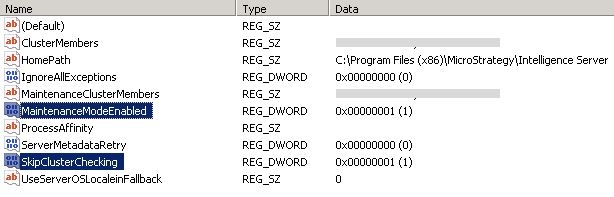
SkipClusterChecking. This entry should also be in the added in the same location as given in Step 3. It should also be created as a new DWORD (32-bit) and the value of the entry should be set to 1. The two settings should look in the registry as given below:
Cluster Synch Check Duplicate Cubes' in Strategy Intelligence Server 9.4.1 and later. This should be created as a new DWORD (32-bit) in the location: HKEY_LOCAL_MACHINE\SOFTWARE\Wow6432Node\MicroStrategy\Data Sources\CastorServer and the value of this entry should be set to 1.
Note: To disable maintenance mode, change the value of the newly created registry entry to 0 or delete these entries from the registry.
UNIX/Linux
Implement the steps below to enable maintenance mode. These changes should be implemented on all the nodes of the cluster:
"MaintenanceModeEnabled"=dword:00000001
SkipClusterChecking. This should also be added to the same location as given in Step 4. It should be added as given below:
"SkipClusterChecking"=dword:00000001
"Cluster Synch Check Duplicate Cubes"=dword:00000001
Note: "SkipClusterChecking" entry is enabled by default on 9.4.1 HotFix 9 and newer, and no longer required in 10.x versions.
WARNING:
Modifying registry values incorrectly may cause serious, system-wide problems that may require the re-installation of Microsoft Windows. Any edit of the registry is done at the user's own risk. Since these are user-initiated changes, they are not covered by any Strategy warranty. If using Microsoft Windows, the user should backup the registry and/or update an Emergency Repair Disk (ERD) prior to alterations.
45399
