Starting with the release of Strategy ONE (March 2024), dossiers are also known as dashboards.
Consider the following scenario:
A source dossier displays a list of all stores. When you click on a store from the list, you want to be directed to a target dossier, which displays all stores within X km radius from the selected store.
This article will demonstrate how to achieve the described scenario using the Store attribute in the Tutorial project. You can assume X km is equivalent to 3 km.
The following are the 3 main steps required:
For Store attribute, add an attribute form with type “HTML tag” and the following expression:
ApplySimple("'<A HREF=Main.aspx?evt=2048001&documentID=EFA90D934B888A77300038A7F944873E&valuePromptAnswers=' || #0 ||'^'|| #1 & ' target=_blank >' || #2|| '</A>'", [STORE_LATITUDE], [STORE_LONGITUDE], [STORE_NAME])
Note:
ApplySimple("'<A HREF=Main.aspx?evt=2048001&documentID=EFA90D934B888A77300038A7F944873E&valuePromptAnswers=' || #0 ||'^'|| #1 || ' target=_blank >' || #2|| '</A>'", [STORE_LATITUDE], [STORE_LONGITUDE], [STORE_NAME])
Create a dataset with the above Store attribute and create a source dossier with this dataset.
The report should resemble the following in Developer. See how the html tag form has been constructed.

The report should resemble the following in Web. See how the html tag is displayed as the Name form with a link.



ApplyComparison("#0 between (#1 - #2*0.0090133729745762) and (#1 + #2*0.0090133729745762)",Store@latitude,? LatitudePrompt,3)
ApplyComparison("#0 between (#1 - #2*0.0090133729745762) and (#1 + #2*0.0090133729745762)",Store@longitude,? LongitudePrompt,3)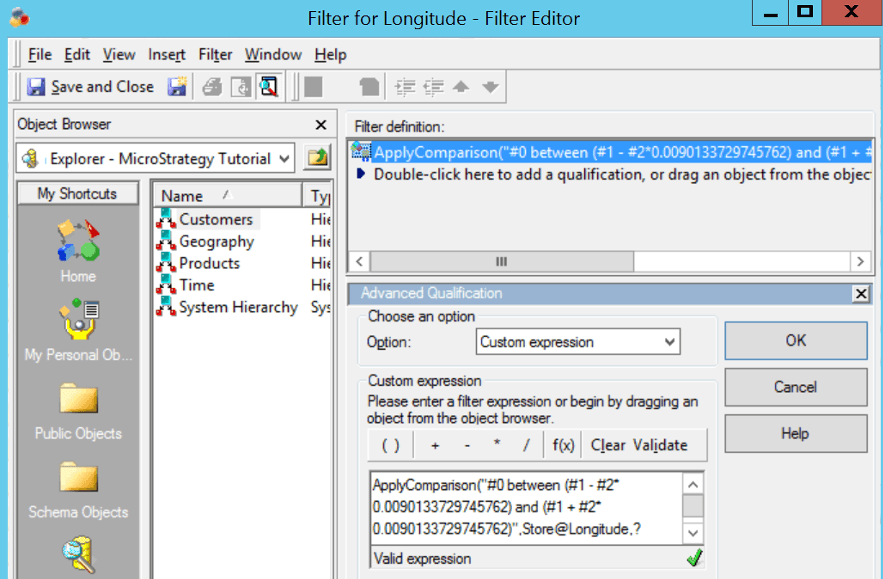


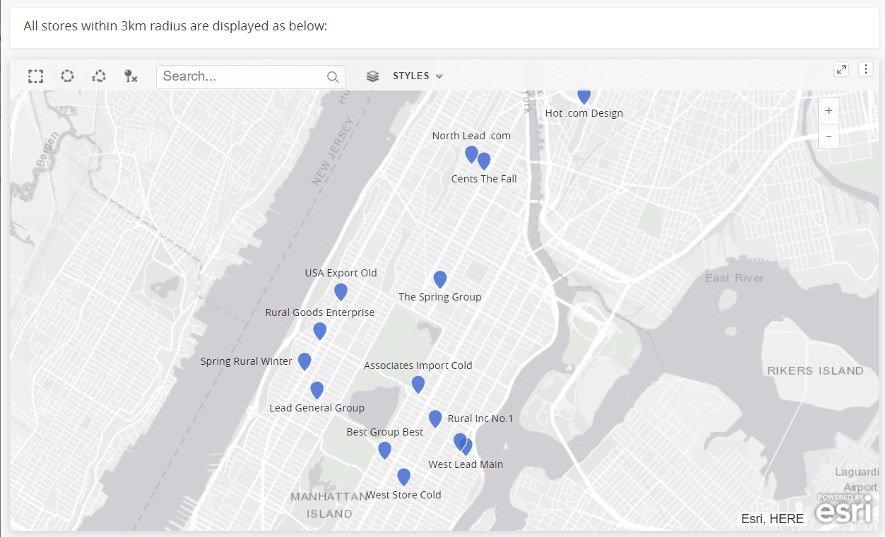
If a dynamic distance (3 km is used in this KB sample) is desired, a numeric value prompt can be created and used, instead of hardcoding 3 km in the filter expression.
