EducationSoftwareStrategy.com
StrategyCommunity

Knowledge Base

Product

Community

Knowledge Base

TopicsBrowse ArticlesDeveloper Zone

Product

Download SoftwareProduct DocumentationSecurity Hub

Education

Tutorial VideosSolution GalleryEducation courses

Community

GuidelinesGrandmastersEvents
x_social-icon_white.svglinkedin_social-icon_white.svg
Strategy logoCommunity

© Strategy Inc. All Rights Reserved.

LegalTerms of UsePrivacy Policy
  1. Home
  2. Topics

KB484087: Install and setup Microsoft SQL Server Express Metadata database for troubleshooting with MicroStrategy Technical Support


Community Admin

• Strategy


MicroStrategy Technical Support may request a metadata backup for troubleshooting purposes and involving a Database Administrator may not be feasible. In this case, you can refer to this article to set up a free Microsoft SQL Server database to create and back up your metadata.

Install and Setup Microsoft SQL Server Express Metadata Database

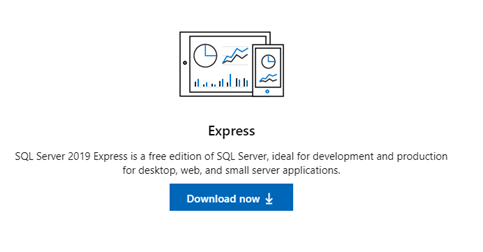
  • Install Microsoft SQL Server Express from here.
    This includes components like the SQL Server Configuration Manager
ka04W000001IwtTQAS_0EM2R000000o2Jz.jpeg
  • Install SQL Management Studio from here.
    This tool creates and manages the database.
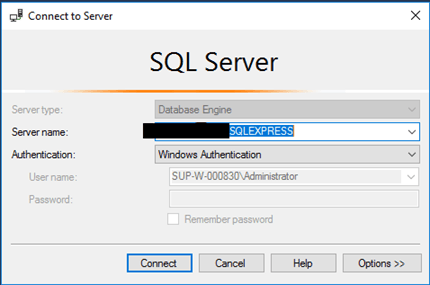
  • Open SQL Server Management Studio and sign in using Windows Authentication.
ka04W000001IwtTQAS_0EM2R000000o2Ki.jpeg
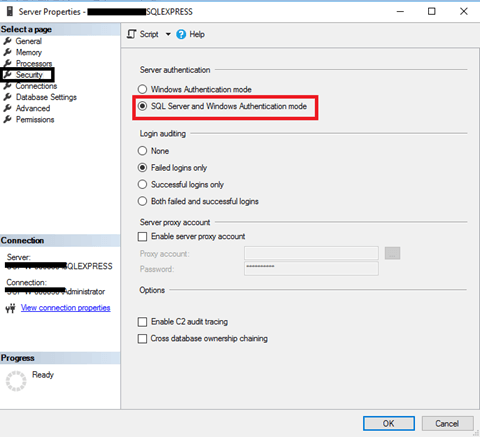
  • Right-click and click Server Properties > Security.
  • Under Server authentication, select SQL Server and Windows Authentication mode. You will be prompted to restart the server.
ka04W000001IwtTQAS_0EM2R000000o2Ks.jpeg
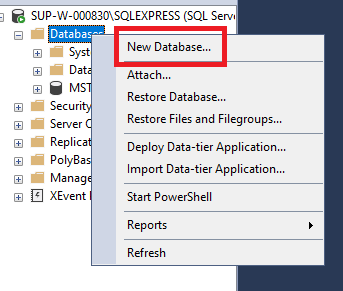
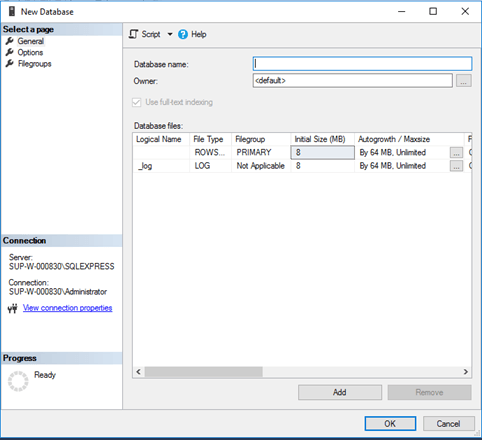
  • Right-click on Databases > New Database.
ka04W000001IwtTQAS_0EM2R000000o2Kx.jpeg
  • Name your database and click OK.
ka04W000001IwtTQAS_0EM2R000000o2L2.jpeg
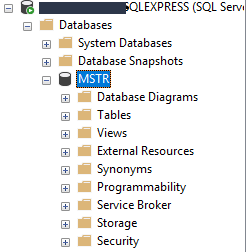
  • An empty database is created.
ka04W000001IwtTQAS_0EM2R000000o2L7.jpeg
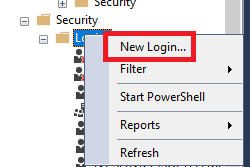
  • To create a user with standard authentication to use in your DSN creation, expand Security, right-click, and choose New Login.
ka04W000001IwtTQAS_0EM2R000000o2LH.jpeg
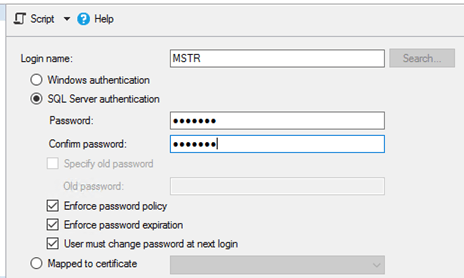
  • Select SQL Server authentication to assign a password to your user.
ka04W000001IwtTQAS_0EM2R000000o2LM.jpeg
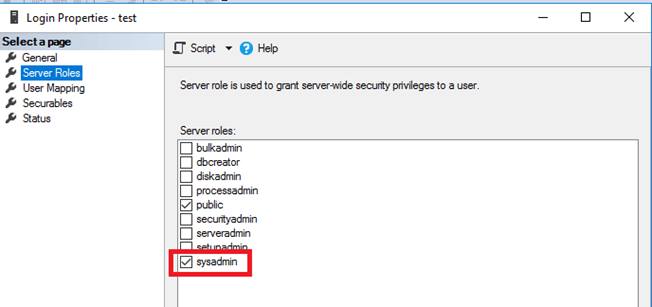
  • Navigate to User Mapping to assign your user to your database along with their database role. Select sysadmin to allow your user proper access to create and modify tables.
ka04W000001IwtTQAS_0EM2R000000o2LR.jpeg
  • Using the Connectivity Wizard, create a DSN to your database using the IP address of the machine where SQL Server is running and the DB user that you created. The default port that is open is 1433. However, you should confirm the port where SQL Server is communicating through with your network team.
    You can use the command
    netstat -a -n -o
    to list the ports that are open and listening based on the PID, or the process associated with each service. In this instance, find the one associated with SQL Server.

ka04W000001IwtTQAS_0EM2R000000o2LW.jpeg
  • After establishing the new DSN, open Configuration Wizard to configure a new metadata.
  • Create a new two-tier project source using the DSN created.
  • Duplicate your projects into project source.


For details for creating a backup of your metadata, see KB441138 .
Third Party Software Installation
WARNING: The third-party product(s) discussed in this technical note is manufactured by vendors independent of Strategy. Strategy makes no warranty, express, implied or otherwise, regarding this product, including its performance or reliability.


Comment

0 comments

Details

Knowledge Article

Published:

February 28, 2020

Last Updated:

February 28, 2020