EducationSoftwareStrategy.com
StrategyCommunity

Knowledge Base

Product

Community

Knowledge Base

TopicsBrowse ArticlesDeveloper Zone

Product

Download SoftwareProduct DocumentationSecurity Hub

Education

Tutorial VideosSolution GalleryEducation courses

Community

GuidelinesGrandmastersEvents
x_social-icon_white.svglinkedin_social-icon_white.svg
Strategy logoCommunity

© Strategy Inc. All Rights Reserved.

LegalTerms of UsePrivacy Policy
  1. Home
  2. Topics

KB441933: Is it possible to run Dossier in Presentation Mode as default in Microstrategy Web?


Malgorzata Matusiak

Senior Product Specialist • Strategy


Some users want to open Dossiers in Presentation Mode by default without the need to change the view option after opening it (VIEW > Enter Presentation Mode) or clicking Presentation Mode button.

Starting with the release of Strategy ONE (March 2024), dossiers are also known as dashboards.
Some users want to open Dossiers in Presentation Mode by default without the need to change the view option after opening it (VIEW > Enter Presentation Mode) or clicking Presentation Mode button.
In Presentation mode you can view dossiers without having to see all the navigation features, such as toolbars, menus, and panels, that are available in the default interface. This allows you to maximize the amount of data that you can view at one time, while still allowing you to interact with your data.
Presentation Mode button: 

ka0PW0000001JQjYAM_0EM44000000Qv6V.png

How to change view to Presentation Mode:
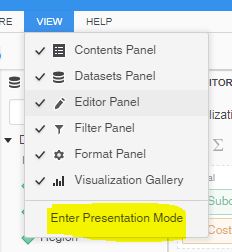
ka0PW0000001JQjYAM_0EM44000000Qv6a.png

 
There is no option to open dossiers in Presentation Mode as default in Strategy Web, this ability is one of the main advantages of the Strategy Library. With Strategy Library interface users have access only to the consumption mode of Dossiers which is equivalent to Presentation Mode view in Strategy Web.
Strategy Library does not allow users to browse to other objects in your Project. I.e. in order to view content in the Strategy Library, RS Documents or Dashboards/Dossier must be shared first to the user Library or the user must get the Library link to the Dossier.
 
ADDITIONAL INFORMATION:
Other ways to see Dossier in Presentation Mode:

  1.  Right mouse click on the dossier and choose Share option in order to obtain URL of the Dossier and run it on browsers. The dossier will open in presentation mode by default(No need to click the presentation mode button).
  2. You can also run a Dossier in presentation mode automatically by just adding &share=1 to the dashboard link; basically it is the link that is generated when you share the dashboard.
  3. Run the dossier and switch to the Presentation mode, then select the Share option in the upper right corner. The URL link that is there should run the document in the same mode that it was in when the link was collected. (in this case, presentation mode). You can use that URL within the Salesforce iframe.
  4.  There is a Web Privilege that restricts and allows users to edit dossiers. If you remove this privilege for a user, the Dossier will always execute in Presentation mode because that user will not have the privileges to edit the dossier. (the caveat for this option is that these users will no longer be able to edit Dossiers of course). The privilege to speak of is: Web Analyst > Web Edit Dossier. Please check KB274546 for more information.


KB441933


Comment

0 comments

Details

Knowledge Article

Published:

September 26, 2018

Last Updated:

March 21, 2024