Strategy Command Manager allows administrators to list and save Strategy Intelligence Server and project properties to a file. Saving these settings to a file is especially useful if a new server definition must be created.
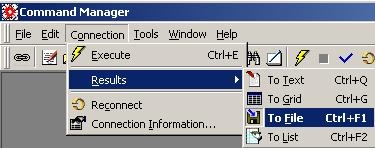
In order to save the results of any script to a file, the user should choose the "To File" option under Connection > Results, as shown below:
In order to list all of the Strategy Intelligence Server and project properties that will be affected by creating a new server definition, the user should run the following commands in Strategy Command Manager:
LIST ALL PROPERTIES FOR SERVER CONFIGURATION;
LIST ALL PROPERTIES FOR PROJECT CONFIGURATION FROM PROJECT "<project_name>";
LIST ALL PROPERTIES FOR REPORT CACHING IN PROJECT "<project_name>";
LIST ALL PROPERTIES FOR OBJECT CACHING IN PROJECT "<project_name>";
LIST ALL PROPERTIES FOR ELEMENT CACHING IN PROJECT "<project_name>";
LIST ALL CONNECTION MAP FOR PROJECT "<project_name>";
LIST ALL PROPERTIES FOR STATISTICS FROM PROJECT "<project_name>";
The above scripts will list all of the Strategy Intelligence Server configuration settings, as well as the Project Configuration settings associated with the server definitions: Governing, Caching, Connection Mapping and Statistics.
The user can execute each command separately and save each set of settings to a separate file by highlighting the command and clicking on the lightning bolt button, as shown below:
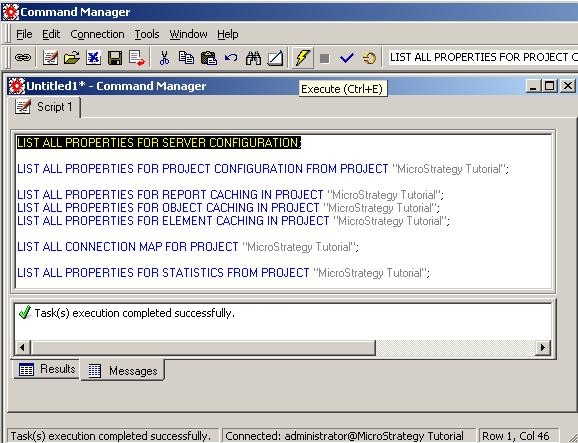
If the user chooses to run all commands at once, all settings will be saved to one file. Administrators may then reference these files while reconfiguring the Strategy Intelligence Server and the projects in 3-tier connection mode.
Strategy Workstation 2020 and above allows you to manage server configuration settings:
https://community.strategy.com/article/Workstation-Feature-Managing-Server-Configuration-Settings?language=en_US
