EducationSoftwareStrategy.com
StrategyCommunity

Knowledge Base

Product

Community

Knowledge Base

TopicsBrowse ArticlesDeveloper Zone

Product

Download SoftwareProduct DocumentationSecurity Hub

Education

Tutorial VideosSolution GalleryEducation courses

Community

GuidelinesGrandmastersEvents
x_social-icon_white.svglinkedin_social-icon_white.svg
Strategy logoCommunity

© Strategy Inc. All Rights Reserved.

LegalTerms of UsePrivacy Policy
  1. Home
  2. Topics

KB13313: How to enable logging of performance counters using the Diagnostics and Performance Logging tool for MicroStrategy Intelligence Server in Microsoft Windows and Unix


Community Admin

• Strategy


The following knowledge base article explains how to enable logging of performance counters using the Diagnostics and Performance Logging tool for MicroStrategy Intelligence Server and newer running on Windows and Unix.

The Diagnostics and Performance Logging tool can be accessed in Microsoft Windows from Start -> Programs -> Strategy -> Tools -> Diagnostics Configuration, and on Unix from the mstrdiag command in the /bin folder.
 
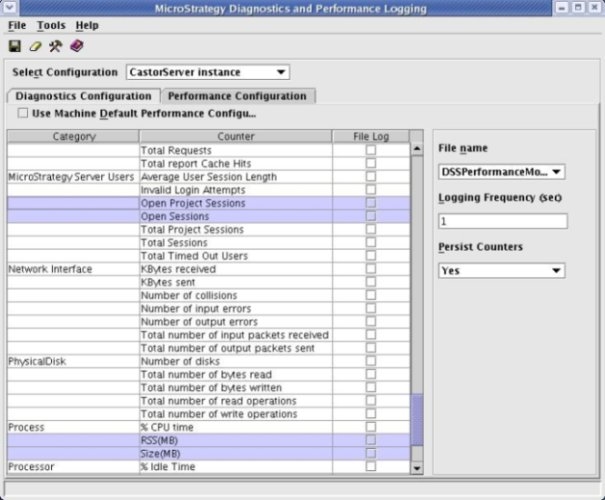
To log the counters for the Strategy Intelligence Server 9.x process, the user must perform the following steps:

  1. Select the 'CastorServer Instance' as the configuration to be used.
  2. Ensure that the 'Use Default Performance Configuration' option is left unselected.

In Microsoft Windows and Unix, the Diagnostics and Performance Logging tool is the recommended interface to enable logging of the 'Strategy Server Jobs' and 'Strategy Server Users' counters in order to monitor the load on the server.
 
Additionally, using this interface on Unix, it is possible to log the memory related counters (Size (SZ) and Resident Set Size (RSS)) for the Strategy Intelligence Server process, as shown below:
ka04W00000148T2QAI_0EM440000002Bdr.jpeg

 
NOTES:

  1. The performance log files are placed in the Program Files\Strategy\Intelligence Server folder on Windows, and in the /IntelligenceServer folder in Unix by default.
  2. The .csv files generated with the counter information can be viewed with the perfmon tool on Microsoft Windows as well as in Microsoft Excel.
  3. In some cases, you may need to restart the Intelligence Server for the updated configuration to be applied.

The following knowledge base documents serve as useful references:
 
KB19155:  Recommended performance logging counters to enable when troubleshooting memory or performance issues in Strategy Intelligence Server Universal 9.4.x - 10.x in UNIX/Linux environments
KB19154:  Recommended performance logging counters to enable when troubleshooting memory or performance issues in Strategy Intelligence Server 9.4.x - 10.x in Microsoft Windows environments
For environments that do not have a GUI, a command line version of the Strategy Diagnostics Configuration tool can facilitate the collection of Performance Counters, as per the following Knowledge Base article:
KB46316: How to enable recommended performance counter logging for Strategy server instances from the command line using MSTRCTL command in Strategy Intelligence Server Universal 9.x - 10.x


Comment

0 comments

Details

Knowledge Article

Published:

March 31, 2017

Last Updated:

July 23, 2018