EducationSoftwareStrategy.com
StrategyCommunity

Knowledge Base

Product

Community

Knowledge Base

TopicsBrowse ArticlesDeveloper Zone

Product

Download SoftwareProduct DocumentationSecurity Hub

Education

Tutorial VideosSolution GalleryEducation courses

Community

GuidelinesGrandmastersEvents
x_social-icon_white.svglinkedin_social-icon_white.svg
Strategy logoCommunity

© Strategy Inc. All Rights Reserved.

LegalTerms of UsePrivacy Policy
  1. Home
  2. Topics

KB19154: Recommended performance logging counters to enable when troubleshooting memory or performance issues in MicroStrategy Intelligence Server in Microsoft Windows environments


Community Admin

• Strategy


When memory or performance issues occur in MicroStrategy Intelligence Server, the initial procedure to identify bottlenecks and root causes is to collect performance logs for the Intelligence Server process. The following counters are recommended to be logged for an initial picture of the process and system behavior.

When memory or performance issues occur in Strategy Intelligence Server 2021, the initial procedure to identify bottlenecks and root causes is to collect performance logs for the Intelligence Server process. Some performance counters must be obtained through the Microsoft Windows Performance Monitor. Other counters - specifically related to Intelligence Server objects must be collected through the Strategy Diagnostics and Performance logging tool. The following counters are recommended to be logged for an initial picture of the process and system behavior:
 
Enable ALL counters from the following 4 Categories
1 - Strategy Server Jobs (all counters within this Category, through Strategy Diagnostics Tool)
2 - Strategy Server Users (all counters within this Category, through Strategy Diagnostics Tool)
 
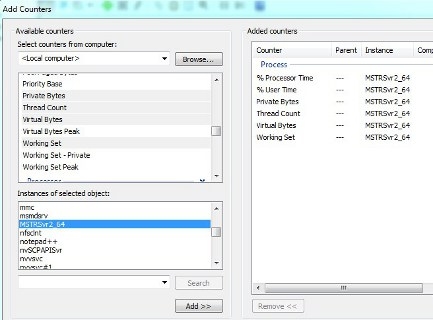
3 - Process (through Windows Performance Monitor)

  • % Processor Time
  • % User Time
  • Virtual Bytes
  • Private Bytes
  • Thread Count
  • Working Set

The Process performance object lists all running processes on the machine as Instances in the right-hand list box. Only "MSTRSvr" (or MSTRSvr2_64 on 64 bit Windows) should be chosen to track values for the Intelligence Server process.
 

ka04W000001MKz8QAG_0EM440000002BHE.jpeg

 
4 - Processor (through Windows Performance Monitor)

  • % Processor Time (_Total)
  • % User Time  (_Total)

 
Additional Content
Consult the following Strategy Knowledgebase articles for details on capturing these counters into logs to be provided to Strategy Technical Support.

  • KB14624: How to enable logging of performance counters using Microsoft Windows XP and 2003 Performance Monitor for Strategy Intelligence Server 9.x:
  • KB13313:  How to enable logging of performance counters using the Diagnostics and Performance Logging tool for Strategy Intelligence Server 9.x in Microsoft Windows and Unix
  • KB35108:  How to enable logging of performance counters using Microsoft Windows 2008/Vista/7 Performance Monitor for Strategy Intelligence Server and Narrowcast 9.x

Comment

0 comments

Details

Knowledge Article

Published:

March 30, 2017

Last Updated:

September 19, 2022