EducationSoftwareStrategy.com
StrategyCommunity

Knowledge Base

Product

Community

Knowledge Base

TopicsBrowse ArticlesDeveloper Zone

Product

Download SoftwareProduct DocumentationSecurity Hub

Education

Tutorial VideosSolution GalleryEducation courses

Community

GuidelinesGrandmastersEvents
x_social-icon_white.svglinkedin_social-icon_white.svg
Strategy logoCommunity

© Strategy Inc. All Rights Reserved.

LegalTerms of UsePrivacy Policy
  1. Home
  2. Topics

KB16863: How to define the default report grid autostyle in MicroStrategy Developer


Stefan Zepeda

Salesforce Solutions Architect • Strategy


This KB article explains how to select a different autostyle than the default autostyle for a specific project

SYMPTOM
A user may need to select a different autostyle as the default autostyle for a project in Strategy Developer. This new autostyle can be one of the prepackaged autostyles already installed on Strategy Developer or a user-created autostyle.
 
For more information on creating an autostyles, refer to the following Strategy Knowledge Base article:KB7129: How to create an AutoStyle in MicroStrategy Developer
 
ACTION
To assign an autostyle as default for a project, follow the steps below:
  • Log into Strategy Developer as an Administrator.
  • Open the project that needs the new default autostyle.
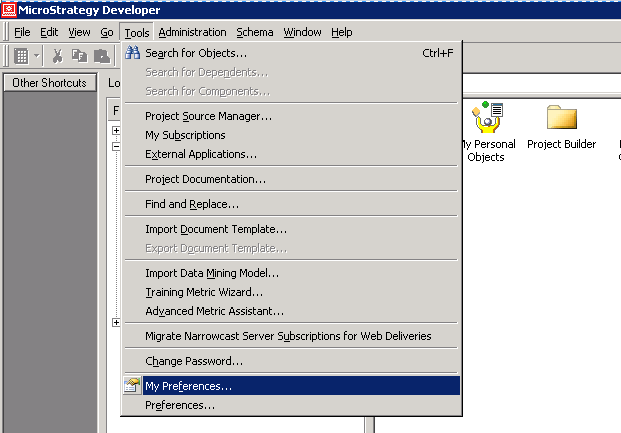
  • Click on the 'Tools' menu and select 'My Preferences', as shown in the image below.
ka0PW00000012fhYAA_0EM440000002bpp.png
  • Go to 'Grid' > 'General' and, under 'Display' and 'Default Style', use the drop down menu to change the default autostyle for the project. It can be any autostyle listed there, including user-created autostyles that were saved under the 'Public Objects/AutoStyles' folder, as shown below:
ka0PW00000012fhYAA_0EM440000002bpu.png

This autostyle is applied per project only. To change other project's default autostyles, log into the other project and follow steps 3 to 4.


Comment

0 comments

Details

Knowledge Article

Published:

July 19, 2017

Last Updated:

August 9, 2024