EducationSoftwareStrategy.com
StrategyCommunity

Knowledge Base

Product

Community

Knowledge Base

TopicsBrowse ArticlesDeveloper Zone

Product

Download SoftwareProduct DocumentationSecurity Hub

Education

Tutorial VideosSolution GalleryEducation courses

Community

GuidelinesGrandmastersEvents
x_social-icon_white.svglinkedin_social-icon_white.svg
Strategy logoCommunity

© Strategy Inc. All Rights Reserved.

LegalTerms of UsePrivacy Policy
  1. Home
  2. Topics

KB17253: What are the steps to follow to setup the server definition for asymmetrical clustering?


Community Admin

• Strategy


Asymmetric clustering means the ability to host a different subset of projects on each node of the cluster. Irrespective of the configuration for clustering (symmetric or asymmetric) Administrators should use the same server definition for all the nodes in the cluster. See below for the steps to define the server definition on each node, using Configuration Wizard.
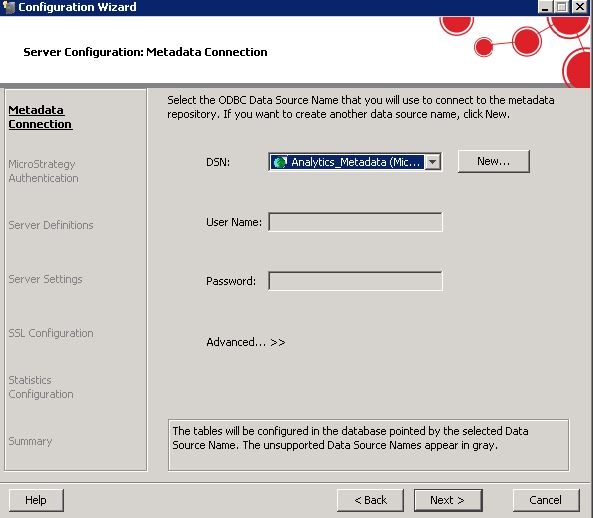
 

  • In Strategy Configuration wizard on Node-1, select the required DSN to connect to the metadata, as shown below:
ka04W00000148FyQAI_0EM440000002NUc.jpeg
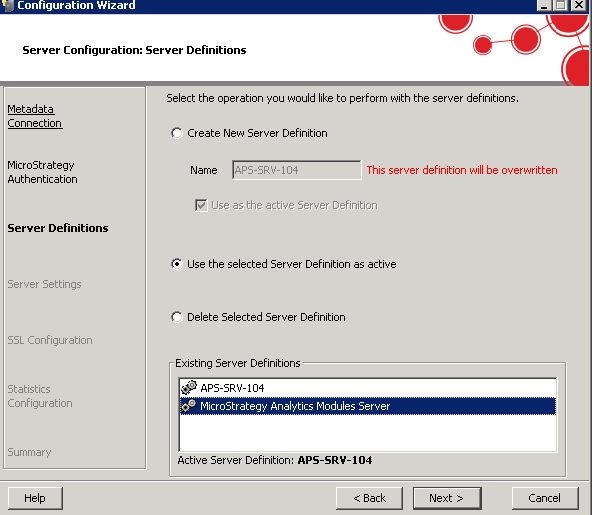
  • Select to create a new server definition or choose to use the existing server definition depending on the user's requirements, as shown below:
ka04W00000148FyQAI_0EM440000002NUh.jpeg
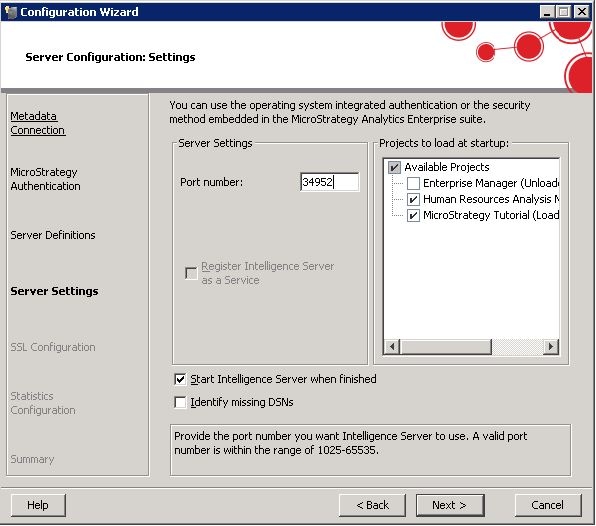
  • Select the required projects to be loaded on startup, as shown below:
ka04W00000148FyQAI_0EM440000002NUm.jpeg
  • Go through the next steps and start the Strategy Intelligence Server on Node-1.
  • In Strategy Configuration wizard on Node-2, select the DSN to connect to the metadata (same metadata as Node-1.)
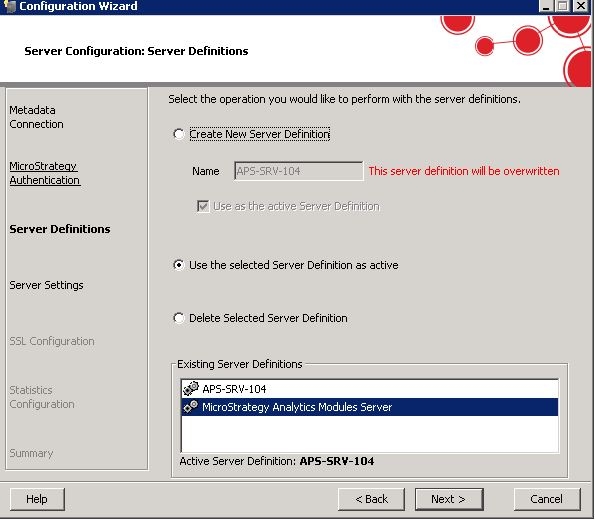
  • Select the server definition that was chosen on Node-1, as shown below:
ka04W00000148FyQAI_0EM440000002NUr.jpeg
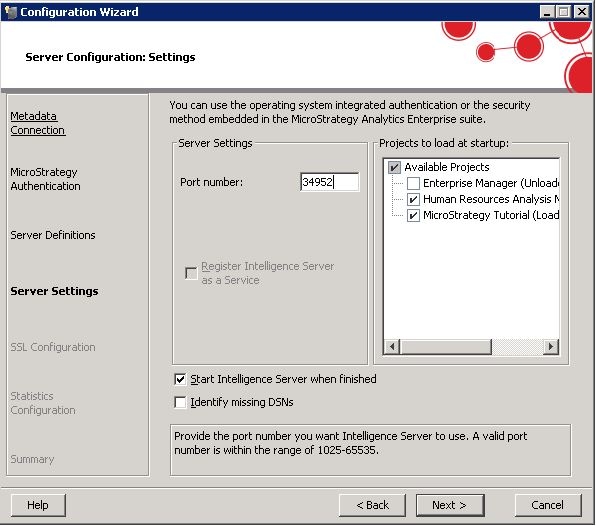
  • In the next step, where it is required to select the projects to load on startup, do not select/unselect any additional projects. Make sure to retain the set of projects selected on Node-1, as shown below:
ka04W00000148FyQAI_0EM440000002NUw.jpeg
  • Go through the next steps and start the Strategy Intelligence Server on Node-2.
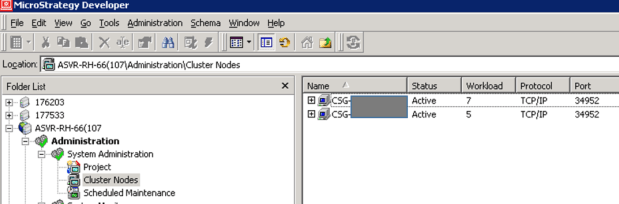
  • On Strategy Developer on Node-1 or Node-2, open the Cluster Monitor and select to add the other node to the cluster. Clustering of both the nodes takes place successfully as shown below:
ka04W00000148FyQAI_0EM440000002NVV.png
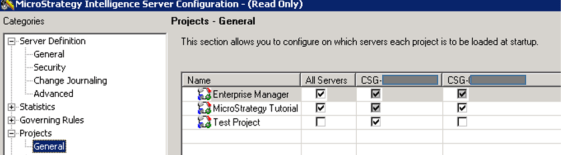
  • After clustering the nodes, open the Strategy Intelligence Server Configuration Editor and navigate to Projects > General and select for each project and node combination whether the project is to be loaded on that node or not, as shown below:
ka04W00000148FyQAI_0EM440000002NVG.png
  •  
    Note: This is the interface from which asymmetrical clustering i.e. loading of different projects on different nodes should be initiated. Different set of projects (to load on startup) should not be selected on the Strategy Configuration wizard when selecting the server definition and starting the Intelligence Server (Steps 3 and 7 explained above).
     
  • Ensure that the "Apply Startup configuration on save" option is checked and click on OK.
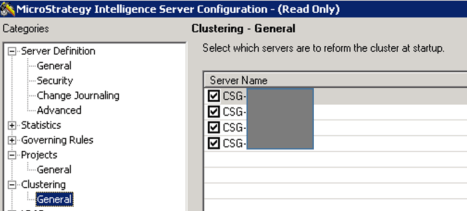
  • In the Strategy Intelligence Server Configuration Editor, check Clustering > Advanced and ensure that the nodes are checked (as shown below) to rejoin the cluster automatically on startup:
ka04W00000148FyQAI_0EM440000002NVQ.png
  •  
    For additional information about this setting, refer to the following Strategy Knowledge Base technical note:
  • KB12428: How to configure the MicroStrategy Intelligence Server to automatically join a cluster upon manual start-up


Comment

0 comments

Details

Knowledge Article

Published:

June 1, 2017

Last Updated:

June 1, 2017