EducationSoftwareStrategy.com
StrategyCommunity

Knowledge Base

Product

Community

Knowledge Base

TopicsBrowse ArticlesDeveloper Zone

Product

Download SoftwareProduct DocumentationSecurity Hub

Education

Tutorial VideosSolution GalleryEducation courses

Community

GuidelinesGrandmastersEvents
x_social-icon_white.svglinkedin_social-icon_white.svg
Strategy logoCommunity

© Strategy Inc. All Rights Reserved.

LegalTerms of UsePrivacy Policy
  1. Home
  2. Topics

KB17408: How to take ownership of multiple objects in MicroStrategy Developer


Stefan Zepeda

Salesforce Solutions Architect • Strategy


How to take ownership of multiple objects in MicroStrategy Developer and newer

SYMPTOM:
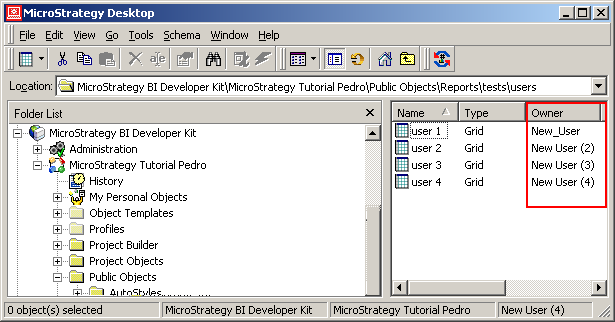
A user would like to take ownership of several objects created by different users at the same time in Strategy Developer. Shown below are multiple objects owned by different users:
ka0PW000000199JYAQ_0EM440000002Wuo.jpeg

 
ACTION:
To take ownership of these objects all at once, users need to do the following:

  • Log in as the user that is taking ownership. This user must have administrative privileges. For this example, 'Administrator' will be used.
  • Highlight the objects of which the user wants to take ownership; right-click on and select 'Properties'
  • Click the Security tab. The following message appears:
ka0PW000000199JYAQ_0EM440000002Wus.jpeg
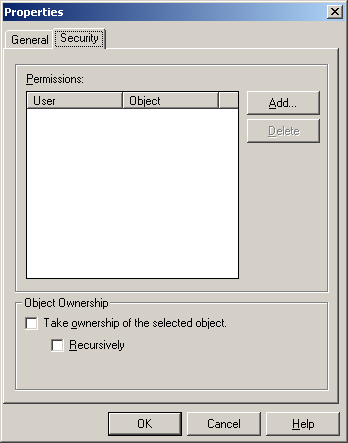
  • Select 'YES', as this resets the Access Control List (ACL) for all these objects. The following window appears:
ka0PW000000199JYAQ_0EM440000002Wup.jpeg
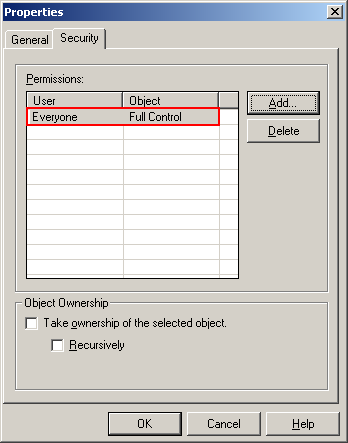
  • First modify the Permissions to these objects so the corresponding users can access them. To change this, click on the 'Add' button and add the users or groups who will have access to these objects. If this is not done, normal users may not have access to these objects. An example is shown in the image below:
ka0PW000000199JYAQ_0EM440000002Wut.jpeg
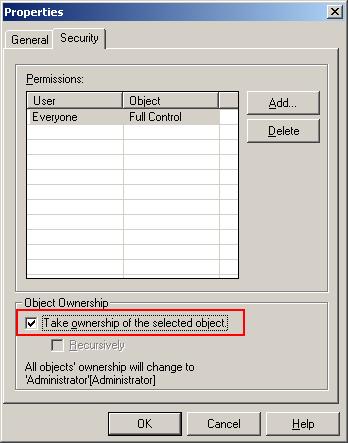
  • Enable the option to 'Take ownership of selected objects'. This gives ownership of these objects to the current user (Administrator), as shown below:
ka0PW000000199JYAQ_0EM440000002Wv0.jpeg
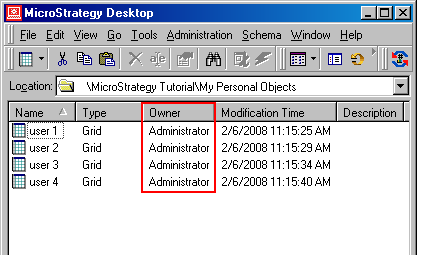
  • Click OK. The objects ownership is updated as shown in the image below:
ka0PW000000199JYAQ_0EM440000002Wuu.jpeg

Refer to the following Strategy Knowledge Base articles for additional information:

  • KB4409: The Object Access Control List in MicroStrategy
  • KB5767: What happens to the user objects when a user is deleted in Microstrategy Developer 9.x and newer?

Comment

0 comments

Details

Knowledge Article

Published:

July 18, 2017

Last Updated:

March 7, 2024