EducationSoftwareStrategy.com
StrategyCommunity

Knowledge Base

Product

Community

Knowledge Base

TopicsBrowse ArticlesDeveloper Zone

Product

Download SoftwareProduct DocumentationSecurity Hub

Education

Tutorial VideosSolution GalleryEducation courses

Community

GuidelinesGrandmastersEvents
x_social-icon_white.svglinkedin_social-icon_white.svg
Strategy logoCommunity

© Strategy Inc. All Rights Reserved.

LegalTerms of UsePrivacy Policy
  1. Home
  2. Topics

KB17417: How to display only the totals in a stack bar graph in MicroStrategy Developer 9.4.x - 10.x.


Stefan Zepeda

Salesforce Solutions Architect • Strategy


This technical note lists the steps to create a stack bar graph that only displays the Totals, in MicroStrategy Developer 9.4.x - 10.x

Enabling the 'Show Data Labels' and 'Show total' options on a vertical bar:stacked graph will display all of the metric values along with the totals in Strategy Developer 9.4.x - 10.x, as shown below:
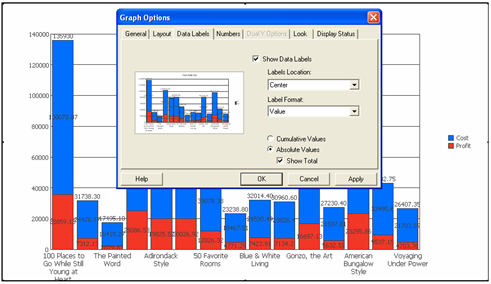
 

ka04W000001IqGBQA0_0EM440000002F0j.jpeg

There is no option to only display the total value for metrics in the graph.
To make the graph only display the total, follow the steps below:
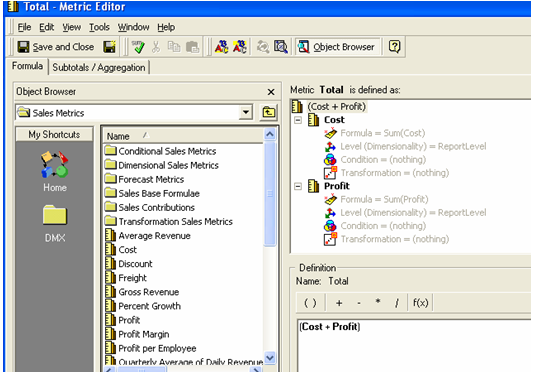
  • Create a new metric that calculates the total, as shown below:
ka04W000001IqGBQA0_0EM440000002F0n.jpeg
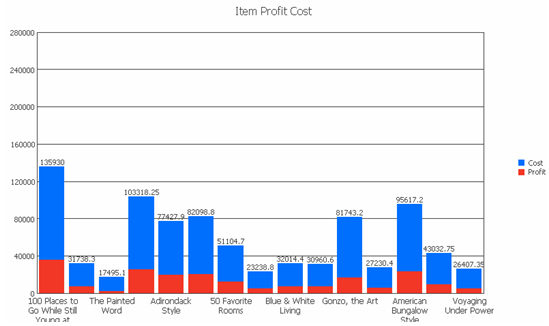
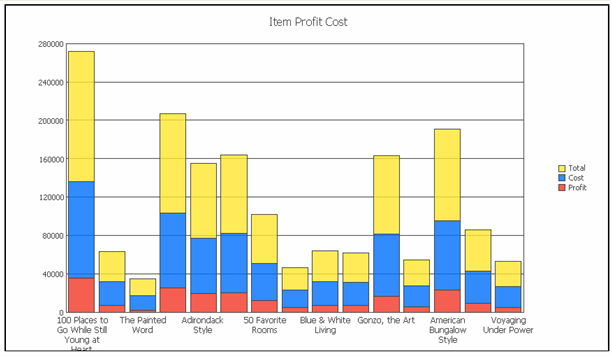
  • Add the metric to the report and remove data labels from the report as shown below:
ka04W000001IqGBQA0_0EM440000002F0W.jpeg
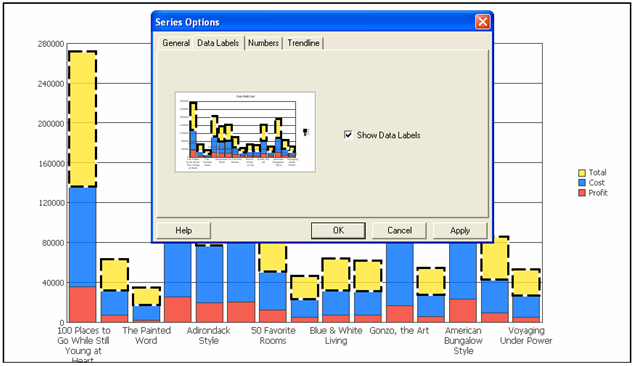
  • Right click on the Total series and then check 'Show Data Labels' on the Data Labels tab as shown in the image below:
ka04W000001IqGBQA0_0EM440000002F0h.jpeg
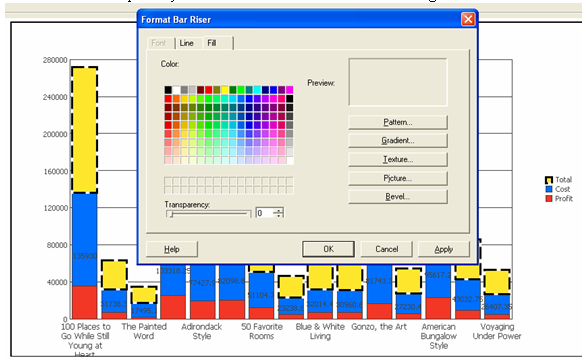
  • Right click on the Total series and Select format Bar Riser. Set the line and the fill to Transparency to 0 in the Fill tab as shown in the image below:
ka04W000001IqGBQA0_0EM440000002F0X.jpeg
  •  
    Note: To enable transparency make sure that "Apply Rounded Effects to All Series" is unchecked under Graph Preferences.
     
  • Finally, set Labels Location to Outside Maximum under Graph Options > Data Label tab. You will show totals as shown in the image below:
ka04W000001IqGBQA0_0EM440000002F0U.jpeg
  •  
    Note: Use the Object Alias setting to hide "Total" legend. Refer to the following Strategy Knowledge Base technical note for more information about aliases:
     
  • KB10909: How to hide a metric on a report without MicroStrategy OLAP Services privileges


Comment

0 comments

Details

Knowledge Article

Published:

April 24, 2017

Last Updated:

April 24, 2017