EducationSoftwareStrategy.com
StrategyCommunity

Knowledge Base

Product

Community

Knowledge Base

TopicsBrowse ArticlesDeveloper Zone

Product

Download SoftwareProduct DocumentationSecurity Hub

Education

Tutorial VideosSolution GalleryEducation courses

Community

GuidelinesGrandmastersEvents
x_social-icon_white.svglinkedin_social-icon_white.svg
Strategy logoCommunity

© Strategy Inc. All Rights Reserved.

LegalTerms of UsePrivacy Policy
  1. Home
  2. Topics

KB18506: Importing and linking users using LDAP integration with the MicroStrategy 2021 Intelligence Server


Community Admin

• Strategy


LDAP Integration for the MicroStrategy Intelligence Server 2021 allows for the authentication of user credentials on the Directory Server, and the importing of user information into the MicroStrategy Repository. The biggest advantage of this setup is that it alleviates the need for users to have a different username and password to access MicroStrategy applications.

Introduction:
Lightweight Directory Access Protocol (LDAP) is a protocol designed for Directory Server access based on the X.500 OSI model. A Directory Server such as Microsoft Active Directory is the most commonly used method of storing user information across an organization or user base. Rather than creating users manually within Strategy, administrators may wish to be able to use their existing Directory Server to perform authentication and other access checks.
 
LDAP Integration for the Strategy Intelligence Server allows for the authentication of user credentials on the Directory Server, and the importing of user information into the Strategy Repository. The biggest advantage of this setup is that it alleviates the need for users to have a different username and password to access Strategy applications.
 
To setup LDAP Authentication for the Strategy Intelligence Server, users should follow the steps outlined in the following Strategy Knowledge Base technical note: 

  • KB18562: Understanding LDAP integration with the MicroStrategy Intelligence Server 9.x and newer

The LDAP authentication process as performed by the Strategy Intelligence Server is a three step flow:  

  1. The Strategy Intelligence Server initially binds to the Directory Server using the credentials specified in the "Authentication User". This connection is used to subsequently search for users attempting to login to Strategy, on the Directory Server.
  2. When a user attempts to login to Strategy using their Directory Server credentials, Strategy Intelligence Server (acting as a client of the Directory Server) queries the Directory Server for the user, and then attempts to validate their credentials (either using a Compare password or a Bind operation).
  3. The third action performed when a logging in user is authenticated is the search for groups that the user belongs to on the Directory Server.

A detailed explanation of the entire authentication process is available in the following Strategy Knowledge Base technical note: 

  • KB20405: Overview of the process flow for LDAP integration with the MicroStrategy Intelligence Server 9.x

Importing and linking Strategy Users and User groups:
 
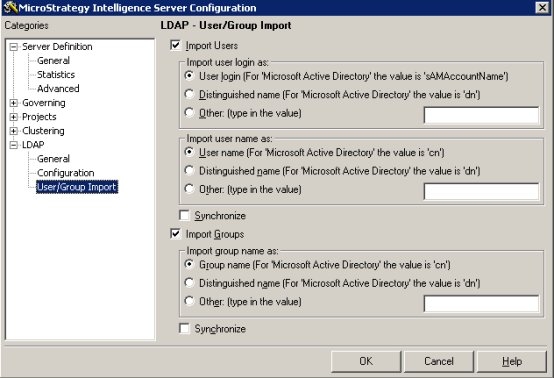
In the 'LDAP' -> 'User/Group Import' section of the Strategy Intelligence Server Configuration interface, administrators have the ability to specify the whether importing of users or groups must be performed for users logging into the Strategy Intelligence Server using 'LDAP authentication' as shown below:
 

ka0PW0000000t4XYAQ_0EM440000002BKF.jpeg

 
Besides the option to import users, it is also possible to link an existing Strategy user and/or group with a specific Directory Server user and/or group. The following explanations detail the behavior that may be observed for different combinations of the import settings:
 
LDAP Import Options:
  • Import Users Only:
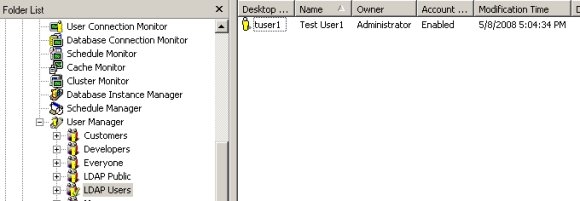
    With only the 'Import User' checkbox in the Strategy Intelligence Server LDAP configuration, when users connect for the first time to a Strategy project source using LDAP authentication, an imported user will be created in the Strategy metadata under the group called 'LDAP Users'. The new user will inherit the privileges and project access assigned by default to the 'LDAP User' group.
     
ka0PW0000000t4XYAQ_0EM440000002BKI.jpeg
  •  
    It is important to note that regardless of the rank, privileges and permissions that a user may have in the LDAP directory, when imported into Strategy all the users will have the same project access and will be created under the same destination group (LDAP Users). Later, Strategy Administrators can manually assign new privileges, project access and memberships to other Strategy groups through the user editor or the Command Manager. Once an imported user has been created in Strategy after being imported, a user profile will also be created for that user.
     
ka0PW0000000t4XYAQ_0EM440000002BKP.jpeg
  •  
    All the imported accounts will be created with the Strategy user name and login set in accordance with the selections made for the 'Import user name as:' and 'Import user login as:' settings in the configuration. The current product behavior defaults to restricting users who have been imported from the Directory Server from being able to login using standard authentication as shown below. Also the User authentication link property is explicitly set to the distinguished name property for the user as set in the Directory Server. Once users have been imported into Strategy, they are indistinguishable from other Strategy users.
     
  • Import Groups Only:
    Importing groups only is a not a popular scenario. With only the Import Groups option checked in the LDAP settings for the Strategy Intelligence Server configuration, when a Directory Server user is authenticated through Strategy, the group to which this user is a member would be imported into Strategy. Following the same principle as with imported users, the Imported Groups will be created as subgroups of the LDAP Users group and will inherit its project access and privileges. Furthermore, when observing the relationships between the imported groups, no hierarchical relationships present between the groups on the Directory Server are preserved after importing these into Strategy. These imported groups can later be modified assigning new security, moving them as subgroups of another group and creating users for them.
     
    It is very important to note that because in this scenario no import of users takes place, the LDAP users that are part of the group that is imported will not be imported with the group. As a result, when a Directory Server user connects to Strategy only having the Import Groups option, no user account will be created and user will not have a user profile created.
     
    Even though under this scenario, no user accounts will be created for LDAP users, such users will inherit the project access and privileges from the LDAP Users group as well as from the Strategy groups created for the imported Directory Server Groups to which they are members. However, since no user accounts will be created, if users create new objects or subscribe to reports while connected, the owner of these objects will be the 'LDAP Users' Strategy group and not an individual Strategy user.
     
    After a Directory Server group has been imported into Strategy, it will still maintain a link with its Directory Server users. Therefore, when a user that belongs to this group in the directory connects to Strategy the user will automatically inherit the Strategy privileges assigned to the group after it has being imported.
     
    Within Strategy however, there is no visual representation of the relationship between users and groups on the Directory server - for further details see the following Strategy Knowledge Base technical note:
    • KB17701: Visual representation and conflict resolution of LDAP user group membership in MicroStrategy Intelligence Server 9.x
  • Users should note that the relationship between groups and logged in users is determined at runtime as the set of groups returned from the group search operation for the user login.
     
  • Import Both Users and User Groups:
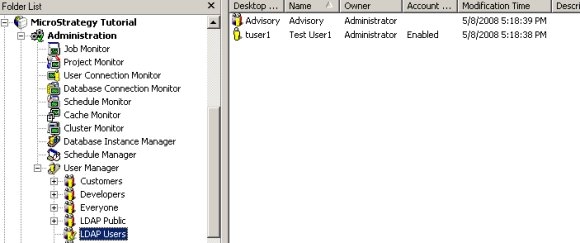
    For this option, both options to import users as well as groups would need to be selected in the Intelligence Server Configuration -> LDAP -> 'User/Group Import' settings. In this scenario, when a Directory Server user authenticates through Strategy for the first time, a user account will be created for the user under 'LDAP Users' group and any groups for which the authenticating user is a member, will also be created as sub-groups of 'LDAP Users' group.
     
ka0PW0000000t4XYAQ_0EM440000002BKJ.jpeg
  •  
    As explained earlier, even though a user and group may share a hierarchical relationship in the directory, this representation is not carried over and persisted in the Strategy repository. However, this relationship is determined at runtime by the group search functionality, and so imported users can still inherit the Strategy privileges imparted to any group of which these users are a member of within the Directory Server context.
     
    A limitation of the issue related to the representation of group and user membership is that any issue requiring a determination of privileges inherited by a user requires that administrators first determine which groups a user belongs to in the directory. Then the privileges assigned to those groups must be checked within Strategy. Finally the privileges for the user object itself must be checked. The actual set of privileges a user obtains is the union of all the privileges assigned to each group the user is a member of. 
     
     
  • Import None:
    With none of the Import settings selected in the Intelligence Server configuration, Directory Server users will still be able to authenticate through Strategy. However no user accounts or groups will be created in the Strategy repository.
     
    In this scenario, all directory users will inherit the privileges and project access assigned to the 'LDAP Users' group regardless of their group membership in the Directory Server. Further, no user account, profiles, history list etc are persisted and any schedules or objects created during these sessions will be created for the 'LDAP User' group. The User Connection Monitor in Strategy Desktop will indicate the login for the Directory Server user that is currently connected into Strategy as a temporary user.

    Users should note however, if Strategy groups have been created previously and linked (as explained below) to groups that the user is a member of on the LDAP server, then the temporary user will inherit the privileges applied to the group that is linked to the LDAP groups the user belongs to.
     
ka0PW0000000t4XYAQ_0EM440000002BKL.jpeg

LDAP Link Options:
The ability to import users and groups into the Strategy metadata from the Directory Server would be an efficient way to create or update a new Strategy user structure from an existing Directory Server. However, in the cases where there is an existing Strategy user structure and fewer users, a simpler strategy would be to link existing Strategy objects to their corresponding Directory Server objects.
 
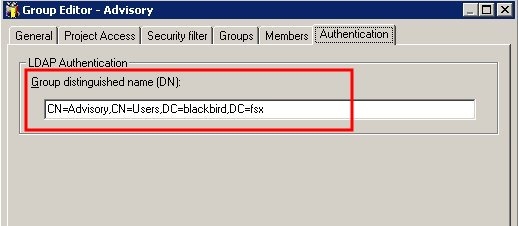
It is possible to link both Strategy Users and Groups from the User and Group Editors in Strategy Desktop. The link is the distinguished name (DN) for the Directory Server user or group to which the Strategy object will be linked.
 

ka0PW0000000t4XYAQ_0EM440000002BKE.jpeg

 
Linking and Importing are not mutually exclusive. Linking a user does not affect the import options selected for LDAP integration, and a combined strategy of linking and importing may be used if appropriate. It is important to note that each Directory Server object can only be linked to one Strategy User or group. This means that if a Directory Server user has already been imported into Strategy, then another Strategy User or Group cannot be linked to that same user.
 

  1. Linking Users:
    After a Strategy User has been linked to a Directory Server account or imported from the Directory Server, whenever the user logs in to Strategy with the Directory Server credentials, the user will inherit the privileges and security assigned to the Strategy User object. The user's profile folder will be accessible and the user will be able to manage subscriptions exactly as if the login had taken place using standard authentication.
     
    If the LDAP link is incorrect in the Strategy user object, on successful authentication with the Directory Server, the Strategy user will not be found (the import option must be turned off). The session will be created under a temporary user belonging to the LDAP Users group, and the temporary user will inherit permissions from this group. Since the user session does not belong to a user in the metadata, profile folders and subscriptions will not be available.
     
  2. Linking Groups:
    Every Strategy User Group except the "Everyone" group may be linked to a Group on the Directory Server. This is achieved by specifying the distinguished for Directory Server object in the User group editor. When a Directory Server user logs in and authenticates successfully, the groups for that user are retrieved from the Directory Server. The Intelligence Server will check for the linked groups within the Strategy Metadata. If these linked groups are found, the user logging in will inherit any security privileges and permissions assigned to the Strategy User group. This operation happens regardless of whether the users are being imported or whether they are linked to a Directory Server user from within the Strategy metadata.
     
    The final security map for these logged- users will be a union of the permissions and privileges assigned to all the imported and linked groups of which they are members as well as any individual privileges that may be assigned to the users themselves.
     

User/group synchronization:
Whether users and groups are imported from or manually linked to LDAP entries, information in the Strategy metadata about these users and groups can optionally be updated at the time of login. The following user and group properties are subject to synchronization:
 

  1. User or group name
  2. User login (users only)
  3. User or group DN (distinguished name)

 
Synchronization checks the properties in the metadata against the corresponding attributes returned by the LDAP server. The LDAP attributes used are specified in the "User/Group Import" panel, under "Import user login as," "Import user name as," and "Import groups." These settings will be used even if user or group import is disabled; synchronization is an independent setting that may be used with or without import. If any properties in the metadata are different from what the LDAP server reports, the metadata properties will be changed to match.
 
When synchronization is enabled, the Strategy Intelligence Server can match users in the metadata to the LDAP credentials using the distinguished name OR the user login or full name. If, for instance, a user's distinguished name changes in the LDAP server, the user can still log into Strategy successfully as long as the login ID or full user name are the same. In this case, the LDAP's distinguished name saved in the Strategy user object will be updated.
 
If synchronization is disabled, users and groups are identified in the Strategy metadata based on distinguished name only. Changes to the distinguished name in the LDAP server will cause users to be logged in as temporary users under LDAP Public privileges.
 
LDAP Public (Guest Connection):
As a requirement for LDAP authentication through Strategy all users must have a valid login and password combination. If no password is specified by the user when attempting to login (or a blank password is used), regardless of the login information provided a guest user account session is opened on the Intelligence Server. The privileges granted to the guest session are inherited from the 'LDAP Public' group in the metadata.

 

ka0PW0000000t4XYAQ_0EM440000002BKG.jpeg

 
For Guest sessions, even if the Import User and Group settings are checked, no import action is performed by the Intelligence Server.


Comment

0 comments

Details

Knowledge Article

Published:

May 4, 2017

Last Updated:

February 26, 2024