Introduction
Integrated Authentication to the Strategy Intelligence Server utilizes the Kerberos authentication protocol to provide a Single Sign-On capability for Strategy users connecting from Web or Developer from a Microsoft Active Directory environment. Several configuration steps are required inside Active Directory as well as on the Strategy Intelligence Server host machine and via Strategy Developer on a Windows machine.
Active Directory configuration
Intelligence Server machine configuration
Developer machine configuration
Prerequisites:
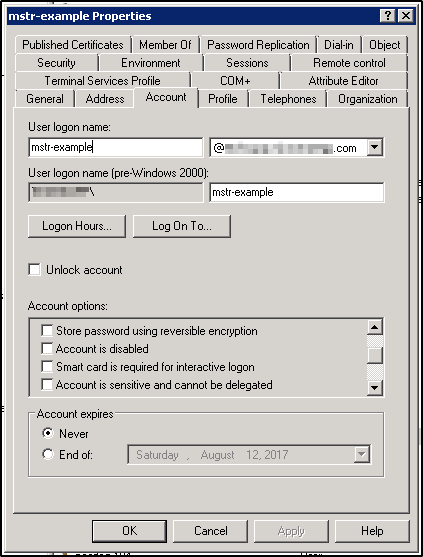
Create the Intelligence Server SPN:
Once the user has been created, an SPN (Service Principal Name) for the Intelligence Server must be attached to the user using the setspn command. Typically the Active Directory administrator will perform this step. Prior to adding the SPN, use the setspn -L <user> command to verify that no Strategy-related SPNs already exist for the user. When adding the SPN, use the setspn -S <SPN> <user> command. The general format for an SPN is <servicename>/<hostname>@<realm>. For the Intelligence Server SPN, Strategy software expects that the service name will be MSTRSVRSvc, and that the Intelligence Server port number will be added to the end of the hostname. So, the format will be MSTRSVRSvc/<hostname>:<port>@<realm>. When running the setspn command, the realm does not need to be specified as it will automatically use the default realm of the Active Directory machine where the command is being run.
C:\Windows\system32>
C:\Windows\system32>setspn -L mstr-example
Registered ServicePrincipalNames for CN=mstr-example,CN=Users,DC=example,DC=com:

C:\Windows\system32>
C:\Windows\system32>setspn -S MSTRSVRSvc/exampleserver.example.com:34952 mstr-example
Registering ServicePrincipalNames for CN=mstr-example,CN=Users,DC=example,DC=com
        MSTRSVRSvc/exampleserver.example.com:34952
Updated object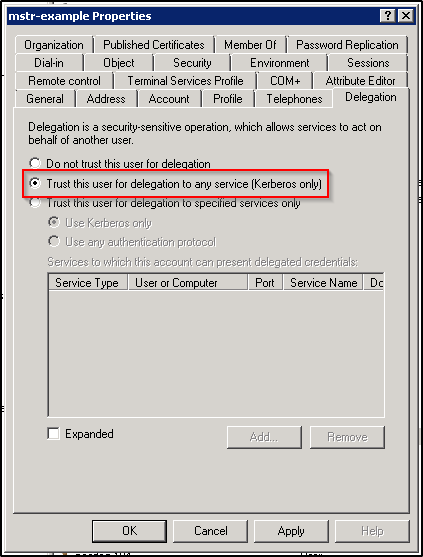
NOTE: Beginning in Strategy version 10.11, the Trust this user for delegation to specified services only option (also known as Constrained Delegation) may be used. See KB440503: New in MicroStrategy 10.11: Kerberos Constrained Delegation for more information on how to configure this option.
This concludes the configuration required on the Active Directory.
Prerequisites:
[libdefaults]
 default_realm = EXAMPLE.COM
 forwardable = true

[realms]
 EXAMPLE.COM = {
  kdc = kdc.example.com
  admin_server = kdc.example.com
 }

[domain_realm]
 .example.com = EXAMPLE.COM
 example.com = EXAMPLE.COM
Verify that it is possible to kinit with the principal for the Intelligence Server's service account in Active Directory. After running the kinit command and entering the password for the Active directory user, run the klist command to verify that a ticket was created for the krbtgt service (this is actually the ticket that entitles the user to get other tickets in the realm after authenticating).
[mstr@exampleserver Strategy]# kinit mstr-example
Password for mstr-example@EXAMPLE.COM:
[mstr@exampleserver Strategy]#
[mstr@exampleserver Strategy]# klist
Ticket cache: FILE:/tmp/krb5cc_0
Default principal: mstr-example@EXAMPLE.COM

Valid starting     Expires            Service principal
07/13/17 11:09:42  07/13/17 21:09:54  krbtgt/EXAMPLE.COM@EXAMPLE.COM
        renew until 07/20/17 11:09:42
[mstr@exampleserver Strategy]#
Verify that it is possible to manually obtain a ticket for the Intelligence Server SPN. Assuming that the mstr-example user is still authenticated on the Intelligence Server machine, use the kvno <SPN> command to obtain a ticket. After running the kvno command, run the klist command to verify that a ticket was created. This ticket should match the SPN that was configured for the Intelligence Server service on Active Directory. Make a note of the key version number returned (in this case kvno = 2) and the ticket cache location (in this case /tmp/krb5cc_0) as these will be needed for a later configuration step.
[mstr@exampleserver Strategy]#
[mstr@exampleserver Strategy]# kvno MSTRSVRSvc/exampleserver.example.com:34952@EXAMPLE.COM
MSTRSVRSvc/exampleserver.example.com:34952@EXAMPLE.COM: kvno = 2
[mstr@exampleserver Strategy]#
[mstr@exampleserver Strategy]# klist
Ticket cache: FILE:/tmp/krb5cc_0
Default principal: mstr-example@EXAMPLE.COM

Valid starting     Expires            Service principal
07/13/17 11:09:42  07/13/17 21:09:54  krbtgt/EXAMPLE.COM@EXAMPLE.COM
        renew until 07/20/17 11:09:42
07/13/17 12:40:57  07/13/17 21:09:54  MSTRSVRSvc/exampleserver.example.com:34952@EXAMPLE.COM
        renew until 07/20/17 11:09:42
[mstr@exampleserver Strategy]#[mstr@exampleserver Strategy]# [mstr@exampleserver Strategy]# ktutil ktutil: addent -password -p MSTRSVRSvc/exampleserver.example.com:34952@EXAMPLE.COM -k 2 -e arcfour-hmac Password for MSTRSVRSvc/exampleserver.example.com:34952@EXAMPLE.COM: ktutil: wkt MSTRSVRSvc.keytab ktutil: quit [mstr@exampleserver Strategy]#
export KRB5_CONFIG=/var/opt/MicroStrategy/krb5/krb5.conf
export KRB5_KTNAME=/var/opt/MicroStrategy/krb5/MSTRSVRSvc.keytab
export KRB5CCNAME=/var/opt/MicroStrategy/krb5/krb5cc_0
After the Intelligence Server startup has completed, check to make sure the environment variables were correctly set up. Find the process ID for the Intelligence Server process using ps -ef | grep MSTRSvr:
[mstr@exampleserver Strategy]# ps -ef | grep MSTRSvr
mstr     11592     1  0 12:10 ?        08:30:24 /opt/MicroStrategy/IntelligenceServer/bin/MSTRSvr -w /var/opt/MicroStrategy/IntelligenceServer -t status-iserver.xml /opt/MicroStrategy/lib/libMSTRSvr2.so -n CastorServer
[mstr@exampleserver Strategy]#
[mstr@exampleserver Strategy]# strings -a /proc/31239/environ | grep KRB
KRB5_CONFIG=/var/opt/MicroStrategy/krb5/krb5.conf
KRB5_KTNAME=/var/opt/MicroStrategy/krb5/MSTRSVRSvc.keytab
KRB5CCNAME=/var/opt/MicroStrategy/krb5/krb5cc_0
[mstr@exampleserver Strategy]#
Prerequisites:
Configure the Kerberos user principal for a test user:
When authenticating to Strategy using Integrated Authentication, the user who is logged into Windows will be logged into Strategy. In order to establish the link between the Windows user / Kerberos user principal and the Strategy user, the Trusted Authentication Request User ID field must be populated on the Strategy user object using Developer. The contents of this field should be the Kerberos user principal for the desired Active Directory user. If this value is not known, consult the Active Directory administrator to obtain it. It is also possible to obtain this value for the user currently logged in to Windows by running klist in a command prompt window on the Windows machine and checking the client value.
Microsoft Windows [Version 10.0.14393]
(c) 2016 Microsoft Corporation. All rights reserved.

C:\Users\kerberosuser>klist

Current LogonId is 0:0x681ec

Cached Tickets: (1)

#0>     Client: kerberosuser @ EXAMPLE.COM
        Server: krbtgt/EXAMPLE.COM @ EXAMPLE.COM
        KerbTicket Encryption Type: AES-256-CTS-HMAC-SHA1-96
        Ticket Flags 0x40e00000 -> forwardable renewable initial pre_authent
        Start Time: 7/14/2017 8:11:37 (local)
        End Time:   7/14/2017 18:11:37 (local)
        Renew Time: 7/21/2017 8:11:37 (local)
        Session Key Type: AES-256-CTS-HMAC-SHA1-96
        Cache Flags: 0x1 -> PRIMARY
        Kdc Called: kdc.example.com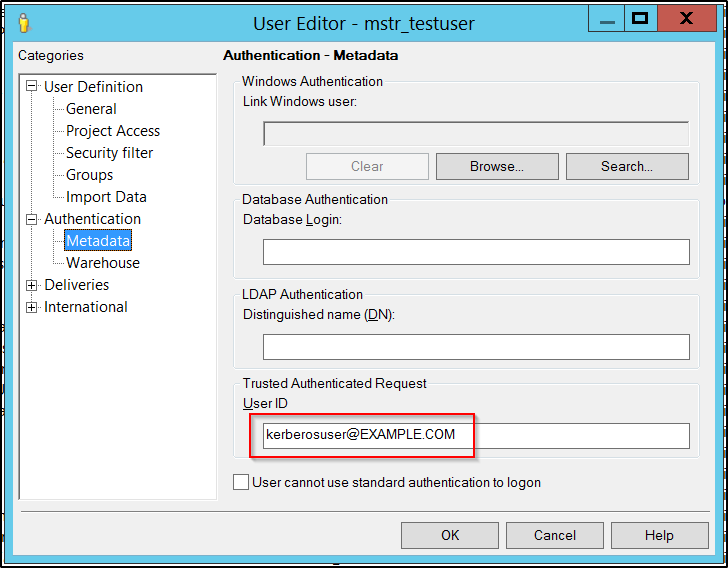
Configure the Project Source to connect to the Intelligence Server using Integrated Authentication:
In Developer, modify the relevant Project Source (or create a new one). Add the Intelligence Server hostname in the Server name field.
IMPORTANT: The hostname must match exactly the hostname that is specified in the Intelligence Server SPN. If the SPN uses the Fully Qualified Domain Name (FQDN), then the Project Source must also use the FQDN. If the SPN uses the short name, then the Project Source must also use the short name.
Add the Intelligence Server port number in the Port number field.
IMPORTANT: The port number must match exactly the port number that is specified in the Intelligence Server SPN.
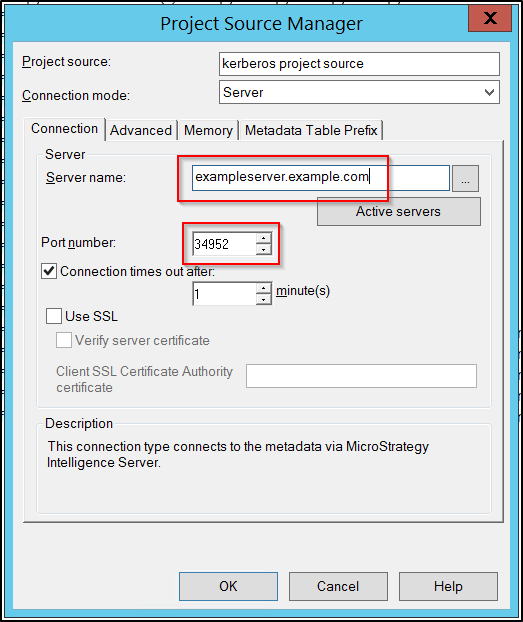
When generating the Kerberos ticket request for connecting to the Intelligence Server service, Strategy Developer will format the SPN as MSTRSVRSvc/<contents of Server name field>:<contents of port number field>@<default kerberos realm for the Developer machine>, so it is required that these fields all match the SPN as defined in Active Directory.
Finally, set the Project Source to use Integrated Authentication.
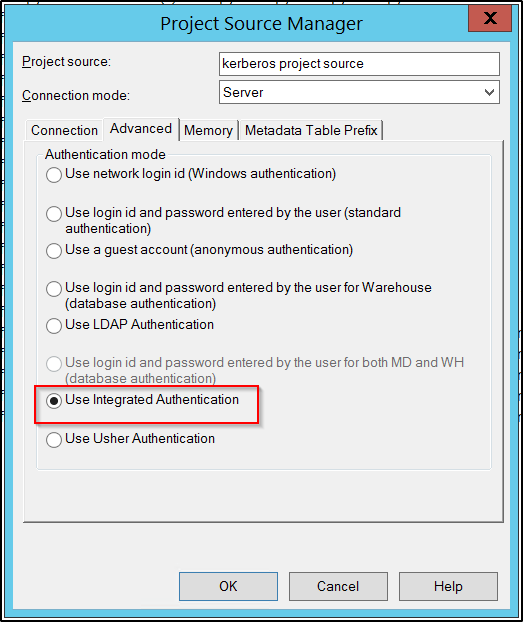
This concludes the configuration in Strategy Developer.
Attempt to connect to the Intelligence Server with the Integrated Authentication project source. If the connection is successful, everything has been successfully configured. If the connection is not successful and a Login failure error appears, open a command prompt on the Windows machine and run the command klist to see what tickets have been cached locally. There will likely be several non-Strategy related tickets; check to see if a ticket for the Intelligence Server service was generated.
If the ticket was generated but login failed then there may be an encryption type mismatch. Check the listed encryption type in the klist output in Windows and see if it matches the encryption type that was set in the Intelligence Server keytab file. If these do not match then the correct encryption type will need to be added to the keytab file.
If the ticket was not generated and the other Check Point tests were all successful, the problem is either with the Kerberos configuration on the Windows machine or the project source fields were not filled out correctly. Double check the project source fields to ensure they match the values in the Intelligence Server SPN. Depending on the Windows version, the klist command may allow manual ticket generation using the syntax klist get <SPN>. If this manual ticket generation also fails, consult the Windows administrator to solve the Kerberos configuration issue on the Windows machine.
