EducationSoftwareStrategy.com
StrategyCommunity

Knowledge Base

Product

Community

Knowledge Base

TopicsBrowse ArticlesDeveloper Zone

Product

Download SoftwareProduct DocumentationSecurity Hub

Education

Tutorial VideosSolution GalleryEducation courses

Community

GuidelinesGrandmastersEvents
x_social-icon_white.svglinkedin_social-icon_white.svg
Strategy logoCommunity

© Strategy Inc. All Rights Reserved.

LegalTerms of UsePrivacy Policy
  1. Home
  2. Topics

KB19699: What are the different authentication modes supported in MicroStrategy Intelligence Server?


Community Admin

• Strategy


What are the different authentication modes supported in MicroStrategy Intelligence Server?

Introduction:
Several authentication modes are supported in the Strategy environment. They vary primarily by the authentication authority used in each mode. The authentication authority is the system that verifies and accepts the login/password credentials provided by the user. The available modes are:
 

  1. Windows Authentication: Windows authentication can be enabled to allow Windows users access to Strategy without having to enter their login information. 
     
  2. Standard Authentication: This is the default authentication mode. When using standard authentication, the Strategy Intelligence Server is the authentication authority. Intelligence Server verifies and accepts the login and password provided by the user.
     
  3. Anonymous Authentication: When using anonymous authentication, users logs in as "Guest" and does not need to provide a password. By default, guest users are able to access the project, browse objects, run and manipulate reports, but they are not able to create their own objects, schedule report executions, or perform certain other actions.
     
  4. Database Authentication: This mode of database authentication identifies users using a login ID and password stored in the data warehouse database. The RDBMS is the authentication authority and verifies that the login ID and password are valid.
     
  5. LDAP Authentication: When using LDAP authentication, LDAP users and groups are either linked directly to Strategy users and groups, or they are imported into the Strategy metadata. Additional information on LDAP integration with Strategy can be found in the following Strategy Knowledge Base articles:
     
    • KB18562: Understanding LDAP integration with the MicroStrategy Intelligence Server 9.x and newer
    • KB18506: Importing and linking users using LDAP integration with the MicroStrategy Intelligence Server 9.x and newer
  6. Integrated Authentication: This mode of authentication is to extend the single sign-on support of a Windows user to the data source in Strategy. Additional information on integrated authentication can be found in the following Strategy Knowledge Base articles:
    KB19110: How to configure MicroStrategy Intelligence Server Universal 9.x for Kerberos (Integrated) authentication on Unix/Linux operating systems.
    KB19580: How to setup Kerberos (Integrated) authentication for the MicroStrategy Intelligence Server 9.x - 10.x on Microsoft Windows operating systems.

Strategy Desktop, Web, and Office 9.x can be configured to authenticate users via the Strategy Intelligence Server, using the authentication modes listed above.
 
Strategy Developer
To set the authentication mode in Strategy Developer use the Project Source Manager and click the Advanced tab as seen below:
 

ka04W000001490fQAA_0EM440000002NuV.png

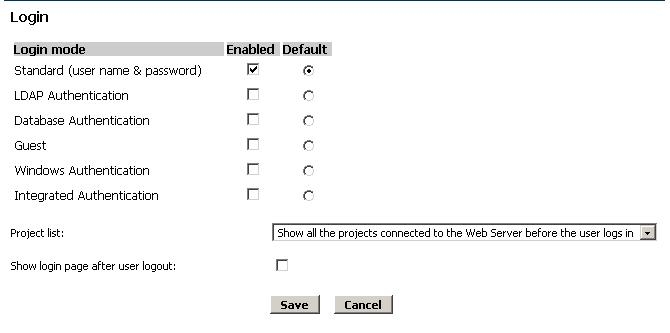
Strategy Web
To set the authentication mode in Strategy Web, use the Strategy Web Administrator's Default Server Properties page as seen below:
 

ka04W000001490fQAA_0EM440000002BEI.jpeg

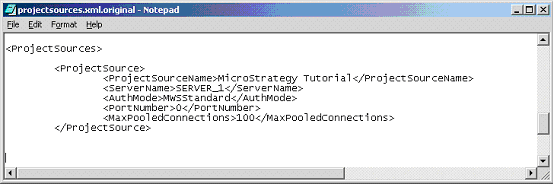
Strategy Office
To set the authentication mode in Strategy Office, use the projectsources.xml file, which is located by default at C:\Program Files\MicroStrategy\Web Services and looks like this:
 

ka04W000001490fQAA_0EM440000002BEB.jpeg

The procedure to set the authentication mode in Strategy Office is described in the following Strategy Knowledge Base document:
 
KB9651: When opening up a MicroStrategy Office program, the MicroStrategy Intelligence Server name still appears as “localhost” even after the configuration was changed.


Comment

0 comments

Details

Knowledge Article

Published:

June 7, 2017

Last Updated:

June 7, 2017