Fiddler is a free tool that supports debugging HTTP(S) traffic and monitoring incoming and outgoing network traffic. It integrates with Microsoft Internet Explorer but can debug traffic from other applications such as Mozilla Firefox, Opera, etc.
Fiddler can be obtained from http://www.telerik.com/download/fiddler.
The Fiddler installation has an option to integrate with Microsoft Internet Explorer. If this plugin is installed, Fiddler can be launched from an Internet Explorer window by clicking on the Fiddler icon, like shown below:
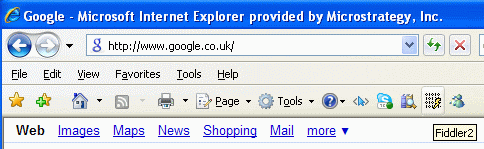
If this plugin is not installed, Fiddler can be launched from the Windows Start Menu. Even without the plugin, it will still be able to capture traffic from Internet Explorer as well as from other applications that communicate through HTTP(S).
Once Fiddler is launched, any incoming or outgoing HTTP traffic will be logged in the Sessions pane.
NOTE: While Fiddler supports HTTPS decryption, this is disabled by default. To enable HTTPS decryption, refer to KB20047: How to Use Fiddler When Using HTTPS Secur
Since the Strategy Web application communicates to client browsers via HTTP(S), actions performed through Strategy Web will also be captured in Fiddler. For example, executing a Report Services Document containing a graph object may show the following requests:
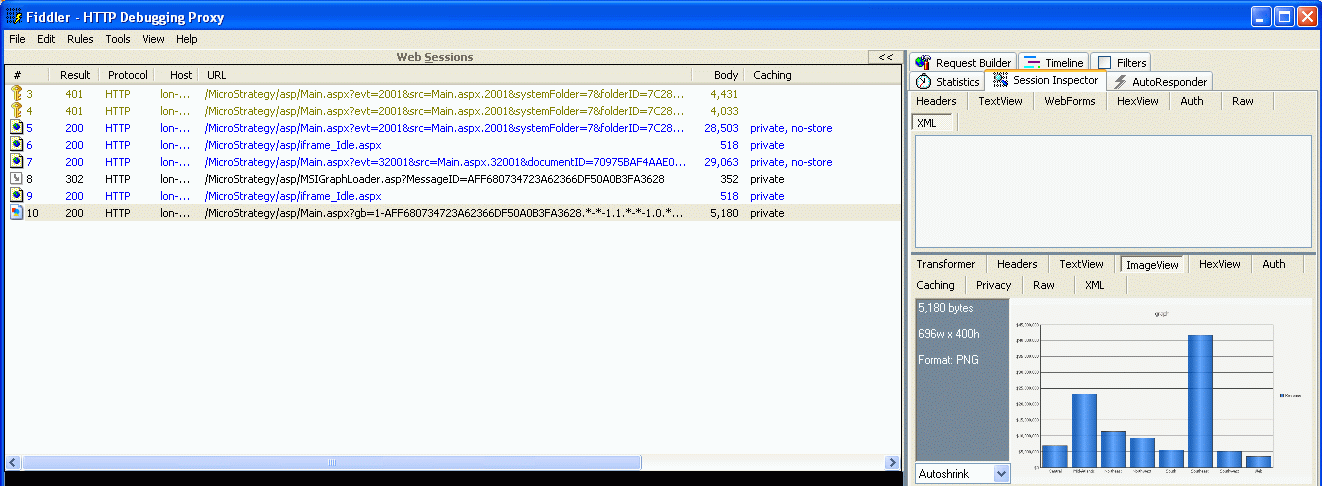
Users can select specific requests from the Sessions pane, then inspect properties of the request and the server response by using the Inspectors tab on the right pane. For specific instructions on how to use Fiddler, refer to the Fiddler documentation located on the vendor site: http://www.telerik.com/fiddler
Strategy Technical Support may request a Fiddler log to inspect the network communication between client machines and the Strategy Web server. In order to generate this log, follow the steps below:
Like mentioned above, Fiddler can be used to decrypt HTTPS traffic in addition to HTTP traffice. For instructions on how to enable HTTPS decryption, refer to KB20047: How to Use Fiddler When Using HTTPS Secure TCP Connection with MicroStrategy Web.
Third Party Software Installation:
WARNING:
The third-party product(s) discussed in this technical note is manufactured by vendors independent of Strategy. Strategy makes no warranty, express, implied or otherwise, regarding this product, including its performance or reliability.
