EducationSoftwareStrategy.com
StrategyCommunity

Knowledge Base

Product

Community

Knowledge Base

TopicsBrowse ArticlesDeveloper Zone

Product

Download SoftwareProduct DocumentationSecurity Hub

Education

Tutorial VideosSolution GalleryEducation courses

Community

GuidelinesGrandmastersEvents
x_social-icon_white.svglinkedin_social-icon_white.svg
Strategy logoCommunity

© Strategy Inc. All Rights Reserved.

LegalTerms of UsePrivacy Policy
  1. Home
  2. Topics

KB20508: How to set up and configure a Database Based History List Repository


Community Admin

• Strategy


The following knowledge base article explains how to setup Database based History List.

INTRODUCTION
Database Based History List is a feature that was introduced in Strategy 9.x and can be leveraged in Strategy 2021 and above. For additional information on this feature, refer to the following Strategy Knowledge Base Document:
 
KB20506: New Feature in MicroStrategy 9.x: Database Based History List
 
NOTE: It is strongly recommended for Metadata and Database-Based history list tables to be created in their own separate schemas, and even databases for performance reasons. Depending on the environment, Database-Based history list tables could cause performance side effects on the Metadata due to their repeated access.
 
Setting up History List Repository
The process for setting up a History List Repository is similar to the process for creating a statistics repository and configuring statistics logging. Following steps must be taken to set up a history list repository :
 

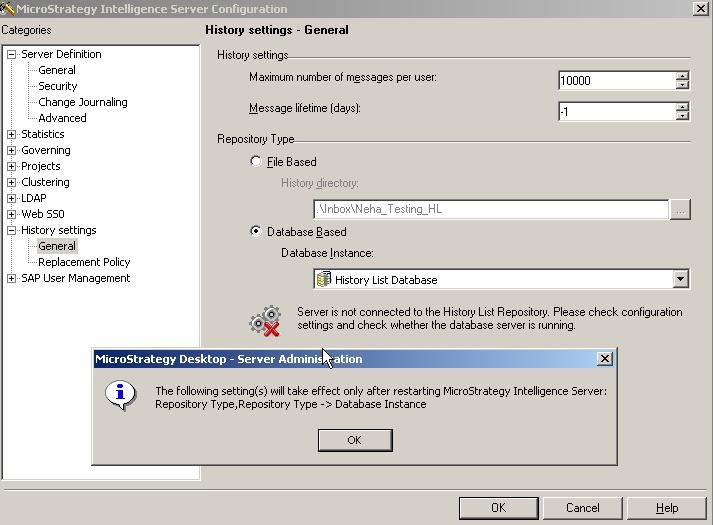
  • After deciding the database to use for History List content Server, create a Data Source Name (DSN) to that database using Connectivity Configuration Wizard
    Note: For a list of certified or supported database for History List Repositories, refer to Strategy 9 Read Me document.
     
ka0PW0000000g7JYAQ_0EM440000002BA5.jpeg
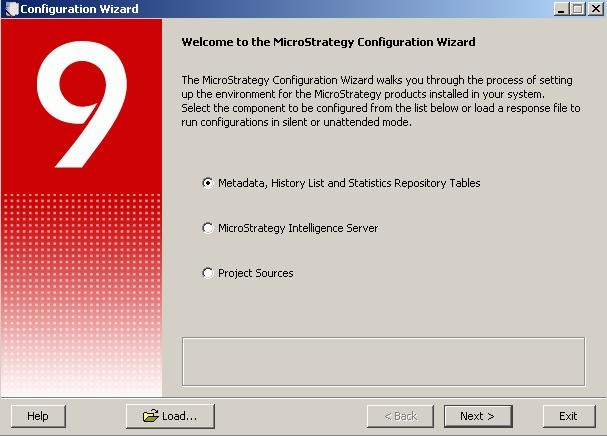
  • Create History List Repository within the above database following the steps below:
    • Launch Strategy Configuration Wizard
ka0PW0000000g7JYAQ_0EM440000002B9p.jpeg
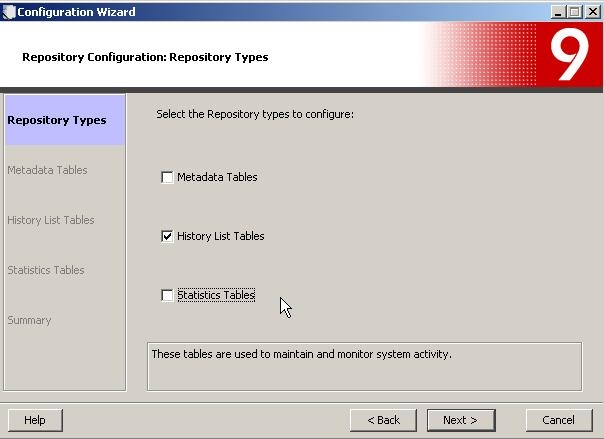
    • Select History List Tables
ka0PW0000000g7JYAQ_0EM440000002BA3.jpeg
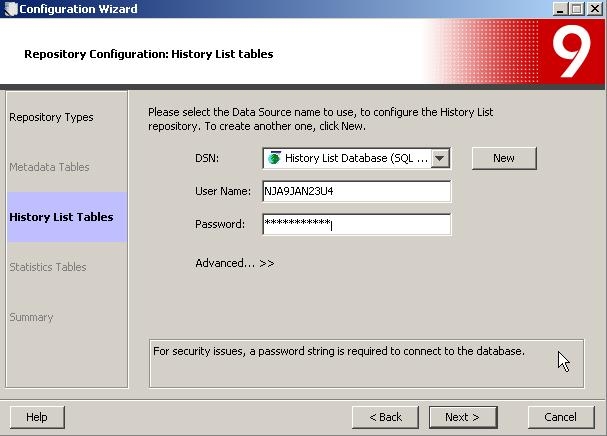
    • Select DSN created in Step 1 for History List Database
ka0PW0000000g7JYAQ_0EM440000002BAD.jpeg
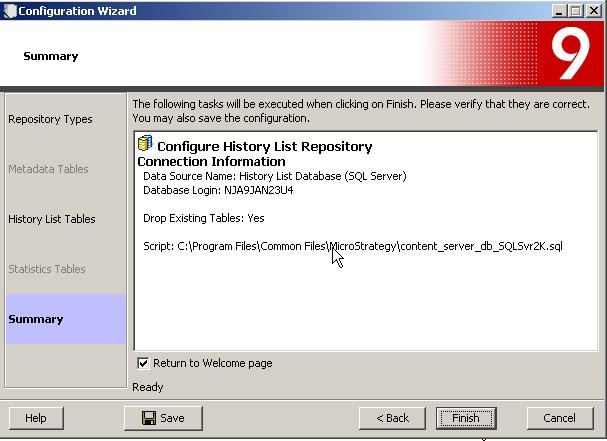
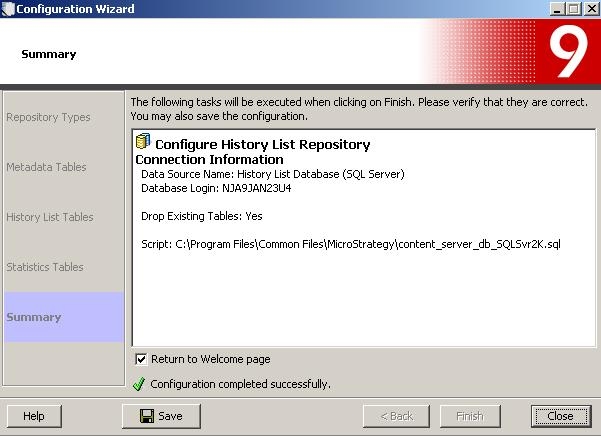
    • Confirm selection and click Finish
ka0PW0000000g7JYAQ_0EM440000002BAH.jpeg
    • Configuration Successful. Close the window
ka0PW0000000g7JYAQ_0EM440000002BA7.jpeg
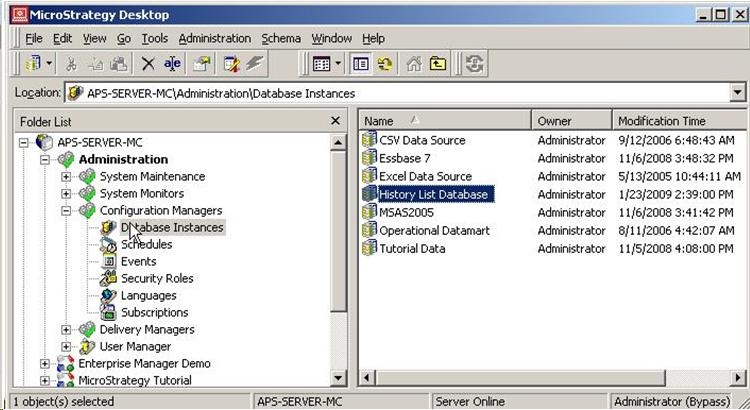
  • Using the DSN created in Step 1, create a Database Instance in Strategy Desktop for the Database Based History List
ka0PW0000000g7JYAQ_0EM440000002BAF.jpeg

Configuring Database Based History List
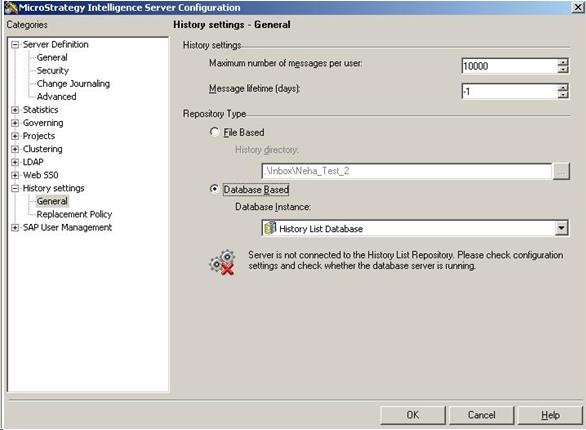
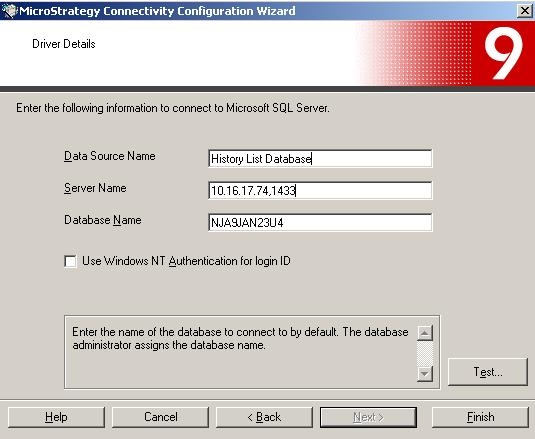
  • Go to Strategy Intelligence Server Configuration -> History Settings. Both File and Database Based options are available but default is set to File as seen below:
ka0PW0000000g7JYAQ_0EM440000002BA0.jpeg
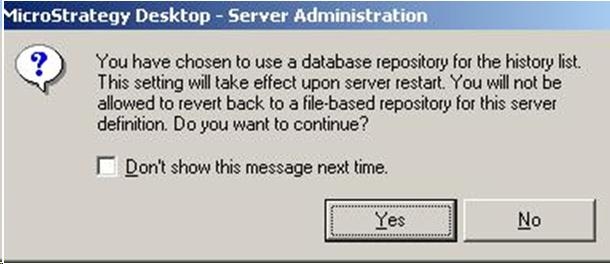
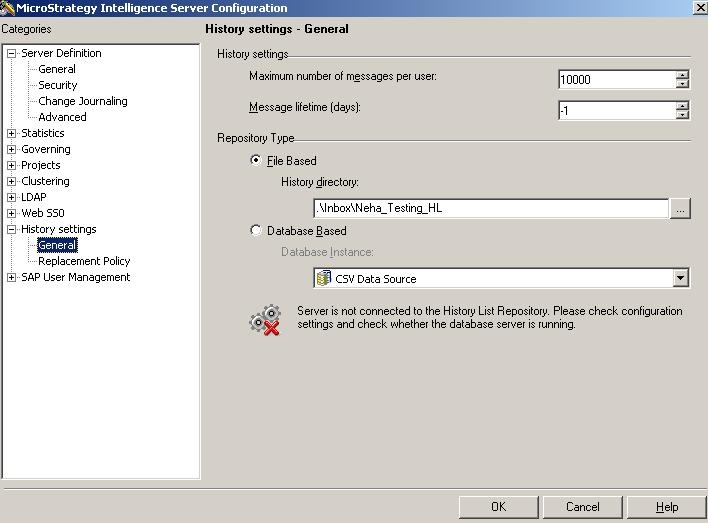
  • As soon as you check the "Database Based History List" option, following warning message pops up:
ka0PW0000000g7JYAQ_0EM440000002BA9.jpeg
  • Select the History list Database Instance created in Step 3
ka0PW0000000g7JYAQ_0EM440000002BAB.jpeg
  • Clicking OK will prompt the user to restart their Intelligence Server for the previous changes to take effect
ka0PW0000000g7JYAQ_0EM440000002BAJ.jpeg

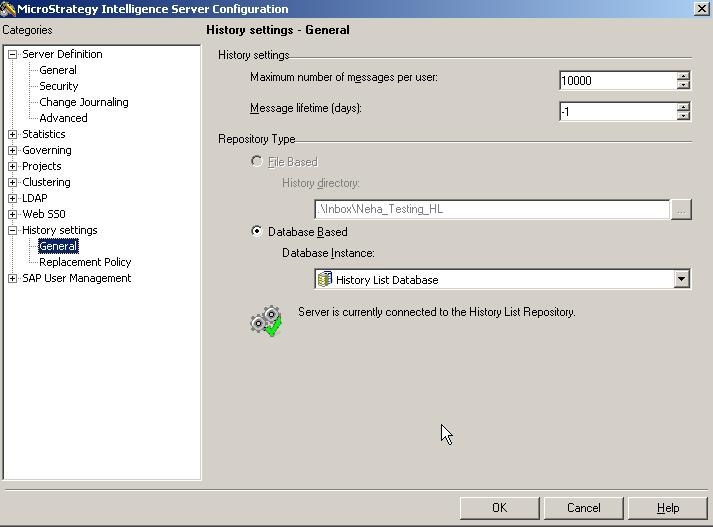
After restarting the Intelligence Server a green check should appear next to the Database Instance indicating you are now connected to the Database Based History List
 

ka0PW0000000g7JYAQ_0EM440000002BA2.jpeg


Note: Once Intelligence Server has been configured to store the History List cached data in the database, this setting will apply to the entire server definition. Going back to File Based History List is possible by creating a new Server Definition. However, the porting the History List messages from the History List Repository to the file format is not supported.


Comment

0 comments

Details

Knowledge Article

Published:

May 16, 2017

Last Updated:

March 11, 2024