EducationSoftwareStrategy.com
StrategyCommunity

Knowledge Base

Product

Community

Knowledge Base

TopicsBrowse ArticlesDeveloper Zone

Product

Download SoftwareProduct DocumentationSecurity Hub

Education

Tutorial VideosSolution GalleryEducation courses

Community

GuidelinesGrandmastersEvents
x_social-icon_white.svglinkedin_social-icon_white.svg
Strategy logoCommunity

© Strategy Inc. All Rights Reserved.

LegalTerms of UsePrivacy Policy
  1. Home
  2. Topics

KB205700: When changing an element in a drop-down selector, all the targeted selectors show blank selections and the targeted grids show “No data returned for this view…” message in MicroStrategy Web


Community Admin

• Strategy


Description of a non-issue that occurs due to an incorrect selector configuration in MicroStrategy Web. Additional information reference on how to apply the respective configuration is also provided. 

SYMPTOM:
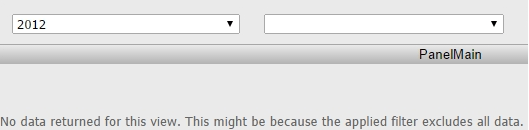
The following informative message appears in Strategy Web 9.4.1 and above when changing an element in a drop-down selector and all targeted Selectors show blank selections:
   

ka04W00000148Y2QAI_0EM4400000025wS.jpeg


No data returned for this view. This might be because the applied filter excludes all data.

 
CAUSE:
The required configuration to avoid blank selector selection and the referred message hadn't been applied. The "Apply selections as a filter" selector property had been selected:

ka04W00000148Y2QAI_0EM4400000025wT.jpeg

However, this option shouldn't be checked for this case.
 
ACTION:
Apply the required configuration as per the Dashboard and Widget Creation Guide > Chapter 4: Providing Interactivity to Users: Selectors > Section: Determining how the target of a selector displays when no data exists. For additional information, refer to the Strategy technical note: KB33862: How to create nested or cascading selectors and avoid getting blank selections in several versions of MicroStrategy Web .
 
NOTE:
This product manual is available online at https://resource.microstrategy.com/Support/mainsearch.aspx, in the Product Manuals menu.


Comment

0 comments

Details

Knowledge Article

Published:

March 30, 2017

Last Updated:

March 30, 2017