EducationSoftwareStrategy.com
StrategyCommunity

Knowledge Base

Product

Community

Knowledge Base

TopicsBrowse ArticlesDeveloper Zone

Product

Download SoftwareProduct DocumentationSecurity Hub

Education

Tutorial VideosSolution GalleryEducation courses

Community

GuidelinesGrandmastersEvents
x_social-icon_white.svglinkedin_social-icon_white.svg
Strategy logoCommunity

© Strategy Inc. All Rights Reserved.

LegalTerms of UsePrivacy Policy
  1. Home
  2. Topics

KB221153: Thousands comma separators are automatically added to numeric attribute elements through Data Import in MicroStrategy Web.


Community Admin

• Strategy


Thousands comma separators are automatically added to numeric attribute elements through Data Import in MicroStrategy Web.

This article describes a known issue regarding formatting attribute elements through Data Import in Strategy Web 9.4.1. Currently, when an attribute contains some elements that are numeric, and some elements that have other characters such as letters, commas are automatically added to mark the thousands place in the numbers. This issue occurs even when the attribute data type is not set to numeric.

Description

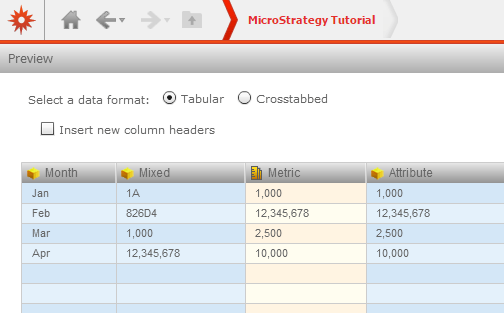
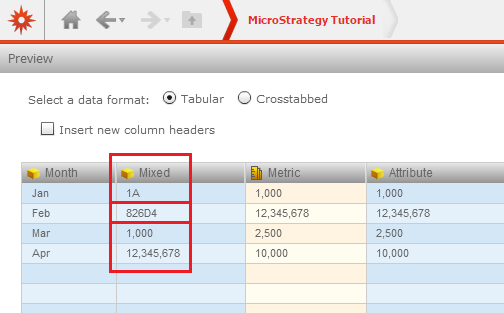
When using Data Import for Strategy Web 9.4.1, commas are automatically added to mark the thousands place of all numbers, as shown below.
ka04W00000148fJQAQ_0EM4400000025nh.jpeg

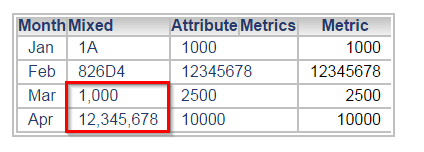
This formatting occurs for attribute elements and metrics that are numeric, but those commas do not persist once added to a document. However, if an attribute contains an attribute element that includes a mixture of numbers and other characters, the commas will persist on a grid, document, or Visual Insight dashboard, regardless of the data type selected for the attribute or the cell format in Excel, as shown below.
 

ka04W00000148fJQAQ_0EM4400000025nx.jpeg

Steps to Reproduce

To see how the commas are automatically placed, take the following steps:
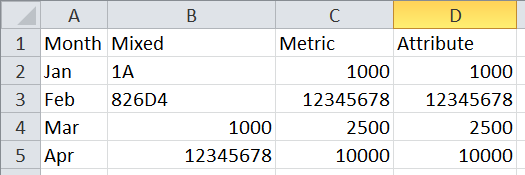
  • Create an Excel sheet that has an attribute with some elements that are just numbers, and some elements that have both numbers and letters as shown below in column B, "Mixed". 
ka04W00000148fJQAQ_0EM4400000025nz.jpeg
  • The "Metric" and "Attribute" columns are placed for comparison.
     
  • Import the Excel sheet through Strategy Web 9.4.1 and set the "Mixed" column as an attribute, as shown below. 
ka04W00000148fJQAQ_0EM4400000025nf.jpeg
  • Notice the commas that mark the thousands place are automatically placed for all numbers in all columns.
     
  • Finish the Data Import process and create a new document.
  • Add the dataset to the grid. The commas are only present for numbers that are elements of an attribute that also has elements that include non-numeric characters. See the example for the attribute "Mixed".
ka04W00000148fJQAQ_0EM4400000025nx.jpeg

Why is this happening?

This is a known issue in Strategy Web 9.4.1.

Solution

This defect has been fixed in Strategy 2020 RC and Strategy 2019 Update 4.
Contact Strategy Technical Support for an update on this issue in earlier versions.
Even though this defect has been fixed, you might still encounter an error when republishing a cube created in an earlier version. For more information, see KB483725.
The Strategy Internal Reference Number for the issue discussed in this technical note is 999761.


Comment

0 comments

Details

Knowledge Article

Published:

June 13, 2017

Last Updated:

June 13, 2017