SYMPTOM:
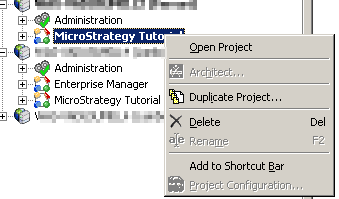
In Strategy 9.4.x and newer, when creating a group and assigning it a security role that has all Administrator privileges, the "Project Configuration" option is greyed out for the user who belongs to that group. Additionally, several Administrator monitors are not available.
STEPS TO REPRODUCE:
1. Create a security role 'All privileges' granting all privileges under Administration.
2. Create a group 'Test' and grant the security role + inherited access for a project.
3. Create a user within this group. Do not give the user any privileges directly, so the user has only inherited privileges from the 'Test' group.
4. Login through 3-tier project source. The new user sees Project Configuration for the project greyed out.
5. Expand all the monitor nodes under Administration, some of the monitors such as the "Cluster Nodes" in System Administration and "Database Connections" under System monitors are missing.

CAUSE:
In addition to certain privileges, the correct permission for the Server definition ACL needs to be granted.
Additionally, when creating a security role, the privileges to use different Server Monitors are not available because the use of Server Monitors is a server-wide privilege and is not project related. This behavior is explained in the following technical note:
KB46830: What are the Intelligence Server level privileges and why do they not appear for certain security roles in MicroStrategy 9.x?
ACTION:
Follow the below steps to grant user/group access to Project Configuration:
For access to the several Administrator Monitors, appropriate privileges need to be granted either at the group or user level. The below technical note shows an example of how to grant access to the "Cluster Nodes" monitor:
KB44370: "You do not have DSSPrivilegesUseProjectMonitor privilege that is required to perform the task" when try to expend Cluster Nodes under Administration in MicroStrategy Desktop 9.2.x, and 9.3.0
