The support for Single Sign On for SAP is based on the new implemented feature to transfer the Kerberos ticket to SAP Logon ticket with the help of SAP Java Server.
In fact Kerberos doesn’t work directly between Strategy Intelligence Server(I-Server) and ABAP Server. Instead SAP Logon ticket is used by I-Server to connect to ABAP Server.
Java Server is required here to work as an agent for the whole authentication. Kerberos works between Developer (Browser, Web Server), I-Server, SAP Java Server. And there is trust relationship configured between SAP ABAP and Java Server. So Java Server can generate SAP Logon ticket base on SAP Kerberos ticket for I-Server to connect to ABAP Server.
The whole transfer procedure could be described as below:
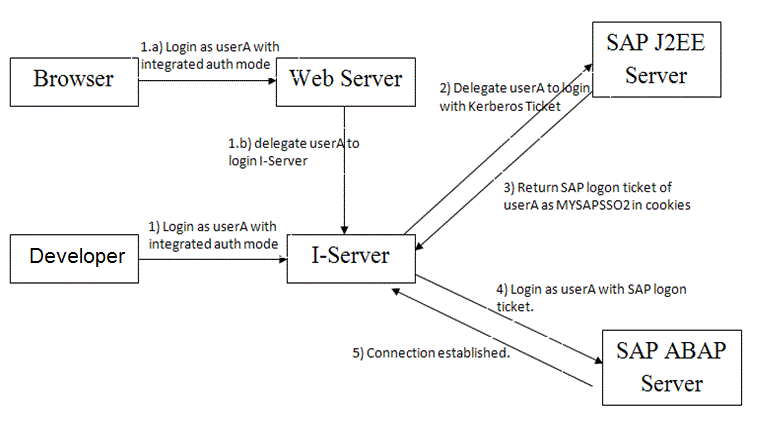
The whole workflow includes the following steps.
To make the above scenario work, here is what we need to do.
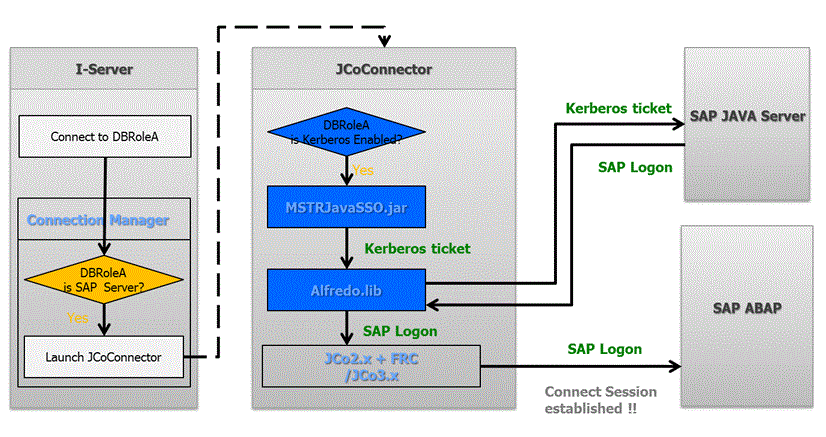
The blue parts above are the implementation for this new feature.
The whole workflow includes the following steps.
1. Create an account used to create trust relationship between ABAP and SAP Java Sever
--- Main steps
--- Reference
2. Import Certificate from SAP Java Server
--- Included in the next part “SAP Java Server”.
1. Install Oracle database and SAP NetWeaver (NW):
--- Main steps
--- Reference
2. Configure Kerberos
--- Main steps
--- Reference
1. I-Server Prerequisite
--- The Integrated authentication between I-Server and Developer should work fine (TN 19580: How to setup Kerberos (Integrated) authentication for the MicroStrategy Intelligence Server 9.x on Microsoft Windows operating systems).
--- The domain account(e.g. Tech_Services\jqian_kerb) used to run client (Developer or Browser) has already mapped to ABAP user (e.g. TRAIN1). The sample configuration steps in Strategy internal test can be found in step 7 in attached document Configure Kerberos On SAP Java Server.pdf for reference.
2. Follow sample steps in attached document below to configure I-Server:
How to Configure I-Server to Support SSO to SAP.pdf
1. Create a Database instance on Developer for SAP BW with necessary info such as the app server, system number, client and language as shown below:
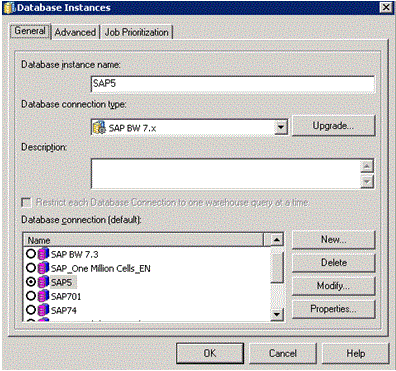
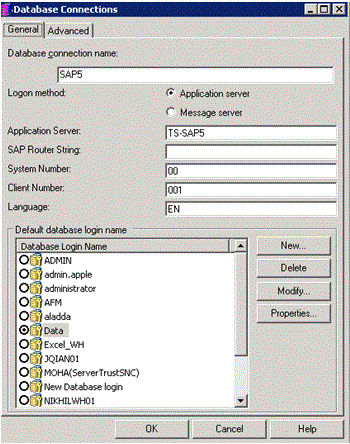
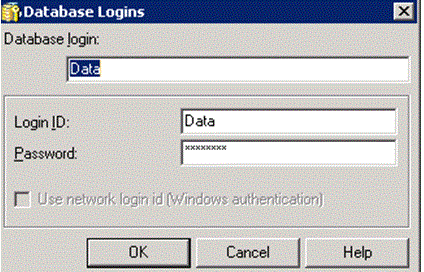
The DBLogin is not important and it should never be used if Kerberos authentication is enabled for this DBInstance in Project configuration.
2. Add EPURL in connection string under “Advanced” tab. E.g. EPURL=http://jqsapjava-0722.labs.Strategy.com:50000/irj/portal;
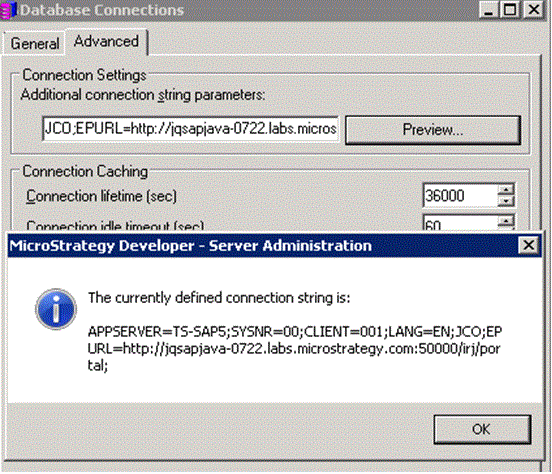
NOTE: The format of SAP Java Server in this URL depends on the SPN added to the keytab file which is imported in to SAP Java Server. If the keytab for SAP Java Server is created with SPN = HTTP/SAPJavaServer.labs.microstrategy.com@LABS.MICROSTRATEGY.COM, then the EPURL should be http://sapjavaserver.labs.microstrategy.com:<port>/irj/portal. if the SPN = HTTP/SAPJavaServer@LABS.MICROSTRATEGY.COM, then the EPURL should be http://sapjavaserver:<port>/irj/portal. Otherwise, you will see checksum error in the log of SAP Java Server.
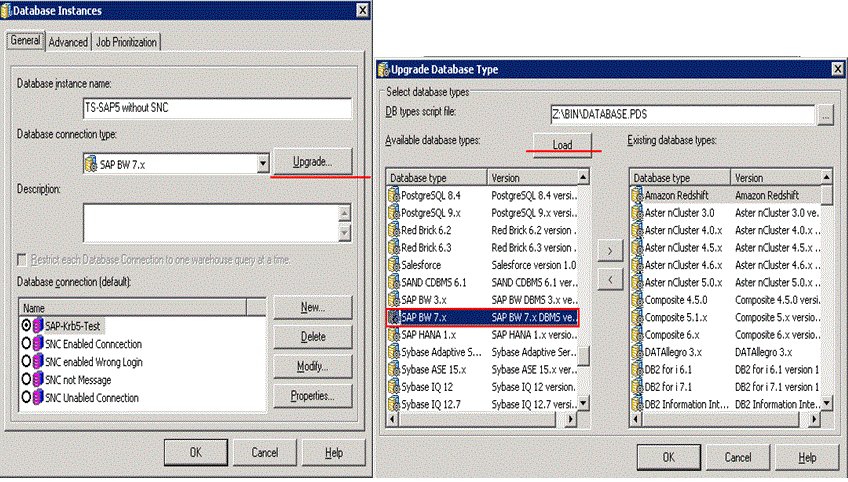
There is a new property “SupportsKerberos” added in Database.PDS for SAP type Database. For old MD, to take effect of this new property, user needs to upgrade the Database type manually by following KB5779 .
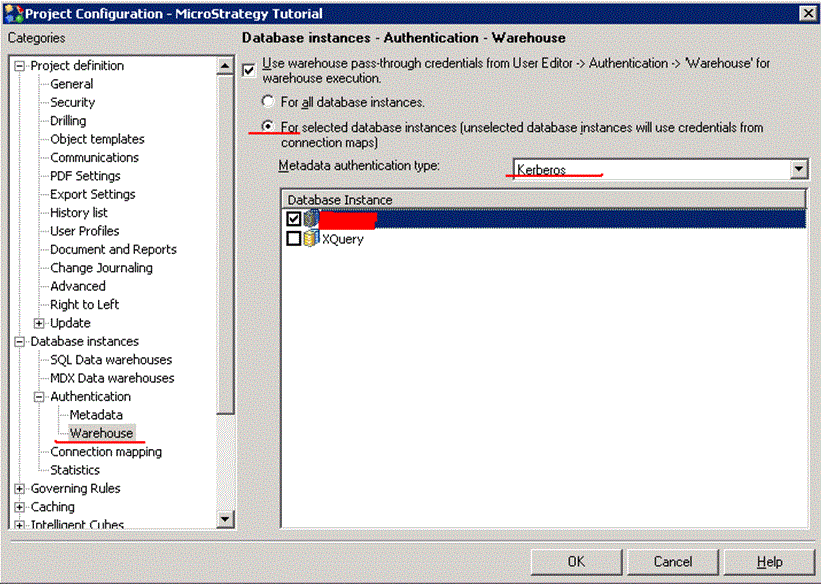
In Developer, choose a project, right-click on it and choose “Project Configuration->Database instances->Authentication->Database”, in the list of databases that support Kerberos authentication, choose the one just created. Re-start the I-Server to take effect.
1. I-Server login account
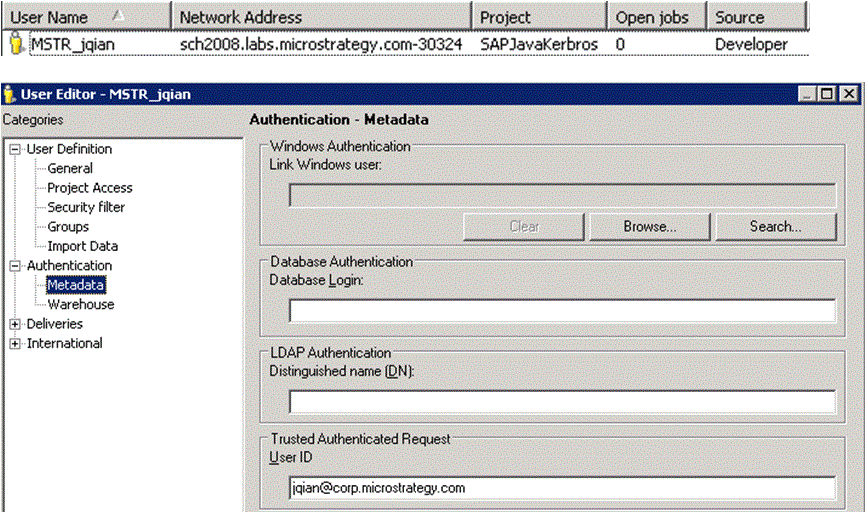
Run the I-Server and Developer/Web with your Kerberos account. For example, if we choose to login to Developer/Web with the integrated authentication. You should never be asked for username and password. Instead you will login to I-Server directly and see the related MSTR User in the System Monitors as the followings:
2. Database connection account in Monitor on I-Server
If this user jqian@corp.microstrategy.com is mapped to ABAP user (configured on UME of Java Server), after connecting to SAP ABAP Server, the database connection cache in Monitor should be as below.

3. JCo trace on I-Server
[JCoRFC] Initialize client with parameters: { jco.destination.userid=$MYSAPSSO2$, jco.client.lang=EN, jco.client.mysapsso2=AjExMDAgAA1wb3J0YWw6VEVTVEVSiAATYmFzaWNhdXRoZW50aWNhdGlvbgEABlRFU1RFUgIAAzAwMAMAA0NFMQQADDIwMTQxMDIxMDkwOQUABAAAAAgKAAZURVNURVL%2FAQUwggEBBgkqhkiG9w0BBwKggfMwgfACAQExCzAJBgUrDgMCGgUAMAsGCSqGSIb3DQEHATGB0DCBzQIBATAiMB0xDDAKBgNVBAMTA0NFMTENMAsGA1UECxMESjJFRQIBADAJBgUrDgMCGgUAoF0wGAYJKoZIhvcNAQkDMQsGCSqGSIb3DQEHATAcBgkqhkiG9w0BCQUxDxcNMTQxMDIxMDkwOTI2WjAjBgkqhkiG9w0BCQQxFgQURq8JHKIiq7P4mbpNU797uzfAgnwwCQYHKoZIzjgEAwQvMC0CFQD5w4wWw5t6!LXokXheph028mX9EQIUfulbwnq7j%2FsuYqLlEpViqibNEfA%3D, jco.client.ashost=TS-SAP5, jco.destination.auth_type=CONFIGURED_USER, jco.client.destination=ABAP_AS, jco.client.user=$MYSAPSSO2$, propertiesProvider=com.Strategy.Database.JCO.JCOConnection3$MyDestinationDataProvider, jco.client.sysnr=00, jco.client.passwd=*secret*, jco.client.client=001 }

…

…

[JCoRFC] Connection attributes:

DEST: ABAP_AS

OWN_HOST: JQPLOT

PARTNER_HOST: ts-sap5

SYSTNR: 00

SYSID: A01

CLIENT: 001

USER: $MYSAPSSO2$#1.5#0050560142E800190000017900000CC0005F55D5E83A3A1C#1413882564177#/System/Security/Authentication#sap.com/irj#com.sap.engine.services.security.authentication.logincontext#Guest#664####f36a3220590111e483210050560142e8#HTTP Worker [2]##0#0#Info#1#com.sap.engine.services.security.authentication.logincontext#Plain###LOGIN.FAILED User: N/A Authentication Stack: ticket Login Module Flag Initialize Login Commit Abort Details 1. com.sap.security.core.server.jaas.EvaluateTicketLoginModule SUFFICIENT ok false true 2. com.sap.security.spnego.SPNEGOLoginModule REQUISITE ok exception true Trigger SPNEGO authentication. 3. com.sap.security.core.server.jaas.CreateTicketLoginModule OPTIONAL ok true # #1.5#0050560142E800240000010300000CC0005F55D5E83A41CC#1413882566068#/System/Security/Authentication#sap.com/irj#com.sap.engine.services.security.authentication.logincontext#TESTER#665##JQSAPJava450722_CE1_2683450##f47c6570590111e4b6ee0050560142e8#HTTP Worker [4]##0#0#Info#1#com.sap.engine.services.security.authentication.logincontext#Plain###LOGIN.OK User: TESTER Authentication Stack: ticket Login Module Flag Initialize Login Commit Abort Details 1. com.sap.security.core.server.jaas.EvaluateTicketLoginModule SUFFICIENT ok false false 2. com.sap.security.spnego.SPNEGOLoginModule REQUISITE ok true true 3. com.sap.security.core.server.jaas.CreateTicketLoginModule OPTIONAL ok true true Central Checks true #

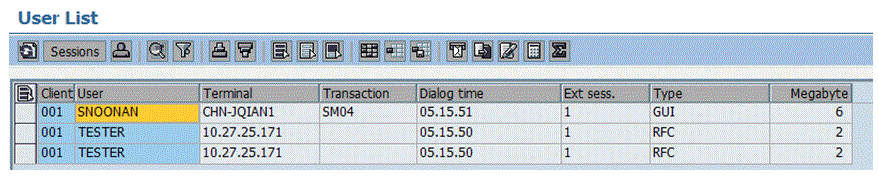
5. User List View of ABAP Server
Transaction code SM04 can be used on SAP Logon to check the User List of ABAB Server.
1. The content of Jaas.conf used by IIS/Tomcat and SAPJavaSSO should be different.
So when configuring 4-T Kerberos along with SAPJavaSSO, we need to use different files for Web Server and SAPJavaSSO.
2. SAP Logon ticket is cached with Database Connection cache.
HelloKrb5 tool is used to quickly test the configuration for transferring a Kerberos ticket to a SAP Logon token. It performs this task without relying on upper layer implementation of Strategy products. E.g. “SAP Single Sign On – High Level Workflow” part step 5 can use this tool to “Check if SAP J2EE Server accepts Kerberos ticket and generates SAP Logon Ticket”.
All the tool related description is contained in HelloKrb5.README (Under %MSTR_CLASSPATH% for Windows, MSTR_HOME_PATH for Linux).
