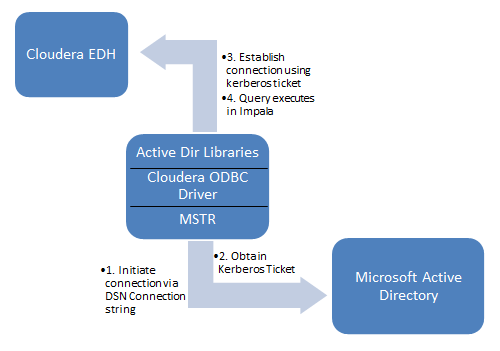
Kerberos authentication can take advantage of the user name and password maintained by the operating system to authenticate users to the database or use another set of user credentials specified by the application.
The Kerberos method requires knowledge of how to configure your Kerberos environment.
To use Kerberos authentication, the application user first must obtain a Kerberos Ticket Granting Ticket (TGT) from the Kerberos server. The Kerberos server verifies the identity of the user and controls access to services using the credentials contained in the TGT.
If the application uses Kerberos authentication from a Windows client, the application user does not explicitly need to obtain a TGT. Windows Active Directory automatically obtains a TGT for the user.
This document provides steps to setup single sign-on access to Impala (using Kerberos) when Strategy Intelligence Server 10.x resides on a Windows operating system.
User account configuration
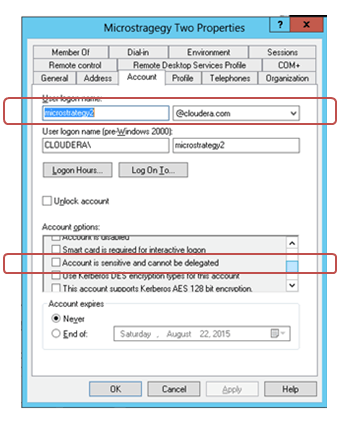
All Active Directory domain user accounts that would access the Strategy Intelligence Server must be defined to be delegated. This means the option 'Account is sensitive and cannot be delegated' must be cleared as shown below:
Intelligence Server (Windows) Configuration
Refer to KB19580 for further details. As give in the TN, the following steps need to be done:
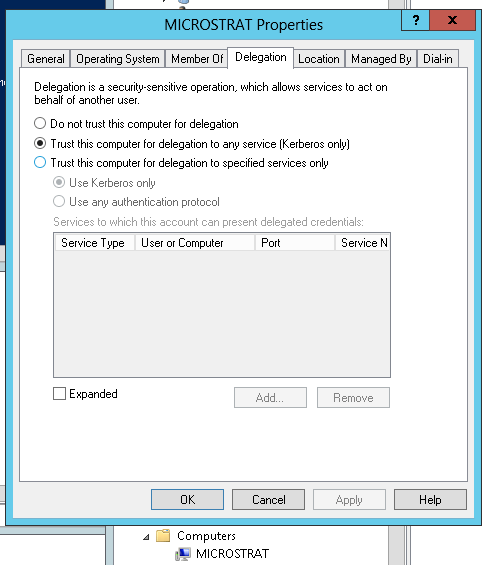
If Strategy Intelligence Server is run as a service, the Strategy Intelligence Server host machine must be configured to be trusted for delegation. This can be configured in the domain controller by selecting the Trust computer for delegation authentication option for the Strategy Intelligence Server host machine. As part of this configuration, the following steps must be taken:
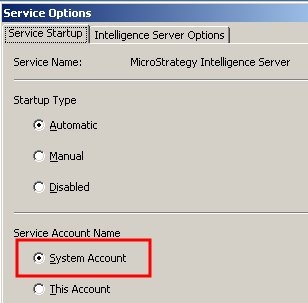
1. The Intelligence Server should be run under the 'Local System' account on the Microsoft Windows machine as shown below:
1.2: On the Domain Controller the Service Principal name 'MSTRSVRSvc/MachineName:Port' should be added to the computer account as shown below:
1.2.1:
C:\Users\Administrator> setspn -L MICROSTRAT
Registered ServicePrincipalNames for CN=MICROSTRAT,CN=Computers,DC=cloudera,DC=com:
 TERMSRV/MICROSTRAT
 TERMSRV/MICROSTRAT.cloudera.com
 WSMAN/MICROSTRAT
 WSMAN/MICROSTRAT.cloudera.com
 RestrictedKrbHost/MICROSTRAT
 HOST/MICROSTRAT
 RestrictedKrbHost/MICROSTRAT.cloudera.com
 HOST/MICROSTRAT.cloudera.com
C:\Users\Administrator> setspn -A MSTRSVRSvc/MICROSTRAT:34952 MICROSTRAT
Checking domain DC=cloudera,DC=com
Registering ServicePrincipalNames for CN=MICROSTRAT,CN=Computers,DC=cloudera,DC=com
 MSTRSVRSvc/MICROSTRAT:34952
Updated object
C:\Users\Administrator> setspn -L MICROSTRAT
Registered ServicePrincipalNames for CN=MICROSTRAT,CN=Computers,DC=cloudera,DC=com:
 MSTRSVRSvc/MICROSTRAT:34952
 TERMSRV/MICROSTRAT
 TERMSRV/MICROSTRAT.cloudera.com
 WSMAN/MICROSTRAT
 WSMAN/MICROSTRAT.cloudera.com
 RestrictedKrbHost/MICROSTRAT
 HOST/MICROSTRAT
 RestrictedKrbHost/MICROSTRAT.cloudera.com
 HOST/MICROSTRAT.cloudera.com
2. Once the user accounts are configured and the Server is running, a user object must be created for the user that is to use Integrated Authentication to log into Strategy, and the Integrated Authentication ID must be added for the user:
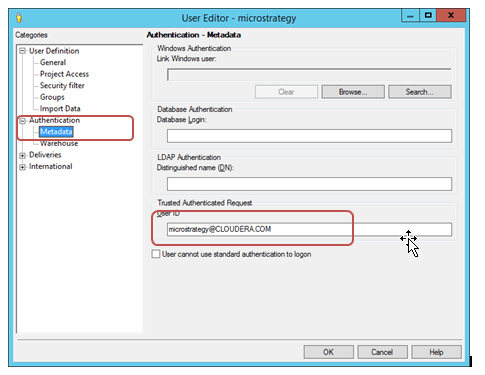
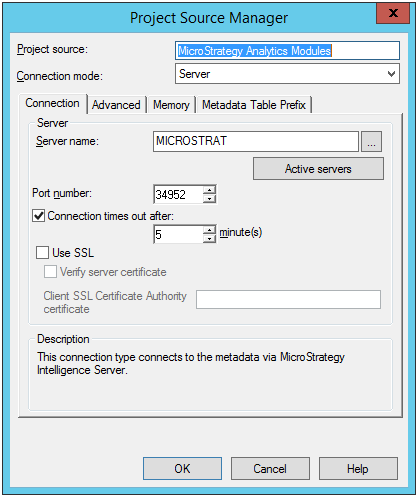
3. Users should ensure that the Project source used for logging in through Strategy Desktop has the exact server name as the one used for the service principal name. In this example, the Servername of project source should be listed as MICROSTRAT as that’s the hostname.
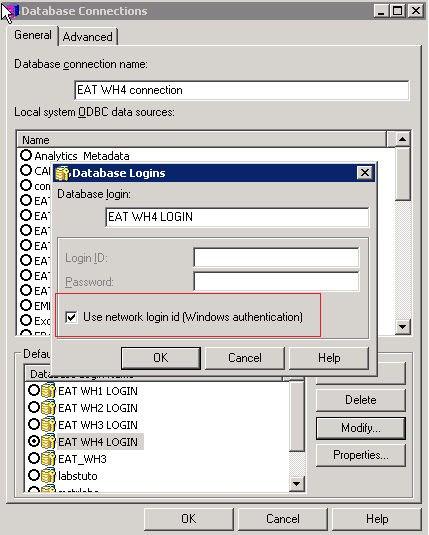
4. Ensure the database login in the Database Instance is using Windows authentication as shown below:
5. Edit the PDS file:
- Navigate to <install_drive>:\Program Files (x86)\Common Files\MicroStrategy\ and edit the 'DATABASE.PDS' file.
- Find the DBMSVersion with the corresponding Impala version (i.e. <DBMSVersion>Impala 2.x</DBMSVersion>)
- Under <PROPERTYSET NAME="System SQL Templates"> Add the following:
<PROPERTY NAME="SupportsKerberos" VALUE="1"/>
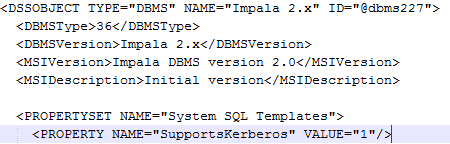
- Restart the Strategy Intelligence Server, and reload the Impala object through the DB instance using the steps from the following technical document:
KB43537: How to install DBMS objects provided by MicroStrategy Technical Support
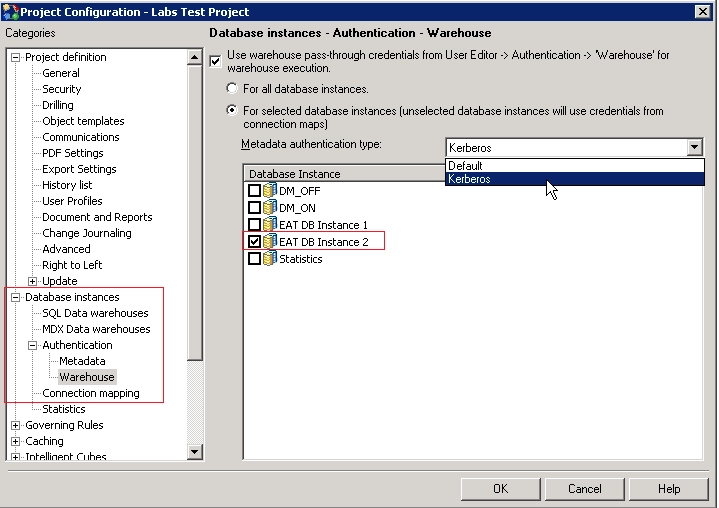
6. To use database passthrough, make sure to select the Metadata Authentication type to Kerberos from Project Configuration as shown below; Select the database instance that is connecting to Impala and is configured to use Windows Authentication(Step 4)
7. Log out of the project source and log back in with ‘Integrated authentication’.
KB262147
