EducationSoftwareStrategy.com
StrategyCommunity

Knowledge Base

Product

Community

Knowledge Base

TopicsBrowse ArticlesDeveloper Zone

Product

Download SoftwareProduct DocumentationSecurity Hub

Education

Tutorial VideosSolution GalleryEducation courses

Community

GuidelinesGrandmastersEvents
x_social-icon_white.svglinkedin_social-icon_white.svg
Strategy logoCommunity

© Strategy Inc. All Rights Reserved.

LegalTerms of UsePrivacy Policy
  1. Home
  2. Topics

KB299902: How to configure the MicroStrategy Google BigQuery ODBC Driver in Linux with MicroStrategy Secure Enterprise


Community Admin

• Strategy


This technical note specifically relates to MicroStrategy Secure Enterprise version 10.4.  To configure the MicroStrategy Google BigQuery ODBC Driver in MicroStrategy Secure Enterprise version 10.3, refer to KB299897.

This technical note specifically relates to Strategy Secure Enterprise version 10.4.  To configure the Strategy Google BigQuery ODBC Driver in Strategy Secure Enterprise version 10.3, refer to the following Strategy Knowledge Base document: 
 
KB299897: How to configure the Strategy Google BigQuery ODBC Driver in Linux with Strategy Secure Enterprise 10.3
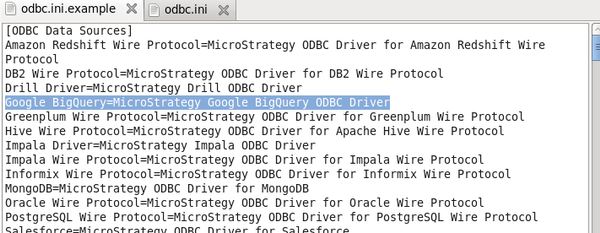
 

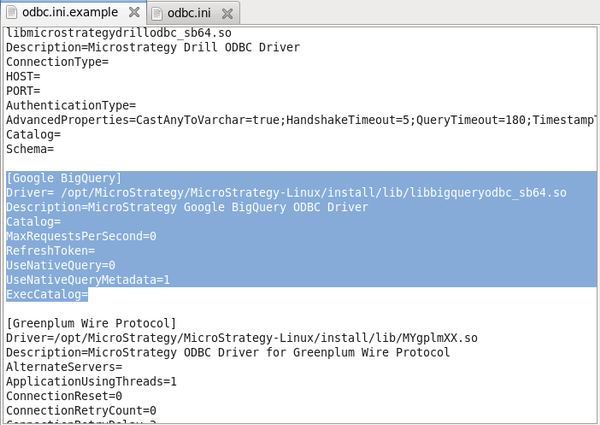
  1. Open the Strategy odbc.ini.example file and locate the example DSN for the Strategy Google BigQuery ODBC Driver.
ka04W00000148l6QAA_0EM440000002J9f.jpeg
ka04W00000148l6QAA_0EM440000002J9X.jpeg
  1. Copy the example DSN entries from the odbc.ini.example file into the Strategy odbc.ini file.  
ka04W00000148l6QAA_0EM440000002J9Z.jpeg
  1. Update the Strategy Google BigQuery ODBC driver DSN in the odbc.ini file to add the name of the Google BigQuery project in the Catalog entry of the DSN.  (Note:  If needed, also update the ExecCatalog entry to include the name of the project to bill for queries that are run.)

*The following Google documentation explains how to find the Google BigQuery Project ID to use in the Catalog/ExecCatalog entries of the DSN:   https://cloud.google.com/storage/docs/projects

ka04W00000148l6QAA_0EM440000002J9i.jpeg
  1. The Strategy Google BigQuery ODBC driver DSN requires a refresh token prior to connecting.  Generate this refresh token to authorize the connection to BigQuery by following the steps below.
    1. Open an internet browser and go to the following website: https://accounts.google.com/o/oauth2/auth?scope=https://www.googleapis.com/auth/bigquery&response_type=code&redirect_uri=urn:ietf:wg:oauth:2.0:oob&client_id=977385342095.apps.googleusercontent.com&hl=en&from_login=1&as=76356ac9e8ce640b&pli=1&authuser=0
    2. Type the credentials for accessing the BigQuery data, and then click Sign in.
    3. When prompted to allow BigQuery Client Tools to access data in Google BigQuery, click Accept, and then copy the code that Google provides.
    4. To generate the refresh token, run the get_refresh_token.sh shell script found in the lib directory of the Strategy installation directory (where the driver file, libbigqueryodbc_sb64.so, is also found), passing in the code that was copied in step c.  For example, 

/get_refresh_token.sh YourRefreshTokenWillGoHereAfterYouGenerateItFromGoogle

  1. Copy the refresh token from the output of the script. The refresh token is the text on the right side of the colon with no leading or trailing spaces.

/get_refresh_token.sh YourRefreshTokenWillGoHereAfterYouGenerateItFromGoogle
refresh_token : YouWillFindTheRefreshTokenHereAndWillCopyThisToTheDSN
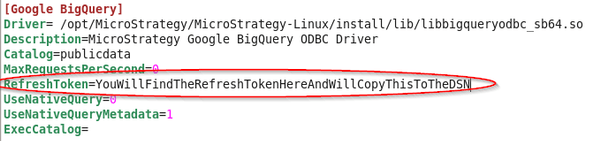
  1. In the odbc.ini file, set the RefreshToken value for the Strategy Google BigQuery DSN by pasting in the refresh token that was copied in step e.
ka04W00000148l6QAA_0EM440000002J9V.jpeg
  1. Save the odbc.ini file and exit.
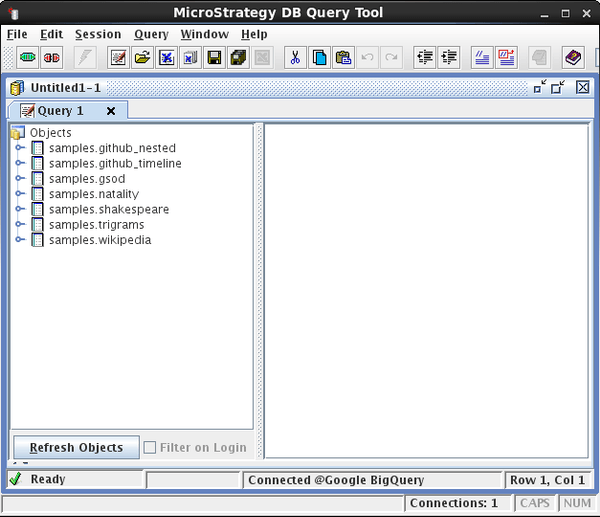
  2. Open the Strategy DB Query tool and test the connection to Google BigQuery with the newly created DSN.
ka04W00000148l6QAA_0EM440000002J9S.jpeg


KB299902


Comment

0 comments

Details

Knowledge Article

Published:

June 6, 2017

Last Updated:

December 31, 2018