EducationSoftwareStrategy.com
StrategyCommunity

Knowledge Base

Product

Community

Knowledge Base

TopicsBrowse ArticlesDeveloper Zone

Product

Download SoftwareProduct DocumentationSecurity Hub

Education

Tutorial VideosSolution GalleryEducation courses

Community

GuidelinesGrandmastersEvents
x_social-icon_white.svglinkedin_social-icon_white.svg
Strategy logoCommunity

© Strategy Inc. All Rights Reserved.

LegalTerms of UsePrivacy Policy
  1. Home
  2. Topics

KB316209: How to upgrade the Google Big Query Driver in MicroStrategy Secure Enterprise 10.4.x running on Windows Operating Systems


Community Admin

• Strategy


The following steps document how to upgrade the Google Big Query Driver in 10.4.x on Windows to the version of the driver shipped in MicroStrategy Secure Enterprise 10.5.x. The updated driver libraries can be found here. This documentation does not apply to MicroStrategy Secure Enterprise 10.4.x running on Linux, AIX, or Solaris environments. This upgrade helps overcome some limitations of the out-of-the-box driver provided in MicroStrategy Secure Enterprise 10.4.x, including the ability to use BigQuery Standard SQL.

Overview
The following steps document how to upgrade the Google Big Query Driver in 10.4.x on Windows to the version of the driver shipped in Strategy Secure Enterprise 10.5.x. The updated driver libraries can be found here. This documentation does not apply to Strategy Secure Enterprise 10.4.x running on Linux, AIX, or Solaris environments. This upgrade helps overcome some limitations of the out-of-the-box driver provided in Strategy Secure Enterprise 10.4.x, including the ability to use BigQuery Standard SQL.
 
Installation
Follow the steps below in order to install the new Google BigQuery Driver on an existing Strategy Secure Enterprise 10.4.x environment.
 
Backup and Driver installation:

  • Rename or create a backup of the existing BigQuery folder which exists in the <MSTR_COMMON_FILES>\ODBC directory(by default it is: C:\Program Files(x86)\Common Files\MicroStrategy\ODBC\BigQuery) 
  • Copy the BigQuery.7z file included in the GoogleBigQuery.zip file to the <MSTR_COMMON_FILES>\ODBC directory. 
  • Extract the BigQuery.7z to the current directory(<MSTR_COMMON_FILES\ODBC). After this, a folder called 'BigQuery' should be available within the <MSTR_COMMON_FILES\ODBC folder. 
    • If there are any file name conflicts, verify the directory doesn't already exist and step 1 was followed correctly.
  • Open regedit(Start > Run > Regedit) and navigate to the following location: 
     
    
    HKEY_LOCAL_MACHINE\SOFTWARE\MicroStrategy\Strategy Google BigQuery ODBC Driver 
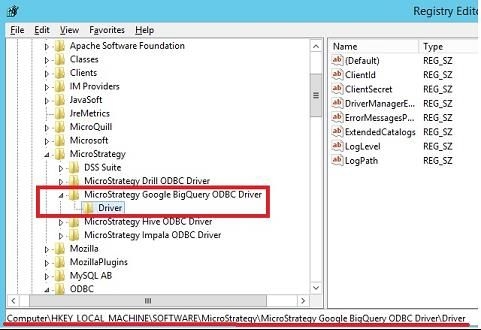

    as shown below:
ka04W00000147sbQAA_0EM440000002J9m.jpeg
  • Either rename or export the 'Driver' key to retain a backup.
  • Do the same with the following entry if it exists:
    
    HKEY_LOCAL_MACHINE\SOFTWARE\ODBC\ODBCINST.INI\Strategy Google BigQuery ODBC Driver

  • Run the two registry files included in the GoogleBigQuery.zip to add the required registry entries. 
    • HKLM_SW_MSTR_GOOGLE_BQ.reg
    • HKLM_SW_ODBCINST_INI_GOOGLE_BQ.reg
  • The upgraded Google BigQuery Driver should now be usable after restarting the Strategy Intelligence Server.

 
Important Note
If it is necessary to continue to use existing DSNs after upgrading the driver(instead of creating a new one), make sure to switch the Authentication Mechanism from default to User Authentication.
 

Upgrading the Google BigQuery Database Object

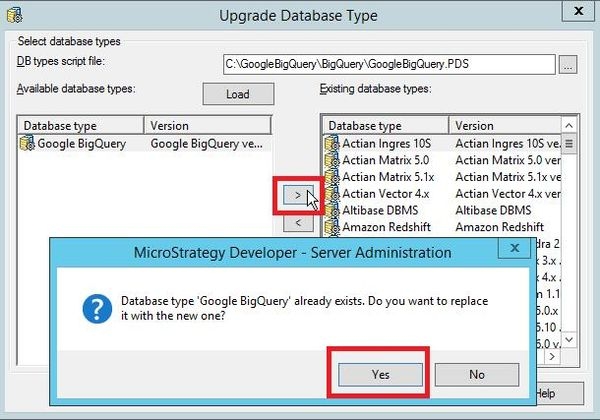
In order to upgrade the existing Google BigQuery database object, the following Technical Note can be referenced using the GoogleBigQuery.PDS included in the GoogleBigQuery.zip.
 
    KB43537 : How to install DBMS objects provided by Strategy Technical Support.
             
When prompted with information about 'Google BigQuery' already existing, click yes to replace it with the new one as shown below:
ka04W00000147sbQAA_0EM440000002J9e.jpeg


Updating the DSN-less connection for Strategy Web

  1. Navigate to the <MSTR_HOME>\Web ASPx\WEB-INF\xml (Default path is C:\Program Files (x86)\MicroStrategy\Web ASPx\WEB-INF\xml) and either rename or backup the existing DBProperties.xml file
  2. Copy the DBPropeties.xml file provided in the GoogleBigQuery.zip to the <MSTR_HOME>\Web ASPx\WEB-INF\xml.

 
 The Strategy internal reference number for this new driver is DE48875
 
Registry Modification:
WARNING:
Modifying registry values incorrectly may cause serious, system-wide problems that may require the re-installation of Microsoft Windows . Any edit of the registry is done at the user's own risk. Since these are user-initiated changes, they are not covered by any Strategy warranty. If using Microsoft Windows, the user should backup the registry and/or update an Emergency Repair Disk (ERD) prior to alterations.


Comment

0 comments

Details

Knowledge Article

Published:

May 13, 2017

Last Updated:

July 17, 2017