Enabling integrated authentication for IIS
Integrated authentication in Strategy requires communication between the Key Distribution Center (KDC), Internet Information Services 7.5 (IIS) and above, and Strategy Intelligence Server. IIS must be configured by the system administrator of the machine to enable integrated authentication.
The following information presumes that Kerberos (Integrated) authentication is already setup for the Strategy Intelligence Server as documented in the following technical notes:
KB19580 - How to setup Kerberos (Integrated) authentication for the MicroStrategy Intelligence Server 9.x on Microsoft Windows operating systems
KB19110 - How to configure MicroStrategy Intelligence Server Universal 9.x for Kerberos (Integrated) authentication on Unix/Linux operating systems
What is Kerberos?
Kerberos is a computer network authentication protocol, which allows individuals communicating over a non-secure network to prove their identity to one another in a secure manner. It provides mutual authentication wherein both the user and the server verify each other's identity using 'Kerberos tickets.'
Creating Active Directory Service account
1. Create Active Directory service user to run IIS application pool for Strategy Web.
2. Assign Service Principle Name (SPN) to user account using the following command:
SETSPN -A HTTP/fully.qualified.domain.name user-logon-name

Note: If Strategy Web is accessed with the machine name only, a second SPN must be assigned using the machine name (e.g. HTTP/machinename)
3. Verify the SPN is correctly set using the following command:
SETSPN -L user-logon-name

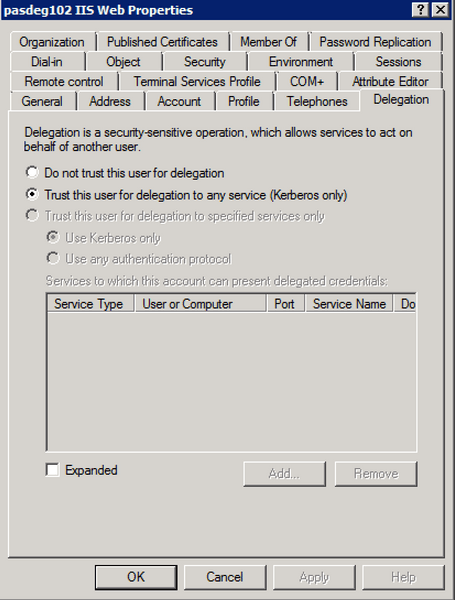
4. Enable Delegation for user account
Configuring IIS for Kerberos Integrated Authentication
The following set of steps must be taken to enable integrated authentication for Strategy Web on IIS 7.5 and above.
1. On the Strategy Web server machine, access IIS Manager.
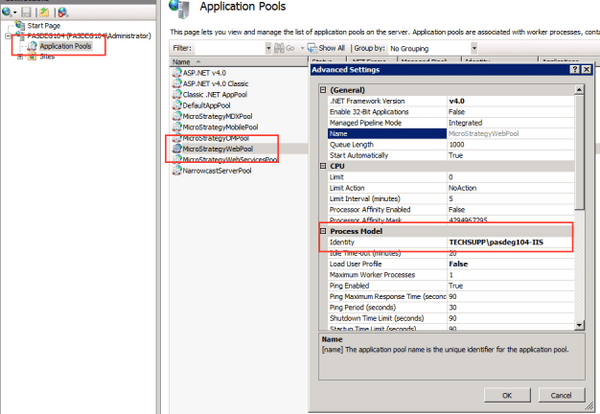
2. Browse to and Application Pools > StrategyWebPool and access Advanced Settings either through a right-click or the actions pane on the right hand side.
3. Under Process Model > Identity, set application pool identity the the user created in the previous section. Confirm and apply the changes.
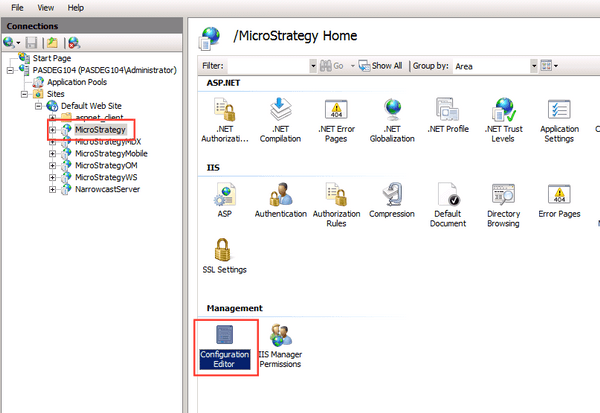
4. Browse to the Strategy virtual application by expanding "Default Web Site" and clicking on "Strategy". Open Configuration Manager.
5. Under section, select "system.webServer/security/authentication/windowsAuthentication" and set "UseAppPoolCredentials" to true. Select "Apply" and return to the Features view.
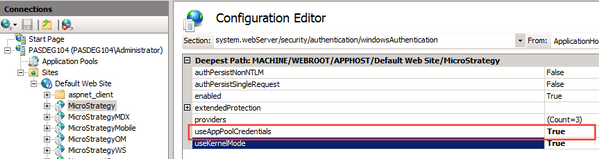
Note: For more information on UseAppPoolCredentials refer to the following link.
6. Again, select the Strategy application under Default Web Site and on the feature panel select "Authentication"
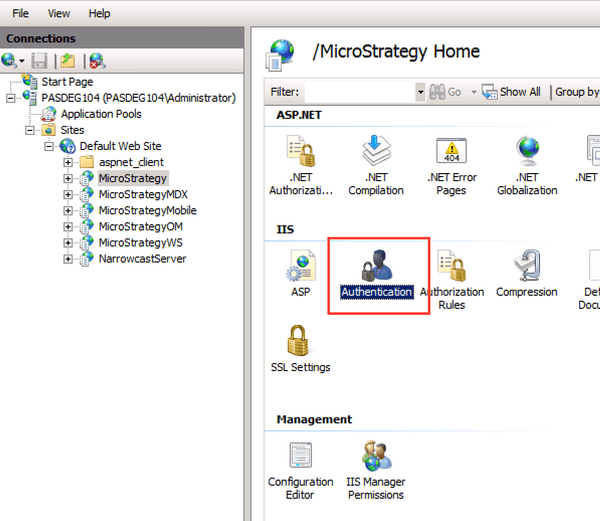
7. Enable/Disable the following:
- Anonymous Authentication: Disabled
- ASP.NET Impersonation: Enabled
- Basic/Forms authentication: Disabled
- Windows Authentication: Enabled
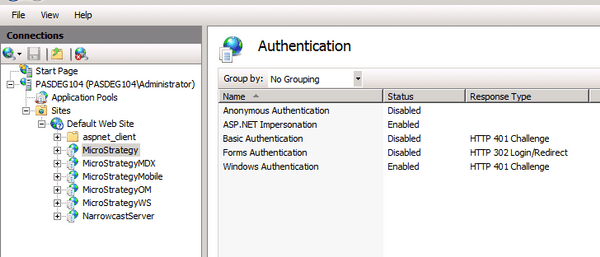
8. Restart IIS for the changes to take effect.
Enabling allowtgtsessionkey registry key
To enable single sign-on authentication to Strategy Web from a Microsoft Windows machine, a Windows registry setting must be modified on the machine hosting IIS. The value 'AllowTgtSessionKey' as a DWORD type must be created for the key: HKEY_LOCAL_MACHINE\SYSTEM\CurrentControlSet\Control\Lsa\Kerberos\Parameters, as can be seen below:
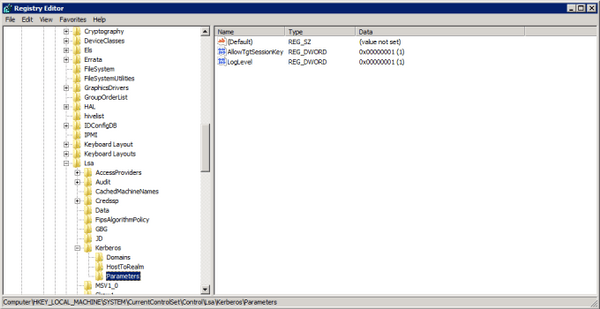
Modification of the allowtgtsessionkey registry setting is required by Microsoft to work with Kerberos security. For information on the implications of modifying the registry setting and steps to modify the registry setting, users should refer to the following Microsoft documentation:
For Microsoft Windows 2003 http://support.microsoft.com/kb/837361
Configuring the krb5.ini file
Successful communication between Kerberos, IIS, and Strategy also requires the configuration of the krb5.ini file. This file is included with an installation of Strategy Web, and can be found in the directory "Program Files (x86)\Common Files\Strategy".
default_realm = <DOMAIN REALM>

default_keytab_name = <path to keytab file>

forwardable = true

no_addresses = true


<DOMAIN_REALM> =

{kdc = <IP address of KDC>:88

admin_server = <IP address of KDC admin>:749

}


.domain_realm = DOMAIN_REALM
/**
 * Login Configuration for JAAS.

 */


com.sun.security.jgss.krb5.initiate {


  com.sun.security.auth.module.Krb5LoginModule required useTicketCache=true doNotPrompt=true debug=false;

};
