EducationSoftwareStrategy.com
StrategyCommunity

Knowledge Base

Product

Community

Knowledge Base

TopicsBrowse ArticlesDeveloper Zone

Product

Download SoftwareProduct DocumentationSecurity Hub

Education

Tutorial VideosSolution GalleryEducation courses

Community

GuidelinesGrandmastersEvents
x_social-icon_white.svglinkedin_social-icon_white.svg
Strategy logoCommunity

© Strategy Inc. All Rights Reserved.

LegalTerms of UsePrivacy Policy
  1. Home
  2. Topics

KB320454: How to configure Kerberos pass-through with Teradata for MicroStrategy Intelligence Server running on Linux Operating Systems


Community Admin

• Strategy


This document provides guidelines for setting up Kerberos pass-through with Teradata for MicroStrategy Intelligence Server running on Linux Operating Systems. 

This document provides guidelines for setting up Kerberos pass-through with Teradata for Strategy Intelligence Server 10.6 or higher running on Linux Operating Systems.
Prerequisites

  • Strategy Secure Enterprise 10.6 or higher
  • Teradata v16 or higher
  • Teradata ODBC drivers v15 or higher
  • Red Hat Linux 6.6 or higher

Procedure
The following document provides steps for configuring Integrated Authentication using Kerberos in a Unix environment, so this document will not cover those steps again:
KB19110 : How to configure Strategy Intelligence Server Universal 9.x for Kerberos (Integrated) authentication on Unix/Linux operating systems
Refer to the following document for steps to configure Kerberos authentication for Strategy Web:
KB33291 : How to configure Internet Explorer, Firefox, and Chrome for Integrated Authentication with Kerberos for Strategy Web 9.x
 

  • Teradata driver configuration
    • Once the Teradata driver is installed, open the readme and follow any pending instructions for a complete configuration. The only additional requirement is to define a JAVA_HOME and JAVA_LIB variables and make them available. To do that open the /root/.bahs_profile file with a text editor and add the following entry:
ka04W000001489MQAQ_0EM440000002J93.jpeg
  • Create an ODBC data source to the Teradata database
     
    • Since the environment is Linux, there is no odbcad32.exe tool that can help, the option chosen was to manually add the input through the ODBC.ini file
    • Open the /Strategy_path/odbc.ini.example file
    • Look for the TERADATA_SERVER source and copy the full entry for the DSN
    • Open the /Strategy_path/odbc.ini file
    • Past the copied text in the ODBC sources and change the following entries
      • Name of the source – Any name of choice. This is the element between brackets.
      • Add a new entry for the [ODBC Data Sources] using the name set above and make it of type TERADATA_SERVER
      • Set the path the Teradata dirver (/…/Teradata/client/ODBC_64/lib/tdata.so)
      • DBCName – set the name of the machine that is running the Teradata DB. Note that users  need to add the same name assigned to the Teradata SPN, do not use IP addresses here.
      • Add a new entry: MechanismName=KRB5
      • Leave Username empty
      • Leave Password empty
      • Change the Database to the Teradata database to be used
      • Repeat the above for the Default Database parameter

        The entry in the odbc.ini should be similar to the entry given below. After adding the DSN entry, the Strategy Intelligence Server needs to be restarted. 


[ODBC Data Sources]
TERADATA_SERVER_KERB=TERADATA_SERVER

[TERADATA_SERVER_KERB]
Driver=/opt/teradata/teradata/client/ODBC_64/lib/tdata.so
Description=Server running Teradata V2R5
DBCName=XXXX.test.example.com
SessionMode=Teradata
NoScan=Yes
RunInQuietMode=Yes
StCheckLevel=0
DateTimeFormat=AAA
LastUser=
MechanismName=KRB5
Username=
Password=
Database=TEST
DefaultDatabase=TEST
CharacterSet=
EnableExtendedStmtInfo=Yes
UseNativeLOBSupport=No
MaxRespSize=1048576


  1. Enable the Teradata database Instance to use Kerberos

NOTE: The instructions below are for the Strategy Developer machine that is to be used to create the DB instance and do the Passthrough configuration, but it is recommended to make this change on the PDS file on the Linux Intelligence Server machine as well (the DATABASE.PDS is found in the Strategy install folder: default folder is /opt/Strategy) 
  • Open the /Strategy_Path/DATABASE.PDS file with a text editor. The default location is in C:/Program Files (x86)/Common Files/MicroStrategy/
  • Look for the DSSOBJECT for Teradata : <DSSOBJECT TYPE="DBMS" NAME="Teradata 16.0" ID="@dbms240">
  • Go to the property set and add a new property:
    • <PROPERTY NAME="SupportsKerberos" VALUE="1"/>
  • Save and restart Strategy Developer and the Strategy Intelligence Server.
  • NOTE: There are multiple Teradata DBMS objects in this file, make sure that the correct entry (corresponding to the Teradata server version) is edited. 
     
  • Create the DB Instance and set it up for Kerberos Passthrough
    • Login with Developer to the Intelligence Server running on Linux as the administrator user
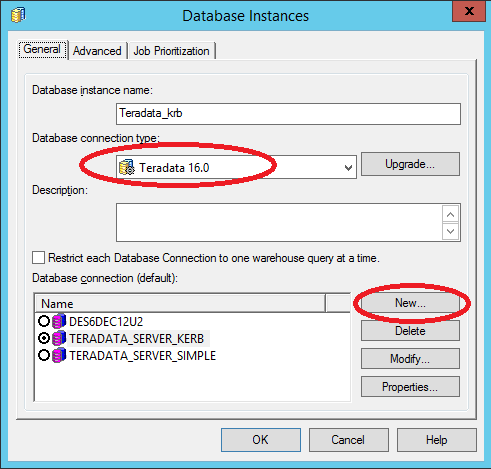
    • Go to configuration managers> Database Instances, and create a new one.
    • Set the DB connection type to Teradata 16.0 (If it is not available, add it via the Upgrade button)
ka04W000001489MQAQ_0EM440000002J9H.jpeg
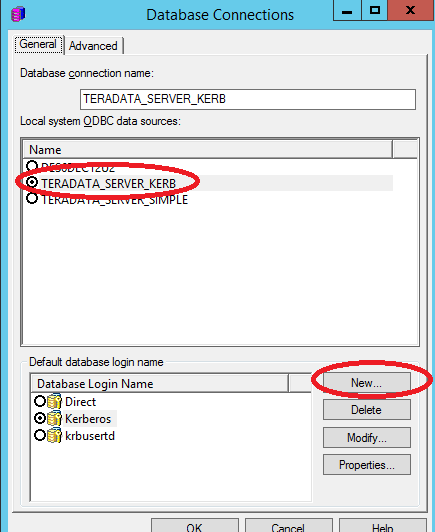
    • Click on the option to create a new database connection
    • Select the ODBC data source created in step 2
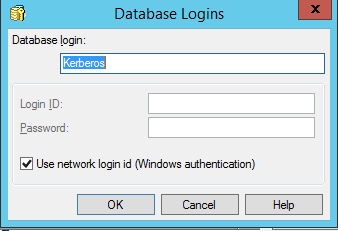
    • Create a new database login name and set it to use Windows authentication
ka04W000001489MQAQ_0EM440000002J96.jpeg
ka04W000001489MQAQ_0EM440000002J9B.jpeg
  • Click OK until all dialogues are closed.
  • Open the project configuration editor for the required Strategy project.
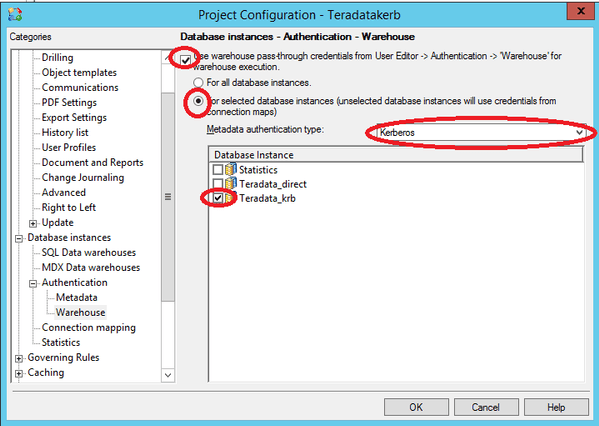
  • Open Database instances > Authentication > Warehouse
  • Make sure that "Use warehouse pass-trough credentials from user Editor for Warehouse execution" is checked.
  • Select the option: "For selected database instances"
  • Change the metadata authentication type to Kerberos
  • Check the database instance created in this section and click on OK to close the editor
ka04W000001489MQAQ_0EM440000002J9C.jpeg
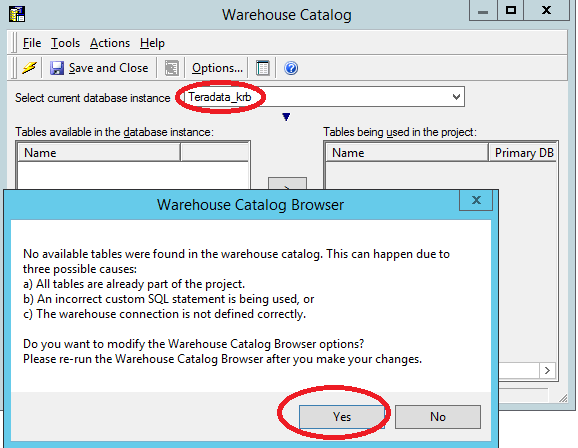
  • Open the project's warehouse catalog from: Schema> Warehouse Catalog
  • When the dialog opens, select the Teradata Kerberos database instance created in this section
  • Ignore the error that pops up and select "yes" to configure the WH Browser options
ka04W000001489MQAQ_0EM440000002J97.jpeg
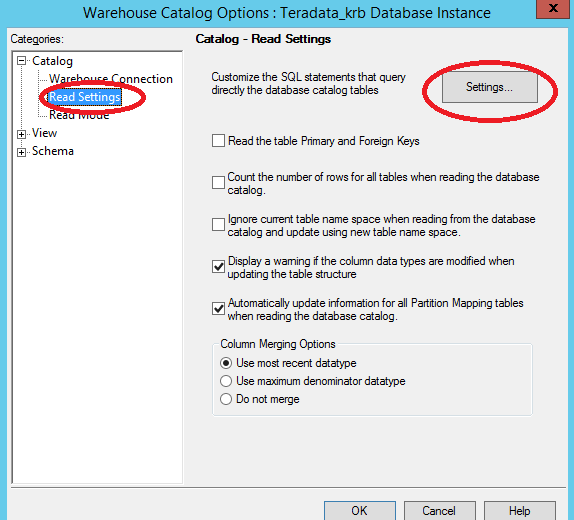
  • When the Options dialog opens, on the Warehouse connection, click on the Select button for Custom database login and make sure the Kerberos login is used.
  • Go to Read Settings. Click on the Settings button
ka04W000001489MQAQ_0EM440000002J99.jpeg
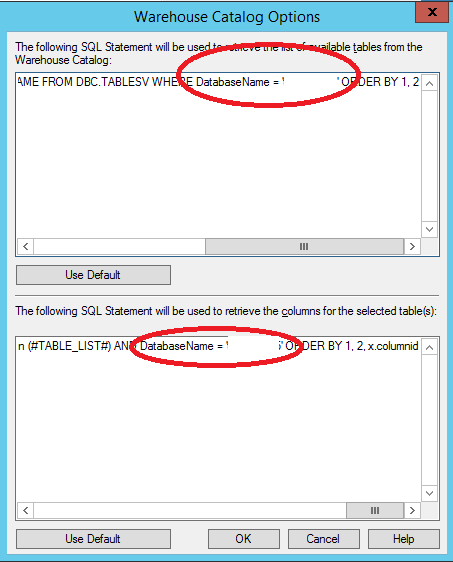
  • Click on the Use Default buttons (in the top and bottom sections) and SQL statement is added on both windows.
  • Scroll to the end of the statement and replace the DatabaseName entry with the actual database that will be used:
ka04W000001489MQAQ_0EM440000002J9A.jpeg
  • Click on OK to close all the editors and exit from Warehouse Catalog.
  1. Create a new project source to the Strategy Intelligence Server that uses Integrated Authentication or modify the existing one.
     
  2. Make sure the Kerberos ticket for the service is active. For example, if the ticket expires daily it has to be renewed every day:
    • Kinit “username”, then provide the password.
       

At this point the database is ready for Kerberos authentication passthrough, so assuming  that all other Kerberos environment setup is in place, the connection to the database should be successful and tables should be retrievable:
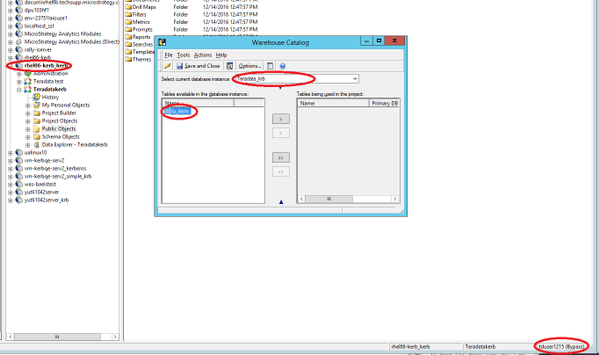
ka04W000001489MQAQ_0EM440000002J95.jpeg


KB320454


Comment

0 comments

Details

Knowledge Article

Published:

June 2, 2017

Last Updated:

December 29, 2018