SUMMARY: Integrated Authentication with Kerberos requires that the browser being used to access Strategy Web be configured to retrieve the currently logged in user from the client machine. The steps for enabling this functionality are different for the three certified browsers for Strategy Web 9.x. In all cases, Kerberos should already be configured on the Strategy Web server and the Strategy Intelligence server as a prerequisite. See the list of related articles at the bottom of this technical note for additional resources.
Internet Explorer
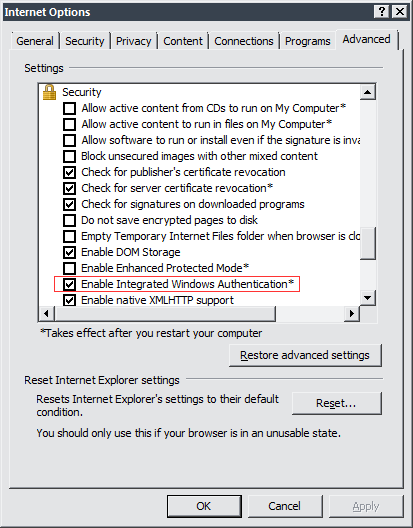
First, configure Internet Explorer to recognize Negotiate challenges from web servers configured to use these types of challenges (as they would be if they were protected by Kerberos). Navigate to Internet Options from the Internet Explorer menu and check the Enable Integrated Windows Authentication setting under the Advanced tab, like shown below:
Learn more about this setting from Microsoft resources such as this one.
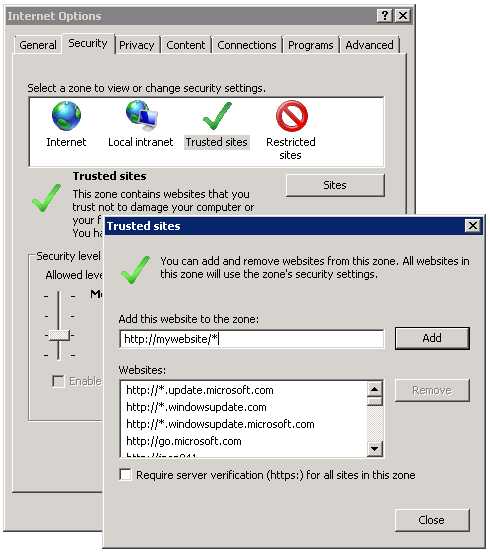
Second, configure Internet Explorer to place the Strategy Web site in a Security Zone that can serve credentials. For security reasons, Internet Explorer only allows Kerberos delegation to sites within the Intranet and Trusted Sites zones (see here for more information about Zones). For this reason, if Strategy Web is not automatically detected as belonging to either of these zones, add it to one of these zones manually:
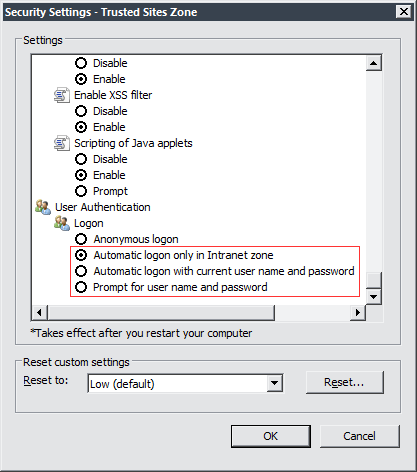
Third, within the specified zone, double-check the Security Settings by clicking on the Custom Level... button and confirm that Logon is not set to Anonymous logon. Instead, the setting should be set to an option that would allow the browser to pick up user credentials, like shown below:
Firefox
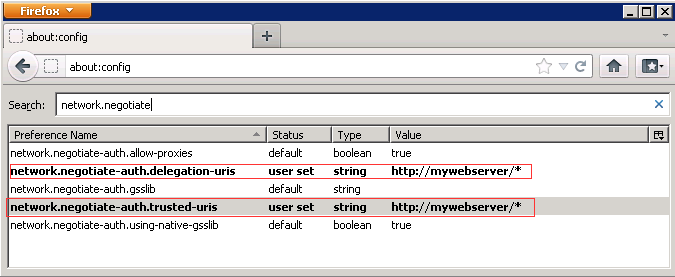
Firefox has two flags, network.negotiate-auth.trusted-uris and network.negotiate-auth.delegation-uris, which configure it to trust certain sites to use Kerberos (and to allow delegation). Add the Strategy Web site to these two flags by navigating to about:config like shown below:
Chrome
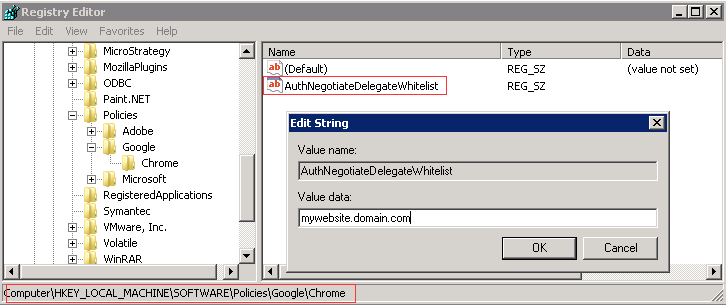
Chrome reads a key, AuthNegotiateDelegateWhitelist, which configures Chrome to allow certain sites to use Kerberos (and to allow delegation). The key can be implemented as a policy in a Group Policy Object or added manually in the registry on the client machine where Chrome is installed. To learn more about the policy, see here.
To add the key manually to the registry, close any open instances of Chrome and create a key with the path:
Computer\HKEY_LOCAL_MACHINE\SOFTWARE\Policies\Google\Chrome
and add a new String value named AuthNegotiateDelegateWhitelist. Populate this String with the host of the Strategy Web site, like shown below:
From Chrome version 101, the policy name "AuthNegotiateDelegateWhitelist" is no longer available. Instead the new policy name "AuthNegotiateDelegateAllowlist" should be used. For details, please refer to:
https://support.google.com/chrome/a/answer/7679408?hl=en
The machine does not have to be restarted for the changes to take effect.
Related articles
Third Party Software Installation WARNING
The third-party product(s) discussed in this technical note is manufactured by vendors independent of Strategy. Strategy makes no warranty, express, implied or otherwise, regarding this product, including its performance or reliability.
