EducationSoftwareStrategy.com
StrategyCommunity

Knowledge Base

Product

Community

Knowledge Base

TopicsBrowse ArticlesDeveloper Zone

Product

Download SoftwareProduct DocumentationSecurity Hub

Education

Tutorial VideosSolution GalleryEducation courses

Community

GuidelinesGrandmastersEvents
x_social-icon_white.svglinkedin_social-icon_white.svg
Strategy logoCommunity

© Strategy Inc. All Rights Reserved.

LegalTerms of UsePrivacy Policy
  1. Home
  2. Topics

KB33276: How to set up Kerberos authentication in Tomcat 9.x for MicroStrategy Web.


Community Admin

• Strategy


PREREQUISITES

  1. Before completing the steps in this technical note, make sure that the Strategy Intelligence Server is configured correctly to use Integrated Authentication using technical note KB19110 .

    Note: The MicroStrategy Product Manuals - System Administration Guide  (PDF) - Chapter 3 IDENTIFYING USERS: AUTHENTICATION - Enabling single sign-on authentication - Enabling integrated authentication contains all the information necessary to implement integrated authentication in the context of Strategy.


  1. Create a user for the Strategy Web Server service following technical note KB33289.

Warning: The integration of Kerberos is done at the server level. When configuring Strategy Developer for Kerberos the server that integrates with Kerberos is the Strategy Intelligence server. However, when configuring Strategy Web, the integration with Kerberos, at the server level, is with the 3rd party application server, eg. Tomcat, Websphere, Weblogic. This technical note is meant as a guide only and does not imply that Strategy Technical Support is an expert on integrating Kerberos with 3rd party tools.
 

INTRODUCTION

This technical note contains the following sections:

  1. Configuring the Web Application Server (3rd party software)
    1. Create krb5.conf
    2. Create jaas.conf
    3. JVM startup arguments
    4. Generate krb5.keytab
  2. Configuring the Strategy Web Universal application
    1. Enable the spnego filter
    2. Select Integrated Authentication

ACTION

  1. Configuring the Web Application Server (3rd party software)
    To enable integrated authentication in the third party application server, perform the following configurations:
  1. Create the krb5.conf file

The krb5.conf or Kerberos configuration file, is a text file which controls the Kerberos configuration. It can be manually created anywhere in the system, although for ease of maintenance all configuration files should be created under the same folder.
 
By default, the contents of the krb5.conf are the following:


[logging]
default = /var/log/krb5libs.log
kdc = /var/log/krb5kdc.log
admin_server = /var/log/kadmind.log

[libdefaults]
default_realm = DOMAIN.REALM.COM
default_keytab_name = /opt/kerberos/default_keytab_name.keytab
default_tkt_enctypes = aes256-cts arcfour-hmac-md5 aes128-cts rc4-hmac des3-cbc-sha1 des-cbc-md5 des-cbc-crc arcfour-hmac
default_tgs_enctypes = aes256-cts arcfour-hmac-md5 aes128-cts rc4-hmac des3-cbc-sha1 des-cbc-md5 des-cbc-crc arcfour-hmac
forwardable  = true
no_addresses = true

[realms]
DOMAIN.REALM.COM = {
   kdc = domain.realm.com:88
   admin_server = domain.realm.com:749
}

[domain_realm]
.domain.realm.com = DOMAIN.REALM.COM
domain.realm.com = DOMAIN.REALM.COM

Explanations:
DOMAIN.REALM.COM: This is the domain realm used for authentication purposes. A domain realm is commonly of the form: example.com or realm.example.com.
Note: The capitalization of DOMAIN.REALM.COM must match the capitalization used in the syntax for the krb5.conf listed above. For example, if DOMAIN.REALM.COM is in uppercase, include the domain realm in uppercase here.
kdc: This is the IP address of the Kerberos KDC or the Windows machine that hosts the Active Directory domain controller. This can be the same IP address as the admin_server.
admin_server: This is the IP address of the Windows machine that hosts the Active Directory domain controller admin server. This can be the same IP address as the kdc.
default_keytab_name: This is the location where the keytab file is located.
Create the jaas.conf file
The jaas.conf file should be created manually and its content differs depending on the JDK version used. Use one of the following:
SUN/ORACLE/OPEN JDK 

com.sun.security.jgss.krb5.accept {
        com.sun.security.auth.module.Krb5LoginModule required
        principal="user_principal_name@DOMAIN.REALM.COM"
        useKeyTab=true
        keyTab="/path/to/keytab/default_keytab_name.keytab"
        doNotPrompt=true
        storeKey=true
        debug=true;
};

IBM JDK

com.ibm.security.jgss.krb5.initiate{
              com.ibm.security.auth.module.Krb5LoginModule required
              principal="user_principal_name@DOMAIN.REALM.COM"
              useDefaultKeyTab=true
              storeKey=true
              credsType=acceptor
              forwardable=true
              debug=true;
};

Note: The principal name in the jaas.conf has to match the principal name created above for the Web Application Server user.  
 

  1. JVM startup arguments
    For J2EE compliant application servers, add the following JVM startup arguments:
    
    -Djava.security.auth.login.config

    Include the absolute path to the jaas.conf file
    
    -Djava.security.krb5.conf 

    Include the absolute path to the krb5.conf file
    
    -Djavax.security.auth.useSubjectCredsOnly 

    Define this parameter as false.

 
As an example, this can be set in a separate setenv.sh/setenv.bat file saving it to the bin folder of the tomcat installation. When installed on Linux OS, example of entry:

export JAVA_OPTS="$JAVA_OPTS -Djava.security.auth.login.config=/opt/kerberos/jaas.conf -Djava.security.krb5.conf=/opt/kerberos/krb5.conf -Djavax.security.auth.useSubjectCredsOnly=false"

 
When installed on Windows, example of entry within setenv.bat file:
set JAVA_OPTS=-Djava.security.auth.login.config=/opt/kerberos/jaas.conf -Djava.security.krb5.conf=/opt/kerberos/krb5.conf -Djavax.security.auth.useSubjectCredsOnly=false
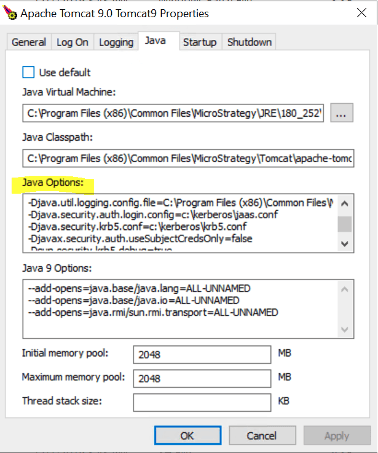
 
Or when Tomcat is installed as a service on Windows, you will use the GUI application to configure it within the Java Options (this can be accessed by executing the tomcat9w.exe and selecting the Java tab):

ka0PW0000000vazYAA_0EM4W000003AOjH.jpeg
  1. Generate the keytab

Follow the steps outlined in https://kb.iu.edu/d/aumh to create the keytab. Note that the UPN, not the SPN, should be specified as "username" in the command below:


addent -password -p username@ADS.IU.EDU -k 1 -e rc4-hmac

 
another example when using Windows OS command line to generate the keytab:
ktpass -out krb5.keytab -princ UPN@DOMAIN -pass <password for UPN> -kvno 2 -ptype KRB5_NT_PRINCIPAL -crypto All
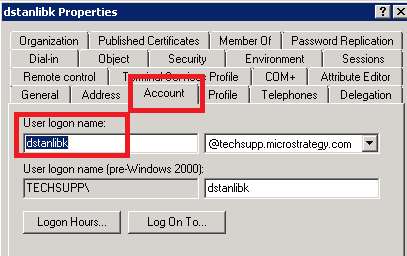
Note: The username or principal parameter should be whatever the logon name for the Active Directory user is as already mentioned above indicating the principal in the jaas.conf. Below is a screenshot noting the location to find this in Active Directory under the Account tab (in this user’s case, it is dstanlibk):

ka0PW0000000vazYAA_0EM44000000QHCr.png

Further, please then adjust krb5.conf and jaas.conf with the correct location and name of the generated keytab file.
 

  1. Configuring Strategy Web Universal Application - There are only two steps to configure the Strategy Web application to integrate with Kerberos.


  1.  Enable the spnego filter.

After deploying the Strategy Web Universal WAR file, the web.xml file must be modified to support integrated authentication. Locate the file at:


/%tomcat_home%/webapps/MicroStrategy/WEB-INF/web.xml

Remove the comments around the spnego filter information to enable it, as shown below:

<filter>
	<display-name>SpnegoFilter</display-name>
       	<filter-name>SpnegoFilter</filter-name>
       	<filter-class>com.Strategy.web.filter.SpnegoFilter</filter-class>
</filter>
<filter-mapping>
       	<filter-name>SpnegoFilter</filter-name>
       	<servlet-name>mstrWeb</servlet-name>
</filter-mapping>


Save the web.xml file and restart the Web application server.

  • Select Integrated Authentication.
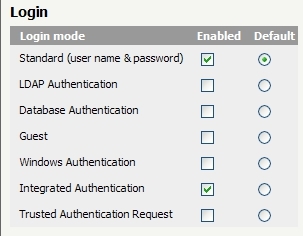
    For Strategy Web users log in using Kerberos, select Integrated Authentication as an available login mode in the Strategy Web Admin page > Default Properties > Login, as shown below:

ka0PW0000000vazYAA_0EM4400000027zf.jpeg
  • Click save at the bottom of the page. 

After successfully configuring Strategy Web and Kerberos, users will be able to log in to Strategy Web using Integrated Authentication either by clicking on the "Integrated Authentication" link or automatically, if Integrated Authentication was set as the default authentication method. 
Third Party Software Installation WARNING:
The third-party product(s) discussed in this technical note is manufactured by vendors independent of Strategy. Strategy makes no warranty, express, implied or otherwise, regarding this product, including its performance or reliability.


Comment

0 comments

Details

Knowledge Article

Published:

June 29, 2017

Last Updated:

February 26, 2024